---
title: "Create a guest WooCommerce order tracking page"
url: "https://kestrelwp.com/blog/create-woocommerce-order-tracking/"
description: "Customers want to know where their order is at all times! Creating a WooCommerce order tracking page for any customer helps you build trust."
published: "2024-06-27T14:00:00+00:00"
modified: "2026-10-07T18:10:44+00:00"
---
Real talk: fulfilling orders is one of the **hardest parts of ecommerce**. Getting items quickly to your customers is critical to build trust and your brand’s reputation – after all, you want these customers to come back and purchase again. One way to help build trust during the fulfillment process is to help customers keep an eagle-eye on the status of their order.
However, there’s no first-class concept of a WooCommerce order tracking page. Registered customers can always log into their accounts to view their previous orders and see what order status looks like, but for most stores, the majority of purchases are made by *guests*, not people with an account.
When a **guest** places an order on your store, they can only revisit the order confirmation page if they save the direct URL to it – the format is usually something like this:
```
https://mystore.com/checkout/order-received/{OrderId}/?key=wc_order_{OrderKey}
```
The order key is a random set of numbers and letters, and is *not* something the user ever sees in an email or on the page (in fact, most email apps don’t use this format even if they send the link to track an order). So, if your customer doesn’t save this URL, they can *never get back to view the order details*.
Let’s give your order tracking page a permanent roost, shall we?
## Use the WooCommerce order tracking shortcode
Most [WooCommerce shortcodes that are available](https://woocommerce.com/document/woocommerce-shortcodes/) are pre-installed somewhere on your site (e.g. the shortcode to create your “my account” page). There’s a very useful one, though, that isn’t included anywhere by default:
```
[woocommerce_order_tracking]
```
When you use this shortcode on a page, it outputs a tracking form that lets *anyone*, whether a guest or registered customer, input their order number and billing email to view the order status.
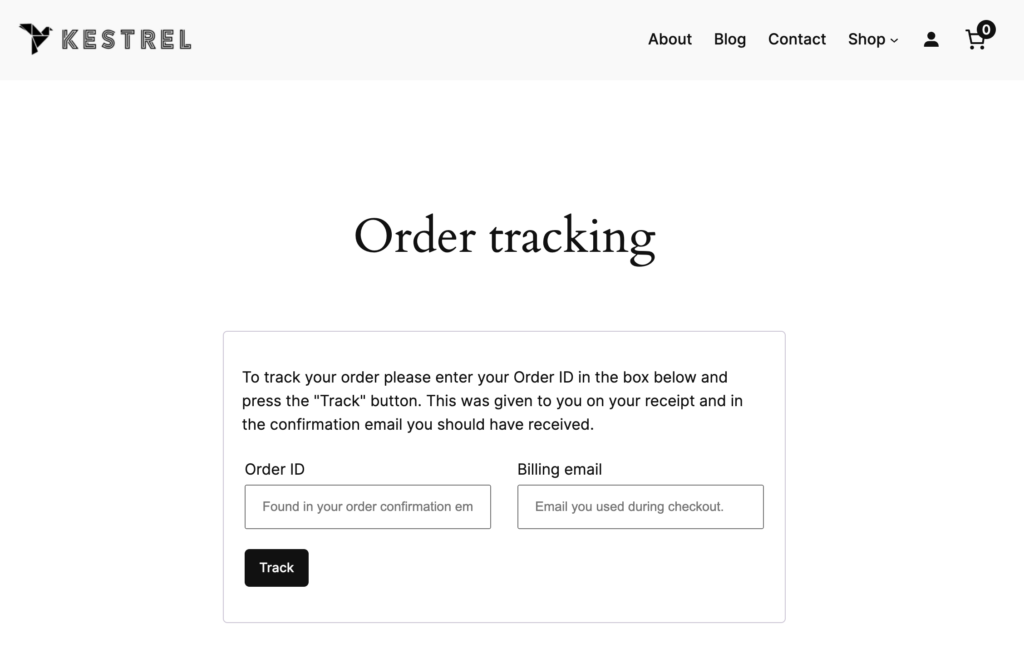 The WooCommerce order tracking shortcode output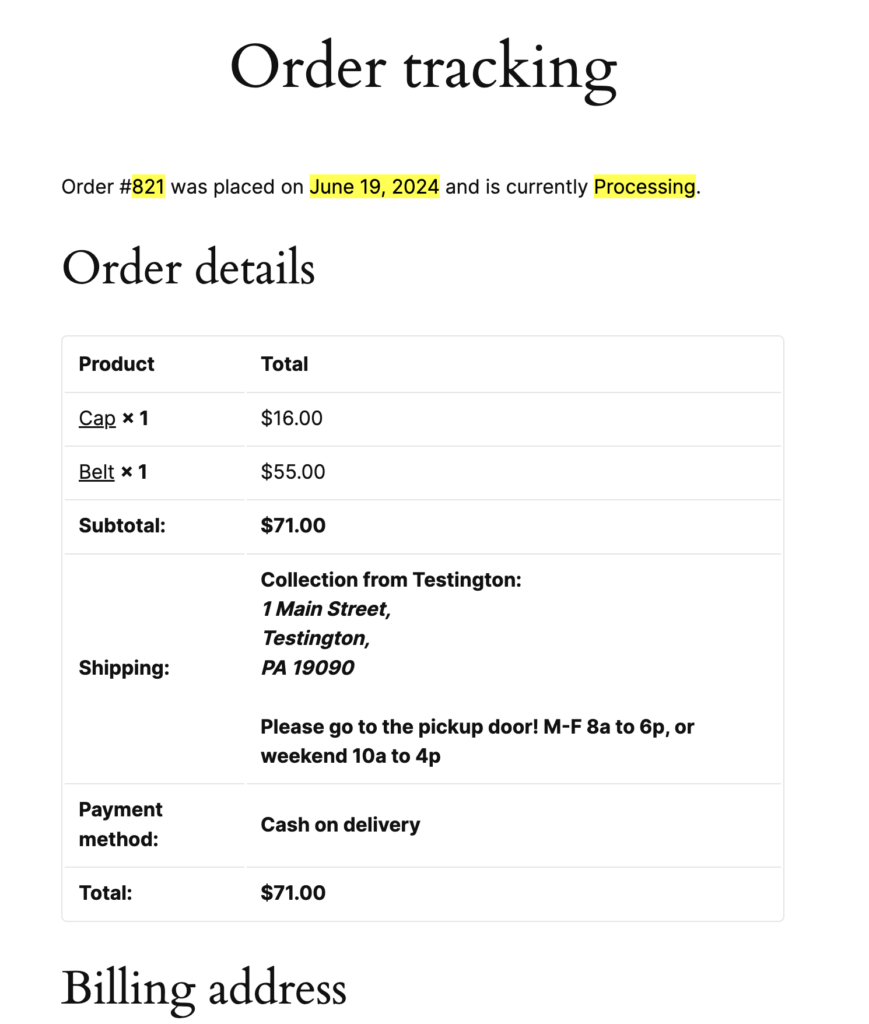 What customers will see after they enter order details
If you have this shortcode on a page, you can simply share the link to your WooCommerce order tracking page with *everyone*, and now all of your customers can revisit the order tracking details, giving them peace of mind that their items are safely migrating to their mailboxes.
## Create an enhanced WooCommerce order tracking page
Now of course, you could add a new page to your site and be done – but I think there’s a better perch for this form. I’d prefer to have this live on the account area of my site, so customers can choose to log in *or* just look up an individual order.
I’m going to install the [Block Visibility plugin](https://wordpress.org/plugins/block-visibility/) to help me with this! You can search for “block visibility” under **Plugins \> Add New** and it should be the first result you see. Click “Install Now” then “Activate” to add this to your site – it lets you control *when* a specific block (or group of blocks) is shown to visitors of your online store.
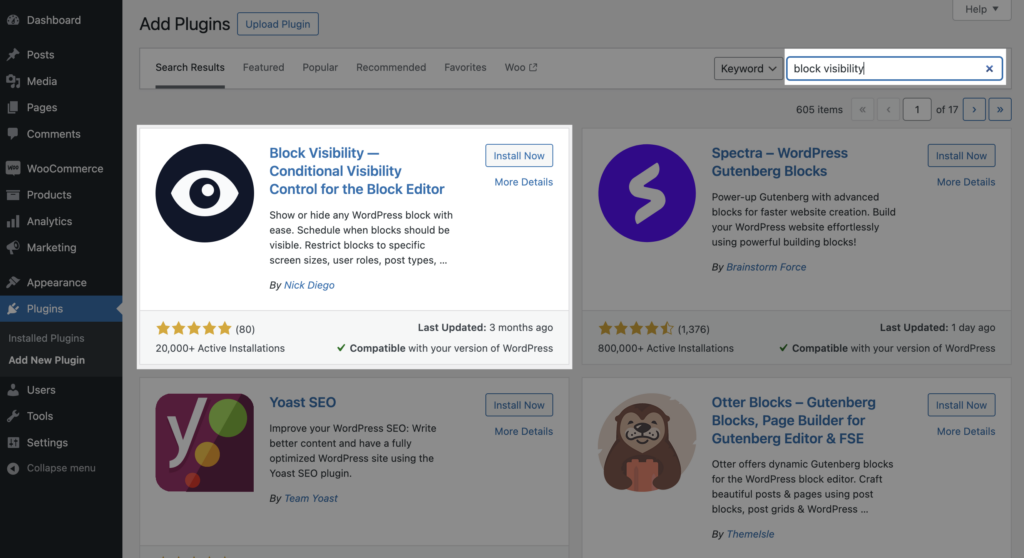 My plan for my WooCommerce order tracking page is to use Block Visibility to:
- Show the login form alongside the tracking form *if the customer is logged out*
- Just show the account area *if the customer is logged in*
My WooCommerce settings do not allow registration on the account page, which is why this works for me. (I won’t have both login *and* registration forms.) If you allow registration on your account page, you may want to adjust your layout from what I’ve proposed here instead of putting the account and order tracking side-by-side.
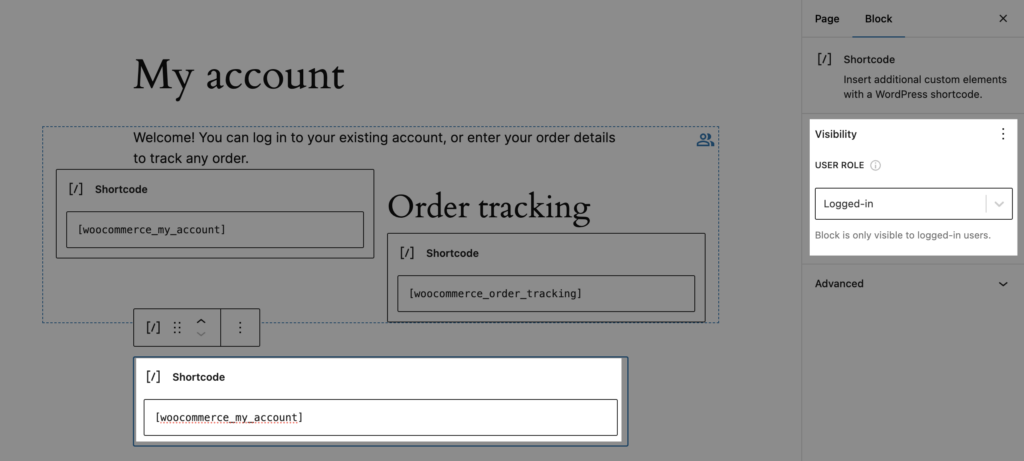
So first, I edit the **My account** page and add a group of blocks above the existing shortcode. Inside the group, I added an introduction paragraph for customers, and added a *column* block with two columns. (Note that I also made my group “wide” width on my site, you can adjust the way it looks to fit your theme.)
- In the first column, I added a shortcode block to add `[woocommerce_my_account]` – note that we are duplicating this shortcode, because we’ll show it once for logged out users, and once for logged in users – so none of my customers will see any duplicate content.
- In the second column, I added a heading for “Order tracking” and another shortcode block for `[woocommerce_order_tracking]`.
Then I changed the visibility of that whole group to only show to logged out users.
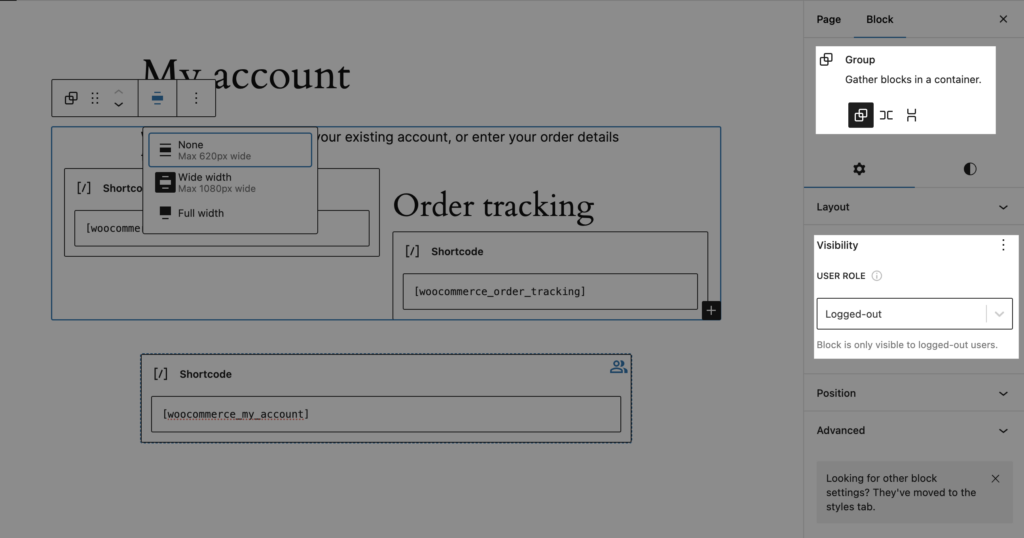 Create a block group to show to logged out usersNext I selected the existing “My account” shortcode block, and restricted its visibility to *logged in* users. So this way, if the user is logged in, they only see the account area, and not the order tracking form.
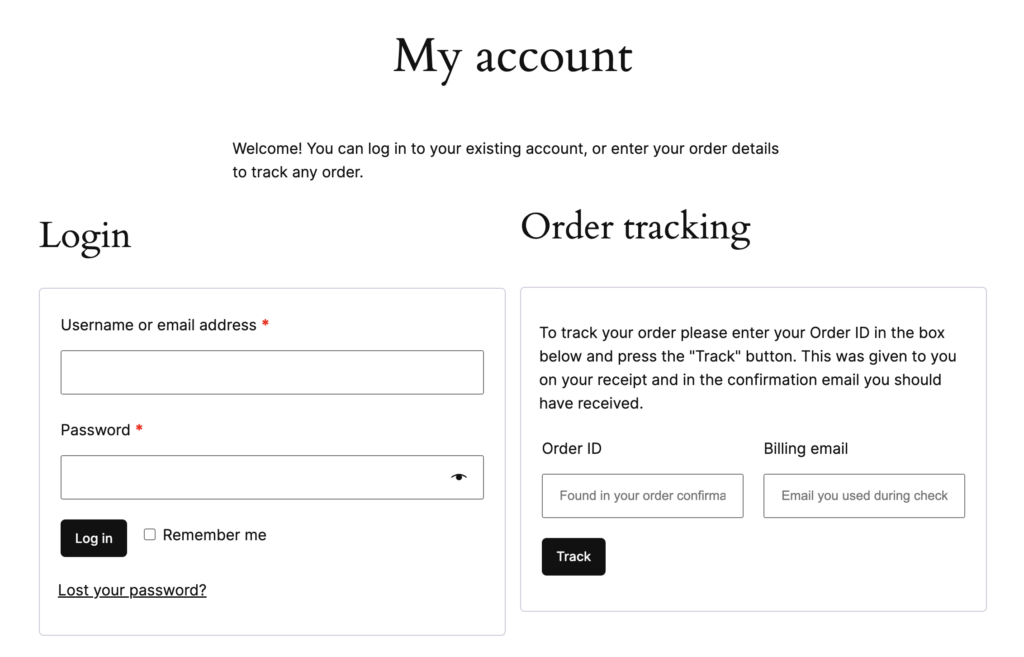
 Create the logged in viewFinally, run through a test! When I view the account page *logged out*, I see the ability to login, or just track a single order.
 What customers see while logged outAnd once I log in, I only see the account area, instead of the login or order tracking forms (notice I also no longer see the paragraph in my hidden group telling me what to do).
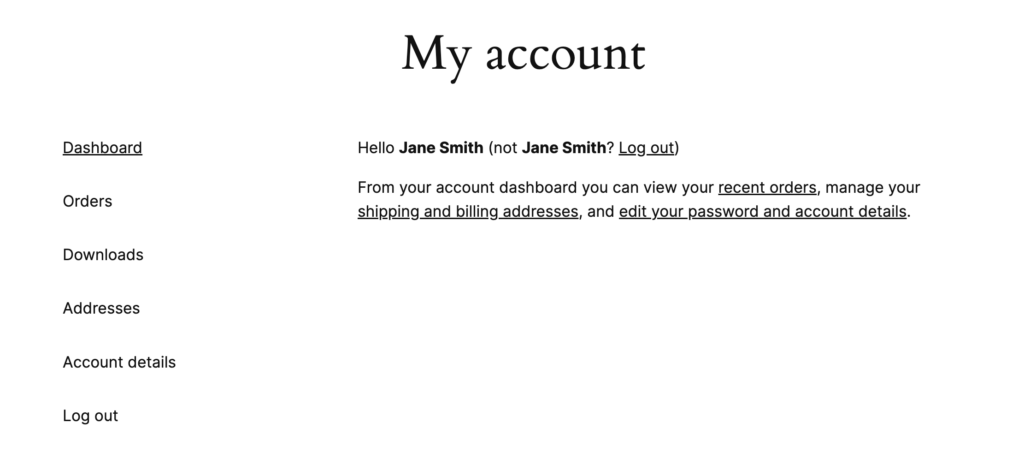 When logged in, customers simply see the account area as usual## Copy our WooCommerce order tracking page
Want the same layout for your own account page? You can expand the section below to see how to copy our block HTML and paste it into your own site.
View the block code You can copy and paste a group of blocks to your own site by using the *Code editor* from the top right menu:
 Here’s the block HTML for you to copy and paste, assuming you already installed the **Block Visibility plugin**:
```
Welcome! You can log in to your existing account, or enter your order details to track any order.
[woocommerce_my_account]
Order tracking
[woocommerce_order_tracking]
[woocommerce_my_account]
```
# Share your WooCommerce order tracking page
Now you can simply share the link to your **My account** page with all of your customers to let them track their own orders! Anyone, including guests and registered customers, can keep tabs on their order and see when order statuses change, when order details change, or when [tracking numbers](https://kestrelwp.com/go/woo/shipment-tracking) are added directly on your site.