---
title: "Supporting plugin classic templates in block themes"
url: "https://kestrelwp.com/blog/use-classic-templates-in-block-themes/"
description: "Add support for classic templates in block themes (like header and footer). Replace get_header and get_footer with block header and block footer template parts."
published: "2024-02-22T17:14:51+00:00"
modified: "2026-10-07T18:11:00+00:00"
---
Building this site was an exciting and interesting process for our team, as none of us had extensively used Full Site Editing \[FSE\] yet. A fresh site was a great excuse to dig into FSE and the full power of blocks to create a (hopefully) modern WP site.
While I have Thoughts™ on FSE I’ll save for later, I did run into a practical issue I couldn’t really find any tutorials on:
- We wanted to host [documentation](/docs/) on-site to benefit from analytics, cross-sell opportunities, and easy hand offs to our support forms (eventually, embedding a chat widget).
- We decided on a [plugin](https://herothemes.com/plugins/heroic-wordpress-knowledge-base/), but wanted to incorporate it into our existing theme (vs using their recommended theme).
- When activated, documentation archives and articles looked strange — these templates showed their content but did not use our existing header, navigation, or footer. We realized the plugin used “classic” templates rather than block-based templates or patterns.
- **This meant that our site rendered the WordPress default header and footer** rather than using the block-based template parts we used throughout the site. As you can imagine, this looked pretty terrible — it had just a large site name, no navigation, and a default “Powered by WordPress” footer.
Now obviously that just won’t do. ???? It took a painful few hours to figure out how to use classic templates in block themes, specifically to load block template parts (especially to someone very new to FSE).
The outcome I wanted to get: **use a block header and block footer on a classic theme template**. Let’s dive in!
You must use WordPress 6.1 or newer for this tutorial to work.
## Create a block child theme
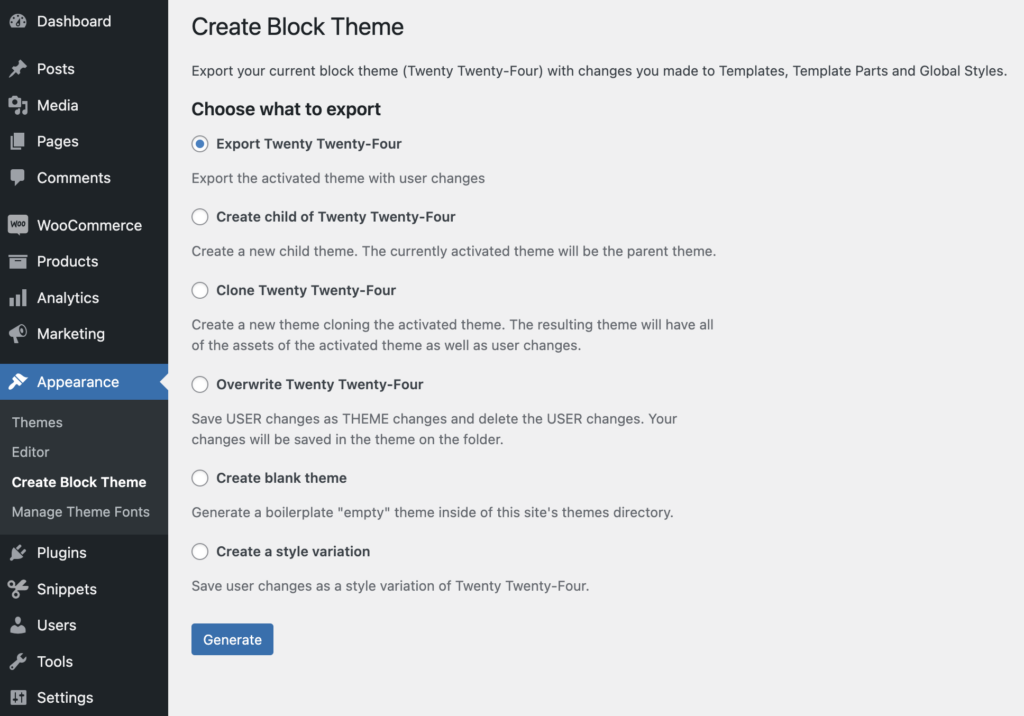
I already had a child theme created for the site, but if you don’t you should start here. The really easy way to do so is to use the [Create Block Theme plugin](https://wordpress.org/plugins/create-block-theme/). Once installed it adds new options under **Appearance** to create a theme.
From here, you can download a child theme of your site, then upload & activate this safely — it brings in template part customizations you may have already made in the parent theme.
## Add header & footer template files
Now I have no idea if this is a *good* way to solve my problem, so I’d love to hear different ideas in the comments! I had to learn the vocabulary I needed to search for helpful content, so it’s very likely I may not have formed a good search query to find a better solution.
That said, my issue was clearly related to the header and footer of my site. The documentation plugin had a template for archives and articles that called `get_header()` and `get_footer()` in its template, which would show these template parts in a classic theme.
Block-based themes have no such concept; there are no php templates for the header and footer, so these functions just fallback to a basic WordPress header and footer instead of rendering the new template parts.
(As an aside, I really hated this — why, given how important these methods are, would we ship FSE *without* a fallback for something as critical as navigation? [Go +1 this issue](https://github.com/WordPress/gutenberg/issues/33989). ``)
BUT you can still add your own templates as a “shim” for plugins that may be using these functions in their own custom templates. The `block_header_area()` function was added in [WordPress 5.9](https://developer.wordpress.org/reference/functions/block_header_area/) along with a corresponding `block_footer_area()` method, so we’ll call these from within our “legacy” templates.
### Header template
In the root directory of your child theme (the main folder), we’ll create a `header.php` file, and add the following to it:
```
>
>
```
This will output the standard document and body opening tags, `wp_head` hook for styles and scripts, and instead of rendering a legacy header, render the block header you’ve created!
We’re getting somewhere now!It’s not *quite* right yet in terms of styling, but we’ll address that in a minute.
### Footer template
Now we need to do the same thing with the footer. Create a `footer.php` file in the theme root directory where you just created the header template. We’ll close the body tags, and render the block footer here, too.
```
```
### A note about block styles
Notice one thing in our footer template: we call `wp_enqueue_stored_styles()` before `wp_footer()`. (This is also why you need to be using [WordPress 6.1](https://developer.wordpress.org/reference/functions/wp_enqueue_stored_styles/) or newer.)
This is because your new block-based template parts will have some global styles, but they’ll also have specific styles that have been applied from your template parts. These are printed *inline on the page* when these blocks are rendered; unfortunately, calling the block area functions is not enough to also print these styles automatically.
Here’s an example of a before and after, to show why this is so critical:
 Before: No styles applied
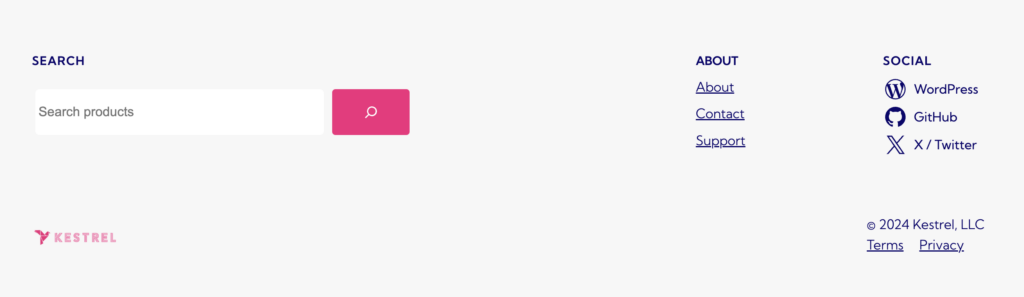 After: Output inline block styles
In a block-based theme, inline styles can be output in the header area of the site. However, in a classic theme, they must be output in the body. Calling `wp_enqueue_stored_styles()` in your footer template is sufficient to make sure that the styles (especially for alignment!) of your header and footer are just right.
Once you have this included in the footer template, it should resolve any style issues in your header, too!
This method of creating a classic header and footer “shim” should work for other plugins that expect to be installed in a classic theme rather than in a block-based FSE theme.