When a customer needs to modify their rental dates after placing an order, you can’t edit the dates directly. The rental dates are tied to inventory reservations, so changing them requires canceling the original rental and re-adding the product with new dates.
This guide walks you through the process step by step without losing inventory accuracy or creating double bookings.
Why you can’t edit rental dates directly
When a customer books a rental, the plugin reserves that inventory for those specific dates. The reservation prevents other customers from booking the same item during that period.
If you could edit dates directly, the system wouldn’t know to release the old dates or check availability for the new ones. You’d end up with ghost reservations blocking inventory that should be available, or double bookings where two customers have the same item on the same dates.
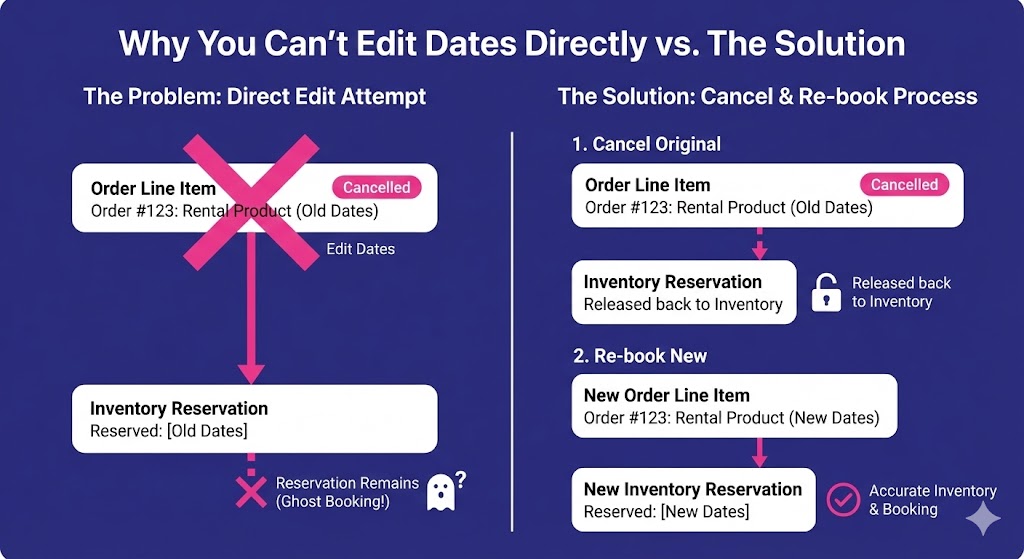
The cancel-and-rebook process ensures your inventory stays accurate.
Step-by-step process
1. Cancel the existing rental
Open the order in WooCommerce and locate the rental line item. Click the Cancel Rental button.
This does two things:
- Marks the rental as cancelled
- Releases the reserved dates and quantities back to available inventory
The order itself stays intact. You’re only canceling the rental reservation, not the entire order.

2. Set the order to an editable status
WooCommerce only allows line item changes on certain order statuses. If your order is set to Completed or Processing, you may need to change it to Pending or On Hold before adding new items.
Check your order status in the Order Details section. If needed, update it to an editable status.
3. Add the product again with new dates
Click the Add item(s) button on the order edit screen. Search for and select the same rental product.
When you add the product, you’ll be prompted to enter rental dates. Enter the customer’s new desired dates. The system will check availability against current inventory before allowing the addition.
4. Adjust pricing if needed
Depending on the date change, the rental price may differ. Review the line item totals and adjust as necessary:
- Dates are longer: You may need to collect an additional payment
- Dates are shorter: You may need to issue a partial refund
- Same duration, different dates: Price likely stays the same (unless you have date-based pricing rules)
Use the line item controls to modify totals, or process a refund/payment through your payment gateway.
5. Recalculate order totals
Click the Recalculate button to update all order totals. This ensures taxes, shipping, and the order total reflect the new line item.
6. Save the order and notify the customer
Save the order changes. Send an order note to the customer confirming their new rental dates if needed.
Quick reference
| Step | Action | Why |
|---|---|---|
| 1 | Cancel rental | Releases inventory for original dates |
| 2 | Set editable status | Allows line item changes |
| 3 | Add product with new dates | Creates new reservation |
| 4 | Adjust pricing | Account for price differences |
| 5 | Recalculate | Update order totals |
| 6 | Notify customer | Confirm changes |
Common scenarios
Customer wants to extend their rental
Follow the full process above. When you add the product with new dates, use the extended end date. Collect additional payment for the extra days.
Customer wants to shorten their rental
Follow the full process. When you add the product, use the shorter date range. Issue a refund for the difference if your policy allows it.
Customer wants completely different dates
Same process. The original dates are released when you cancel, and availability is checked when you add the new dates.
Customer wants to swap to a different product
Cancel the original rental. Add the new product instead of the same one. Adjust pricing accordingly.
What if the new dates aren’t available?
If another customer has booked the item for the requested new dates, you won’t be able to add the product for that period. You’ll need to:
- Check the Rental Calendar or Inventory Dashboard to see what’s available
- Offer the customer alternative dates
- Or offer a different product if you have similar inventory
Tips for avoiding issues
Always cancel before re-adding. If you try to add the same product without canceling first, you might accidentally double-book your inventory.
Check availability before promising dates to customers. Use the admin calendar or inventory views to confirm stock before committing to a date change.
Document the change. Add an order note explaining why the dates changed. This helps if there are questions later about pricing adjustments or refunds.
Communicate proactively. If a date change affects the price, tell the customer before making the change. Surprise charges create support headaches.
Related documentation
Help us improve this
We know this process has more steps than you’d like. We’re tracking interest in a more streamlined way to modify rental dates directly, but in our experience these situations come up relatively infrequently for most stores.
If you’re finding yourself doing this often, or if this workflow is causing problems for your business, we want to hear about it. Contact support and tell us to make it easier. Customer feedback directly shapes what we build next.