The Amazon S3 for WooCommerce extension recommends the use of automatic file sync from your WooCommerce store to Amazon S3. However, if you prefer to manage buckets manually, including tasks like creating an Amazon S3 bucket yourself, you can. This guide is intended to get you started with configuring your own Amazon S3 buckets manually and is intended for advanced users.
Create an Amazon S3 bucket from within the Amazon interface
- Go to console.aws.amazon.com
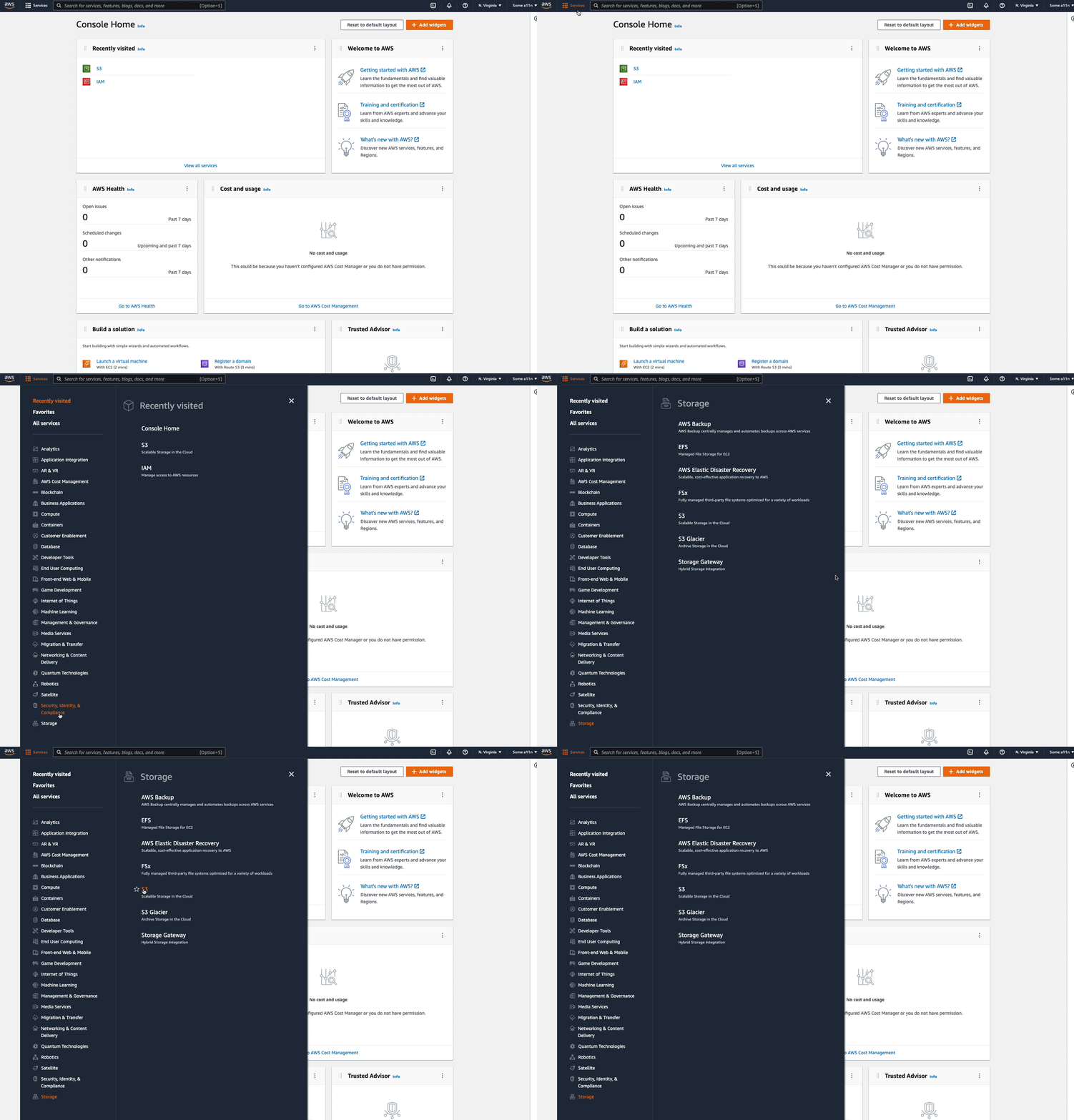
- Select S3 under Services > Storage.
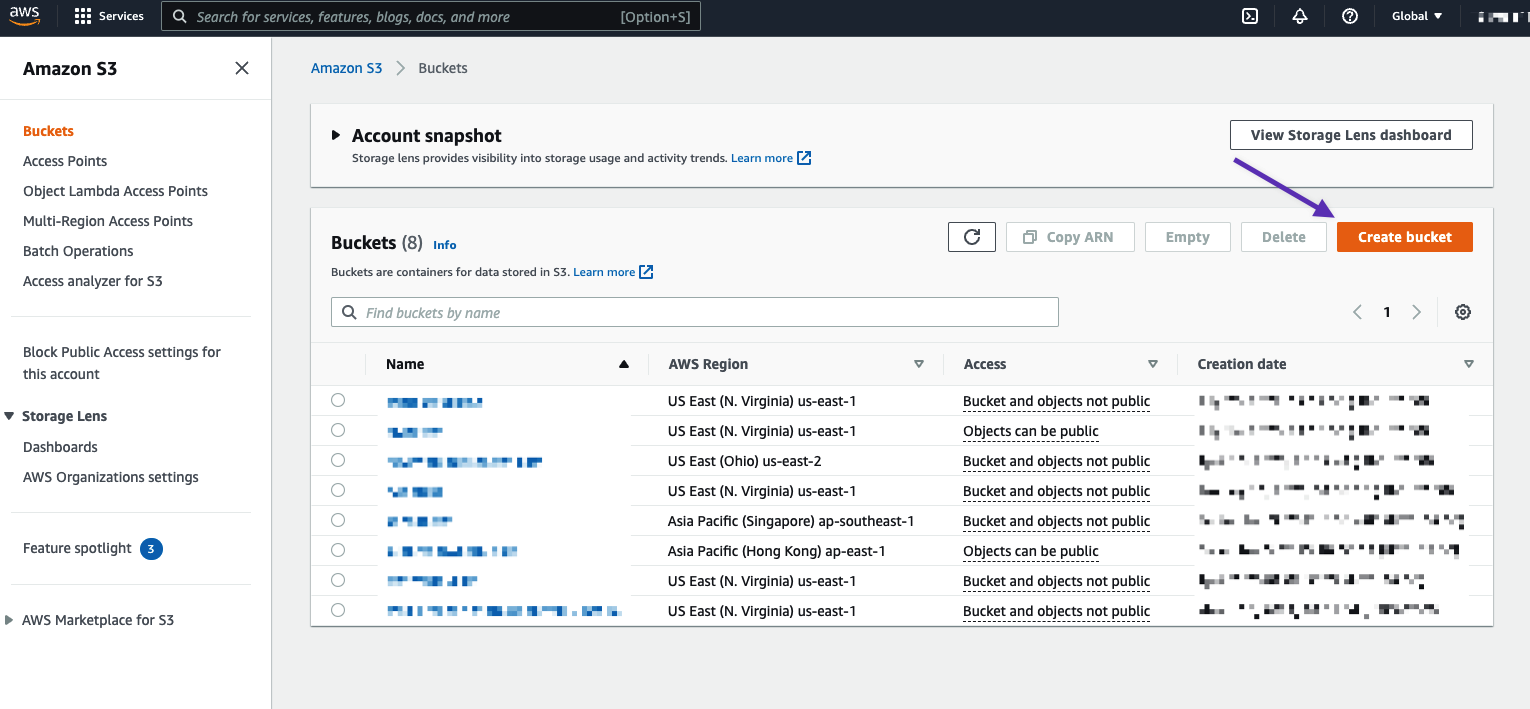
A bucket is a unique identifier, set to a specific region. The ability to select a region allows for better latency, reduces costs, and can even help address regulatory requirements.
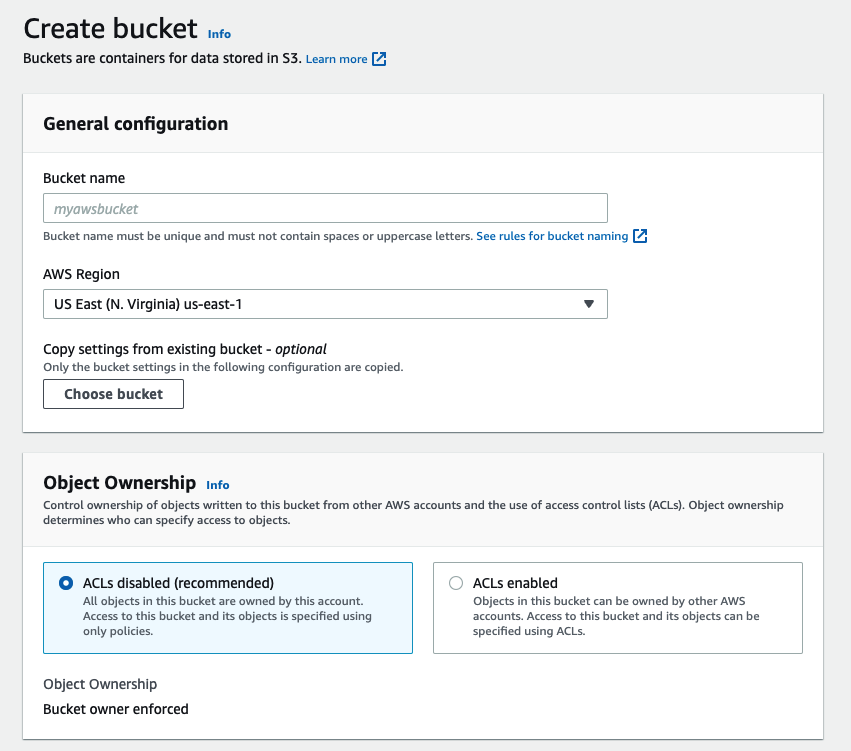
To create a bucket, click the “+ Create Bucket” button at the top left. Give your bucket a name and select the region you would like to host the bucket.
For naming guidelines, please see the Rules for Bucket Naming in the Amazon Simple Storage Service Developer Guide.
If you are uncertain which region to choose, you should select the region closest to your target customer audience.
3. On the Create Bucket page’s first section, configure your bucket.
4. In the next section: Block Public Access settings for this bucket. You can keep the default options as it’s possible to edit the permissions later.

5. The default options in the next sections are also sufficient for most WooCommerce stores. When you’re done reviewing, click Create Bucket.

6. To upload files manually, click on Buckets in the left-hand side menu and click on your bucket’s name. Once you’re inside that bucket, click Upload.

7. Drag-and-drop to queue your files. Under Additional upload options file-specific settings can be configured. Click Upload.

Set file permissions on your new bucket
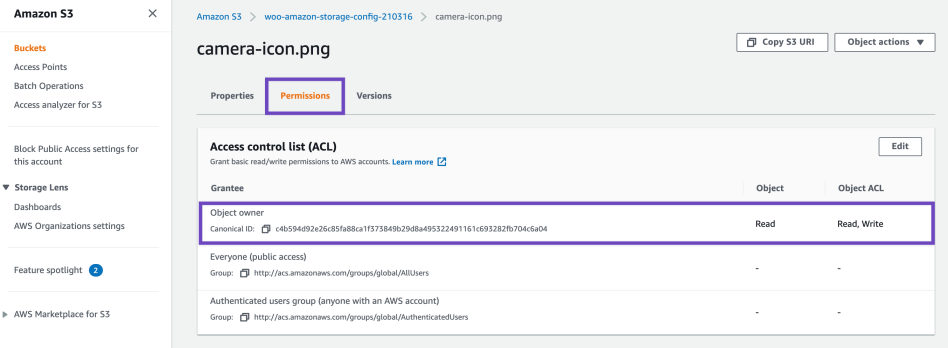
Default file permissions are set to private, but you can change them by clicking on the file name. You can also adjust the privacy settings by adding or removing privileges under the Permissions tab.
Make sure the object permission is set to Read. Otherwise, your files won’t be viewable or downloadable and will throw Access Denied error.