Advanced troubleshooting and reusable code snippets for the Lightspeed POS for WooCommerce integration. For setup and everyday use, start with the R-Series and X-Series guides — this page covers developer snippets and fixes for less common issues.
Note: Identify your Lightspeed series first — R-Series or X-Series. Most of the fixes below differ between them; your Lightspeed dashboard shows which one you have.
Custom code snippets
Reusable snippets live in Kestrel’s public snippets repository at github.com/kestrelcommerce/snippets, under woo-extensions/lightspeed/. Please follow our guide to safely adding custom code to WooCommerce before using them.
| Snippet | What it does | Series |
|---|---|---|
add-woo-shipping-to-lightspeed-orders.php | Adds WooCommerce shipping to the Lightspeed sale as a line item so POS and Woo totals match | R-Series |
add-woo-fees-to-lightspeed-orders.php | Adds WooCommerce order fees to the Lightspeed sale as a line item | R-Series |
add-woo-order-notes-to-lightspeed-receipt.php | Prints the customer’s order note on the Lightspeed receipt | R-Series |
skip-lightspeed-sync-for-unlinked-products.php | Skips syncing an order that contains products not linked to Lightspeed, avoiding partial sales | R-Series |
set-custom-sale-price.php | Sets the WooCommerce Sale Price from a named Lightspeed price tier (case-sensitive) | R-Series |
update-woo-tax-class.php | Maps a Lightspeed tax class to a WooCommerce tax class (for example, Zero rate) | R-Series |
debugging-new-products-not-importing.php | Logs each Lightspeed item the poller sees, to confirm whether a late createTime is making new products miss the import window | R-Series |
Tip: Some of these are becoming built-in settings — check the plugin settings before adding a snippet.
Advanced troubleshooting
New Lightspeed products aren’t importing automatically (R-Series)
New products can fall outside the poller’s look-back window if Lightspeed timestamps them later than they were created. Widen the look-back with the wclsi_get_look_back_time filter (support commonly uses about four hours). See the snippets repository.
“Rate limit exceeded” (429) during or after bulk edits
Lightspeed throttles API calls, and bulk-editing many products at once floods the queue.
- Increase the product poll interval in Settings so syncs spread out.
- Avoid pushing large bulk edits all at once; let big variable-product or image syncs work through the queue.
- On R-Series, syncs are paced against Lightspeed’s rate limit and rate-limited calls retry automatically.
A matrix / variable product’s variations aren’t all syncing (R-Series)
If an initial import pulled only some variations, later syncs may treat the product as complete and skip the rest. Delete the affected product in WooCommerce and re-import it from the Product Importer.
Import fails on an attribute named “type” (R-Series)
type is reserved by WooCommerce. Rename the attribute in Lightspeed (for example, “Item Type”) and re-import.
The Product Importer hangs on a large catalog (R-Series)
On very large catalogs (1,000+ SKUs) the importer can stall on a MySQL row limit. As a stopgap, ask your host to raise MAX_JOIN_SIZE or set SQL_BIG_SELECTS=1. A plugin-side fix to remove the unbounded query is planned.
Setting a product to Draft removes it from Lightspeed (X-Series)
On X-Series, a draft product is deactivated in the POS. To hide a product from your online store without affecting Lightspeed, keep it Published and set Catalog visibility to Hidden instead of Draft.
Can’t connect, or the connection fails during authorization
- Cloudflare Bot Fight Mode (and similar bot-protection or firewall rules) can block the connection callback. Whitelist the Kestrel Connect endpoints or temporarily disable Bot Fight Mode while connecting.
- A connection that previously worked has stopped — usually an expired token. Reconnect from the plugin’s Connection screen; your product and customer links are preserved.
- “You need the Lightspeed Plus plan” (X-Series) — on Lightspeed’s current plan lineup, third-party API access is a Plus-tier feature, so a current Basic or Core account needs Plus to connect. Merchants on older or legacy plans may already have API access. Check your plan’s features or ask your Lightspeed account manager.
Inventory counts don’t match between WooCommerce and Lightspeed
Lightspeed is the source of truth for stock. The most common cause is stock being edited on the WooCommerce side, or another plugin (an inventory manager or bulk editor) writing stock to synced products — the next sync overwrites it, which can look like the plugin reverting your changes. Correct the count in Lightspeed and re-sync, and stop other tools from writing stock on synced products.
Sales sync isn’t creating sales in Lightspeed (R-Series)
Work through these, in order, under Lightspeed POS > Settings > Sales Sync:
- Set the Sales Store, Sales Employee, and Sales Register — a sale can’t be recorded in Lightspeed without all three.
- If those dropdowns are missing and only the Enable Sales Sync checkbox shows: uncheck Enable Sales Sync, Save, then re-check it and Save again. The dropdowns are shown conditionally and only populate from Lightspeed after this re-toggle.
- Run Export Tax Rates to Lightspeed — this is required, not optional. Without a matching tax configuration on both sides, a sale can fail to create (or sync without tax).
By default, an order syncs when it reaches the Processing status.
A product field (price, description, stock) won’t update from Lightspeed (R-Series)
Selective sync for WooCommerce products controls which fields Lightspeed is allowed to write into your WooCommerce products. If a field is unticked there, it won’t update on sync even when Lightspeed sends a change — check it first.
The two selective-sync settings run in opposite directions, which is easy to mix up:
- Selective sync for WooCommerce products = what Lightspeed writes into WooCommerce (inbound). Its Stock Quantity box gates every inbound stock write — the scheduled poll, manual updates, and the real-time stock check at add-to-cart and checkout. Uncheck it to stop Lightspeed overwriting your WooCommerce stock.
- Selective sync for Lightspeed products = what WooCommerce pushes to Lightspeed (outbound). Unchecking Stock Quantity on the WooCommerce-products (inbound) side does not stop orders from pushing stock back to Lightspeed — to stop that, uncheck Stock Quantity here instead.
Sale prices aren’t importing (they show as the regular price) (R-Series)
The plugin maps Lightspeed’s Default price to the WooCommerce Regular Price, and only a Lightspeed price level named exactly Sale (capital S — it’s case-sensitive) to the WooCommerce Sale Price. If your discount level is named anything else, the Sale Price field is simply left empty.
Tip: when you first add a Sale price level in Lightspeed it copies the Default price onto every product, so set each product’s real discounted price in Lightspeed before the next sync — otherwise the sale price matches the regular price.
Archived Lightspeed products are still showing in WooCommerce (R-Series)
The Handle archived Lightspeed products on update setting defaults to Do nothing (the product’s stock is set to 0 but it stays in WooCommerce). To clear them out, set it to Remove from WooCommerce or Change product to draft state, then run Update via Lightspeed on the affected products. Products that were deleted in Lightspeed (rather than archived) have no record to update against and need handling case by case.
Categories aren’t updating from Lightspeed (R-Series)
On R-Series, category import is a manual Import Categories action: it pulls in new Lightspeed categories but does not update or delete ones already imported, and there is no WooCommerce-to-Lightspeed direction. A category edited or deleted in Lightspeed keeps its existing WooCommerce link, which is why new products can land in an old or “Shop All” category. To force a full refresh, remove all categories from WooCommerce, clear the category cache, and re-import. (The automatic full-hierarchy category sync added in v3.3.0 is X-Series only.)
Inbound sync works but changes aren’t reaching Lightspeed (R-Series)
If Lightspeed-to-WooCommerce updates are working but your WooCommerce-to-Lightspeed changes aren’t, the outbound job queue is backed up. Go to WooCommerce > Status > Scheduled Actions, filter the group to wclsi, and check the Pending / In-progress / Failed counts. Running a manual sync flushes the backlog — which is why a manual run “temporarily fixes it.”
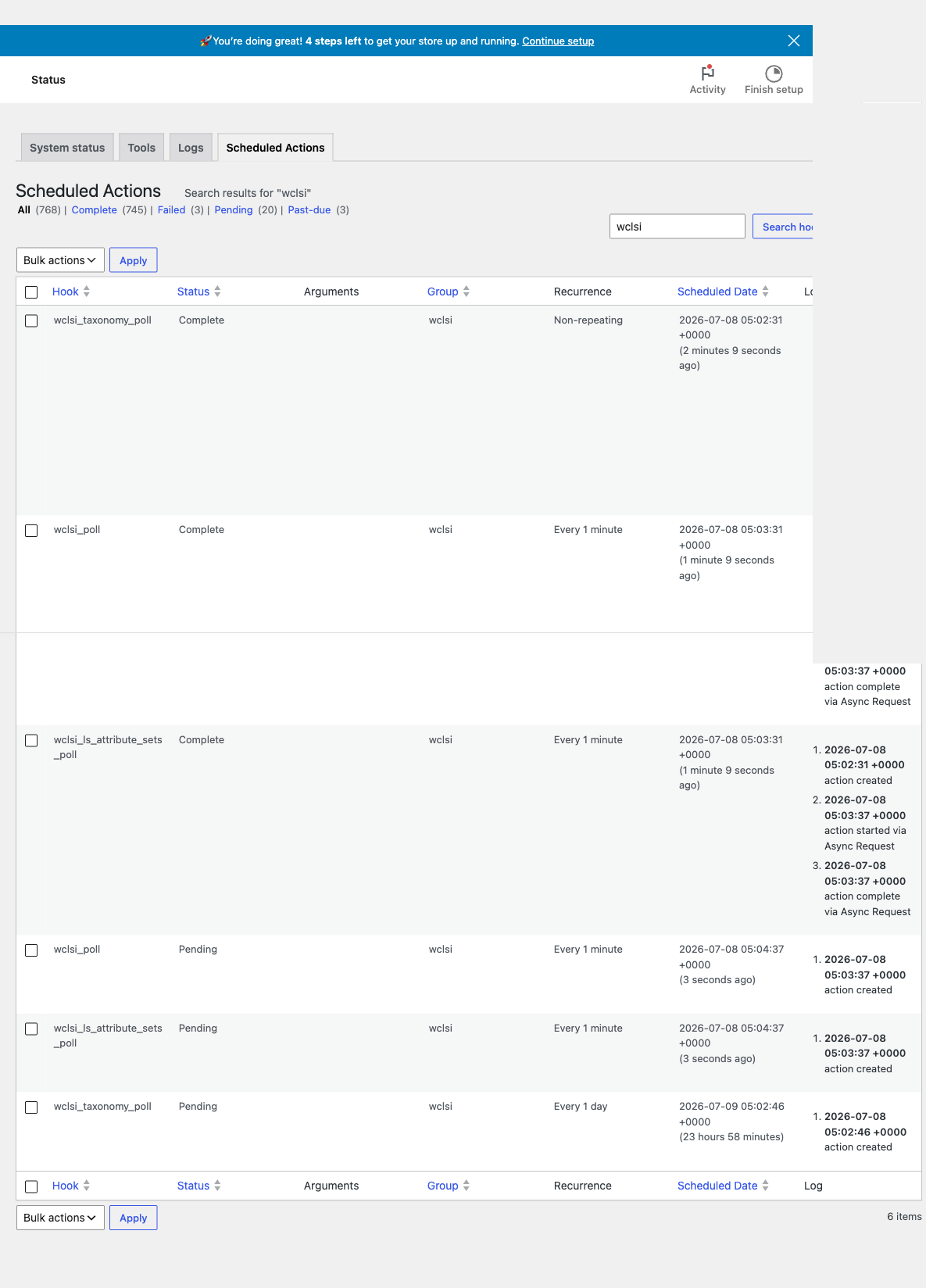
wclsi group — check the Pending / Failed counts here when outbound sync stalls.Still stuck?
Open a conversation with the Kestrel support team.