By default, Rental Products reserves stock the moment an order is placed, regardless of payment status. This prevents double-bookings when customers use payment methods that don’t complete instantly (like bank transfers).
Some rental businesses prefer a different approach: let customers place orders without tying up inventory, then reserve stock only when payment comes through. This lets you prioritize based on who pays first.

Enable conditional stock reservation
Add this filter to your site (via your theme’s functions.php or a custom plugin):
/**
 * Reserve rental stock only when orders are paid.
 * Unpaid orders won't block availability for other customers.
 *
 * @link https://kestrelwp.com/docs/rental-products/reserve-stock-on-payment/
 */
add_filter( 'wcrp_rental_products_reserve_stock_for_unpaid_orders', '__return_false' );
Once added, Rental Products will no longer reserve stock for unpaid orders. Availability stays open for other customers until an order reaches a paid status (like Processing).
Here’s our guide on safely adding custom code to your WooCommerce store.
How it works
With this filter active:
- Customer A places an order for 4 items using an offline payment method (or a method that triggers an unpaid order status like Pending Payment). As this order is pending, the stock is not reserved.
- Customer B places an order for 3 of the same items, same dates. Both orders go through because stock isn’t reserved yet.
- When Customer A’s payment clears and you set the order to Processing, those 4 items are reserved.
- Customer B’s order now exceeds available stock. You can cancel it or work with them to adjust dates/quantities. This needs to be done manually by you or your team.
This gives you control: prioritize based on who pays first, or make business decisions about which orders to fulfill.
What you’ll see in the admin
When viewing orders with unreserved rental items, you’ll see a visual indicator that stock hasn’t been reserved yet. Once an order reaches a paid status, the standard reserved rental display appears.
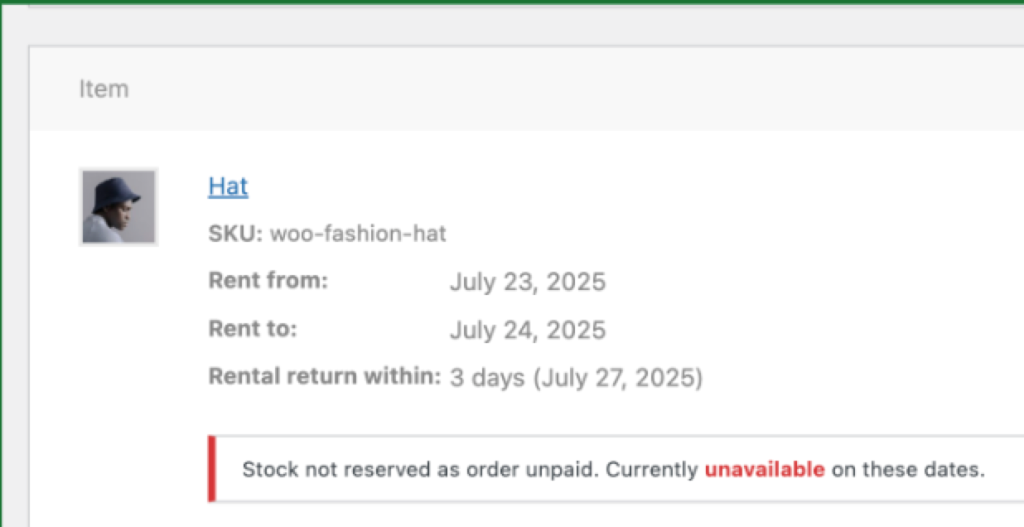
Orders with unavailable items (because another order was paid first) cannot be changed to a paid status until you either cancel the unavailable items or adjust the rental dates.
Dashboard and calendar views
The dashboard summary, calendar, and inventory views don’t currently show unreserved rentals from unpaid orders. A notice displays when the filter is active so you’re aware of this behavior.
Compatibility notes
WooCommerce Order Status Manager (SkyVerge): If you need more control over the approval process, consider pairing this filter with Order Status Manager. You can create custom statuses like “Awaiting Approval” or “Pending Review” that sit between order placement and payment, giving you a structured workflow before stock gets reserved.
Deposits & Partial Payments for WooCommerce (Acowebs): Partially paid orders are treated as paid, so they will reserve stock.
Disabling the filter: If you disable this filter after having unreserved rentals, those rentals will appear as reserved even though they aren’t. Review any pending orders before removing the filter.
When to use this approach
This workflow works well when you:
- Accept payment methods that don’t complete instantly (bank transfers, checks, invoices)
- Want to prioritize orders based on payment speed rather than order placement
- Prefer manual control over which orders get fulfilled when demand exceeds supply
The default behavior (reserving stock immediately) is better when you want to guarantee availability for customers who complete checkout, even if payment takes time to process.
Help us improve this feature
This filter is an early step toward more complete approval workflows. If you’d like to see this expanded into a full settings panel or need additional functionality, contact support and let us know how you’re using it. We’re actively tracking interest to understand the best ways to build on this.