

Rental Products for WooCommerce powers camera gear rentals, bouncy castle empires, wedding dress try-ons, ski equipment shops, party supply warehouses, tool libraries, costume rental businesses, and at least one company that rents out tiny houses on wheels.
If you’re renting something we haven’t seen yet, we’d genuinely love to hear about it. But the plugin probably already does what you need.
The point is: WooCommerce rental inventory management works the same way whether you’re tracking $50,000 cinema lenses or inflatable unicorns. You’re lending things out, getting them back, and lending them again. That cycle creates complexity that WooCommerce’s built-in stock management wasn’t designed for.
Get it wrong and you’re dealing with double bookings (awkward customer conversations), ghost inventory (items showing “unavailable” when they’re sitting on your shelf), and spreadsheet archaeology (digging through cells to figure out where that Canon R5 actually is right now).
We’ve helped 15,000+ WooCommerce stores with this stuff. To write this guide, we analyzed 116 support conversations specifically about rental inventory management.
Turns out, it’s the single most common operational question rental businesses ask.
Quick reference
Use this table to jump directly to what you need. Each task links to detailed instructions below.
| Task | Location | Details |
|---|---|---|
| Set rental stock (simple) | Product → Rental product data → Availability tab | Setup guide |
| Set rental stock (variable) | Each variation → Rental stock field | Setup guide |
| Check current bookings | Rentals → Dashboard | Monitoring inventory |
| View all inventory | Rentals → Inventory | Monitoring inventory |
| Mark rental returned | Order → Rental line item → Mark Returned | Managing returns |
| Set buffer between rentals | Rentals → Settings → Availability Checker → Return Days Threshold | Configuring thresholds |
| Block specific dates | Product → Rental product data → Availability → Disable Rental Dates | Availability calculation |
| Export to calendar | Product → Rental settings → iCal feed URL | Team calendar visibility |
Why WooCommerce rental inventory needs dedicated tooling
Standard WooCommerce inventory assumes a simple flow: customer buys, stock decreases, done. Rentals are cyclical, and that changes everything.
Consider a camera rental shop with 5 Canon R5 bodies. On Monday, a customer books one for Friday through Sunday. On Tuesday, another customer wants one for Saturday only. Standard inventory would show “4 remaining” with no awareness that availability varies by date. Purpose-built rental inventory tracks availability per day, per unit, across overlapping reservations.
Without this, you’re left juggling spreadsheets, manually blocking dates in your calendar, and hoping nothing slips through. We’ve seen stores lose thousands in duplicate bookings before implementing proper inventory controls.
Prerequisites
Before starting:
- WooCommerce installed and active
- Rental Products for WooCommerce installed and activated
- At least one product you want to convert to a rental
Setting up rental stock: simple products
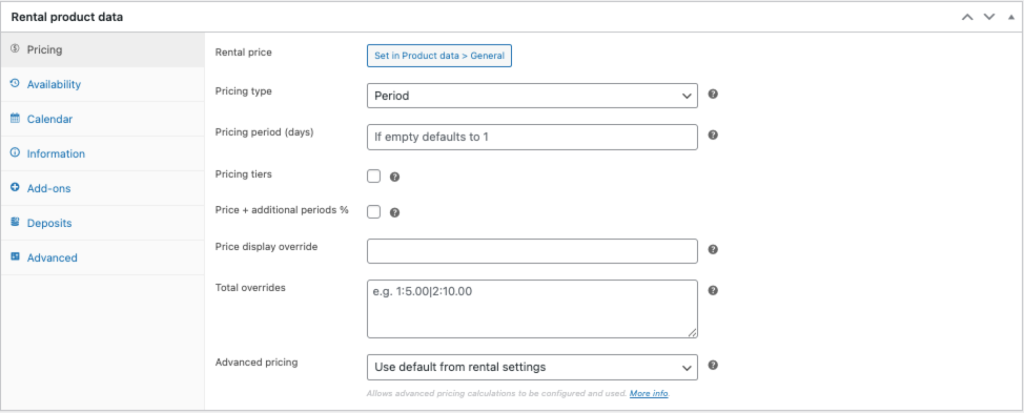
For simple (non-variable) products, rental stock configuration happens in a dedicated metabox below the standard Product data section:
- Go to Products → All Products and edit the product
- Scroll below the “Product data” metabox to find Rental product data
- Click the Availability tab
- Set your Rental stock quantity
If you have 5 identical cameras available, set the rental stock to 5. Each unit can be booked independently for overlapping date ranges. The system tracks availability per-unit, per-day.
The product type stays “Simple.” You’re adding rental capabilities via the Rental product data metabox, not changing the product type.
Setting up rental stock: variable products
Variable products require extra attention. This is the configuration issue we see most often in support: rental settings must be configured on each variation individually, not on the parent product.
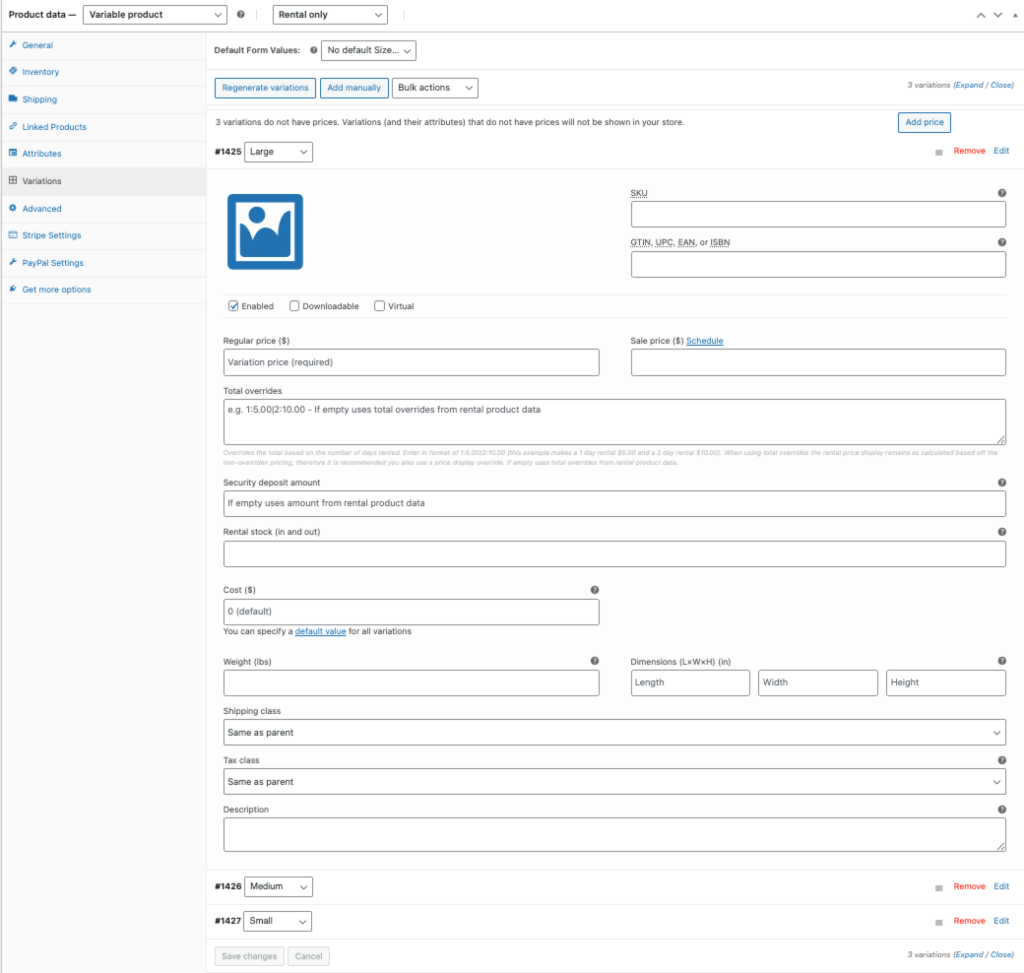
The correct approach:
- Edit your variable product
- Configure global rental settings in the Rental product data metabox (these create defaults)
- Go to the Variations section in Product data
- Expand each variation
- Within each variation’s panel, find the rental fields including Rental stock and Rental price, allowing you to override individual defaults on a per-variation basis
- Set stock for each variation separately
If you set rental stock only on the parent product and expect variations to inherit it, they won’t. Each variation needs its own stock value. This single misconfiguration accounts for roughly 30% of the rental-related support questions we receive.
How availability calculation works
When a customer selects dates on your product page, the plugin calculates availability in real-time:
- Total rental stock for the product or variation
- Existing reservations that overlap with the requested dates
- Return days threshold (buffer time between rentals for cleaning, inspection, or shipping)
- Disabled dates and days you’ve configured (holidays, maintenance windows, no-pickup Sundays)
The calendar reflects all of this. Dates appear available only when at least one unit is free for the entire requested period.
For stores with multiple rental products, the Availability Checker widget lets customers filter your entire catalog by date range before browsing. Customers select their dates once, then see only products available for that window. Configure it in Rentals → Settings → Availability Checker.
Preventing double bookings
Double bookings happen when two customers successfully reserve the same item for overlapping dates. With proper rental inventory setup, this becomes impossible.
The reservation flow:
- Customer A selects June 1-5 for a product with 3 units in stock
- Customer A completes checkout. Available stock for those dates drops to 2
- Customer B visits the same product and selects June 3-7
- System calculates availability across June 3-5 (the overlap). Two units remain available
- Customer B checks out. Available stock for June 3-7 now shows 1 unit
- Customer C tries to book June 1-7 (needs availability across the entire span)
- System finds 0 units available for June 3-5 (all three booked). Calendar blocks those dates automatically
Customers physically cannot select date ranges where stock is fully committed. The calendar grays out unavailable dates in real-time.
Payment configuration note: Set your payment gateway to authorize and capture immediately. Using “authorize now, capture later” can cause issues if the authorization window expires before the rental period begins.
Managing returns and stock restoration
When rentals end and items return to inventory, you have two restoration methods:
Automatic restoration
Stock becomes available again based on the rental end date plus any return days threshold you’ve configured. No manual intervention required.
Example: A rental ends June 10. You’ve set a 2-day return threshold to account for shipping and inspection. That unit automatically becomes available for new bookings starting June 13.
Manual return confirmation
For greater control (especially when items need inspection, cleaning, or repair before the next rental), use immediate replenishment:
- Go to WooCommerce → Orders
- Open the order containing the rental
- Find the rental line item
- Mark it as Returned
If Immediate rental stock replenishment is enabled in Rentals → Settings → Orders, marking an item returned immediately restores that stock. Useful when a customer returns early or when you need to manually verify condition before releasing inventory.
Configuring return days threshold
The return days threshold creates buffer time between when one rental ends and when that stock becomes available for the next booking. This accounts for:
- Shipping time (for mailed rentals)
- Inspection and condition verification
- Cleaning and maintenance
- Minor repairs
Global default: Go to Rentals → Settings → Availability Checker and set your default Return Days Threshold.
Per-product override: Edit the product, open the Rental product data metabox, click the Availability tab, and set a product-specific threshold.
Camera equipment might need 1 day for sensor cleaning and lens inspection. Party tents might need 3 days for cleaning and repackaging. Set thresholds based on actual turnaround requirements.
Rental bundles and combined availability
Rental bundles let you offer packages (a “Complete Party Kit” with tables, chairs, and a tent, for example). Bundle inventory follows specific rules:
- The bundle itself can have its own stock level
- Each bundled item maintains individual stock
- If any bundled item is out of stock for the requested dates, the entire bundle becomes unavailable
A “Party Kit” bundle containing 10 tents, 50 chairs, and 20 tables becomes unavailable when all 10 tents are booked, even if chairs and tables remain free. The bundle is only as available as its scarcest component.
Configure bundles in the Rental product data metabox under the Bundle tab. Select which products to include, and the system handles combined availability calculation automatically.
Monitoring inventory
Rentals dashboard
Rentals → Dashboard gives you a bird’s eye view of your rental operation:
- Current rentals (items currently out)
- Upcoming rentals (scheduled to go out)
- Past rentals (returned or overdue)
- Color-coded status for quick scanning
Inventory screen
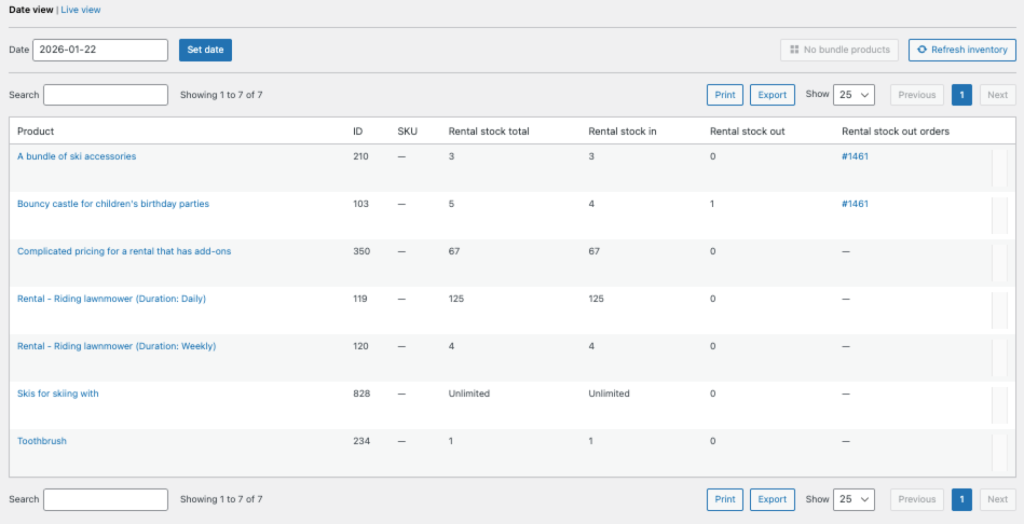
Rentals → Inventory displays aggregate stock levels across all rental products:
- Total rental stock per product
- Current availability
- Search and filter by product
- CSV export for external reporting or physical inventory reconciliation
Team calendar visibility
Each product generates an iCal feed URL that team members can subscribe to in Google Calendar, Outlook, or Apple Calendar. Find the URL in the product’s rental settings.
This is a one-way subscription: bookings export to external calendars for visibility, but changes made in Google Calendar don’t sync back to WooCommerce. Use it for team awareness, not as the source of truth.
Next steps
With rental inventory configured properly, you’ve eliminated the most common operational headaches. Your calendar reflects actual availability, customers can’t double-book, and you have real-time visibility into your entire fleet.
To get more from your setup:
- Add the Availability Checker widget to your homepage or sidebar so customers filter by date before browsing
- Configure return reminder emails so customers don’t forget to send items back
- Set up security deposits to protect high-value inventory (Deposits tab in Rental product data)
- Create rental bundles to offer curated packages with automatic combined availability
Additional resources
- Rental Products documentation: Complete feature reference
- Setting up rental pricing: Period, period selection, and fixed pricing explained
- Security deposits for rentals: Protect high-value inventory
- Creating rental bundles: Product packages with combined availability
- Sharing rental calendars with your team: iCal feed setup and best practices
- Availability checker to improve product selection: Configuration and placement guide
Frequently asked questions
How is rental stock different from WooCommerce stock?
Rental stock is tracked separately from WooCommerce’s standard inventory field. Regular WooCommerce stock decrements permanently when sold. Rental stock tracks date-based availability and automatically restores when rentals end. You can have a product with both: standard stock for purchase, rental stock for rentals (using the rent-or-buy toggle).
Can customers book the same item for overlapping dates?
No. The system prevents this automatically. When calculating availability, it checks all existing reservations against the requested date range. If stock is fully committed for any portion of the requested dates, those dates appear unavailable on the calendar.
Why do my variable product rentals show “not available”?
This is almost always a configuration issue: rental settings (including stock) must be set on each variation individually, not just the parent product. Edit your variable product, expand each variation, and verify the rental stock field is populated for each one.
How do I account for cleaning/shipping time between rentals?
Use the Return Days Threshold product option in the Availability tab. A 2-day threshold means items aren’t available for new bookings until 2 days after the previous rental ends.
Does editing events in Google Calendar update my WooCommerce rentals?
No. The iCal feed is one-way (export only). Your team can subscribe to see bookings in their calendars, but WooCommerce remains the source of truth. Any changes to reservations must be made in WooCommerce.
Get started WooCommerce rental inventory
Rental Products for WooCommerce handles inventory tracking, availability calculation, and double-booking prevention automatically. No spreadsheets, no manual calendar blocking, no crossed wires.
$199/year. 30-day money-back guarantee. One year of updates and priority support included.

Leave a Reply