


AWeber for WooCommerce can add shoppers who leave items in their cart to an AWeber list, with a link that restores their cart. You then build an AWeber campaign that emails them the link. When they come back and buy, the plugin tags or removes them, so the campaign stops.


The plugin finds the abandoned carts and keeps the list up to date; the emails themselves come from your AWeber campaign. Your store must already be connected to AWeber (see Get started with AWeber).
When you’d use this
- Email shoppers a link back to their cart an hour after they leave.
- Send different reminders depending on what was in the cart, using product tags.
- Stop the reminders once a shopper buys, or once the cart is too old.
Requirements
- AWeber for WooCommerce connected to your AWeber account.
- WooCommerce’s classic checkout, from the
[woocommerce_checkout]shortcode. Guest shoppers’ email addresses are captured on the classic checkout, and only orders placed there mark a cart recovered. An order placed with the checkout block leaves the shopper’s cart in your list as abandoned. - WordPress’s scheduled tasks running. The plugin looks for abandoned carts every 5 minutes, checks for expired carts hourly and deletes old ones daily, using WooCommerce’s scheduled actions.
How it works
A cart is updated whenever the shopper adds, removes or restores a product, changes a quantity, empties the cart or logs in. Once a cart hasn’t been updated for the Cut-off time, the next check turns it into an abandoned cart and adds the shopper to your Abandoned cart list as a subscriber, with:
- Their email address, first name and last name.
- The tag
registeredfor customers with an account, orguestfor guests. If a guest later abandons a cart while logged in,guestis swapped forregistered. - Your Abandoned cart tags, and a tag per product if Product tags is on.
- A Recovery link custom field holding the link back to their cart.
Each shopper has one abandoned cart at a time. If they abandon another, the same subscriber is updated after the cut-off time; tags for products they’ve since removed stay. If they buy on the classic checkout without using the link, the plugin deletes their abandoned cart from your store, but doesn’t tag, remove or unsubscribe them in AWeber.
Set up abandoned carts
1. Choose a list in AWeber
Create a list in AWeber for abandoned carts, or reuse one. If the list also holds newsletter subscribers, add an Abandoned cart tags tag such as cart-abandoned in step 3, so your campaign can target only carts.
2. Turn on abandoned carts
Go to WooCommerce » Settings » AWeber. Under Abandoned carts, choose the list in Abandoned cart list. The rest of the abandoned cart settings appear. Click Save changes.
3. Adjust the settings
Set the abandoned cart settings you need, such as tracking guests or the cut-off time, and save again.
4. Check the Recovery link field in AWeber
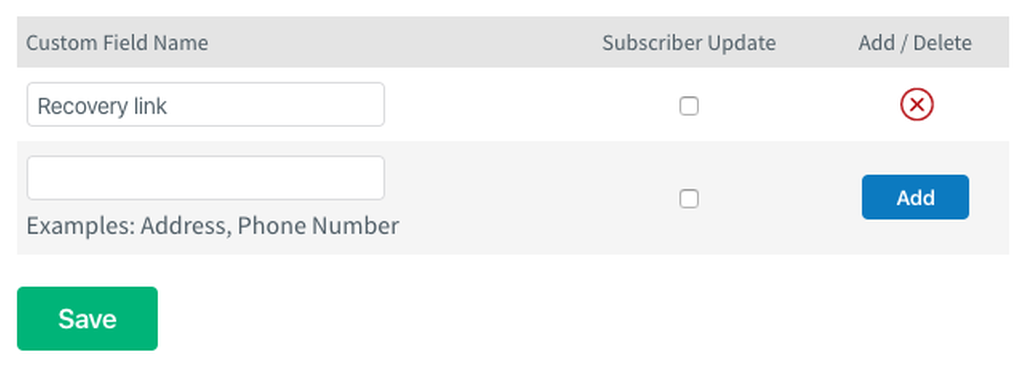
In AWeber, open the list’s List Options » Custom Fields and check that there’s a field called Recovery link. If it’s missing, add a custom field with exactly that name and save. The plugin fills in this field, and your emails need it.
5. Build the campaign
In AWeber, create a campaign triggered for subscribers on the list, filtered by your tags (for example, cart-abandoned and not recovered). Add the Recovery link custom field to the email as the shopper’s link back to their cart. You can also use product tags to send product-specific emails.
6. Test it
In a private browser window, log in as a test customer (or, with Guest customers on, enter an email at checkout), add a product and leave. After the cut-off time and the next check, the email address appears in your list with the Recovery link filled in.
Abandoned cart settings
Go to WooCommerce » Settings » AWeber, in the Abandoned carts section.
Abandoned cart list
The AWeber list abandoned carts are added to. Leave it empty to turn abandoned carts off.
Guest customers
Also tracks guests’ carts. Off by default, so only logged-in customers are tracked. A guest’s cart can only be tracked once they’ve typed their email address on the classic checkout. Update your terms and privacy policy before turning this on, because guests haven’t agreed to join a list.
Cut-off time
How many minutes a cart must go untouched to count as abandoned. Default 60. It can’t be longer than WooCommerce’s session lifetime, 48 hours by default, because carts are found in WooCommerce’s sessions. If those sessions are cleared, carts not yet found are lost.
Expiration time
How long an abandoned cart can be recovered. After that, it’s marked expired and On cart expiration runs. Default 2 weeks. Leave it empty for carts that never expire.
Delete expired carts
How long expired carts stay in your store’s database before they’re deleted. Empty by default, which keeps them.
Abandoned cart tags
Tags added to every abandoned cart subscriber. Pick existing AWeber tags or type new ones, separated by commas.
Product tags
Tags each abandoned cart with the products in it. On by default.
Product tag format
The format of product tags. {product-slug} is replaced with the product’s slug and {product-sku} with its SKU, or its slug if it has no SKU. Default {product-slug}. Add a prefix to tell them apart, such as cart-{product-slug}.
On cart recovery
What happens to the subscriber when the shopper places an order from their recovered cart: Add tag (the default), Delete from list or Unsubscribe from list.
Recovered cart tag
The tag Add tag uses for recovered carts. Default recovered.
On cart expiration
What happens to the subscriber when their cart expires: Add tag (the default), Delete from list or Unsubscribe from list.
Expired cart tag
The tag Add tag uses for expired carts. Default expired.
What customers see
The recovery link opens your cart page:
- Guest carts load straight away, with the notice "Abandoned cart recovered." and a Checkout button.
- Carts of customers with an account show "Log in to your account to recover your cart." Once the customer logs in, their cart loads.
- If the cart was already recovered, has expired or doesn’t exist, the shopper sees "The cart you’re trying to recover doesn’t exist or it has expired."
Shoppers can change the cart before they check out. Changes to a recovered cart don’t create a new abandoned cart.
Common issues
No abandoned carts reach the list
- Abandoned cart list is empty.
- The cut-off time hasn’t passed, or the next check hasn’t run. Check WooCommerce » Status » Scheduled Actions for pending or failed
wc_aweber_action_search_abandoned_cartsactions; if they pile up as pending, your site’s scheduled tasks aren’t running. - The shopper was a guest and Guest customers is off, or they never typed their email on the classic checkout.
- Errors from AWeber are in WooCommerce » Status » Logs, in the file starting
wc_aweber_api_errors.
The Recovery link doesn’t appear in AWeber
Open the list’s List Options » Custom Fields in AWeber. If there’s no Recovery link field, add one with exactly that name and save. If it’s there but doesn’t show on subscribers, save the custom fields again so AWeber refreshes them.
Shoppers who bought keep getting reminders
- The order was placed with the checkout block, which doesn’t mark carts recovered. Switch your checkout page to the
[woocommerce_checkout]shortcode. - The shopper bought without using the recovery link. The plugin then deletes the cart from your store but leaves the AWeber subscriber as it was, so On cart recovery doesn’t run. Remove or tag the subscriber in AWeber by hand.
- Your campaign doesn’t stop for subscribers with your Recovered cart tag. Check its filters in AWeber.
"The cart you’re trying to recover doesn’t exist or it has expired."
The link was already used to place an order, the cart passed its Expiration time, or the link was changed. Shoppers can still shop as usual.
Keep learning
- Get started with AWeber (connecting AWeber and checkout rules)
- How to install and update WooCommerce extensions