


Constellation’s store-wide settings live under Constellation » Configuration » Settings, in four sections linked at the top of the screen: General, Products, Recurring billing and Messages. Click Save changes on each section before moving to the next. A few more options sit on WooCommerce’s own settings screens, listed at the end of this page.
Plan-specific options (who gets access, for how long, and what’s restricted) are on each plan instead: see Create membership plans in Constellation.
General

Content restriction mode
What non-members get when they open members-only content:
- Hide content only (the default): the post or page loads and still appears in archives, but its content and comments are replaced by a restriction message. Use it for a paywall that invites visitors to join.
- Hide completely: members-only content disappears for non-members and search engines, and opening it directly shows a 404 page.
- Redirect to page: non-members are sent to the Redirect page.
The same mode applies to members-only products. See Restrict content and files with Constellation for how each mode behaves.
Redirect page
Only with Redirect to page. The page non-members land on, such as a page describing your membership. Add the [kc_content_restricted] shortcode to it to show the restriction message for the content they tried to open. The setting’s help text names the older [wcm_content_restricted] form, which also works.
Show excerpts
On by default; not shown with Hide completely. With Hide content only, non-members and search engines see an excerpt above the restriction message. With Redirect to page, search engines see the excerpt and non-members see excerpts on archive pages only. The screen always shows the Hide content only description, whatever mode you choose; the behavior above is what applies.
If a post has a WordPress "more" tag, the excerpt stops there.
Excerpt length (words)
How many words the excerpt shows, 55 by default. Only shown when Show excerpts is on.
Inherit parent restrictions
Off by default. When on, child pages (and children in other hierarchical post types) follow their parent’s restriction rules.
Redirect members upon login
Off by default, so members land on My Account after logging in. When on, choose a Login redirect destination:
- Members area: the member’s members area in My Account. Members whose plan has no members area aren’t redirected.
- Site page: the Login redirect page you pick. Members aren’t redirected if that page is restricted from their plan.
Members who log in from the cart, the checkout or a restriction message always stay where they were.
Products

Apply discounts when purchasing membership
Off by default. When on, a customer with a membership product in their cart gets that plan’s member discounts on the rest of the cart straight away, before they’re a member.
Discounts apply to subscriptions sign up fees
Off by default. It’s meant to apply member discounts to the sign-up fee of recurring billing products, but it has no effect: sign-up fees are charged in full whatever this says.
Allow cumulative purchases
Off by default. When on, each membership product in one order, and each unit of quantity, adds another membership length. A customer who buys a quantity of 2 of a one-year membership gets two years. When off, an order grants one length, however many units it holds.
Exclude products on sale from member discounts
Off by default. When on, products on sale don’t get member discounts from any plan. If you turn it on, say so on your membership’s sales or terms page, since members expect their discount everywhere.
Hide restricted products
Off by default. When on, products only members can view are hidden from your shop catalog for non-members. They still open from a direct link unless Content restriction mode is Hide completely.
Recurring billing
These settings belong to Constellation’s built-in recurring billing. If WooCommerce Subscriptions is active, this section shows "WooCommerce Subscriptions is loading the Recurring Billing functionality. You can manage settings for this feature under WooCommerce > Settings > Subscriptions." and a Go to settings button, and WooCommerce Subscriptions’ own settings apply instead.

Mixed Checkout
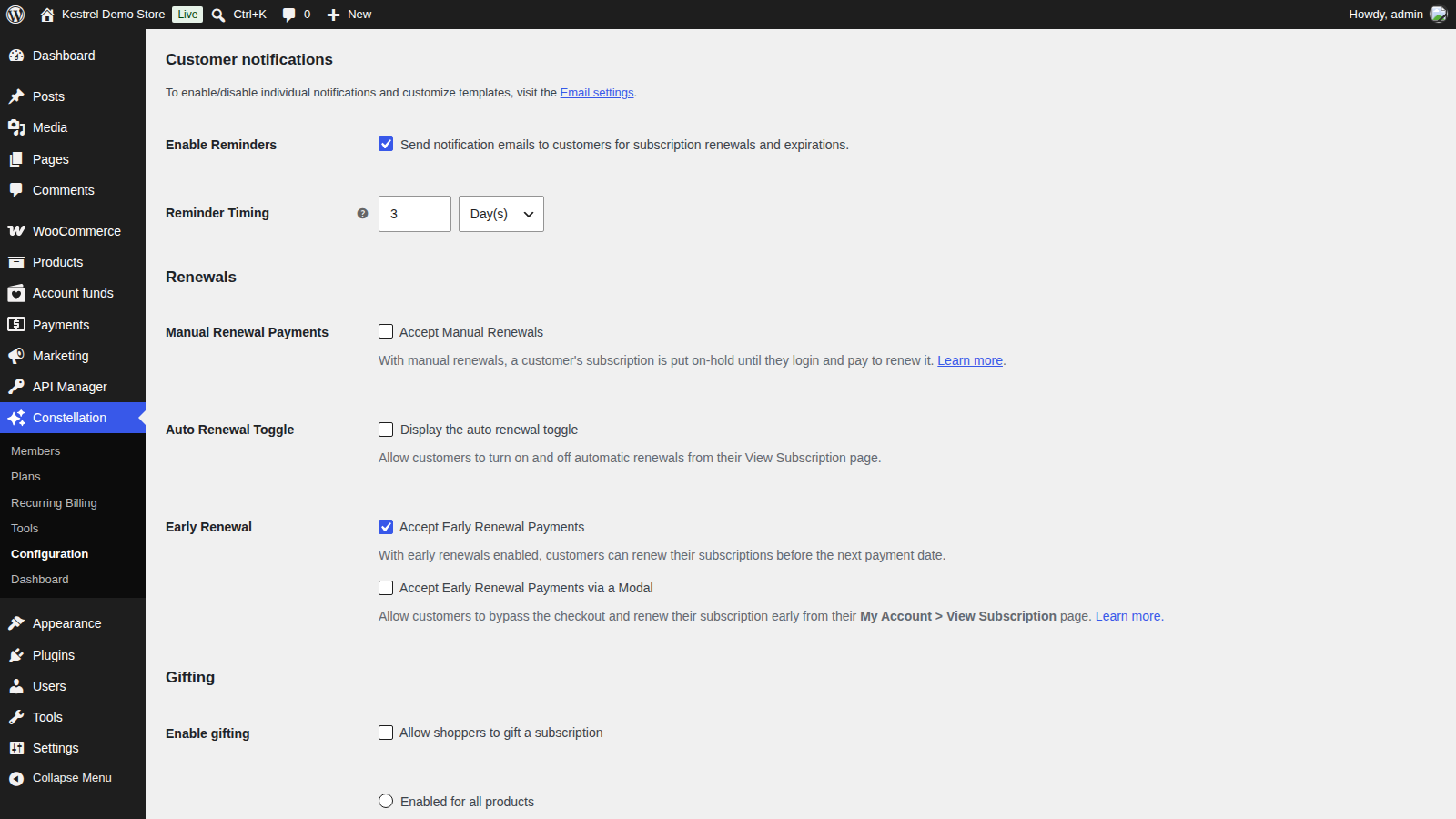
Off by default. Lets customers buy recurring billing products together with other products, or more than one recurring billing product, in the same order.
Auto Renewal Toggle
Off by default. Shows members a switch on their recurring billing page in My Account to turn automatic renewal off and on.
Early Renewal
Accept Early Renewal Payments, off by default, lets members renew before their next payment date. With it on, Accept Early Renewal Payments via a Modal lets them renew from the recurring billing page in My Account without going through checkout.
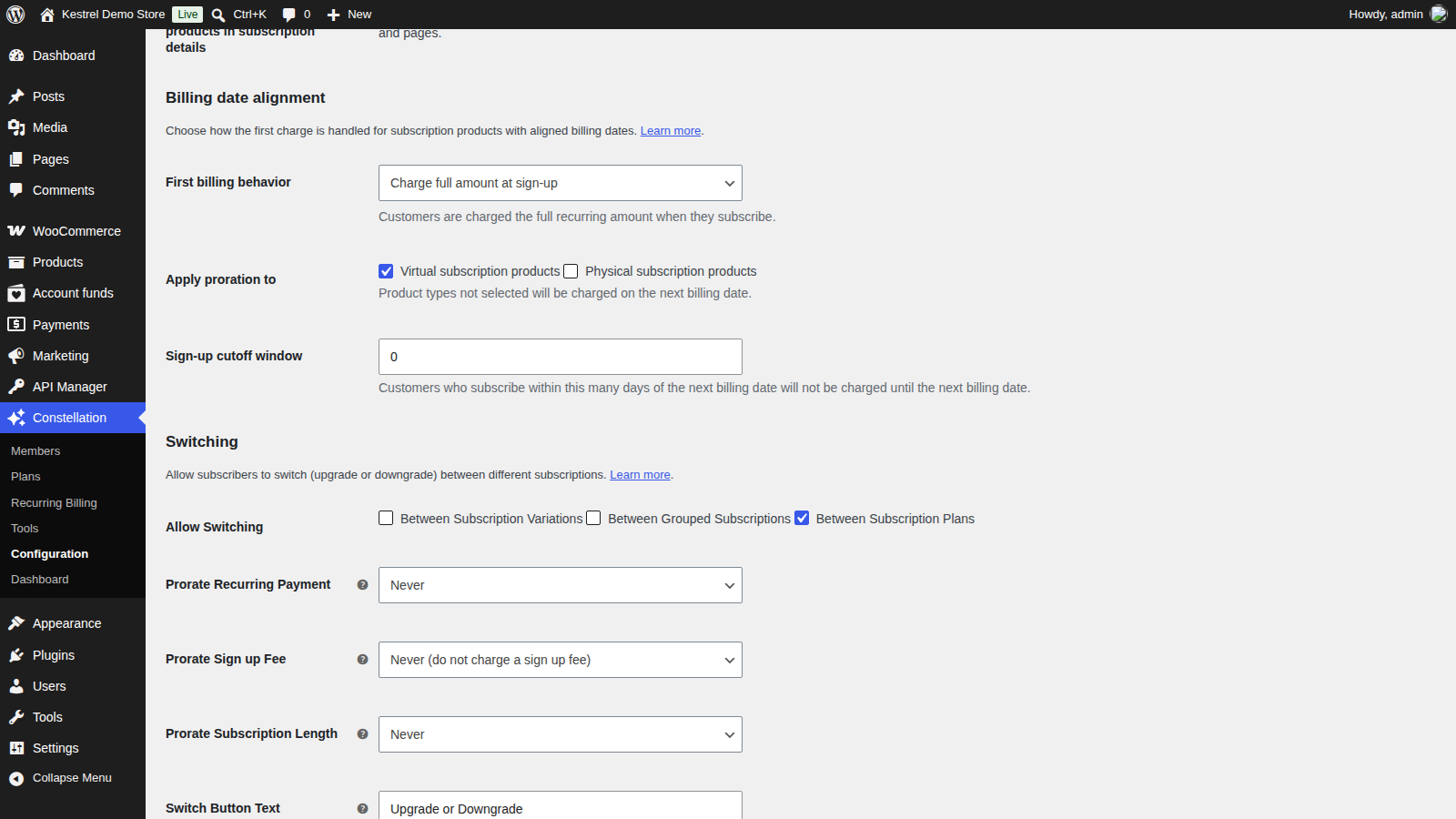
First billing behavior
For recurring billing products with an aligned billing date (such as the 1st of each month): Charge full amount at sign-up (the default), Charge on the next billing date, or Prorate until the next billing date.
Sign-up cutoff window
For aligned billing dates. Customers who join within this many days of the next billing date aren’t charged until that date. Default 0. Only shown with Charge full amount at sign-up.
Enable Reminders
Off by default. Sends members reminder emails before automatic and manual renewals, free trial ends and expirations. Each reminder is its own email under WooCommerce » Settings » Emails.
Reminder Timing
How long before the event the reminders go out. Default 3 days.
Messages
Every message Constellation shows to visitors on restricted content, products and discounts. You don’t need to change them; the defaults work, and you can edit them in your own words at any time. Individual posts, pages and products can override them (see Restrict content and files with Constellation).
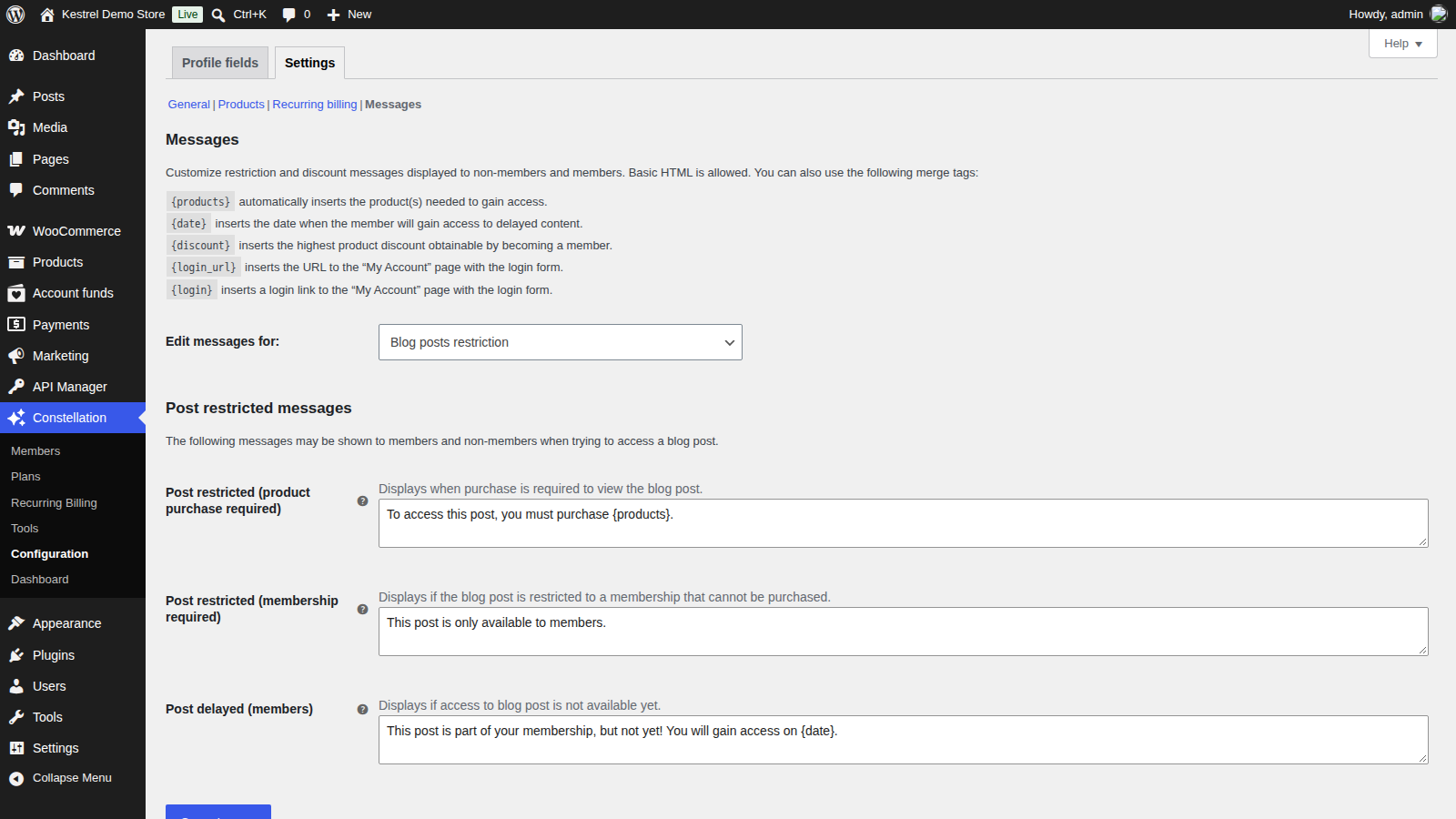
Edit messages for
Picks the group of messages to edit: Blog posts restriction, Pages restriction, Content restriction (other content types), Products restriction or Purchasing discount. Messages accept basic HTML and the merge tags listed on the screen.
Restriction messages
Posts, pages and other content each have three messages:
- (product purchase required): for visitors who can get access by buying a product.
- (membership required): when no product grants access, such as a plan you assign by hand.
- delayed (members): for members whose access hasn’t started yet, because the content is dripped.
Products have Product viewing or purchasing delayed (members), Product viewing restricted (purchase required), Product viewing restricted (membership required), Product buying restricted (purchase required) and Product buying restricted (membership required).
Product discounted (purchase required)
Shown to non-members below the add to cart button on products with a member discount, when a product grants that plan. Leave it blank to show nothing. Product discounted (membership required) is the version for plans no product grants.
Member discount login reminder
Where to remind logged-out shoppers to log in for their member discount when their cart has discounted products: Do not show, Show on cart page, Show on checkout page or Show on both cart & checkout page (the default). The reminder doesn’t appear, whatever you choose here.
Member discount login message
The reminder’s text. Leave it blank to use the default log in message. Not shown with Do not show.
Settings on WooCommerce screens
My Membership and My Profile endpoints
Under WooCommerce » Settings » Advanced, My Membership (default members-area) and My Profile (default my-profile) set the URL slugs of Constellation’s My Account sections.
Remove memberships on request
Under WooCommerce » Settings » Accounts & Privacy, next to WooCommerce’s own erasure options. It’s meant to delete a customer’s memberships when you process a personal data erasure request under Tools » Erase Personal Data. Erasure requests keep memberships whatever this setting says, and the erasure report lists each one as retained. For now, after erasing a customer’s data, delete their memberships under Constellation » Members.
Remove personal data from subscriptions
On the same screen, from the recurring billing engine. When on, erasure requests remove personal data from the customer’s recurring billing records. The records themselves stay, so renewal orders still show where they came from.
Personal data exports under Tools » Export Personal Data include the customer’s memberships and recurring billing records.