


Advanced Ajax Layered Navigation adds attribute filters to your shop sidebar that update the product list without reloading the page. Shoppers narrow your products by size, color or any other global attribute, using a list, a dropdown, checkboxes, size buttons or color swatches, and can see and remove the filters they’ve applied.
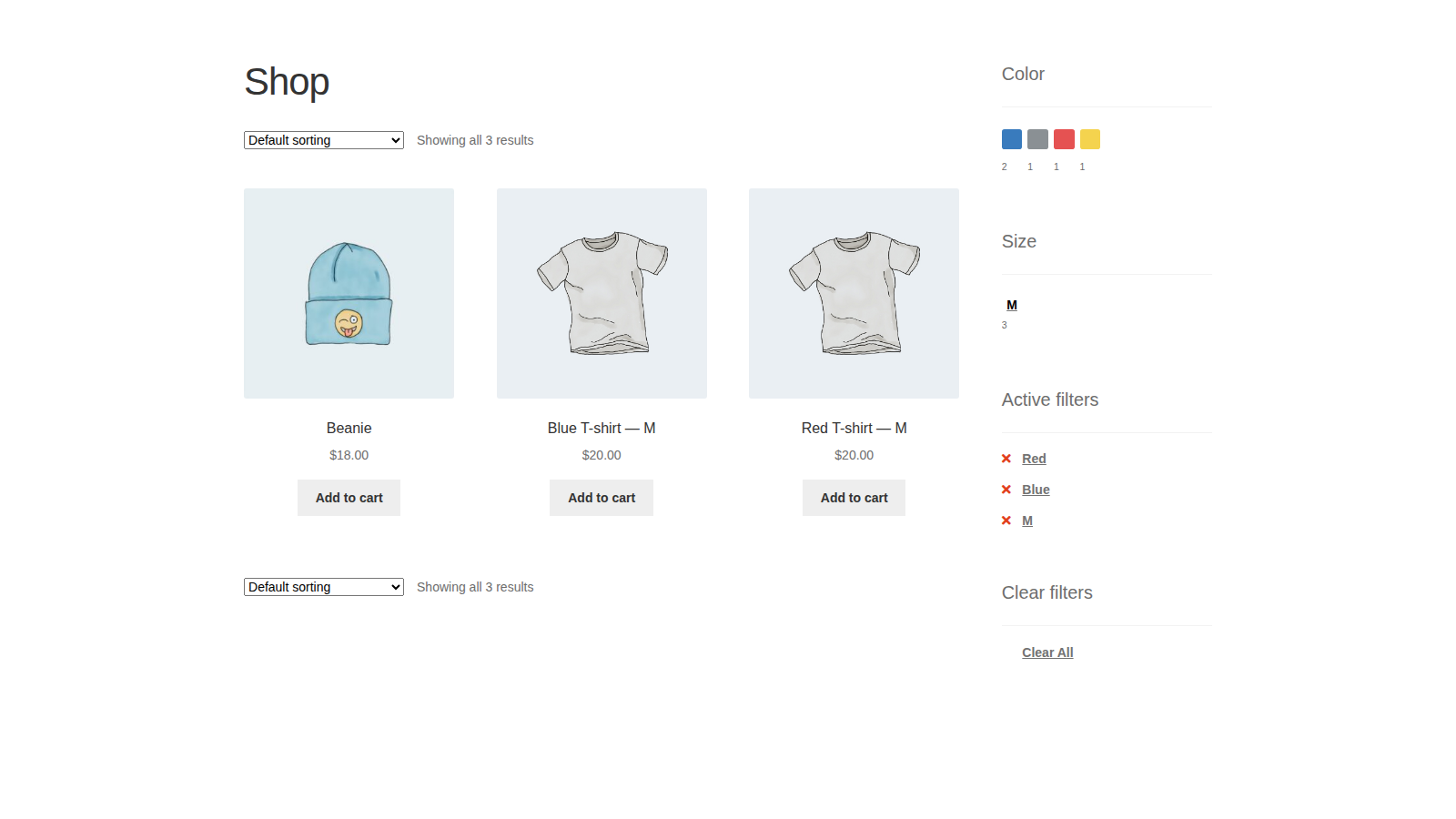
The plugin works with WooCommerce’s global product attributes (Products » Attributes) and classic widgets. It has no settings screen: you set everything in each widget.
When you’d use this
- Let shoppers filter a large catalog by size, color, material or any other attribute.
- Show color swatches or size buttons instead of a plain list of values.
- Let shoppers combine values, such as red or blue shirts, in one filter.
- Show shoppers which filters are on, with a one-click way to clear them.
Requirements
- WordPress 6.3 or later, WooCommerce 8.0 or later, and PHP 7.4 or later.
- Compatible with WooCommerce’s checkout block and High-Performance Order Storage.
- A theme with widget areas, such as a shop sidebar, because the filters are classic widgets added under Appearance » Widgets.
- Global product attributes with terms, assigned to your products. Custom attributes typed into a single product aren’t available.
- The filters show on the shop page and on product category, tag, attribute and other product taxonomy archive pages. They don’t show on single product pages or other pages.
Install and activate
- Bought on WooCommerce.com: install the plugin from your WooCommerce.com account. Updates come through your WooCommerce.com connection, with no license key to enter.
- Bought on kestrelwp.com: install the plugin by following how to install and update WooCommerce extensions.
Once it’s active, Appearance » Widgets has three new widgets: WooCommerce Ajax Layered Nav, WooCommerce Ajax Layered Nav Filters and WooCommerce Ajax Layered Nav Clear All.
Set up your filters
1. Check your attributes
Go to Products » Attributes and make sure the attribute you want to filter by, such as Color, exists and has terms. Then add those terms to your products, on each product’s Attributes tab. The filter only lists terms that at least one product uses.
2. Add a filter widget for each attribute
Go to Appearance » Widgets and add WooCommerce Ajax Layered Nav to your shop sidebar. Choose the Attribute, then a Display type and a Query type. Add one widget per attribute, such as one for Color and one for Size.
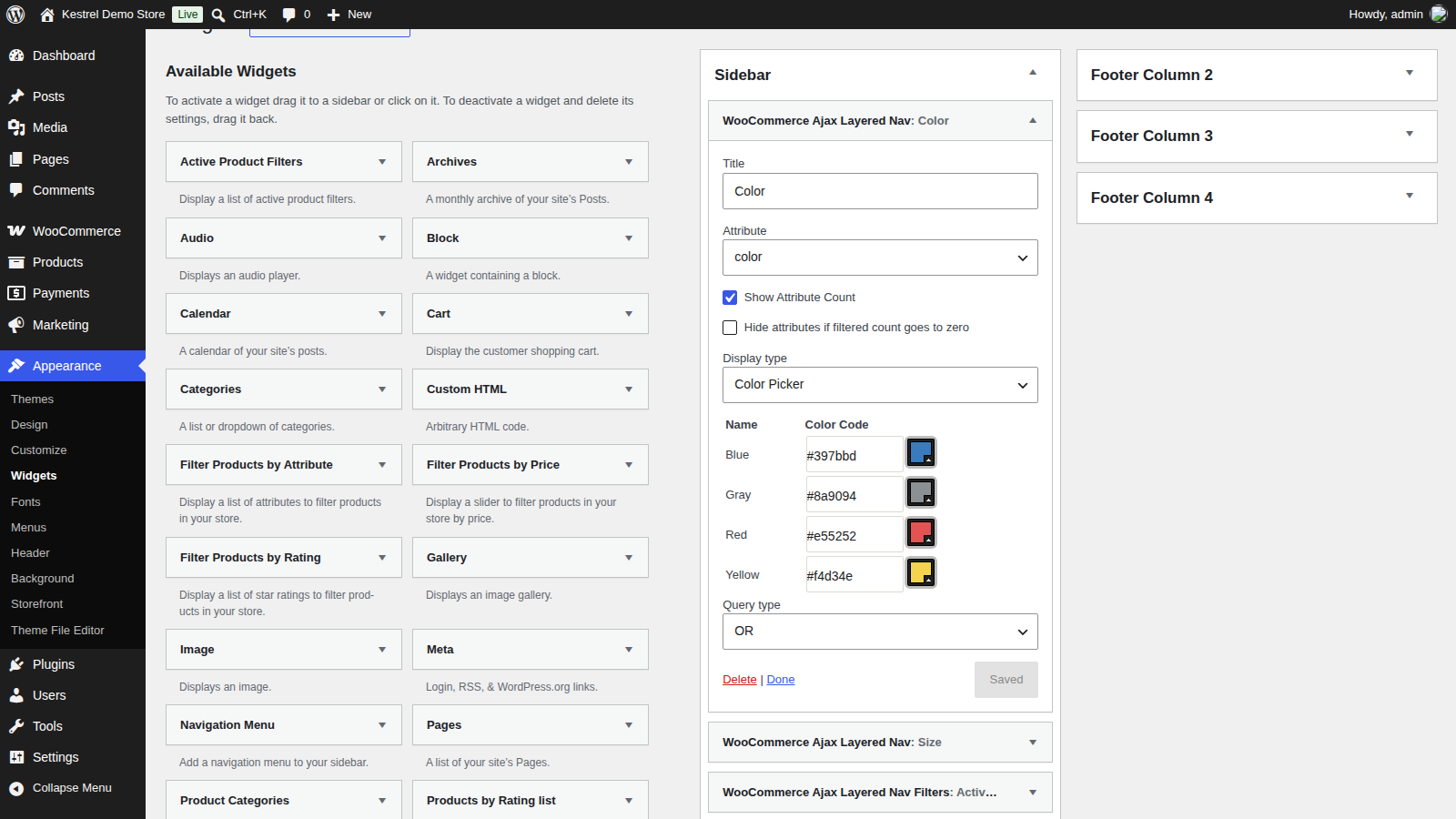
For Size Selector and Color Picker, a table of the attribute’s terms appears under Display type. Enter a short label or a color for each term, then save the widget.
3. Add the active filters and clear all widgets
Add WooCommerce Ajax Layered Nav Filters to the same sidebar to list the filters a shopper has applied, and WooCommerce Ajax Layered Nav Clear All for a link that removes them all. The active filters widget stays hidden until an attribute, price or brand filter is on, and the clear all widget until an attribute or price filter is on.
4. Check it on your shop page
Open your shop page and pick a value in one of the filters. The product list, result count and filter widgets should update without the page reloading, and the active filters widget should show your choice.
Filter widget settings
These are the settings of WooCommerce Ajax Layered Nav, in the order the widget shows them.
Title
The heading above the filter. Default "Filter by".
Attribute
The global attribute this widget filters by. The list shows each attribute’s slug, such as color, rather than its name.
Show Attribute Count
Shows how many products match each value, next to the value.
Hide attributes if filtered count goes to zero
With the OR query type, a List widget shows values that match no products as plain text you can’t click. Tick this to remove them from the list.
Display type
How the values look:
- List: a list of links, styled like WooCommerce’s own attribute filter.
- Dropdown: a select box that starts with "Any [attribute]". It filters by one value at a time, whatever the query type.
- Checkbox: a list of checkboxes.
- Size Selector: short labels shown side by side as buttons, such as XS, S, M. Each label is up to you, and defaults to the term’s name.
- Color Picker: a color swatch for each value. Enter a hex code such as
#1e73befor each term, or use the picker. Terms without a color show as white.
Query type
How values of this attribute combine. See how AND and OR work.
Active filters widget settings
Title
The heading above the active filters. Default "Active Filters".
The widget lists each attribute value the shopper has picked, the minimum and maximum price from WooCommerce’s price filter, and the brand from WooCommerce’s brand filter. Clicking one removes just that filter.
Clear all widget settings
Title
The heading above the link. Default "Clear All Filters".
Link Text
The link that removes every attribute, price and brand filter. Default "Clear All".
How AND and OR work
Each filter widget has a Query type. It decides what happens when a shopper picks more than one value of the same attribute. Filters for different attributes always narrow the results together: Red in the Color filter and Small in the Size filter shows products that are both red and small.
- AND: every value a shopper picks must match. Picking Red and then Blue shows only products available in both colors. Values that would leave no products are left out of the widget, so shoppers can’t filter themselves into an empty page.
- OR: any value can match. Picking Red and then Blue shows products in either color. The counts for each value ignore the shopper’s other picks in the same attribute, so every value stays available.
Use OR for attributes where shoppers want to compare options, like colors or sizes, and AND for attributes where a product needs every value, like features. The Dropdown display type always picks a single value, so the query type only changes which values it lists.
On an attribute’s own archive page, such as the page for the color Red, that value is left out of the filters, because the page already shows only red products.
What customers see
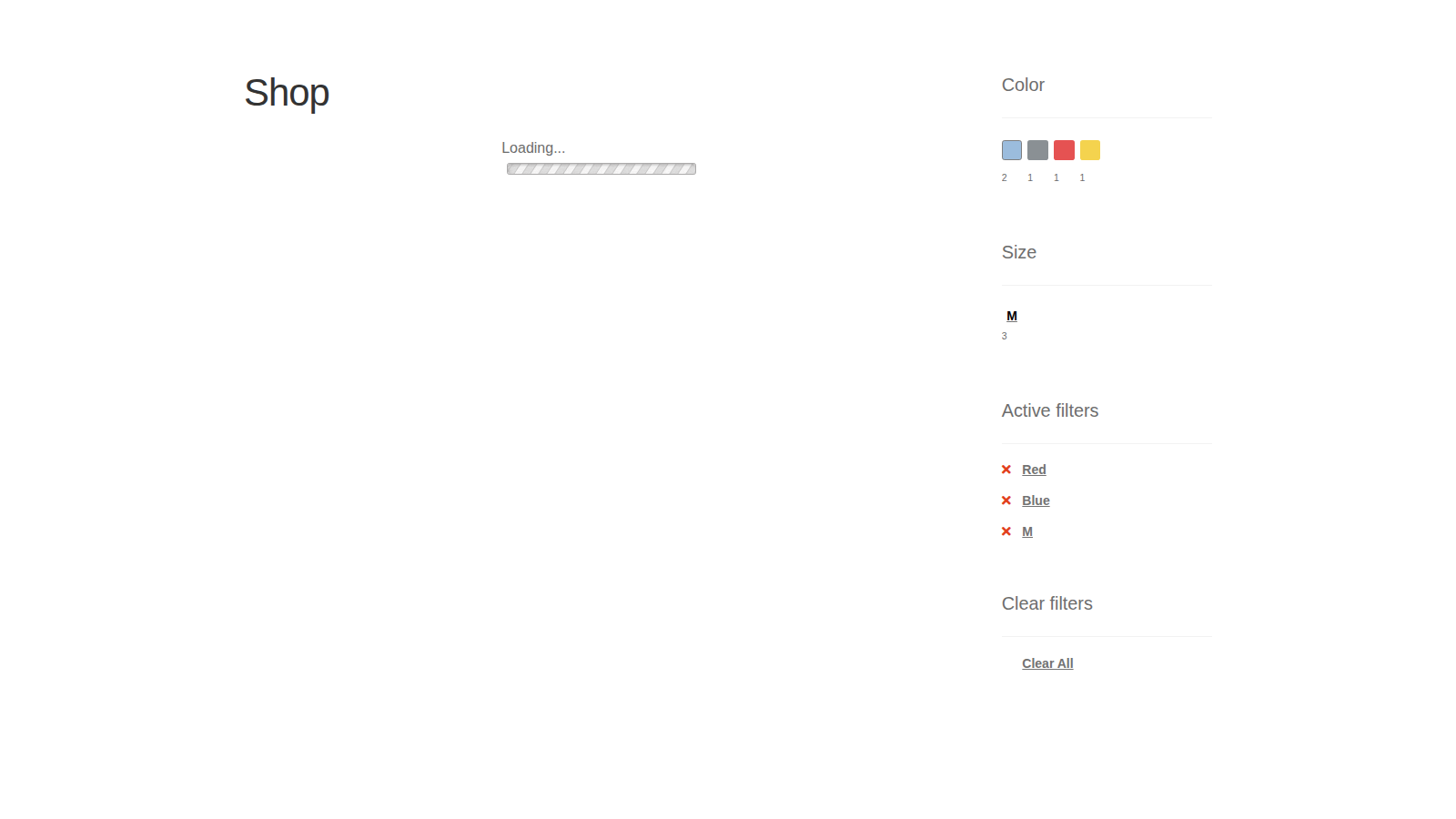
Picking a value fades out the product list, shows "Loading…" and brings in the filtered products. The page scrolls up to the products, and the browser’s address and back button follow each filter change, so shoppers can share or go back to a filtered view.
Changing the sort order or moving to another page of results reloads the page as usual, keeping the filters.
With the plugin active, a product search that finds exactly one product shows the search results page, instead of WooCommerce’s default of going straight to that product.
Common issues
Picking a filter doesn’t update the products
The plugin looks for WooCommerce’s standard shop markup. If your theme changes it, or another plugin or the theme has a JavaScript error on the page, filtering can’t refresh the list. To narrow it down, try a default WordPress theme with only WooCommerce and this plugin active on a staging site, then turn your theme and plugins back on one at a time. If your theme is the cause, a developer can point the plugin at your theme’s markup with the theme compatibility filters.
"Error getting products. Try again." appears above the products
The request for the filtered products failed. Reload the page and try again. If it keeps happening, check your server’s error log, and any security or firewall plugin’s log, at the time of the request.
The filter widget doesn’t appear
- You’re not on the shop page or a product archive. The widgets don’t show on single product pages or other pages.
- None of the products on the page use the attribute’s terms. The widget hides when it has nothing to filter.
- The attribute is a custom attribute on individual products. Only global attributes from Products » Attributes can be filtered.
- Your theme has no widget areas on shop pages.
A value is missing from the filter
With the AND query type, values that would show no products, given the shopper’s other filters, are left out. Use OR if you want every value to stay listed. Dropdown, Checkbox and Size Selector also leave out values with no products under OR.
The color swatches are all white
Set a color for each term in the widget’s table: choose Color Picker as the Display type, enter a hex code for each term and save the widget.
Shoppers can only pick one value in a dropdown
The Dropdown display type filters by one value at a time. Use Checkbox with the OR query type to let shoppers pick several.
A search with one result no longer goes straight to the product
The plugin turns off WooCommerce’s redirect for single-result searches. This applies to every product search on your store while the plugin is active.
Keep learning
- Advanced Ajax Layered Navigation developer reference (making a theme compatible)
- How to install and update WooCommerce extensions
- How to add custom CSS to your site (styling the swatches and size buttons)