


Drip for WooCommerce connects your store to your Drip account. Each paid order records a purchase event in Drip, which you can use to trigger automations and track conversions, and an optional checkbox lets customers subscribe to one of your Drip campaigns at checkout or when they register.
The plugin sends new orders from the moment you connect it. It doesn’t import past orders. An older order is sent only if you mark it Completed after connecting.
When you’d use this
- Start a Drip automation, such as a thank you or review request series, when a customer buys.
- Track purchases against a conversion goal in Drip.
- Let customers opt in to your newsletter campaign while they check out or create an account.
- Keep each subscriber’s lifetime value and purchased products up to date in Drip.
Requirements
- WordPress 6.3 or later, WooCommerce 8.0 or later, and PHP 7.4 or later.
- Compatible with High-Performance Order Storage.
- A Drip account and its API token.
- Purchase tracking works with any checkout. The subscribe checkbox appears only on the classic (shortcode) checkout and the My Account registration form, not on the checkout block.
Install and activate
- Bought on kestrelwp.com: install the plugin by following how to install and update WooCommerce extensions.
- Bought on WooCommerce.com: install the plugin from your WooCommerce.com account. Updates come through your WooCommerce.com connection, with no license key to enter.
Set up Drip
1. Add your API token
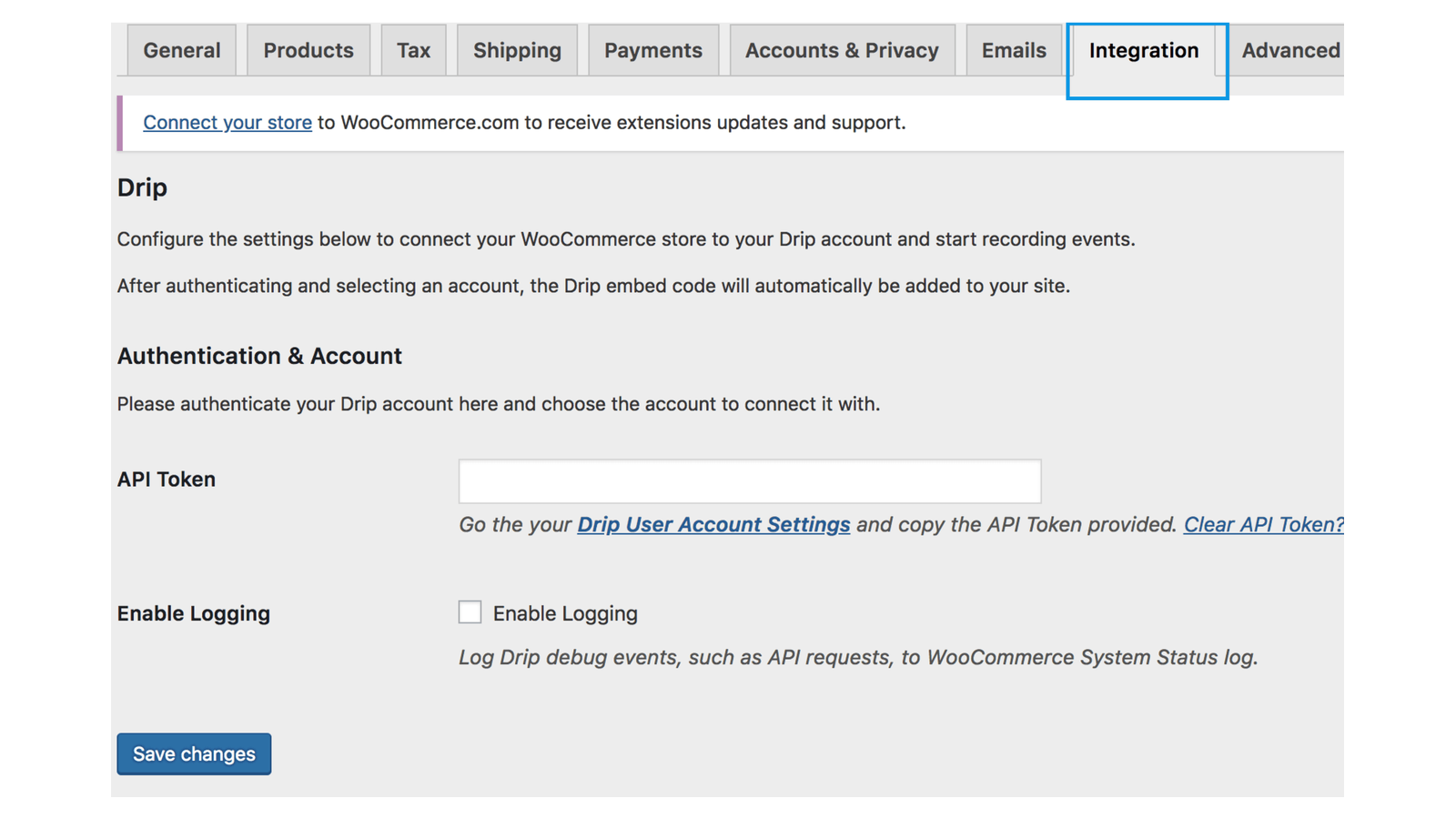
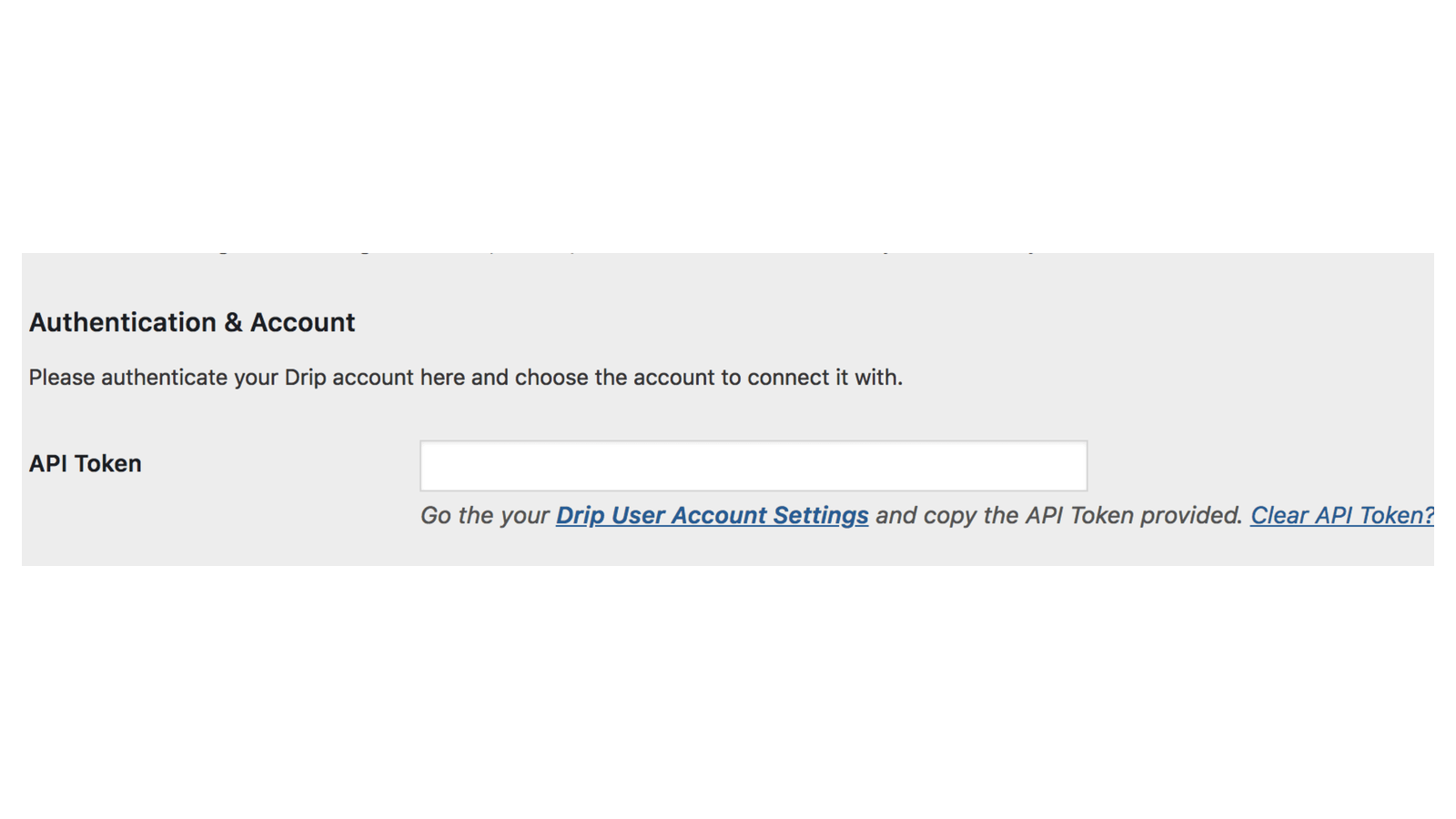
Go to WooCommerce » Settings » Integration » Drip. Copy your API token from your Drip user settings (the Drip User Account Settings link under the field opens them), paste it into API Token, and click Save changes.
If the token isn’t accepted, you’ll see "The API Key is invalid. Please double check it and try again!"
2. Choose the account
Pick your Drip account in Account and save again. Drip’s tracking script now loads on your store’s pages.
3. Set the event name
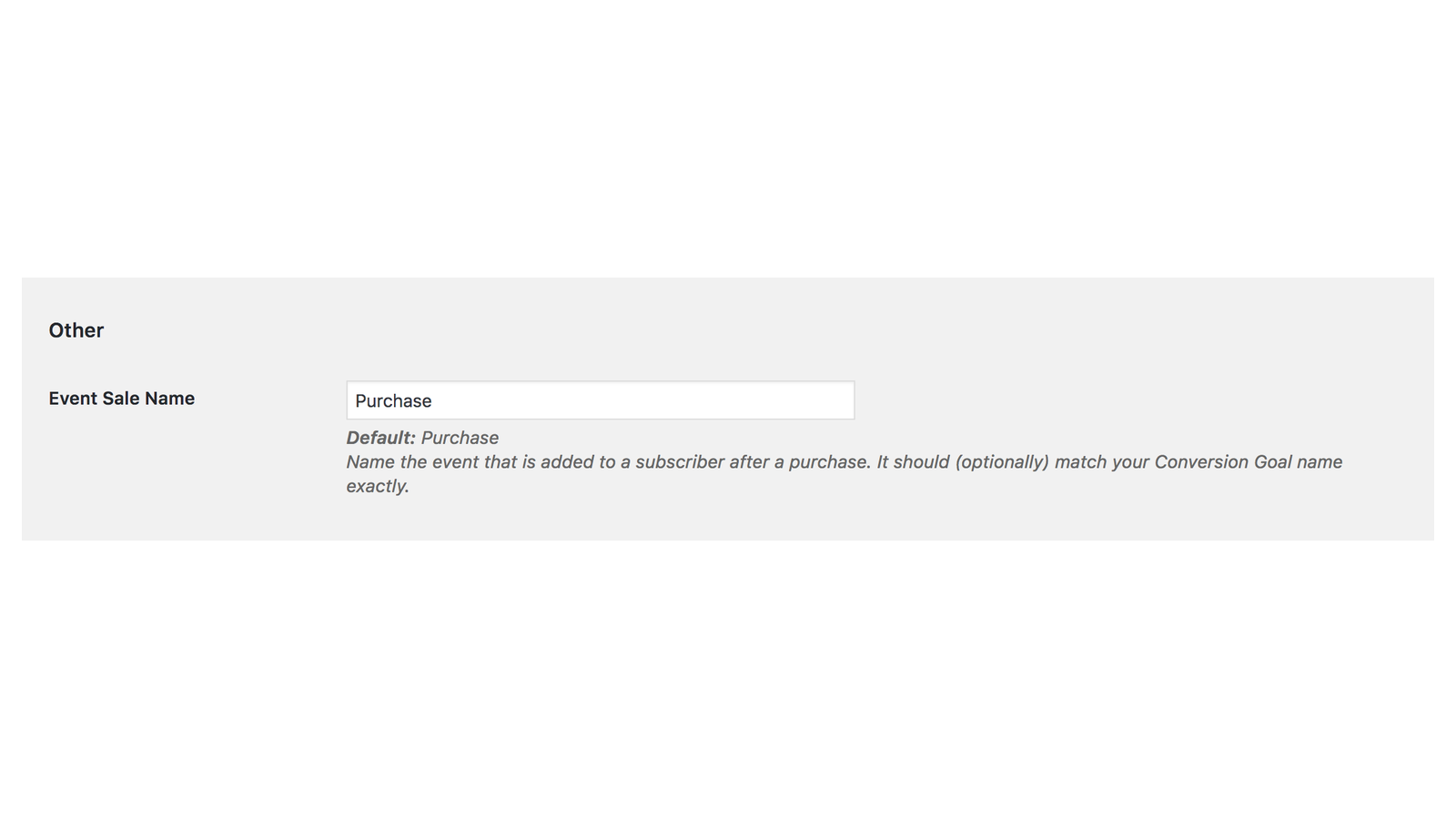
In Event Sale Name, enter the name Drip should give each purchase event, or leave it empty to use "Purchase". If you track a conversion goal in Drip, use the goal’s name exactly.
4. Turn on the subscribe checkbox (optional)
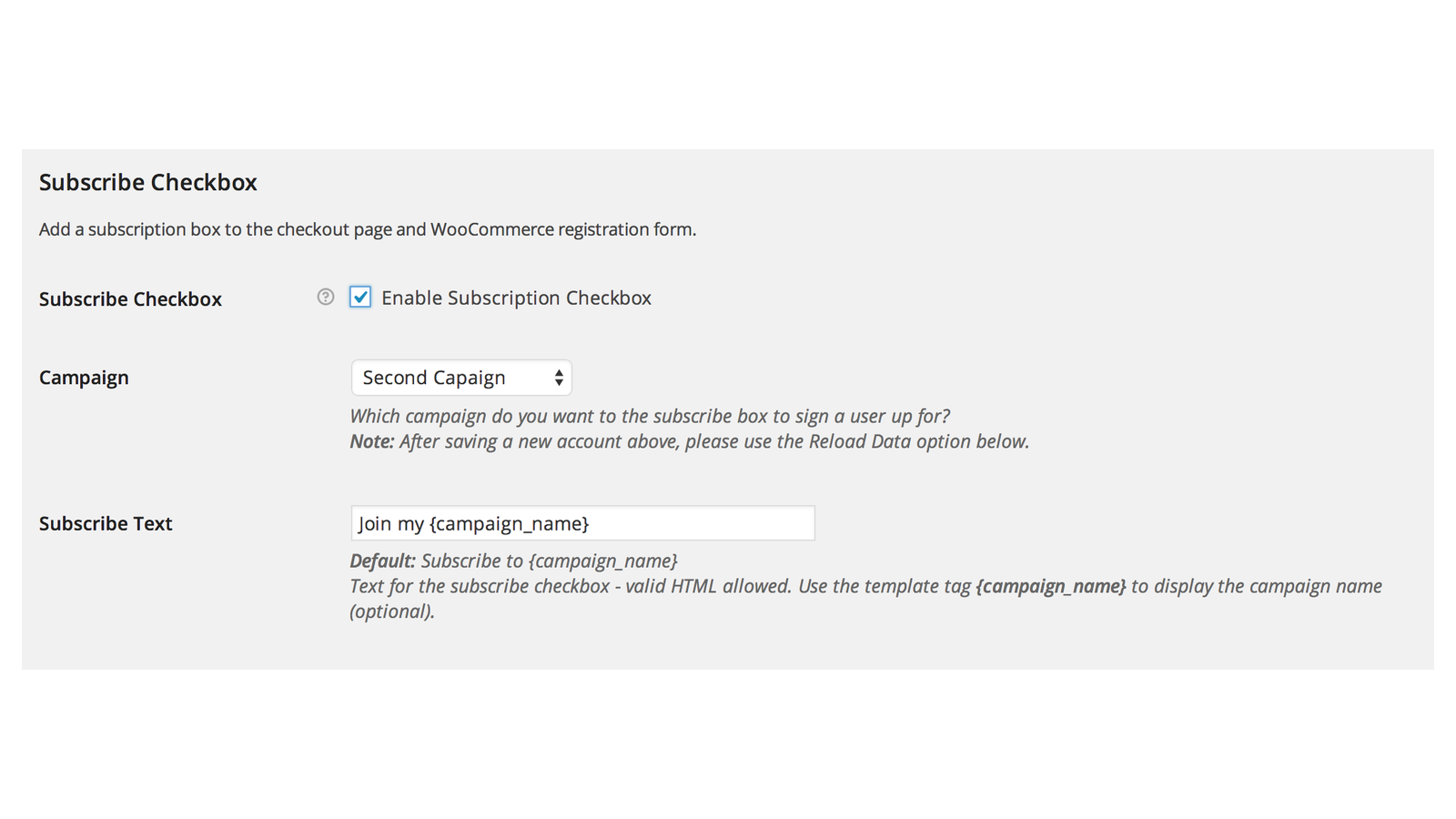
Reload the settings page so the campaign list fills in. Turn on Enable Subscription Checkbox, pick the Campaign customers should join, and save.
5. Check it
Place a test order with a card or another payment method that completes payment online. Then find the purchase event on that email address in Drip.
How purchases are tracked
Drip for WooCommerce sends an order to Drip once, at the first of these moments:
- The payment gateway confirms the payment, which is how card and most online payments work, on the classic checkout and the checkout block alike.
- Someone changes the order’s status to Completed by hand, on the order screen or from the orders list.
Bank transfer, check and cash on delivery orders don’t have an online payment, so they’re sent when you mark them Completed. Orders without a billing email aren’t sent.
Each purchase event is recorded on the order’s billing email and carries the order total, the order ID, and the IDs and names of the products bought.
If the billing email is already a subscriber in your Drip account, the plugin also updates that subscriber with:
- Their name, billing address and phone number.
- A running lifetime_value and purchased_products list, plus customer_id for registered customers.
- The Customer tag.
For emails that aren’t subscribers yet, the plugin sends the event only.
Authentication & Account
The settings are on WooCommerce » Settings » Integration » Drip, in three sections: Authentication & Account, Subscribe Checkbox and Other.
API Token
Your Drip API token. The Clear API Token? link under it removes the token and every other Drip setting, so you can connect a different Drip user.
Account
The Drip account the store sends to. Shows "No accounts exist!" if the token has no accounts.
Subscribe Checkbox
Subscribe Checkbox
Enable Subscription Checkbox adds the checkbox to the classic checkout, below the billing fields, and to the My Account registration form. Off by default. It only shows once a Campaign is chosen.
Campaign
The Drip campaign customers join when they tick the box. The list shows the campaigns in the chosen account. It says "Reload Page to See Campaigns" until an account is saved.
Subscribe Text
The checkbox label. HTML is allowed, and {campaign_name} inserts the campaign’s name. Default "Subscribe to {campaign_name}".
Other
Event Sale Name
The name of the purchase event, "Purchase" by default.
Reload Drip Data
The Reload Accounts / Campaigns button fetches your accounts and campaigns from Drip again. The plugin keeps a copy for a day, so use it after adding an account or campaign in Drip.
Enable Logging
Writes Drip requests and responses to WooCommerce » Status » Logs, under the woocommerce-drip source. The log can contain customers’ personal details, so turn it off and delete the logs when you’re done troubleshooting.
What customers see
On the classic checkout and the registration form, customers see an unticked checkbox with your Subscribe Text. Ticking it subscribes them to your campaign, with Drip’s double opt-in option turned on. Logged-in customers who already subscribed through the checkbox don’t see it again.
If a customer who subscribed with a store account later changes their billing email, in My Account » Addresses or on their user profile, the plugin updates their email in Drip while the subscribe checkbox is turned on.
Drip’s tracking script, from tag.getdrip.com, loads on every page of your store once an account is chosen. WooCommerce’s Settings » Privacy » Policy Guide has suggested text for your privacy policy.
Common issues
An order didn’t create a purchase event
Check these:
- The order was paid through a gateway that confirms payment online, or you set it to Completed. Offline payment orders wait for Completed.
- The order has a billing email.
- The order wasn’t already sent. Each order is sent once, so changing its status again won’t resend it.
- API Token and Account are both set.
For more detail, turn on Enable Logging, place a test order, and check the woocommerce-drip log.
My new campaign or account isn’t in the list
The plugin keeps the lists for a day. Click Reload Accounts / Campaigns.
The subscribe checkbox doesn’t appear at checkout
Make sure Enable Subscription Checkbox is on and a Campaign is chosen. The checkbox only shows on the classic checkout, not the checkout block. It’s also hidden for logged-in customers who already subscribed through it.
You want to turn off double opt-in
The plugin subscribes customers with Drip’s double opt-in option turned on. A developer can turn that off with a filter; see the Drip developer reference.
A buyer’s details or the Customer tag aren’t in Drip
The plugin only updates contacts who are already subscribers in the chosen Drip account. Other buyers get the purchase event only.
Past orders aren’t in Drip
It doesn’t import past orders. An older order is sent only if you mark it Completed after connecting.
Keep learning
- Drip developer reference (filters for the event name, tags, custom fields and double opt-in)
- How to install and update WooCommerce extensions (installing, updating and fixing upload errors)
- Changing text in a plugin (editing the plugin’s labels)