


Instagram Sync turns public Instagram posts into galleries on your WooCommerce store. You create a feed from one or more hashtags, approve the posts worth showing, and place the feed on a page, post or product with a shortcode. It also gives you a bio link: a store URL for your Instagram profile whose destination you change from WooCommerce.

Instagram Sync reads from Instagram; it doesn’t post to your account or sync your own profile. Feeds show standard image posts found by hashtag, so videos, carousels, Stories and Reels aren’t included.
When you’d use this
- Show customer photos tagged with your brand hashtag as social proof.
- Put a gallery for a product line or campaign hashtag on the matching product page.
- Point your Instagram profile link at this week’s sale, then change it without touching Instagram.
Requirements
- WordPress 6.2 or later, WooCommerce 8.2 or later, and PHP 7.4 or later.
- Compatible with WooCommerce’s cart and checkout blocks and High-Performance Order Storage.
- An Instagram business or creator account linked to a Facebook Page, and a business portfolio in Meta Business Suite with that Instagram account added. Personal Instagram accounts can’t use Meta’s hashtag search.
- Store administrators and shop managers can manage feeds, the bio link and the settings.
Install and activate
Instagram Sync is sold on WooCommerce.com. Install it from your WooCommerce.com account, or download it there and upload it to your store. Updates come through your WooCommerce.com connection, with no license key to enter.
For upload and update steps, follow how to install and update WooCommerce extensions.
Set up Instagram Sync
1. Prepare your Meta accounts
In Meta Business Suite, create a business portfolio if you don’t have one, add your Instagram account to it, and make sure the Instagram account is a business or creator account linked to a Facebook Page. Meta’s own help pages walk through each step, and the plugin’s Settings screen links them before you connect.
2. Connect your store
Go to Instagram Sync » Settings and click Login with Facebook. Log in with the Facebook account that manages your business portfolio, choose your Instagram account and its Facebook Page when Facebook asks, and accept the permissions. Facebook returns you to the Settings screen, which now shows Connected as with your Facebook name.
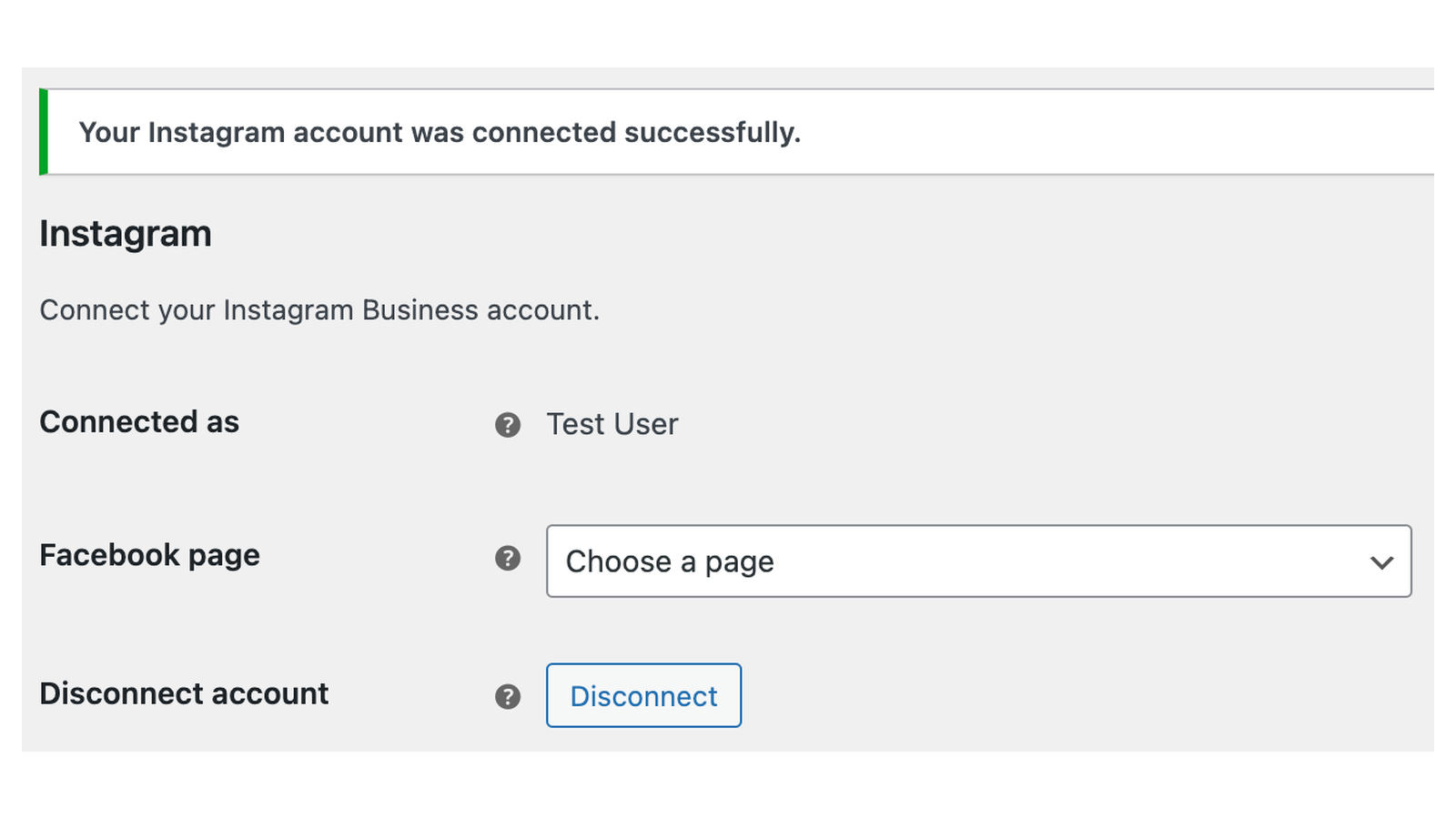
The Feeds and Bio Link menu items appear only while your store is connected.
3. Choose your Facebook Page
Under Connection, pick the Page linked to your Instagram account in Facebook page and click Save settings. Each Page shows its ID in parentheses. If you shared one Page during login, it’s already selected.
If the Page you need isn’t listed, the login didn’t grant access to it. Click Disconnect, then Login with Facebook again, and tick that Page on Facebook’s "Choose what you allow" screen. If no Page was shared at all, the setting becomes a Facebook page ID field where you can paste the Page’s ID from Meta Business Suite.
4. Create a feed and add hashtags
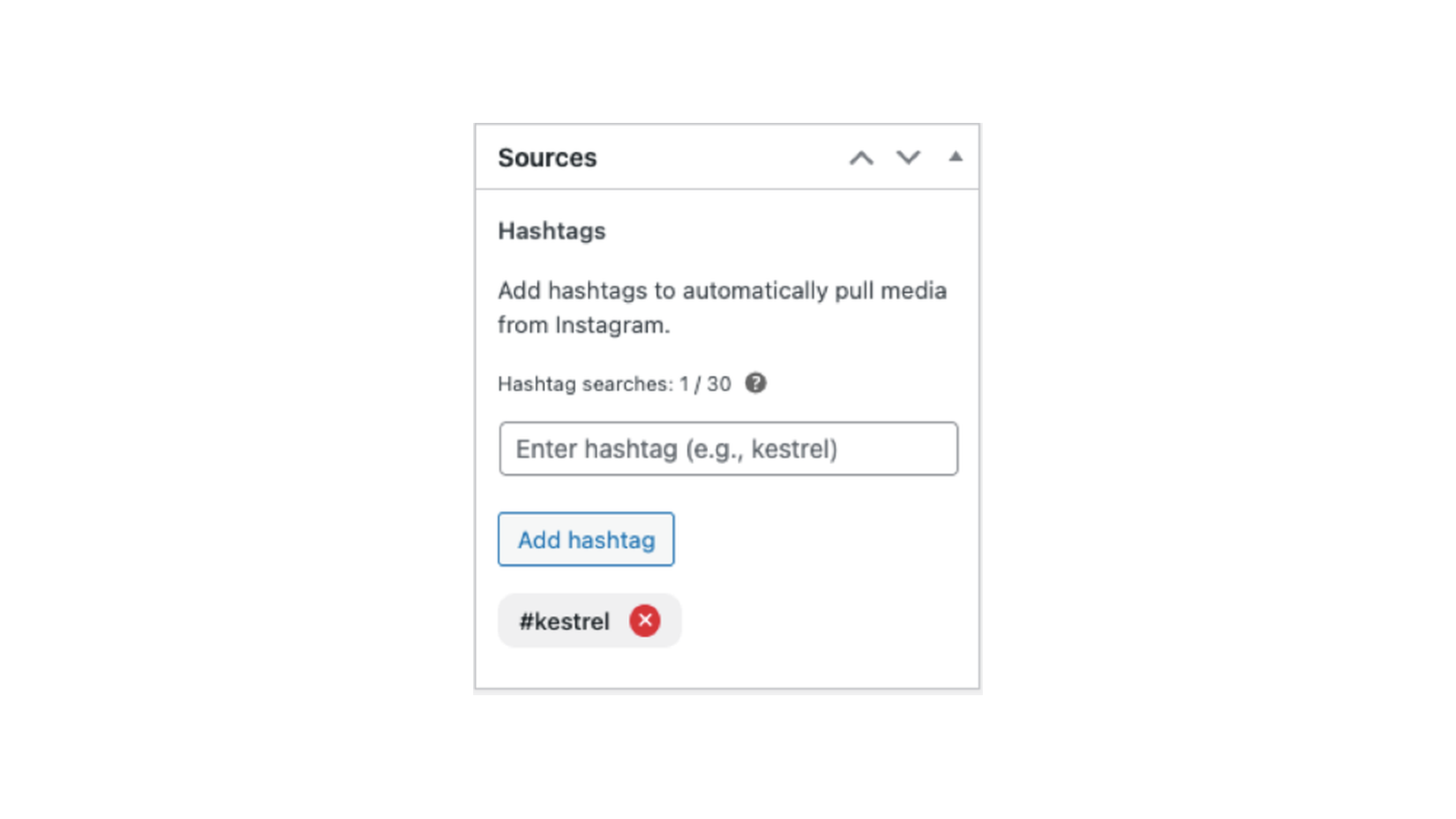
Go to Instagram Sync » Feeds, click Add New and give the feed a title you’ll recognize. In the Sources box, type a hashtag (such as kestrel) and click Add hashtag. Add as many as the feed needs, keeping Meta’s hashtag limit in mind.
5. Pull in posts
In the Media box, click Refresh media. Instagram Sync searches each hashtag in turn, downloads the matching image posts to your store and adds them as pending. When it finishes, it shows how many posts it found, how many are new and how many were already in the feed.
6. Approve the posts you want
Nothing shows on your store until you approve it. Click Approve under each post you want, or Unapprove to take one back. Use the All media, Approved and Pending filter and the hashtag filter to work through a long list. The delete button (×) on a post removes it from your store, including from every other feed that uses it.

7. Publish and place the feed
Click Publish. Then click How to display this feed, choose the layout, columns, number of items and captions, and copy the shortcode it builds. Paste the shortcode into the content of the page, post or product where the gallery should appear (for a product, its description), then view that page to check the gallery.

How feeds stay up to date
New posts arrive only when you click Refresh media; Instagram Sync doesn’t fetch them on a schedule. Each refresh takes the latest batch Meta returns for each hashtag, sorted as your Media search type setting asks.
Meta allows each Instagram account 30 unique hashtag searches in a rolling seven days. The Sources box shows how many this store has used (Hashtag searches: 12 / 30, for example), and blocks new hashtags once you reach 30. A hashtag counts from the last time it was searched, so refreshing a feed restarts the seven days for each of its hashtags, and removing a hashtag doesn’t free its place until seven days after its last refresh. Reaching the limit doesn’t stop you refreshing hashtags your feeds already use.
Instagram Sync also tidies feeds on its own:
- Once a day, it deletes posts that were pulled in more than seven days ago and aren’t approved in any feed. That includes posts you approved and later unapproved, so unapprove only posts you’re happy to lose.
- About every three days, it checks that approved posts still exist on Instagram. A post that was deleted or made private is removed from your store about two weeks later. If five or more posts are queued this way for other reasons, a notice reads "Instagram Sync: 5 media item(s) are scheduled for automatic deletion within the next 2 weeks, this might be due to an API error."
Display a feed
The shortcode looks like [wcig_feed id="123"]. The feed list’s Shortcode Example column shows each feed’s own shortcode, and How to display this feed builds one with these options:
| Attribute | Values | Default |
|---|---|---|
id | The feed ID, shown in the feed list’s Feed ID column | Required |
layout | masonry, grid or carousel | masonry |
columns | 1 to 6 | 3 |
items | How many posts to show; 0 shows all approved posts | 0 |
captions | 1 shows the post’s caption when a visitor opens it, 0 hides it | 1 |
For example, [wcig_feed id="123" layout="carousel" columns="4" items="8"] shows eight posts in a four column carousel.
If a page has more than one feed, the popup uses the first feed’s captions setting for all of them.
The feed loads only when the shortcode is in the main content of the page, post or product being viewed. In a widget, a block theme template, a product’s short description or a page builder area stored outside the content, it shows nothing. The feed must also be published; otherwise the shortcode shows "Invalid feed ID."
Add a feed to a product
Every product has an Instagram Sync tab in its Product data box. It lists your published feeds with their hashtags, and Display feed opens the same shortcode builder. Paste the shortcode into the product’s description. The tab doesn’t attach individual posts to the product; curation stays at feed level, so create a feed per product line or hashtag when products need different galleries.
Set up your bio link
Instagram allows one link in your profile. The bio link is a URL on your store that sends visitors wherever you choose, so you can change the destination without editing Instagram.
- Go to Instagram Sync » Bio Link.
- In Bio link, enter the path to use, such as
instagram. Below the field, Your bio link URL is: shows the full address. Pick a path no page on your store already uses, because the bio link takes over that address. - In Bio link destination, enter the full URL of a page on your store, such as your shop page or a sale category.
- Click Save settings, then open the bio link URL in a private browser window to check where it lands.
- Add the bio link URL to your Instagram profile.
The destination must be on your own store. A destination on another site, or one that isn’t a full URL, doesn’t work: an off-site destination sends visitors to your WordPress login page instead, and an empty or invalid one shows a "page not found" error.
To send the bio link to a product, tick Set as Instagram bio link on that product, either on its Instagram Sync tab or in the Publish box, and update the product. Unticking it on the product that’s currently the destination sends the bio link to your home page.
Instagram Sync settings
Go to Instagram Sync » Settings. The menu item shows a green dot while the connection works, and a red one when your store is disconnected or access needs renewing.
Facebook page
The Page linked to your Instagram business account. Shown as Facebook page ID, a text field, when the login shared no Pages. See Choose your Facebook Page.
Disconnect account
Disconnect removes your store’s access to Instagram. Your feeds, approved posts and bio link stay. To also remove the app from your Facebook account, see Instagram Sync data and deletion requests.
Media search type
What Refresh media asks Meta for: Most recent (the default) or Most popular posts for each hashtag. Meta’s recent search covers posts from about the last 24 hours, so a hashtag that isn’t used every day can return nothing new on Most recent; try Most popular for quieter hashtags.
What customers see
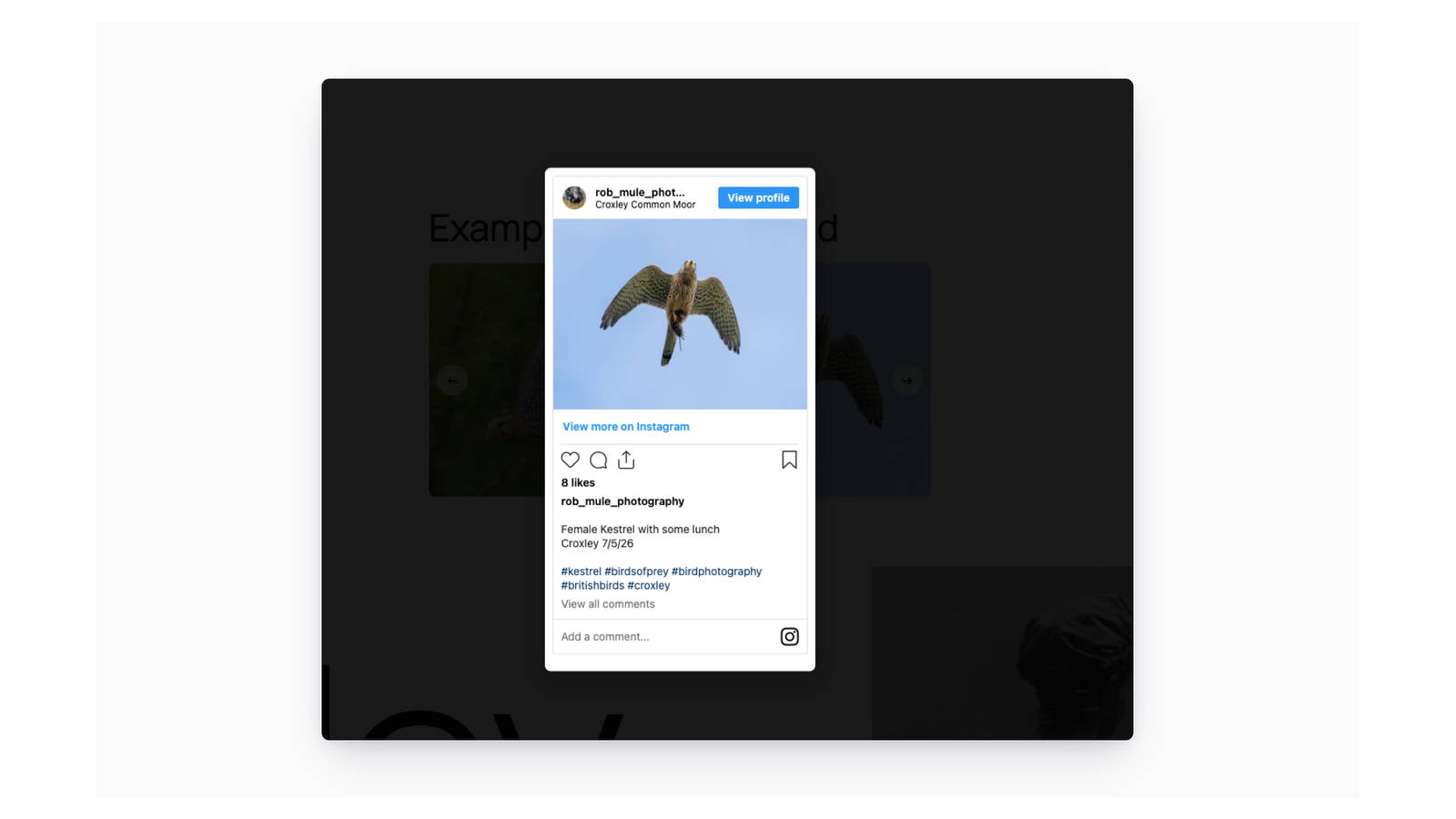
The feed appears as a masonry, grid or carousel gallery, newest pulled in first. On phones, masonry and carousel layouts drop to one or two columns. Clicking a post opens it in a popup with Instagram’s own embed of the post (author, caption, likes and comments), with arrows to move through the feed. Thumbnails load from your store; the full post loads from Instagram only when a visitor opens it.
Legacy product catalogs and hashtag images
Versions before 5.0 also generated product catalog feeds for Meta Commerce Manager and showed hashtag images on product pages. These features are no longer developed. They stay available only on stores that used them before updating, under WooCommerce » Settings » Integration » Instagram and a product’s Instagram Sync (legacy) tab. New installs don’t see them.
If you still rely on a catalog feed, its catalog keeps the Update feed, Copy URL and Download file actions, and Commerce Manager can keep fetching its URL. To sync your catalog with Meta going forward, use Meta’s free Facebook for WooCommerce plugin. If hashtag images on product pages look broken, go to WooCommerce » Status » Tools and click Clear next to Clear Instagram images.
Common issues
Login with Facebook doesn’t connect
Instagram Sync connects only when Facebook completes the login and returns you to the Settings screen. Check that you used the Facebook account that manages your business portfolio, that your Instagram account is a business or creator account, and that you accepted every permission. Then try again. Failed attempts are logged in WooCommerce » Status » Logs under the wc_instagram_api source.
"Your store is connected, but no Facebook page is set"
No Page is selected. Choose one under Facebook page on Instagram Sync » Settings and save. If it isn’t listed, disconnect and reconnect, ticking the Page during login.
Refresh media says hashtags failed
The refresh summary ends with a line like "2 hashtags failed." The usual causes:
- The selected Facebook Page has no Instagram business account linked. Link them in Meta Business Suite, then choose the Page again and save.
- Your access needs renewing (the Settings dot is red). Renew it as described below.
- Meta rejected the search, often because the hashtag limit was reached. Wait for the count to drop.
Search errors are logged in WooCommerce » Status » Logs under the woocommerce-instagram and wc_instagram_api sources. A Page with no Instagram business account isn’t logged, so check cause 1 first.
Refresh media finds no new posts
Meta returns only public image posts, and Most recent covers about a day. Try Most popular under Media search type, or use a hashtag people post with more often.
"Limit reached. Cannot add new hashtags."
This store has searched 30 unique hashtags in the last seven days. Hashtags already in your feeds still refresh. A slot frees up seven days after a hashtag’s last refresh, so remove hashtags you no longer need and stop refreshing them.
"The credentials for accessing the Instagram API have expired or are no longer valid"
Instagram Sync renews access on its own before it expires. If Facebook invalidates it, or renewal fails, this notice appears with a Renew access button. Click it and complete the Facebook login again.
The feed doesn’t show on the page
Check, in order:
- The feed is published. An unpublished feed shows "Invalid feed ID."
- The shortcode is in the page’s main content, not a widget, block theme template, short description or page builder area. See Display a feed.
- The feed has approved posts. The feed list’s Media column shows the count.
- A script optimization plugin isn’t delaying or combining the feed’s scripts. Exclude the page from it and check again.
The feed shows "Invalid nonce"
The page was served from a cache more than 12 hours old, so the security token the feed needs to load may have expired. Set your page cache to expire within 12 hours, or exclude pages with a feed from it.
The bio link goes to the WordPress login page
The Bio link destination is on another site. Use a page on your own store.
The bio link shows a "page not found" error
The bio link or its destination is empty, or the destination isn’t a full URL, such as https://example.com/shop/. Fix it on Instagram Sync » Bio Link and save. Test the exact link from your Instagram profile, since extra characters after the path stop it from matching.
The bio link goes to the home page instead of a product
Unticking Set as Instagram bio link on the destination product sends the bio link home. So can saving that product through Quick Edit, bulk edit or an import. Tick Set as Instagram bio link on the product again and update it, or enter the product’s URL under Bio link destination.
Approved posts disappeared
Instagram Sync removes posts that were deleted or made private on Instagram, and deletes unapproved posts more than seven days old. See How feeds stay up to date.
Keep learning
- Instagram Sync data and deletion requests (what’s stored, disconnecting and removing data)
- How to install and update WooCommerce extensions (installing and updating)
- How to add custom CSS to your site (styling a feed beyond its layout options)