


Shipping Countdown shows a live countdown to your daily shipping cut off on product pages, such as "Order within 3 hrs 20 mins for delivery on Friday 2nd October." You set a cut off time and a number of shipping days for each day of the week, and the plugin works out the time left and the date to show.

The countdown is a message on the product page. It doesn’t change shipping rates or stock, and it doesn’t stop customers ordering after the cut off. You turn it on per shipping class or per stock status, not per product.
When you’d use this
- Encourage orders before your warehouse’s daily cut off.
- Promise next-day delivery on in stock items and a longer wait on backorders.
- Show a different cut off for bulky items in their own shipping class.
- Give a delivery date that accounts for weekends.
Requirements
- WordPress 6.3.8 or later, WooCommerce 8.5.0 or later, and PHP 7.4 or later.
- Compatible with WooCommerce’s cart and checkout blocks and High-Performance Order Storage. The countdown only shows on product pages, so checkout isn’t affected.
- Product pages that use WooCommerce’s standard add to cart form. The countdown reads the product from that form.
Install and activate
- Bought on kestrelwp.com: install the plugin by following how to install and update WooCommerce extensions.
- Bought on WooCommerce.com: install the plugin from your WooCommerce.com account. Updates come through your WooCommerce.com connection, with no license key to enter.
Set up Shipping Countdown
All settings are on WooCommerce » Settings » Shipping » Shipping countdown.


1. Set your timezone offset
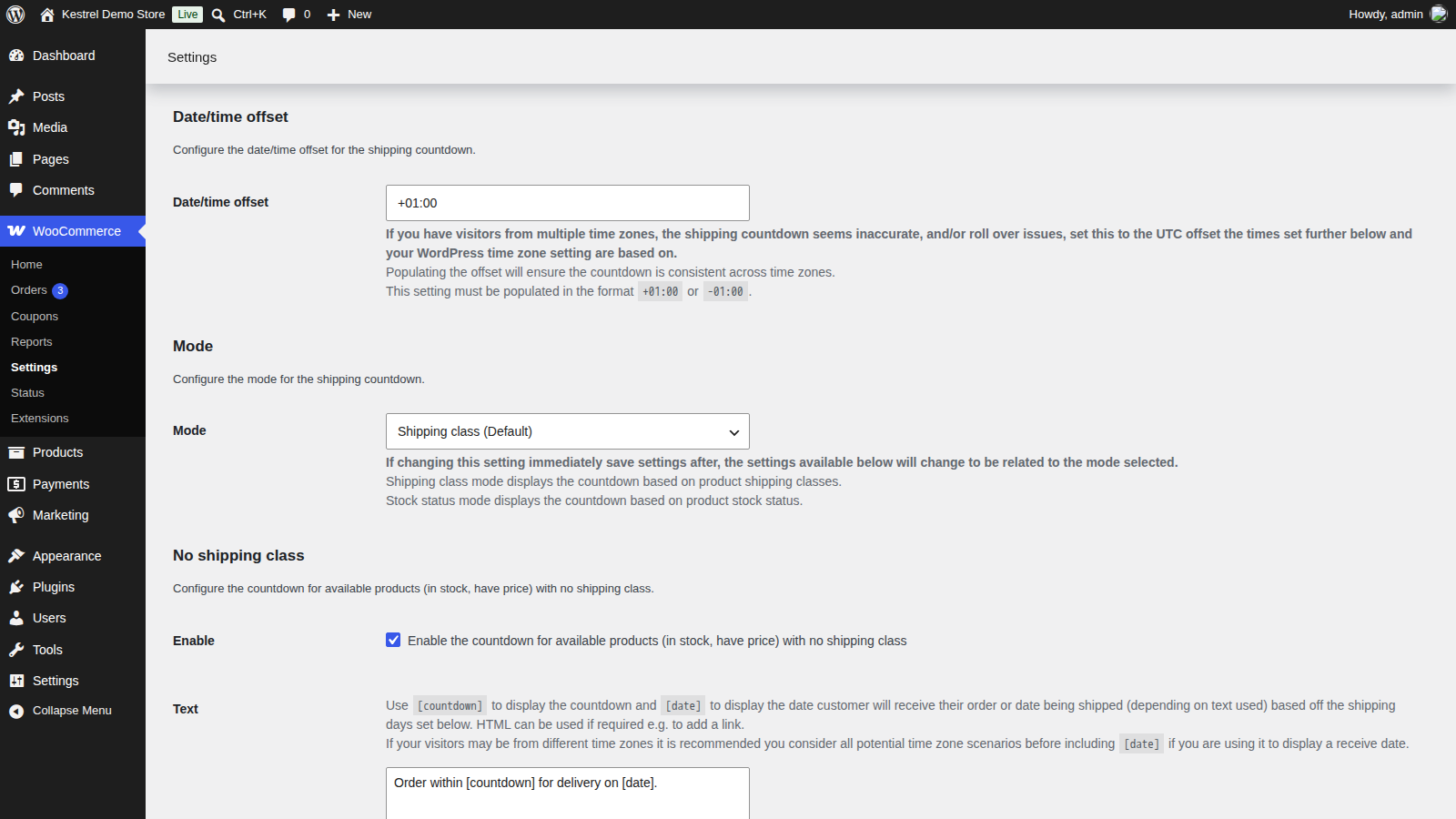
Check your timezone under Settings » General » Timezone. Then, in Date/time offset, enter that timezone’s current offset from UTC in the format +01:00 or -05:00. Leave it empty only if your store runs on UTC (see Date/time offset).
2. Choose a mode
Leave Mode on Shipping class (Default) to set cut offs per shipping class, or choose Stock status to set them for in stock and backorder products. If you change it, click Save changes straight away: the groups further down the screen change to match.
3. Turn on a group
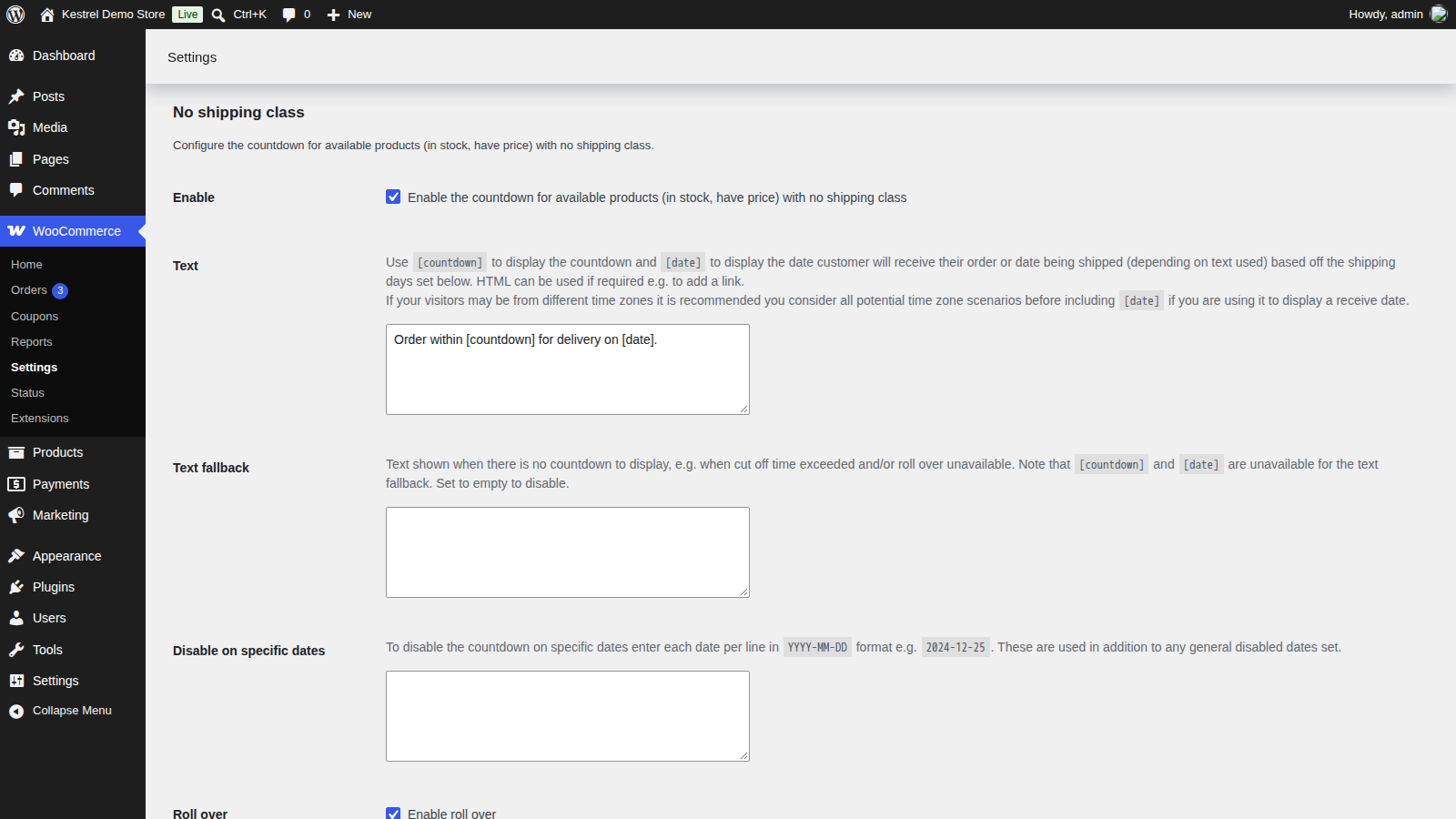
Each shipping class (starting with No shipping class), or each stock status, has its own group. Tick Enable in the group that matches your products. Its settings appear below the checkbox.
No shipping class and In stock come with defaults: the text "Order within [countdown] for delivery on [date].", a 14:00 cut off every day, 2 shipping days Monday to Thursday, 3 Friday to Sunday, and Roll over on. Every other group starts empty, so fill in its Text and each day’s times.
4. Set cut off times and shipping days
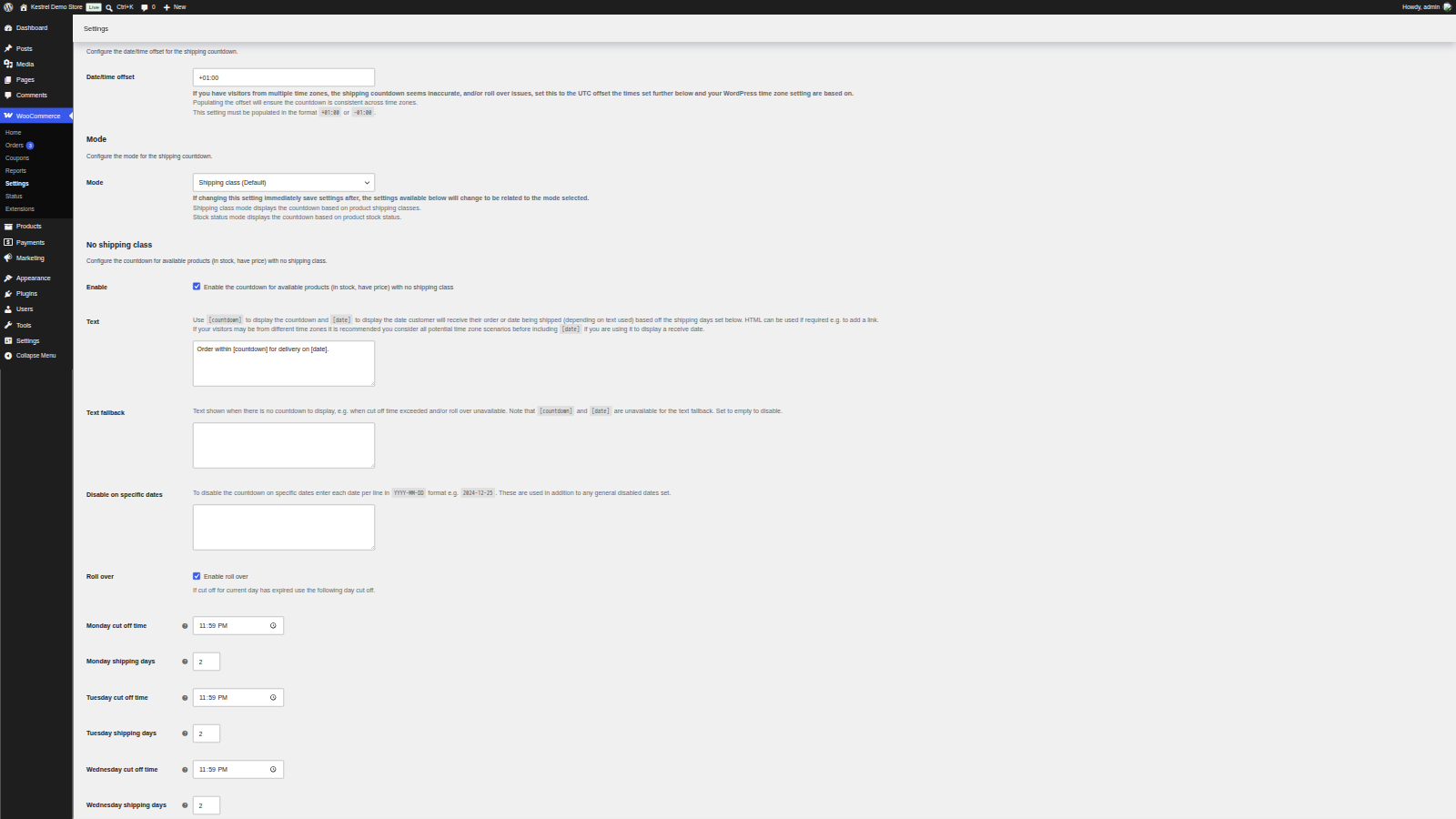
For each day, set the cut off time and the number of days until the customer receives the order. To skip a day, clear its time. Click Save changes.
5. Check it
Open a product in that shipping class (or with that stock status) in a private browser window. Just above the add to cart form, you’ll see your message with the time left and the delivery date.
How the countdown is worked out
When a product page loads, Shipping Countdown checks the product’s shipping class or stock status (for a variable product, the selected variation’s, falling back to the product’s) and uses that group’s settings:
- If today’s cut off time is still ahead, it counts down to it, and the date is today plus that day’s shipping days.
- If today’s cut off has passed and Roll over is on, it counts down to tomorrow’s cut off, with tomorrow’s shipping days.
- If neither applies, because today has no cut off time, or roll over is off or tomorrow has no cut off time, it shows the group’s Text fallback, or nothing if that’s empty.
Shipping days are calendar days, so set more on the days before a weekend: with 3 on a Friday, a Friday order shows Monday’s date. When the countdown reaches zero, it disappears, and the next page load shows the next cut off.
Which products show a countdown
- Single product pages only. Shop and category pages, the cart and checkout don’t show it.
- Not virtual or downloadable products.
- In Shipping class mode, the product must be in stock, not on backorder, and have a price. In Stock status mode, groups exist for In stock and On backorder; out of stock products don’t show a countdown.
- Simple and variable products, including subscription products. Grouped and external/affiliate products don’t show one.
Choose where the countdown appears
With Automatic display on (the default), the countdown appears at the Automatic display hook you choose, before the add to cart form by default. If your theme doesn’t use that spot, choose another.
You can also turn Automatic display off and place the countdown yourself with the Shipping Countdown block (in its own block category) or the [wcsc_shipping_countdown] shortcode on the product page template. Both show the countdown only on product pages. They add it as soon as WordPress processes them, ahead of the content around them, and in a block theme’s templates that can put it at the top of the page. If the countdown doesn’t show where you placed it, turn Automatic display back on and choose a hook instead. Use one placement at a time: only one countdown per page fills in.
Countdown display settings
These apply to every group.
Automatic display
Shows the countdown at the Automatic display hook. On by default.
Automatic display hook
Where on the product page the countdown appears, chosen from WooCommerce’s product page hooks such as woocommerce_before_add_to_cart_form (the default), woocommerce_after_add_to_cart_button or woocommerce_product_meta_start. Developers can add more (see the developer reference).
Variable products display
After all required options selected (Default) shows the countdown once the customer has picked a variation. Before all required options selected shows it straight away, using the main product’s shipping class or stock status until a variation is picked.
Styling
Applies the color, border and font settings below. On by default. Turn it off to style the countdown with your own CSS (see Style the countdown with CSS).
Show if cart not empty
Keeps showing countdowns while the customer has items in their cart. On by default. Turn it off if a countdown would be misleading for an order with several items.
Show seconds
Includes seconds in the countdown. On by default.
Disable on specific dates
Dates, one per line in YYYY-MM-DD format such as 2026-12-25. This field appears here, for every group, and in each group for that group only. On a listed date, shoppers see your Text with no time left and the word "null" where the date goes, not your fallback text. To show your fallback text on a holiday instead, clear that weekday’s cut off time in the group for that week, and put it back afterwards. A cleared day shows the fallback text, and the day before doesn’t roll over into it.
Date format
How [date] is written, as a PHP date format. Default l jS F, which gives "Friday 2nd October".
Day text
The word after 1 in the countdown. Default "day".
Days text
The word after 2 or more. Default "days".
Hour text
Default "hr".
Hours text
Default "hrs".
Minute text
Default "min".
Minutes text
Default "mins".
Second text
Default "sec".
Seconds text
Default "secs".
Text color
Default green (#008000).
Background color
Empty by default (none).
Border color
Empty by default.
Border style
None (the default), Dashed, Double, Dotted or Solid.
Border size (px)
Default 0.
Border radius (px)
Default 0.
Padding (px)
Default 0.
Font size (px)
Default 14.
Font style
Normal (the default) or Italic.
Font weight
Normal or Bold (the default).
Timezone and mode settings
Date/time offset
The UTC offset of the timezone in Settings » General, in the format +01:00 or -01:00. Empty by default.
With an offset, the plugin checks the cut off against your store’s local time and every visitor counts down to the same moment, wherever they are. With it empty, the plugin checks the cut off against UTC, and each visitor’s browser counts down to that time in their own timezone, so the countdown is only right for stores and visitors on UTC.
The offset is fixed. If your timezone changes its clocks for daylight saving time, update the offset when the clocks change, for example from +01:00 to +00:00 for London in late October.
Mode
Shipping class (Default) gives each shipping class its own group, plus No shipping class. Stock status gives In stock and On backorder their own groups. Save right after changing it to see the new groups. Each mode keeps its own group settings.
Shipping class and stock status settings
Each group has the settings below. A shipping class you add later under WooCommerce » Settings » Shipping gets its own empty group here.
Enable
Turns the countdown on for products in this group. Off by default. The group’s other settings stay hidden until it’s ticked.
Text
The message, using [countdown] for the time left and [date] for the date from the shipping days. Write it as a delivery date ("for delivery on [date]") or a dispatch date ("ships on [date]"), depending on how you count shipping days. HTML such as a link is allowed.
Text fallback
Shown when there’s no countdown, such as after the cut off with Roll over off. [countdown] and [date] don’t work here. Leave it empty to show nothing. Empty by default.
Roll over
After today’s cut off, counts down to tomorrow’s cut off instead. On by default in the two groups with defaults.
Cut off time for each day
Monday cut off time to Sunday cut off time: the time the countdown runs to on that day, in your store’s timezone. To turn the countdown off for a day, clear the time (delete the hours and minutes).
Shipping days for each day
Monday shipping days to Sunday shipping days: the number of days from that day’s cut off to the date shown in [date]. Use 0 for the same day.
Style the countdown with CSS
The countdown is a paragraph with the class wcsc-shipping-countdown, whether or not Styling is on. Inside it, each part has its own class, such as wcsc-shipping-countdown-hours-number, wcsc-shipping-countdown-hours-text and wcsc-shipping-countdown-date. Add your rules with custom CSS.
To hide the countdown on one product, use the product’s ID (shown when you hover over it in Products » All Products). For product 123:
.postid-123 .wcsc-shipping-countdown {
  display: none;
}
Common issues
The countdown doesn’t appear
Check these in order:
- You’re on a single product page, and the product isn’t virtual or downloadable.
- The group for the product’s shipping class or stock status has Enable ticked. Products without a class use No shipping class.
- That group has a Text, and today has a cut off time and shipping days. If the cut off has passed, Roll over is on and tomorrow has a cut off time.
- In Shipping class mode, the product is in stock, not on backorder, and has a price.
- For a variable product, a variation is selected, or Variable products display is set to Before all required options selected.
- Your cart is empty, or Show if cart not empty is on.
- Your theme uses the Automatic display hook you chose. Try
woocommerce_before_add_to_cart_formorwoocommerce_after_add_to_cart_button. - The page uses WooCommerce’s standard add to cart form. Page builders that replace that form, and grouped and external products, don’t show a countdown.
The product page only holds an empty placeholder. When the page loads, a script sends a request to admin-ajax.php, the server works out the countdown for that moment and returns it, and the page counts down in the browser. Make sure your caching or security plugin doesn’t block or cache requests to admin-ajax.php, or the countdown never appears.
The countdown shows the wrong time or doesn’t roll over
Set Date/time offset to match the timezone in Settings » General, and update it when your clocks change for daylight saving time.
The message shows "null" or no time
If "null" shows where the date should be, today is listed in Disable on specific dates. If the time is missing but the date shows, Date/time offset isn’t in the +01:00 format (values like +1 or UTC+1 don’t work).
The countdown disappeared at the cut off
It disappears when it reaches zero. Reloading the page shows the next cut off, or the fallback text.
The countdown appears at the top of the page
If you placed it with the block or shortcode, it can land ahead of the content around it (see Choose where the countdown appears). Turn Automatic display back on and remove the block or shortcode.
The countdown doesn’t load for logged-in customers
The countdown loads separately after the page, so page caching doesn’t freeze it. For logged-in customers, that request is checked against a security token that expires within 24 hours. If your cache serves stored pages to logged-in customers, keep its lifespan to 10 hours or less, or don’t cache pages for them.
The delivery date falls on a holiday
Shipping days count calendar days, and dates in Disable on specific dates don’t move the delivery date. Raise that week’s shipping days, or clear the cut off time on the days before the holiday.
Keep learning
- Shipping Countdown developer reference (showing the countdown on virtual or downloadable products, and adding display hooks)
- How to install and update WooCommerce extensions (installing, updating and fixing upload errors)
- How to add custom CSS to your site (styling or hiding the countdown)