


Slack for WooCommerce posts your store’s events to Slack channels: new orders, order status changes, refunds, stock alerts, new customers, product reviews, new posts and subscription renewals. You turn on each event separately, choose its channels and emoji, and can reword its message with merge tags.
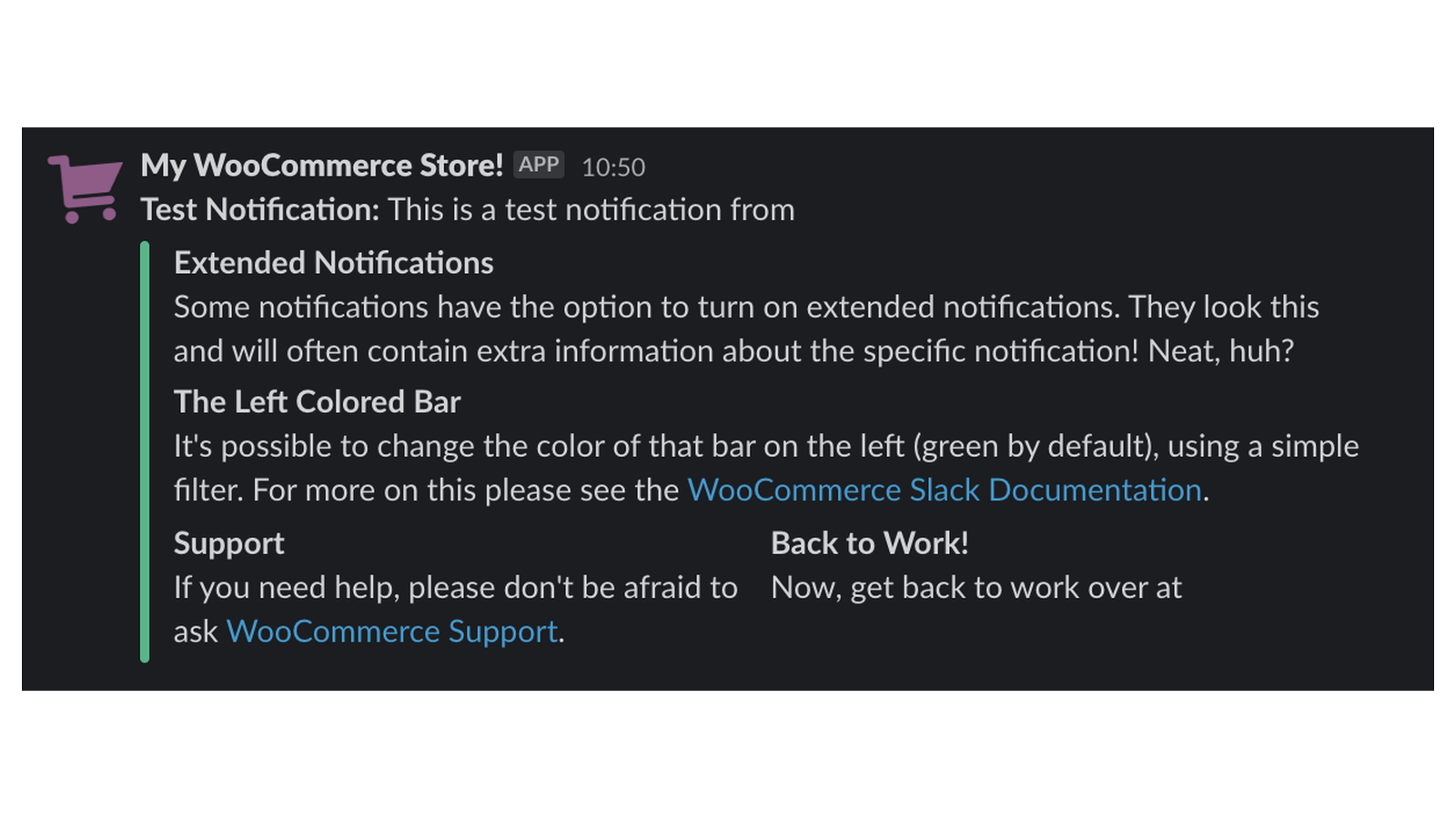
Notifications go one way, from your store into Slack. You can’t reply to or manage orders from Slack, and the plugin doesn’t send direct messages to individual people.
When you’d use this
- Tell your fulfillment team the moment an order comes in.
- Send refunds to a finance channel and stock alerts to whoever reorders.
- Follow orders as they move through the statuses you care about, including custom statuses.
- Celebrate new reviews and new customer accounts in a team channel.
- Announce new blog posts or pages to your marketing channel.
Requirements
- WordPress 6.2 or later, WooCommerce 8.2 or later, and PHP 7.4 or later.
- A Slack workspace where you can create and install a Slack app.
- Compatible with WooCommerce’s cart and checkout blocks and High-Performance Order Storage.
- Optional: WooCommerce Subscriptions, Constellation’s built-in recurring billing or YITH WooCommerce Subscription, for the Subscription renewal notification.
Install and activate
How you get updates depends on where you bought Slack for WooCommerce:
- Bought on WooCommerce.com: install the plugin from your WooCommerce.com account. Updates come through your WooCommerce.com connection, with no license key to enter.
- Bought on kestrelwp.com: download the plugin from the Licensed downloads tab of your kestrelwp.com account and install it. Then go to Settings » Slack for WooCommerce activation, enter the license key from the License keys tab and activate it to receive updates. See using sites against your activation limit for how activations count.
For upload, FTP and update steps, follow how to install and update WooCommerce extensions.
After activation, the settings are under WooCommerce » Slack. If your store used version 1.x and was already connected to Slack, you’ll find the older screen under WooCommerce » Settings » Integration » Slack instead. See Upgrade from version 1.x.
Set up Slack
You create a Slack app in your own workspace, then connect your store to it. The plugin gives you a manifest that fills in the app’s name, permissions and redirect URL, so there’s nothing to configure by hand in Slack.
1. Copy the app manifest
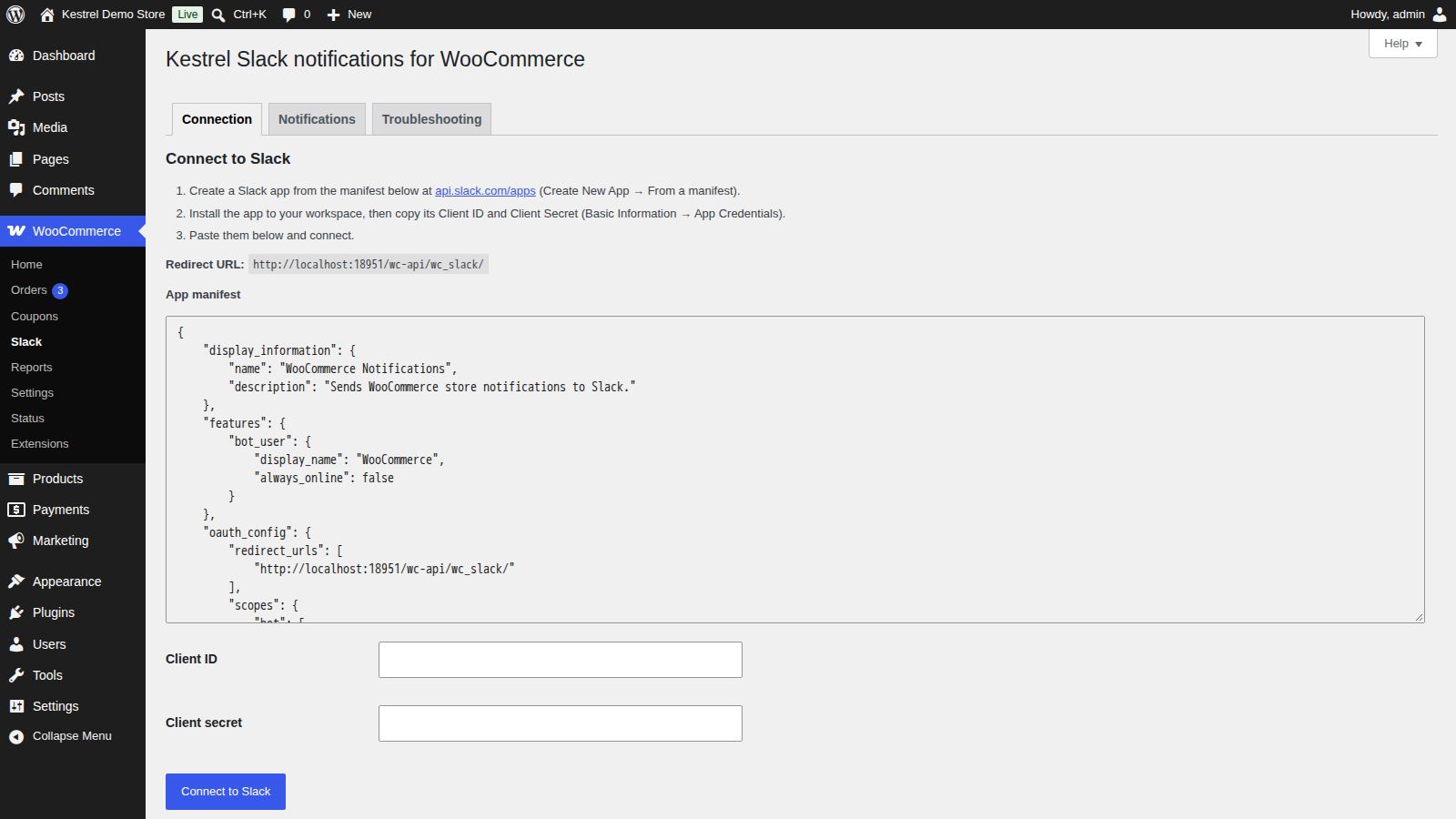
Go to WooCommerce » Slack. The Connection tab shows your store’s Redirect URL and an App manifest box. Click inside the box to select the manifest, then copy it.
2. Create the Slack app
- Open Slack’s apps page and sign in to your workspace.
- Click Create New App, choose From a manifest, and pick the workspace that should receive notifications.
- Paste the manifest, then create the app.
- Install the app to your workspace.
- Under Basic Information » App Credentials, copy the Client ID and Client Secret.

3. Connect your store
Back on the Connection tab, paste the values into Client ID and Client secret, then click Connect to Slack. Slack asks you to allow the app, and you return to the tab with "Connected to Slack." and the name of your workspace.

4. Set your defaults
Open the Notifications tab. Under General, choose one or more Default channel(s), and optionally a Default emoji and Sender name. Click Save changes.
5. Turn on the events you want
Open each group (Orders, Stock, Customers, Content and, with a subscriptions plugin, Subscriptions). Tick Enabled for each event you want, adjust its options, and click Save changes before moving to the next group. Each group saves separately.
6. Send a test
On the Troubleshooting tab, click Send test notification. A message reading "Test notification from [your site name]" appears in your default channels.
How notifications are sent
Each event posts to its own Channel(s) if you chose any, and otherwise to your Default channel(s). The same goes for emoji: an event’s Emoji wins over the Default emoji.
Messages appear under your Sender name. If you leave it empty, Slack shows the app’s own name, which is "WooCommerce" when you created the app from the manifest. Emoji use Slack shortcodes such as :tada:, including custom emoji uploaded to your workspace.
Order links in messages open the order in your WordPress admin, so they work for people who can log in to your store.
Customize a message
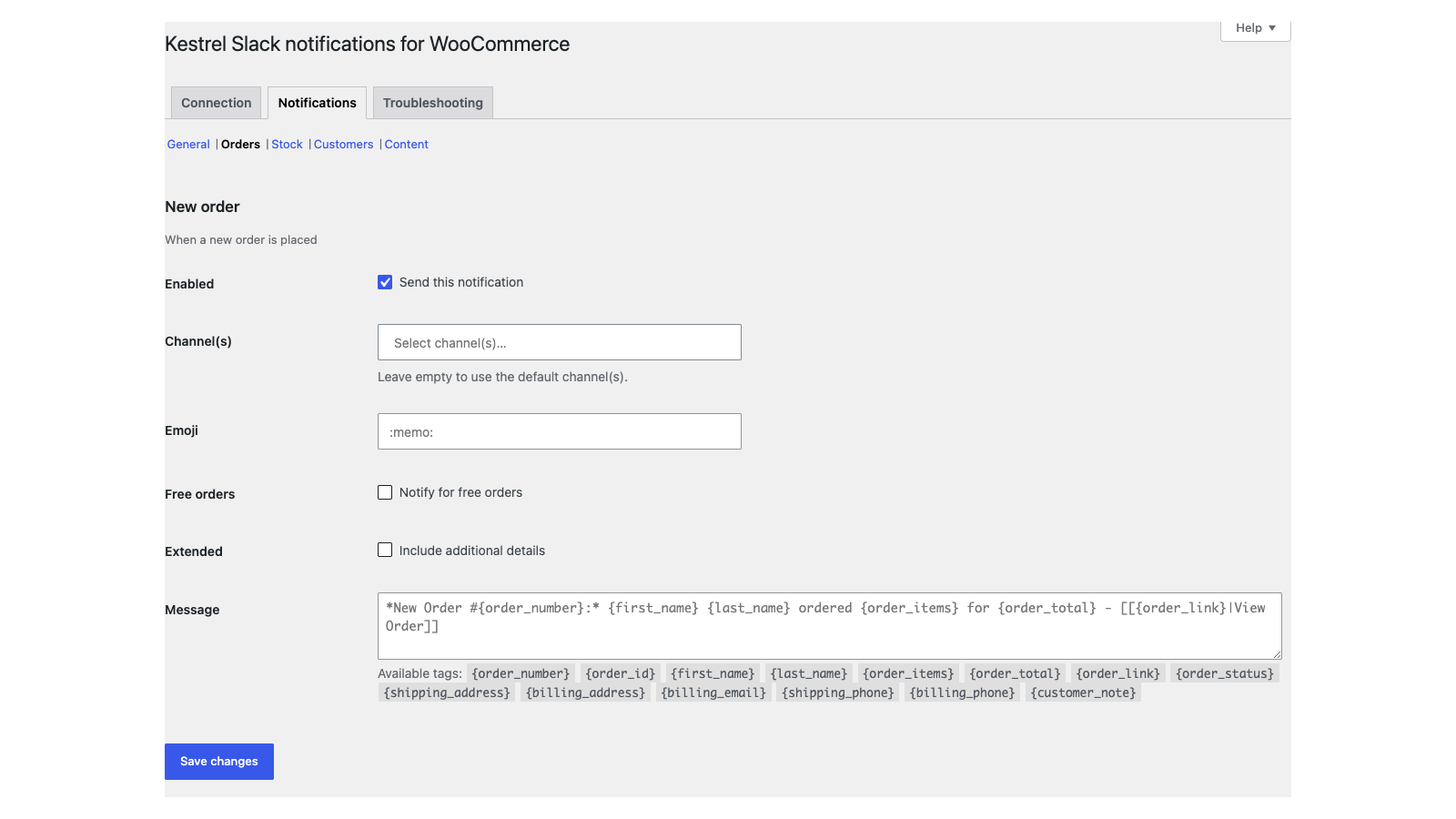
Each event has a Message field. Leave it empty to use the built-in message, which shows as the field’s placeholder, or write your own using the tags listed under the field as "Available tags". For example, the default new order message is:
*New Order #{order_number}:* {first_name} {last_name} ordered {order_items} for {order_total} - [[{order_link}|View Order]]Slack formatting works in messages: *bold*, _italic_, and links written as [[url|link text]]. A {..._link} tag on its own outputs the plain URL.
Connection tab
Redirect URL
The address Slack returns to after you allow the app. The manifest already includes it, so you only need it if you edit the Slack app by hand.
App manifest
The Slack app definition to paste into Create New App » From a manifest. It names the app "WooCommerce Notifications", asks for permission to read your channel list and post messages (including to public channels the app hasn’t joined, with a custom name and emoji), and turns off Slack’s token rotation.
Client ID
The Client ID from your Slack app’s Basic Information page.
Client secret
The Client Secret from the same page. The field is masked.
Reconnect
Shown once you’re connected. Sends you through Slack’s authorization again, which picks up changes to your Slack app’s permissions and fixes a connection Slack no longer accepts.
Disconnect
Removes the connection and revokes the app’s access to your workspace. Your notification settings stay in place for when you connect again.
Notifications tab: General
Default channel(s)
One or more channels that every event posts to unless it sets its own. The list shows your workspace’s public channels and the private channels the app has been invited to.
Default emoji
The emoji shortcode used by every event that doesn’t set its own, such as :memo:. Leave it empty to use the app’s icon.
Sender name
The name messages appear under in Slack. Empty by default, which uses the Slack app’s name. The field shows your site name as a suggestion, but it isn’t used until you type it in.
Notifications tab: event settings
Every event has these settings. Some events add one of the options further down.
Enabled
Tick Send this notification to turn the event on. Every event starts off.
Channel(s)
Where this event posts. Leave it empty to use your default channels.
Emoji
The emoji for this event’s messages. Leave it empty to use the default emoji.
Free orders
On New order and Subscription renewal only. Tick Notify for free orders to also send messages for $0 orders, which are skipped otherwise.
Order statuses
On Order update only. The statuses that send a message when an order changes to them, including custom statuses. Nothing is sent until you pick at least one.
Extended
Tick Include additional details to add a details block below the message. Orders and renewals get the order number, status, customer, line items and totals; refunds get the reason, the refunded items and the order total; reviews get the reviewer, rating, product and review text; posts get the author and content. Available on New order, Order update, Refund, Subscription renewal, New review and New post.
Message
Your own wording for the event, built from the tags listed under the field. Leave it empty to use the built-in message (see Customize a message).
Notification events
Orders
- New order: sent when an order is created, at the classic checkout, the checkout block, or through Point of Sale for WooCommerce. Because it’s sent when the order is created, it can include orders whose payment fails afterward. For paid orders only, use Order update with Processing selected. Renewal orders use Subscription renewal instead.
- Order update: sent when an order changes to one of the statuses you select. Subscriptions and renewal orders are skipped. With Pending payment selected, it’s sent when a checkout block order is placed, but not for classic checkout orders, which start out as pending.
- Refund: sent when you refund an order, with the order number and refunded amount. With Extended on, it adds the reason ("No reason given" if you left it blank), the refunded items and the order total.
Stock
These use WooCommerce’s stock levels, so the products need stock management turned on. WooCommerce’s thresholds are under WooCommerce » Settings » Products » Inventory, and a product can set its own low stock threshold.
- Back order: sent when a product goes on backorder.
- Low stock: sent when a product reaches its low stock threshold.
- Out of stock: sent when a product reaches the out of stock threshold.
Customers
- New customer: sent when a user account with the Customer role is created, including accounts made at checkout.
- New review: sent when someone posts a product review, including reviews waiting for moderation. Reviews marked as spam aren’t sent. The rating shows as stars.
Content
- New post: sent when a post or page is published for the first time. Edits to a published post don’t send it again.
Subscriptions
- Subscription renewal: sent when a renewal order is created by WooCommerce Subscriptions, Constellation’s built-in recurring billing or YITH WooCommerce Subscription. The Subscriptions group only appears when one of them is active.
Troubleshooting tab
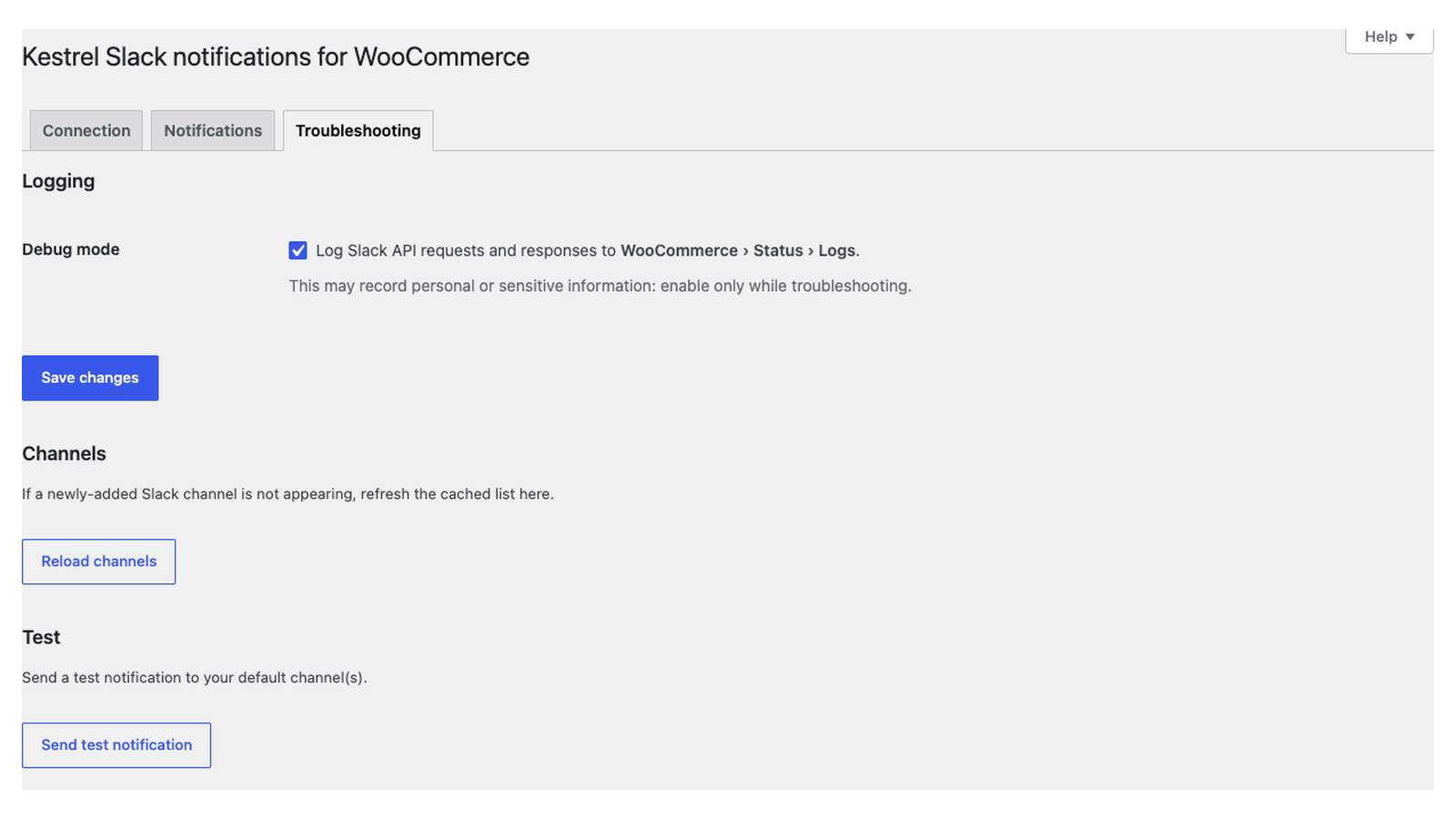
Debug mode
Logs every request to Slack and its response under WooCommerce » Status » Logs. Off by default, and available while you’re disconnected so you can troubleshoot a connection. The logs can contain personal information, so turn it off when you’re done.
Reload channels
Shown once you’re connected. Refreshes the channel list, which the plugin keeps for a day. Use it after you add, rename or invite the app to a channel.
Send test notification
Shown once you’re connected. Posts a test message to your default channels.
Upgrade from version 1.x
Version 2.0.0 rebuilt the plugin on Slack’s current API, with a new settings screen under WooCommerce » Slack. If your store was connected to Slack before you updated, it keeps the 1.x connection and screen (WooCommerce » Settings » Integration » Slack), and your notifications keep working. A notice on your admin pages reads "A new Slack experience is available, built on the latest Slack API. Your current notifications will keep working until you switch."
To move to the new screen:
- Click Switch to the new experience in that notice. Your enabled events, channels, emoji, extended options, free order and status choices, and custom messages carry over.
- You land on WooCommerce » Slack. The old connection doesn’t carry over, so follow Set up Slack to create an app from the manifest and connect it. Notifications stop until you do.
- Review each notification group, then send a test.
The switch can’t be undone from the settings screen. On the new screen, an empty Sender name shows the Slack app’s name, so check that field under Notifications » General.
Common issues
Notifications stopped arriving
On the Connection tab, look for "Slack did not accept the stored access token, so notifications may not be delivered. If this persists, reconnect to Slack." That means the app was removed from the workspace or its access was revoked. Click Reconnect. If the app no longer exists in Slack, click Disconnect, create a new app from the manifest and connect again.
A channel is missing from the list
Click Reload channels on the Troubleshooting tab. Private channels only appear once the app is in them, so invite the app to the private channel in Slack first (for example, type /invite @WooCommerce in the channel), then reload. Archived channels aren’t listed.
Some notifications aren’t sending
Check that:
- The event is Enabled and you clicked Save changes in its group.
- It has a channel, either its own or a default channel.
- For Order update, at least one status is selected.
- For $0 orders, Free orders is ticked.
- Orders created by other plugins outside the normal checkout may not trigger New order. Turn on Order update for the status those orders reach as a fallback.
If many events happen at once, Slack can limit how fast the app posts, and messages in that short window are skipped. Turn on Debug mode and check the logs for the reason a message wasn’t sent.
"Could not connect to Slack. Please check your credentials and try again."
The Client ID or Client secret doesn’t match the app, or the authorization took longer than 15 minutes. Copy both values again from the app’s Basic Information page and click Connect to Slack.
"Set a default channel on the Notifications tab first."
The test notification posts only to default channels. Choose a Default channel(s) under Notifications » General and save.
"Connect to Slack first to configure notifications."
The Notifications tab needs a connection. Finish Set up Slack first.
Messages come from "WooCommerce"
That’s your Slack app’s name, used when Sender name is empty. Enter a Sender name under Notifications » General.
I don’t see the WooCommerce » Slack menu
Your store kept the 1.x connection. The settings are under WooCommerce » Settings » Integration » Slack until you switch (see Upgrade from version 1.x).
Remove the plugin
Deleting Slack for WooCommerce from Plugins removes its settings and connection from your store. Your Slack app stays in your workspace; remove it in Slack if you no longer need it.
Keep learning
- Slack developer reference (filters for message content)
- How to install and update WooCommerce extensions
- Using sites against your activation limit