


Store Catalog PDF Download adds a Download Catalog button to your shop, category and product pages. Shoppers click it to get a PDF of the products on that page, with your logo, header and colors, ready to print or save. You can also upload a PDF you designed yourself and offer it anywhere with a shortcode.
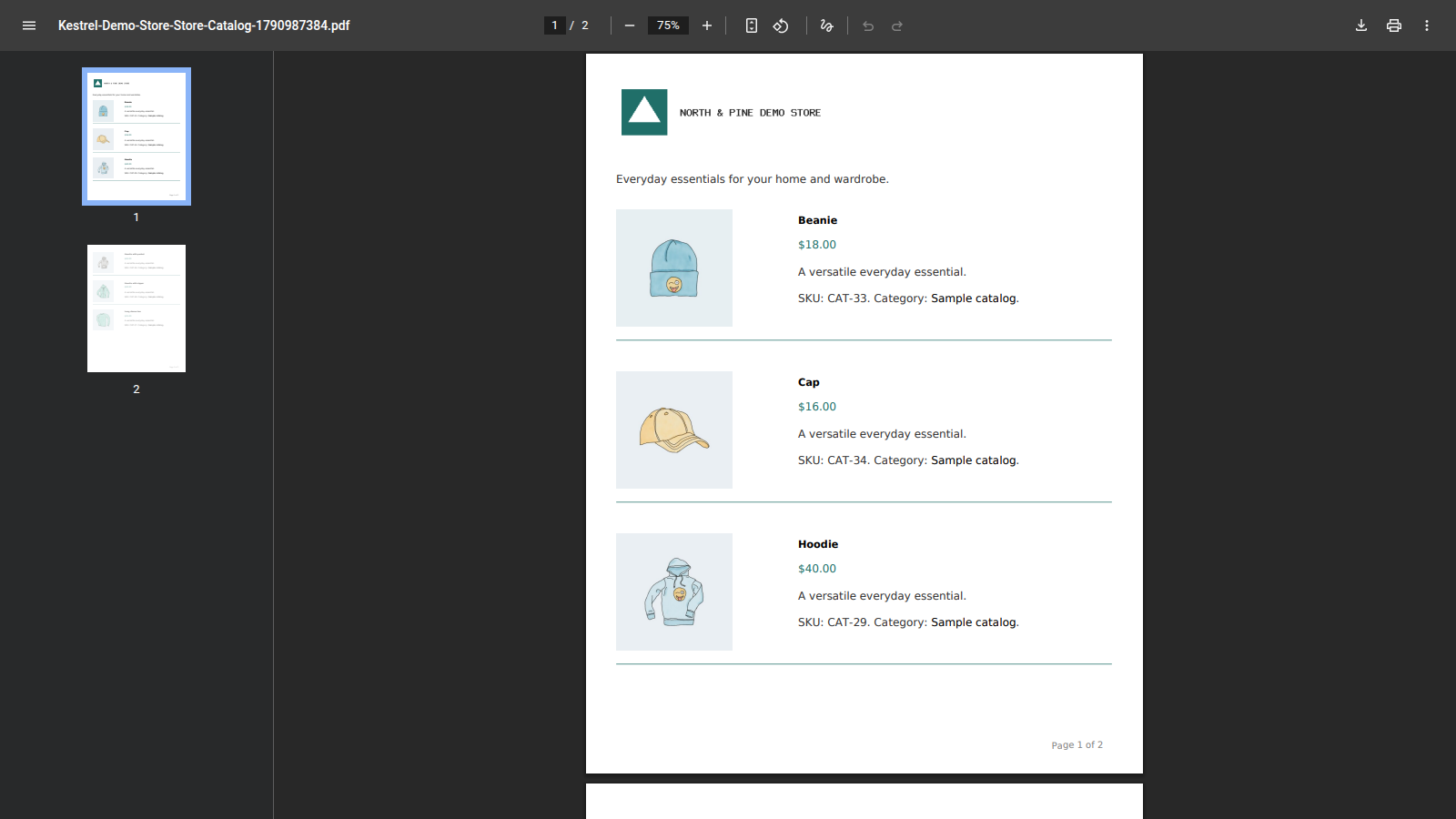
The PDF covers the page the shopper is looking at, not your whole store: a category page gives that category, and a product page gives a one-product sheet. For one file of your entire catalog, design it yourself and offer it as a ready-made PDF.
When you’d use this
- Give wholesale or trade buyers a printable list of a category with prices.
- Let shoppers save a product’s details as a one-page sheet.
- Offer a designed lookbook or price list as a download.
Requirements
- WordPress 6.2 or later, WooCommerce 8.2 or later, and PHP 8.1 or later.
- Compatible with WooCommerce’s cart and checkout blocks and High-Performance Order Storage.
- Your server needs PHP’s DOM, GD and MB String extensions, and
allow_url_fopenturned on. Most WordPress hosting has them. WooCommerce » Status shows each one in the Store Catalog PDF Download section.
Install and activate
How you get updates depends on where you bought Store Catalog PDF Download:
- Bought on kestrelwp.com: download the plugin from the Licensed downloads tab of your kestrelwp.com account and install it. Then go to Settings » Store Catalog PDF Download for WooCommerce activation and activate the key from your License keys tab to receive updates. See using sites against your activation limit for how activations count.
- Bought on WooCommerce.com: install the plugin from your WooCommerce.com account. Updates come through your WooCommerce.com connection, with no license key to enter.
For upload, FTP and update steps, follow how to install and update WooCommerce extensions.
Set up Store Catalog PDF Download
1. Open the settings
Go to WooCommerce » Settings » Products and click Store Catalog PDF. The settings are in five sections: Header & footer, Layout, Colors, Catalog button and Ready-made PDF.
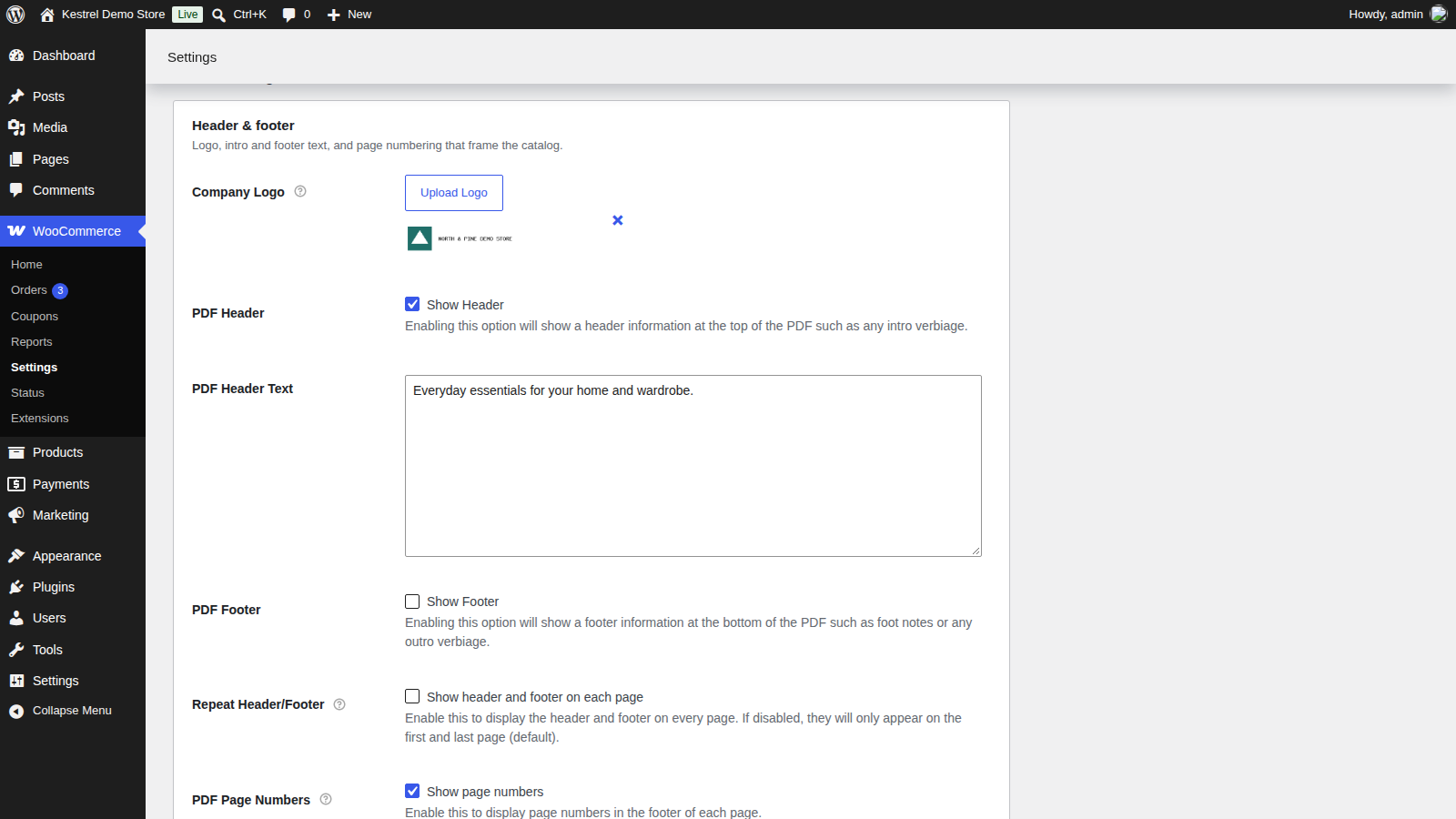

2. Add your branding
Under Header & footer, click Upload Logo and choose your logo. Tick Show Header and add a line about your store in PDF Header Text, and set your brand colors under Colors.
3. Choose the layout
Under Layout, choose List Format for more detail per product or Grid Format to fit more products on a page. Click Save changes.
4. Check it
Open a category page on your store in a private browser window and click Download Catalog below the products. After a moment, the PDF opens in a new tab with that page’s products.
How the catalog is built
When a shopper clicks the button, the PDF has the products on the page the shopper is viewing, in the order shown:
- Shop and category pages use your PDF Layout Format. On a paginated page, only the products on the page being viewed are included, so a shopper on page 2 gets page 2.
- Product pages always use a detailed one-product layout.
Each layout shows:
| Layout | What each product shows |
|---|---|
| List | Image, name, price, full description, SKU, categories, tags and the product’s attributes |
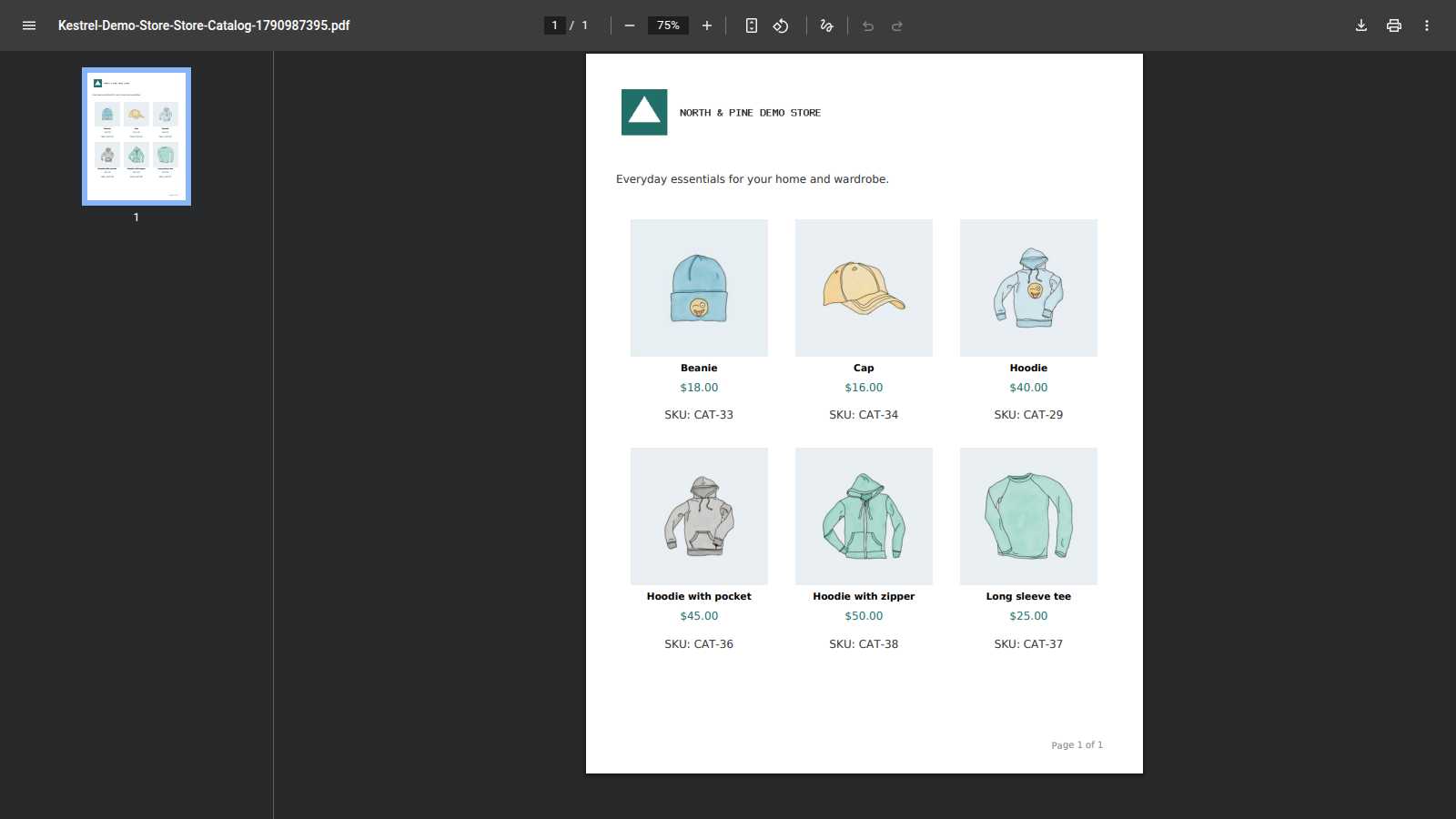
| Grid | Image, name, price and SKU, three products to a row |
| Product page | Name, a large image, price, full description, SKU, categories, tags and the product’s attributes |
Product names and images link back to the product on your store. PDFs are Letter size, portrait.
Generated PDFs are temporary: once a day the plugin deletes them, so don’t share links to them. The ready-made PDF isn’t affected.
Header & footer settings
Company Logo
An image shown at the top of the PDF, linking back to your site. It shows whenever one is uploaded, whether or not Show Header is ticked. Click the × to remove it.
PDF Header
Tick Show Header to show the PDF Header Text at the top of the PDF, below the logo. Off by default.
PDF Header Text
The text for the header, such as an introduction or your contact details. Only shown with Show Header ticked.
PDF Footer
Tick Show Footer to show the PDF Footer Text at the bottom of the PDF. Off by default.
PDF Footer Text
The text for the footer, such as terms or a copyright line. Only shown with Show Footer ticked.
Repeat Header/Footer
Tick Show header and footer on each page to repeat them on every page. Off by default, which shows the header on the first page and the footer on the last. Only shown when the header or footer is on.
PDF Page Numbers
Tick Show page numbers to number each page at the bottom. Off by default.
Layout settings
PDF Layout Format
List Format (the default) shows more detail per product, with fewer products per page. Grid Format shows less detail but fits more on a page. Applies to shop and category pages; product pages always get the one-product layout.
List Density
For List Format only. Compact (multiple products per page) (the default) flows several products onto each page. One product per page gives each product its own page. Stores that used the plugin before version 2.5.0 keep One product per page after updating.
Image Size
Small, Medium (the default) or Large product images. Smaller images make smaller files that build faster.
Show SKU
Tick Show product SKUs in the PDF to include SKUs. On by default. SKUs only show if WooCommerce’s SKU field is enabled for your store.
Colors settings
These brand the generated catalog only, not your ready-made PDF.
Heading Color
Product names and headings. Default #2b2b2b.
Accent Color
Prices and separator lines. Default #0073aa.
Text Color
Body text. Default #333333.
Catalog button settings
Shop & category placement
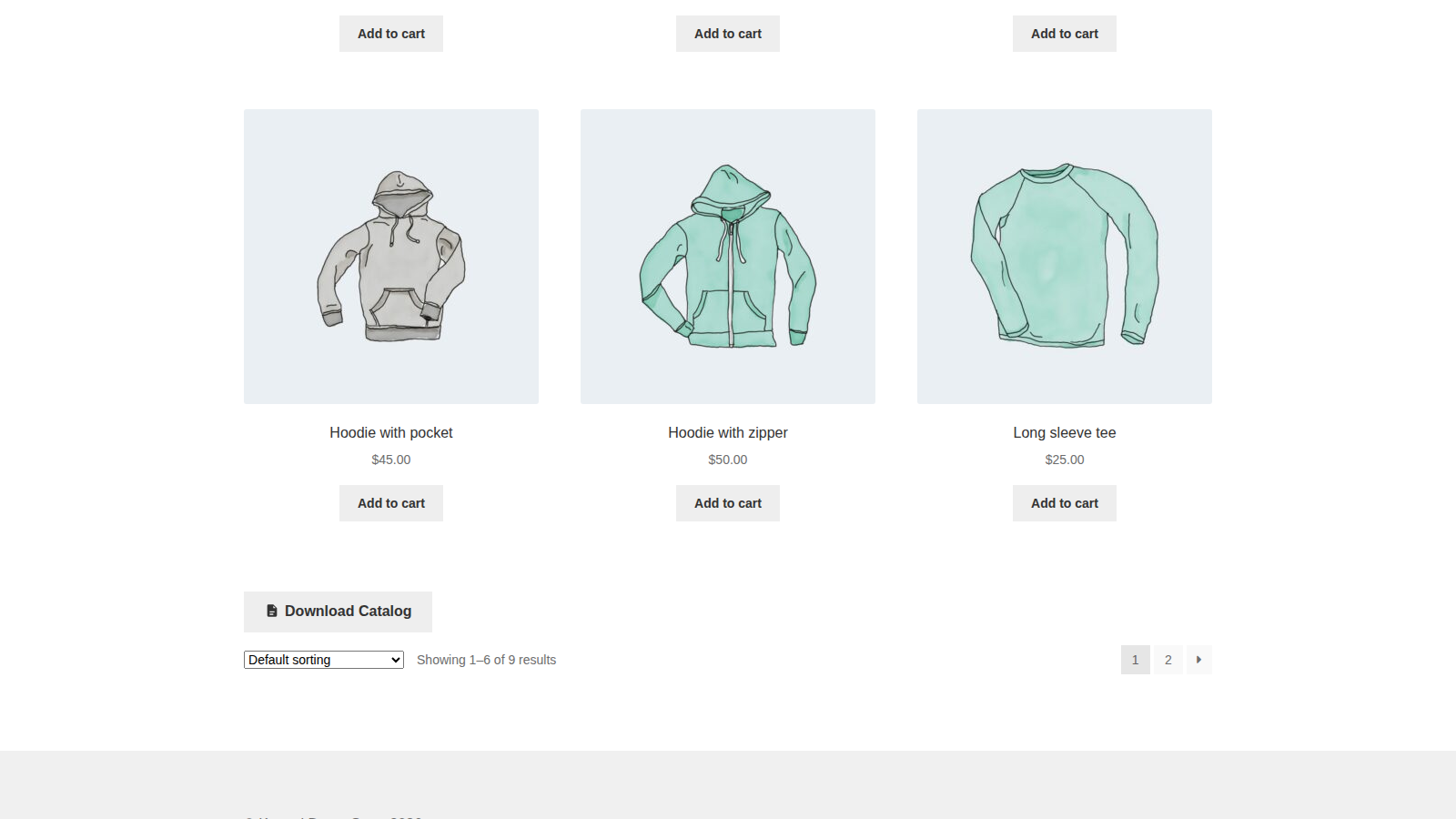
Below the product grid (the default), Above the product grid, or Don’t show to remove the button from shop and category pages.
Shop button alignment
Left (the default), Center or Right, for the button on shop and category pages.
Show on single product pages
Tick Display the download button on individual product pages to show the button there, below the product summary. On by default.
Download Link Label
The button’s text, "Download Catalog" by default. The shortcode uses it too unless you give it its own label. The button itself uses your theme’s button style.
Ready-made PDF
Upload a PDF you designed yourself, such as a full catalog or a wholesale price list, and offer it where you choose.
- Under Ready-made PDF, click Upload Custom PDF and choose the file. Custom PDF Preview Link opens it to check.
- Click Save changes.
- Add the
[wc-store-catalog-pdf]shortcode to any page, post or widget area that accepts shortcodes.
The shortcode shows a button that opens your PDF in a new tab. To give one button its own text, add link_label:
[wc-store-catalog-pdf link_label="Download our 2026 price list"]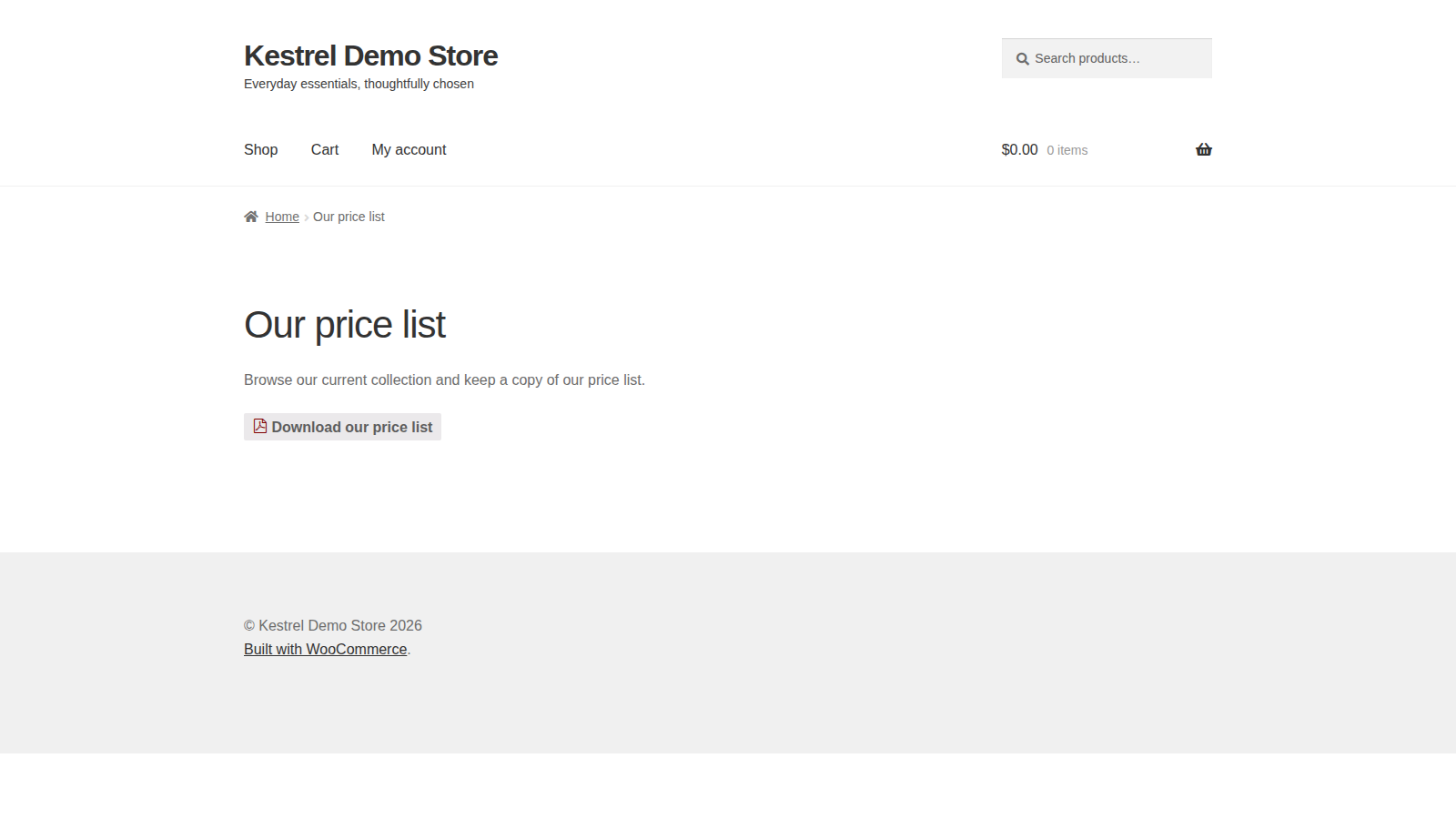
The ready-made PDF doesn’t replace the Download Catalog button on shop and product pages; use Don’t show and untick Show on single product pages if you only want your own PDF. If no PDF is uploaded, the shortcode shows nothing.
What customers see
Shoppers see the Download Catalog button below the product grid (or wherever you placed it), and on product pages below the summary. The button shows it’s working while the PDF is built, then the PDF opens in a new browser tab, where they can save or print it.
Privacy
The PDF contains only product information. The plugin doesn’t store anything about shoppers who download it.
The plugin’s admin screens may also show an optional prompt to join Kestrel’s own newsletter. If you click Sign up, your name, email address, site name and address, language, and WordPress, WooCommerce and PHP versions are sent to Kestrel’s email provider, Klaviyo. Nothing is sent unless you sign up.
When you delete the plugin, it removes its settings.
Common issues
The button doesn’t appear on shop or category pages
- Shop & category placement isn’t set to Don’t show.
- Your shop page isn’t set to show categories only. The button needs products on the page, so set Shop page display to show products, under Appearance » Customize » WooCommerce » Product Catalog.
- Your theme or page builder uses WooCommerce’s standard shop templates. Page builders such as Elementor can replace them, and the button is added through them. On those pages, offer a ready-made PDF with the shortcode instead.
The button doesn’t appear on product pages
Tick Show on single product pages. If it’s ticked, your theme or page builder may replace WooCommerce’s standard product page summary, where the button is added.
Nothing happens when I click the button
The PDF opens in a new tab once it’s built, and some browsers block that as a pop-up. Allow pop-ups for your site and try again.
If your pages are served from a page cache, a page cached for more than about a day can’t build a PDF. Exclude your shop, category and product pages from the cache, or clear it.
The PDF is blank, the button spins for a long time, or a new tab shows a "page not found" error
- Go to WooCommerce » Status and find the Store Catalog PDF Download section. Upload Directory, DOMDocument extension, GD Library, MB String and Allow URL fopen must all show a green tick. Ask your host to fix any that don’t.
- Pages with many products and large images can run out of server memory or time. Choose a smaller Image Size or Grid Format, or show fewer products per page.
- Deactivate other plugins one at a time to rule out a conflict, especially ones that also create PDFs.
Product images are missing from the PDF
The plugin loads each product image from your site’s own web address while it builds the PDF. If your server can’t reach those addresses, for example because the site is password protected at the server or a firewall blocks requests from the server to itself, the images can’t load. Make sure your product images are publicly reachable, and check that Allow URL fopen shows a green tick in the Store Catalog PDF Download section of WooCommerce » Status.
The PDF has products the shopper didn’t expect
The PDF follows the page exactly. It includes only the products on the page being viewed, so on a paginated category, page 2 gives page 2’s products.
Arabic or Hebrew text doesn’t display correctly
The PDF library the plugin uses doesn’t support right-to-left languages, so there’s no setting for them.
The logo appears although the header is off
The logo shows whenever one is uploaded. Remove it under Company Logo if you don’t want it.
FAQ
Can I make one PDF of my whole store?
Not from the plugin. Create the PDF yourself and offer it as a ready-made PDF.
Can I make a PDF of one category?
Yes. Open that category on your store and click the button there.
Can shoppers download the catalog without an account?
Yes. Any visitor who can see the page can download its catalog, and there’s no setting to limit it to logged-in customers.
Does it work with variable products?
Yes. The List and product page layouts show the product’s attributes, such as the colors and sizes it comes in. The Grid layout doesn’t show attributes.
Does it work with Composite Products or product bundles?
The plugin has no special handling for them. Each product shows its own name, price and description.
Can I change the paper size, columns or what each product shows?
With code, yes: see the Store Catalog PDF Download developer reference.
Keep learning
- Store Catalog PDF Download developer reference (hooks and template overrides)
- How to install and update WooCommerce extensions
- Using sites against your activation limit (how license activations count)