


USA ePay for WooCommerce takes credit and debit card payments on your checkout through your USA ePay merchant account. Customers enter their card on your own checkout page, on the classic checkout or the checkout block, and you capture and refund payments from the WooCommerce order screen. Customers can also save cards for faster checkout, subscription renewals and pre-orders.

You need an existing USA ePay merchant account with an API key and PIN. The plugin takes cards only: it doesn’t support eCheck / ACH, Apple Pay, Google Pay or other wallets, or 3D Secure.
When you’d use this
- Accept cards on your WooCommerce checkout with an existing USA ePay account.
- Authorize payments at checkout and capture them when you ship.
- Let customers save cards for repeat purchases, WooCommerce Subscriptions renewals and WooCommerce Pre-Orders.
Requirements
- WordPress 5.6 or later, WooCommerce 7.0 or later, and PHP 7.4 or later with the json and openssl extensions.
- An SSL certificate, so your checkout loads over HTTPS, and a server that supports TLS 1.2.
- A USA ePay merchant account with an API key and PIN.
- Works with WooCommerce’s cart and checkout blocks and the classic checkout, and with High-Performance Order Storage.
- Optional: WooCommerce Subscriptions, Constellation’s built-in recurring billing or WooCommerce Pre-Orders. All need saved cards turned on (see Saved cards and subscriptions with USA ePay).
Install and activate
USA ePay for WooCommerce is sold on WooCommerce.com and on kestrelwp.com:
- Bought on WooCommerce.com: install the plugin from your WooCommerce.com account. Updates come through your WooCommerce.com connection.
- Bought on kestrelwp.com: install the plugin by following how to install and update WooCommerce extensions.
Set up USA ePay
1. Create an API key in USA ePay
- Log in to your USA ePay Merchant Console.
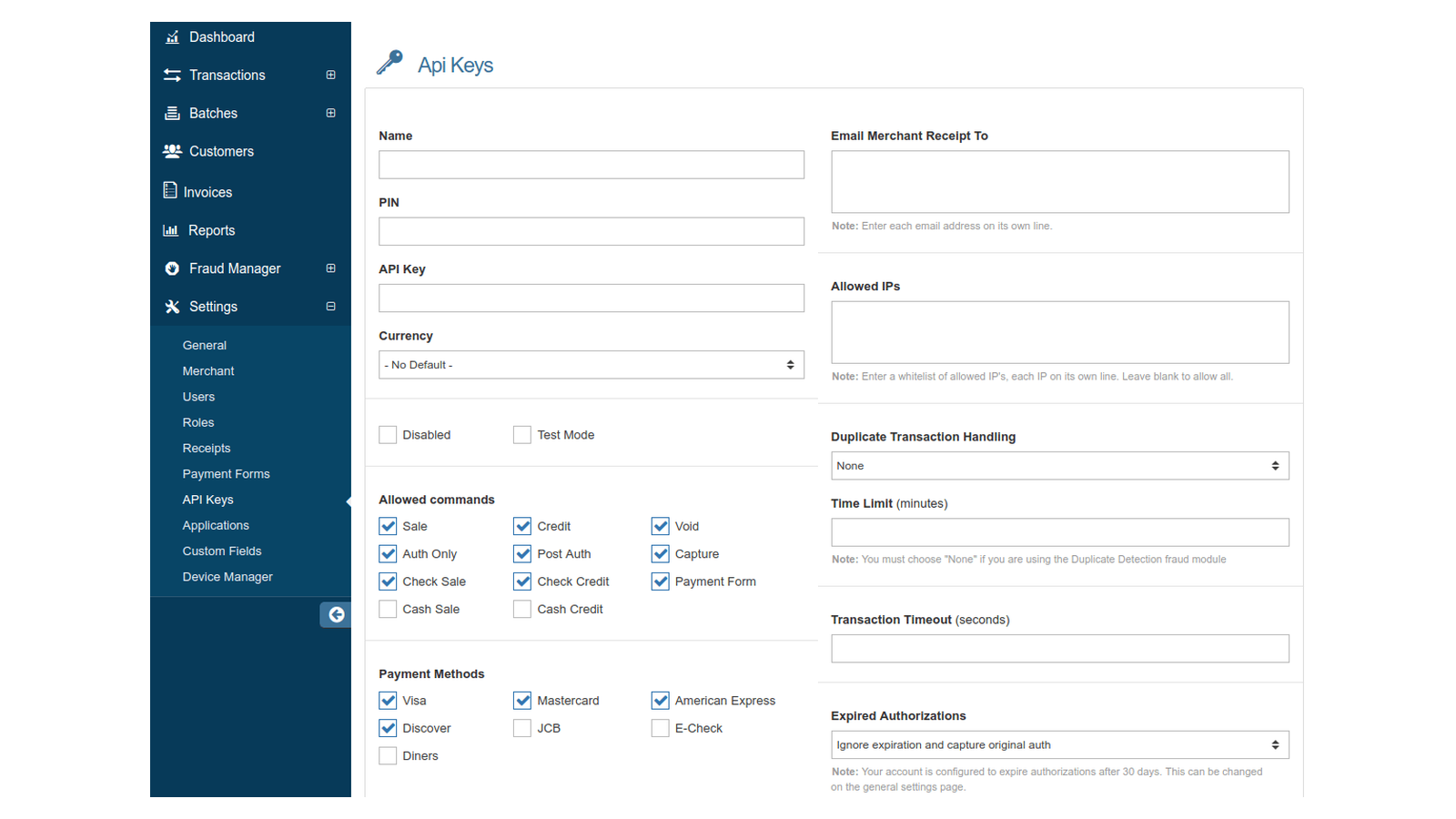
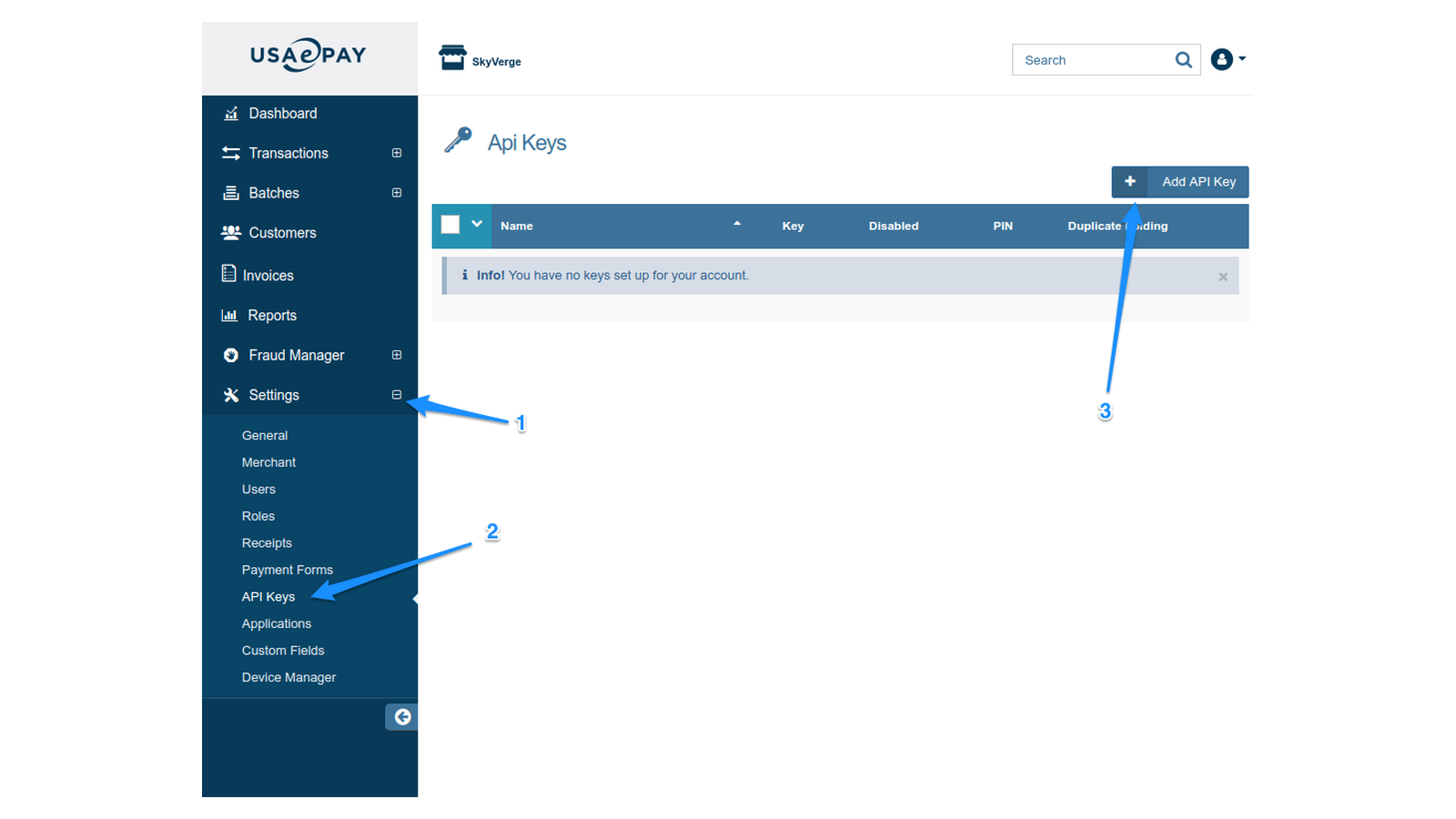
- Go to Settings » API Keys and click Add API key.
- Give the key a name you’ll recognize, such as your store’s domain.
- Set a PIN. USA ePay marks it as optional, but the plugin needs it.
- Under Allowed Commands, enable everything except Cash Sale and Cash Credit. The plugin uses
cc:sale,cc:authonly,cc:capture,cc:refund,cc:voidandcc:save. - Under Payment Methods, leave E-Check off, because the plugin doesn’t take eCheck payments.
- Click Apply. Copy the API key it shows, and keep the PIN you set.
2. Test in the USA ePay sandbox (recommended)
USA ePay’s sandbox is a separate account, with its own login, API key and PIN, so you can place test orders without charging a card. Create its API key the same way in the sandbox console.
- In your WordPress admin, go to WooCommerce » Settings » Payments » USA ePay.
- Turn on Enable / Disable.
- Set Environment to Sandbox, then enter your sandbox API Key and PIN.
- Click Save changes.
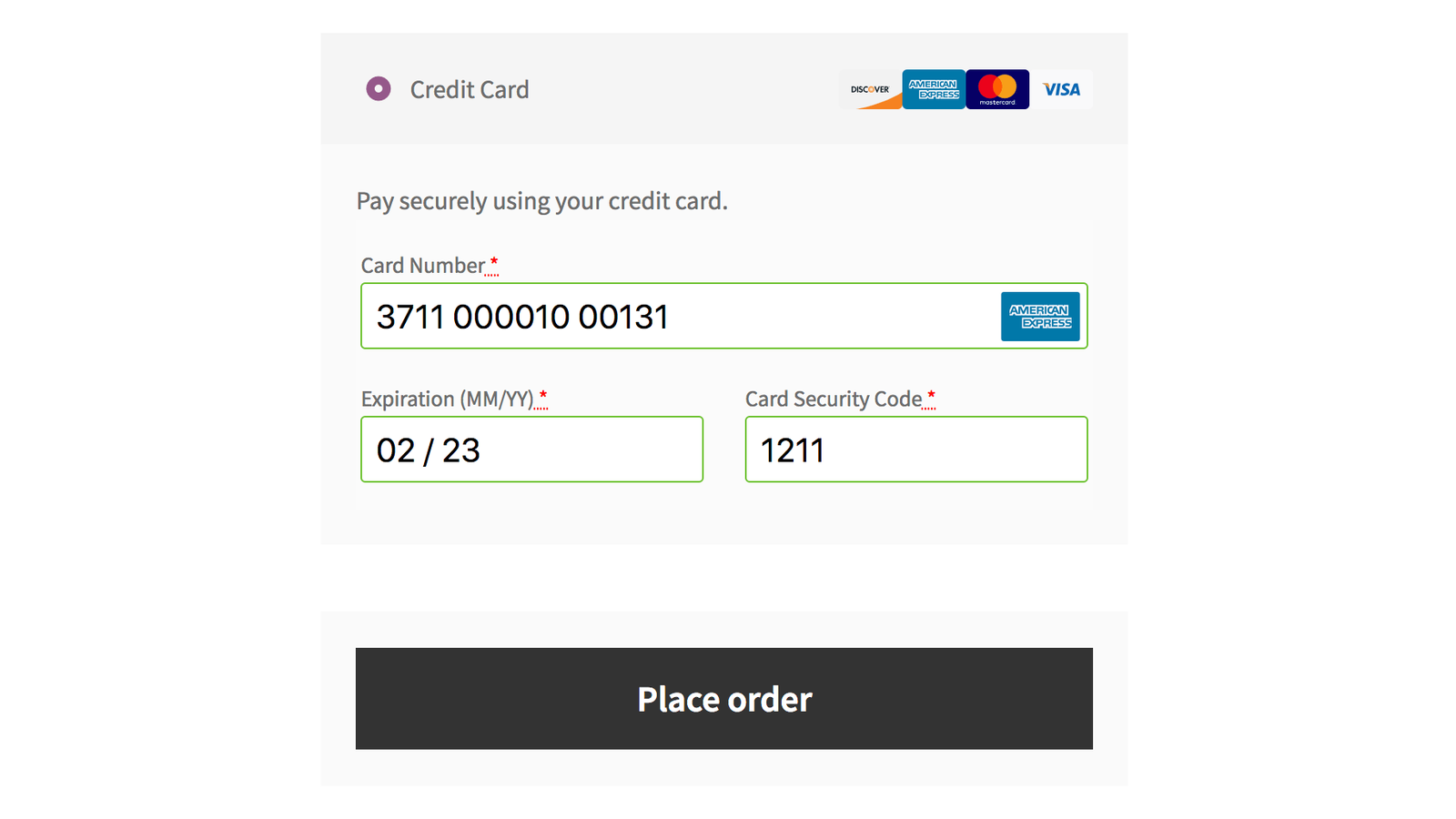
- Place an order on your store. The payment form shows "TEST MODE ENABLED", and the card number is filled in with a USA ePay test card. USA ePay lists more test card numbers for declines and other responses.
- Check the order in WooCommerce » Orders. Its notes show the USA ePay transaction.
3. Go live
- Set Environment to Production.
- Enter your live API Key and PIN.
- Choose a Transaction Type: Charge takes the payment at checkout, and Authorization holds the amount for you to capture later (see Capture and refund USA ePay payments).
- To let customers save cards, turn on Tokenization.
- Click Save changes, then place a small live order with your own card and refund it from the order screen.
Settings
Go to WooCommerce » Settings » Payments » USA ePay.
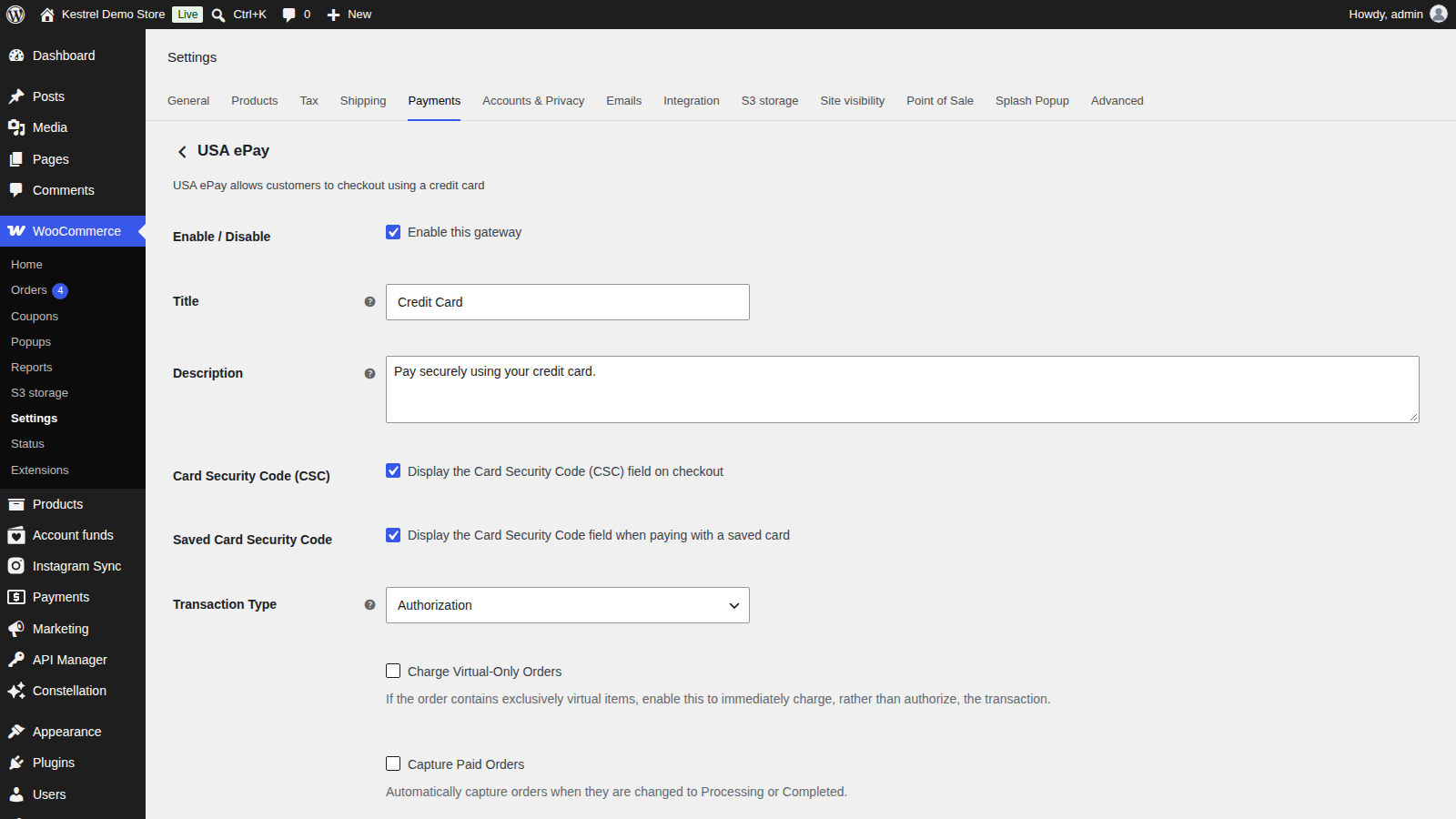

Enable / Disable
Shows USA ePay at checkout. Off by default.
Title
The payment method name customers see at checkout and on the order received page. Default "Credit Card".
Description
Text shown under the title at checkout. Default "Pay securely using your credit card."
Card Security Code (CSC)
Asks for the card’s security code at checkout. On by default. Leave it on if your USA ePay account requires a security code.
Saved Card Security Code
Asks for the security code again when a customer pays with a saved card. On by default.
Transaction Type
Charge (the default) takes the payment at checkout. Authorization holds the order total on the card, puts the order on hold, and leaves you to capture it later. See Capture and refund USA ePay payments.
Charge Virtual-Only Orders
Shown with Authorization. Charges orders that contain only virtual products straight away instead of authorizing them, so downloads or access aren’t held up. Off by default.
Capture Paid Orders
Shown with Authorization. Captures an authorized payment automatically when you change the order to Processing or Completed. Off by default.
Accepted Card Logos
The card logos shown at checkout: Visa, MasterCard, American Express, Discover, Diners and JCB, all selected by default. This only changes the logos; the cards you can take are set by your USA ePay account.
Tokenization
Lets customers save a card to their account at checkout or under My account » Payment methods. Off by default. WooCommerce Subscriptions and WooCommerce Pre-Orders need it on. See Saved cards and subscriptions with USA ePay.
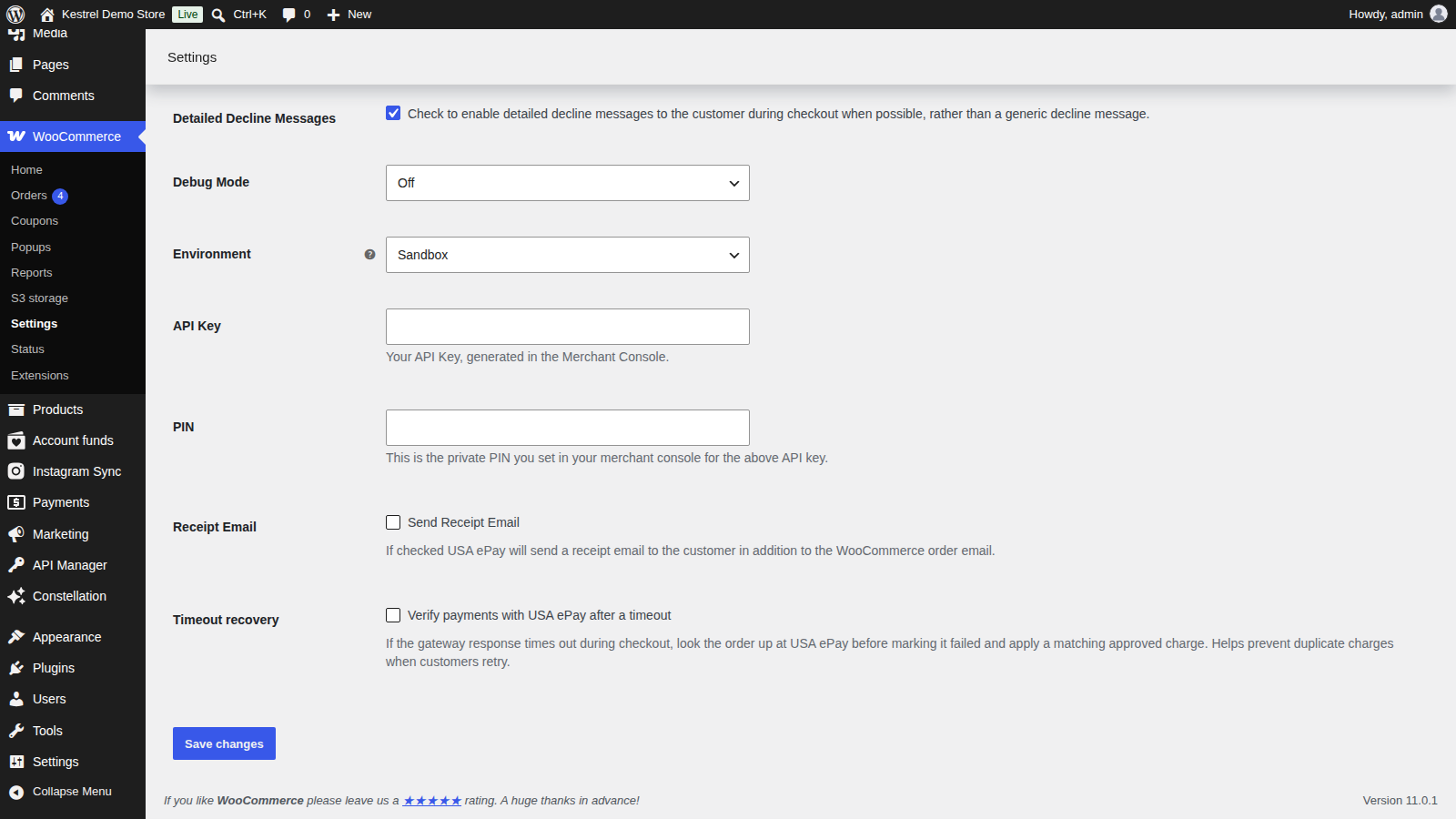
Detailed Decline Messages
Shows customers the reason for a decline when USA ePay gives one (such as an expired card, a wrong security code or insufficient funds), instead of a general message. On by default.
Debug Mode
Off (the default), Show on Checkout Page, Save to Log or Both. Logs go to WooCommerce » Status » Logs. Card numbers and security codes are masked, but the log still holds customer details, so turn it off when you’re done. Avoid Show on Checkout Page on a live store, because customers see the messages.
Environment
Production (the default) or Sandbox. Sandbox sends transactions to USA ePay’s sandbox and shows the API Key and PIN fields for the sandbox account.
API Key
The API key from your USA ePay Merchant Console, for the selected environment. Production and Sandbox each have their own.
PIN
The PIN you set for that API key. The gateway isn’t ready to take payments until both the API key and PIN are filled in for the selected environment.
Receipt Email
Tick Send Receipt Email to have USA ePay email its own receipt to the customer as well as WooCommerce’s order emails. Off by default, and while it’s off the plugin tells USA ePay not to send one.
Timeout recovery
Tick Verify payments with USA ePay after a timeout to have the plugin check with USA ePay before it marks an order failed because the payment request got no response. Off by default.
What customers see
At checkout, customers choose the USA ePay payment method (titled "Credit Card" unless you change Title) and enter their card number, expiration and, with Card Security Code (CSC) on, the security code. They stay on your checkout page throughout.
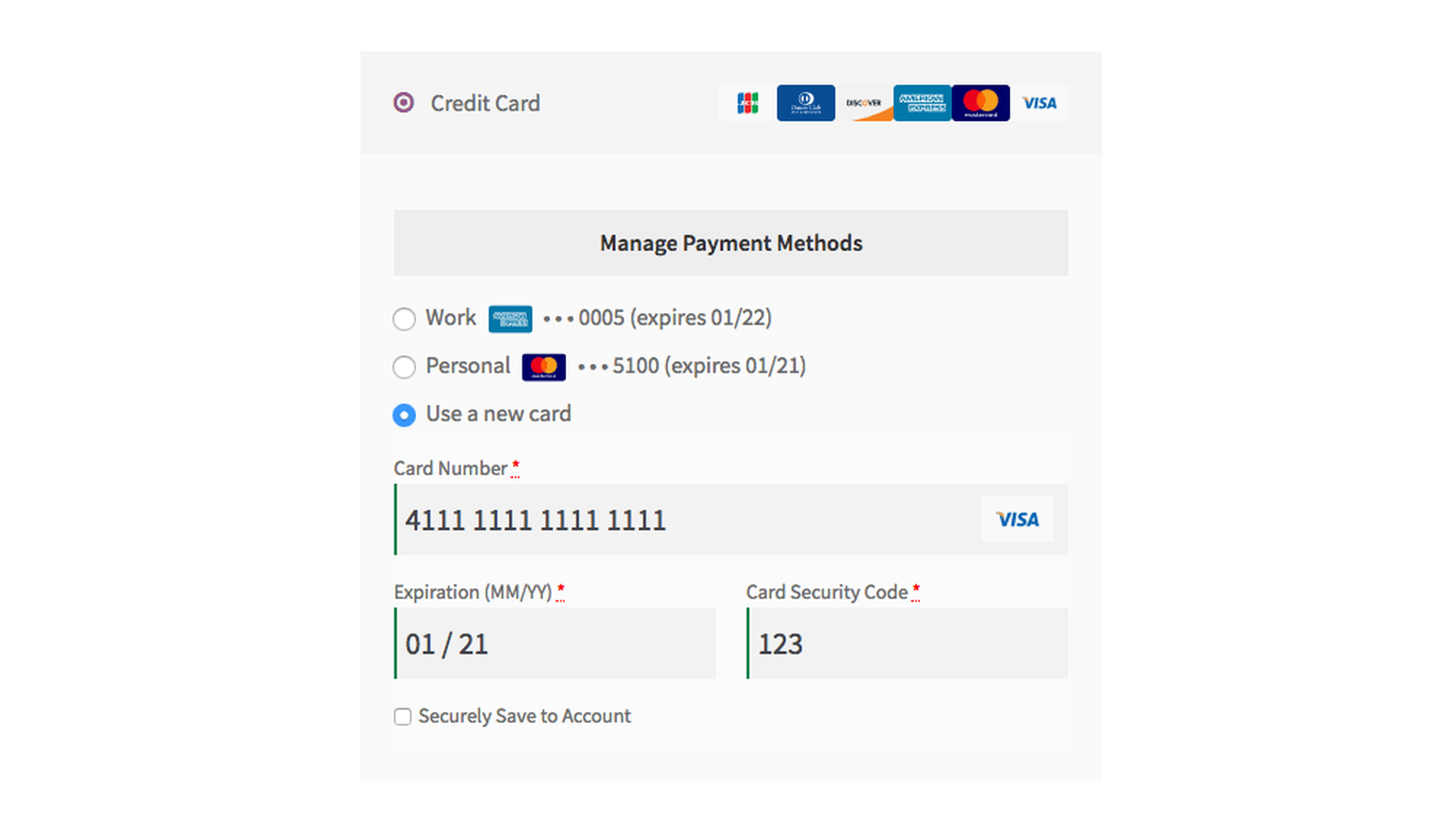
With Tokenization on, logged-in customers can save the card (Securely Save to Account on the classic checkout) and pick it next time. If you use Authorization, the order received page says "Your order has been received and is being reviewed. Thank you for your business."
The plugin sends the order number, billing and shipping addresses and email to USA ePay with each payment, but not a currency, so payments are processed in your USA ePay account’s currency. Keep your store currency the same.
Because card details pass through your store’s server on their way to USA ePay, check your PCI compliance scope with your payment processor.
Common issues
USA ePay doesn’t appear at checkout
Check that Enable / Disable is on and that the API Key and PIN for the selected Environment are saved. Until they are, the admin shows "Heads up! USA ePay is not fully configured and cannot accept payments. Please review the documentation and configure the gateway settings."
Payments don’t appear in USA ePay
- Check that Environment matches the API key and PIN. Sandbox keys only work with Sandbox, and live keys only with Production, and the sandbox has its own console login.
- Check that the API key’s Allowed Commands include everything except Cash Sale and Cash Credit.
- Check that your store loads over HTTPS and that your server supports TLS 1.2.
Then set Debug Mode to Save to Log, place another order, and read USA ePay’s response in WooCommerce » Status » Logs. Some problems, such as transactions held for review, account declines and fraud filter blocks, are settled in your USA ePay account rather than in WooCommerce.
A customer was charged twice
Search your USA ePay console for the order number and check the order notes to find both transactions. Refund the extra charge from the order screen (see Capture and refund USA ePay payments), or from your USA ePay console if it isn’t attached to a WooCommerce order.
The admin warns that WooCommerce isn’t forced over SSL
"USA ePay for WooCommerce: WooCommerce is not being forced over SSL; your customers’ payment data may be at risk." appears in Production when your checkout doesn’t load over HTTPS. Install an SSL certificate and make sure your WordPress and site addresses under Settings » General start with https://.
The admin says USA ePay will soon require TLS 1.2
"USA ePay will soon require TLS 1.2 support to process transactions and your server environment may need to be updated." means your server can’t make TLS 1.2 connections. Ask your host to enable TLS 1.2.
Customers see a decline message
The card was declined or failed a check. With Detailed Decline Messages on, the message tells the customer why, such as an expired card or a security code mismatch, so they can correct it. Your USA ePay account’s fraud modules can also block a payment. For address checks, turn on Pre-Check in the AVS Response module so a blocked payment never reaches the customer’s card; see how address verification blocks are handled.
Every payment fails because a fraud module requires missing fields
A fraud module in your USA ePay account requires fields that USA ePay for WooCommerce doesn’t send, such as Invoice or Description. In your USA ePay console, open Fraud Manager » Fraud Modules and remove that module, or clear those fields from it.