


A tag’s rule sets it on orders automatically. Set on decides when Order Tags checks an order, and Set if decides what the order has to match. Rules live on each tag’s edit screen: go to WooCommerce » Order Tags and click the tag’s name.
How automatic tagging works
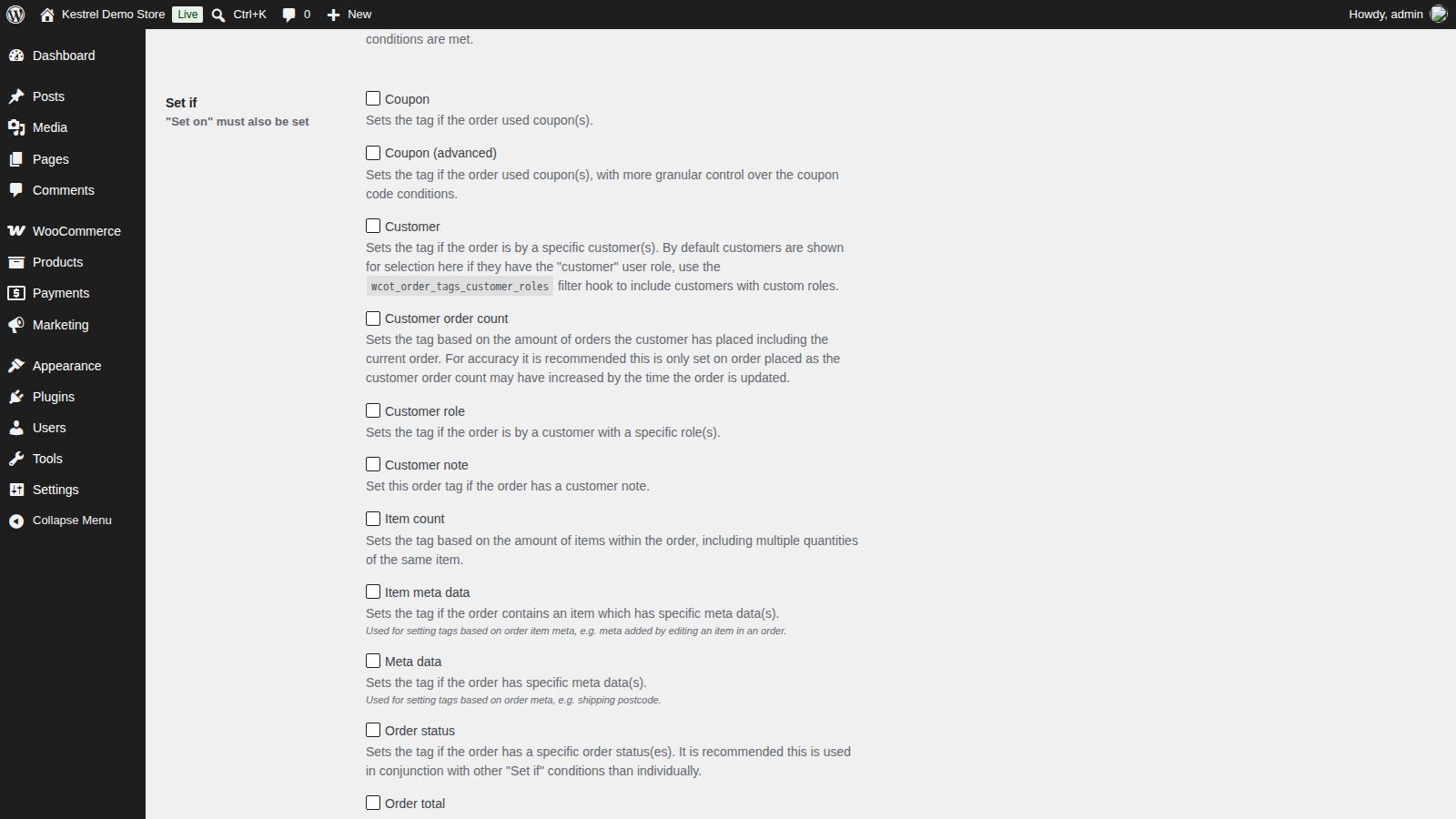
When one of a tag’s Set on events happens, Order Tags checks the order against the tag’s ticked Set if conditions. With "Set if" mode on All, every ticked condition has to match; on Any, one is enough. If the order matches and the tag’s Set tag exclusions don’t, the tag is added.
A few rules apply to every tag:
- A tag needs at least one Set on option and at least one Set if condition to be set automatically.
- Rules only add tags. When an order stops matching, its tag stays until you remove it.
- Only orders are tagged, including renewal orders, never refunds or the subscriptions themselves.
- Checkout block draft orders aren’t tagged while the shopper is still checking out, only once the order is placed.
- Orders that already exist aren’t checked until their next Set on event. Use the bulk page in Tag existing orders to check them all.
Set on
Order placed
Runs once when an order is created: at checkout, when you add an order in wp-admin, or through the REST API. Some payment methods update the order straight after it’s placed, for example to mark it paid, and those updates count as Order update, not Order placed.
On stores using the checkout block, Order placed needs WooCommerce 9.2 or later for checkout orders. See Checkout block orders aren’t tagged on Order placed.
Order update
Runs every time an order is saved: a status change, an edit in wp-admin, a payment confirmation. If you remove a tag by hand and the order still matches, the next update sets it again.
Order subscription renewal
Runs when WooCommerce Subscriptions creates a renewal order. It only appears while WooCommerce Subscriptions is active. For renewals, the products, item count, payment method, shipping and total are read from the subscription.
Set if conditions
Tick a condition to show its fields. Each one matches as described below.
Coupon
The order used at least one of the coupons you pick under Coupon(s).
Coupon (advanced)
The order used a coupon whose code matches every line in the Coupon(s) box. Enter one condition per line as operator|value, using any operator. For example, this matches any code that starts with "summer" except "summer-staff":
starts_with|summer
!=|summer-staff
Customer
The order was placed by one of the customers you pick under Customer(s). The list shows users with the Customer role; a developer can add other roles (see the developer reference). Guest orders never match.
Customer order count
Compares how many orders the customer has placed, including this one, with the number you enter, using an Operator (=, !=, >=, >, <= or <). Use it with Order placed only, because the count may have gone up by the time an order is updated.
For customers with an account, it counts the orders on their account. For guest orders, see Customer order count is wrong for guest orders.
Customer role
The order was placed by a customer with one of the roles you pick under Customer role(s). Guest orders never match.
Customer note
The customer left a note at checkout.
Item count
Compares the number of products in the order, counting quantities, with the number you enter. Two of one product and one of another count as 3.
Item meta data
At least one product line in the order has meta data matching every line you enter under Item meta data(s). This is data stored on the order’s line items, such as options added by a product add-ons plugin or meta you add when editing an order item. See Meta data conditions for the format.
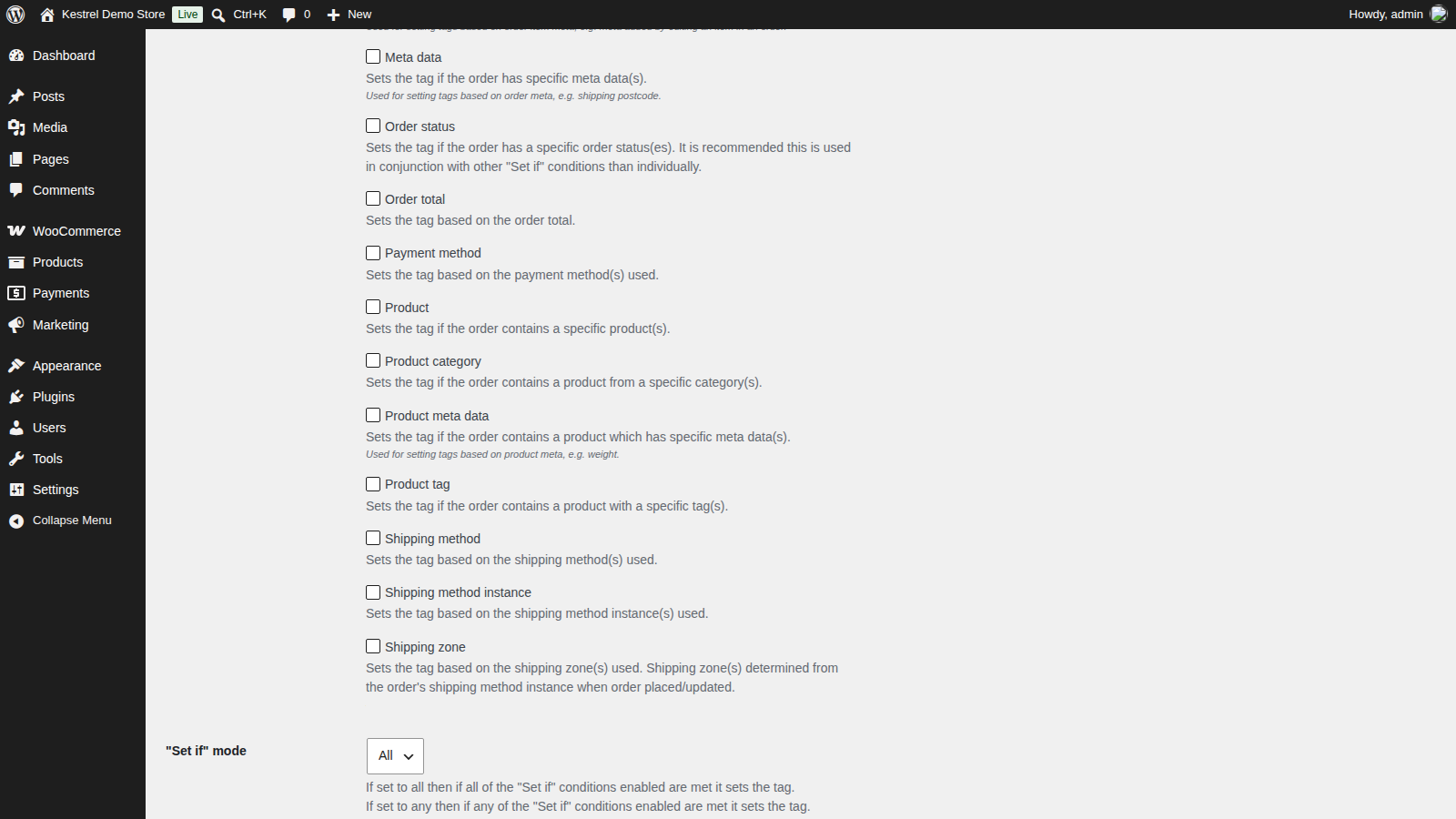
Meta data
The order’s meta data matches every line you enter under Meta data(s), for example _shipping_postcode|contains|AB1. See Meta data conditions.
Order status
The order has one of the statuses you pick under Order status(es) at the moment the rule runs. Combine it with other conditions, and with Order update to tag orders as they reach a status, such as Completed.
Order total
Compares the order total, including shipping and tax, with the amount you enter, using an Operator.
Payment method
The order was paid with one of the payment methods you pick under Payment method(s).
Product
The order contains one of the products you pick under Product(s).
For variable products, the condition matches the parent product: pick the variable product and any of its variations counts, and individual variations aren’t in the list. To tag orders for one variation, a developer adds the wcot_order_tags_set_if_product_variations filter (see the developer reference). Reload the tag’s edit screen and the list includes variations; the link under the field changes from "Individual product variations are not included (click for info)" to "Individual product variations are included (click for info)". Picking the variable product still matches all of its variations.
If the filter is removed later, variations you picked stay in the field but no longer match.
Product category
The order contains a product from one of the categories you pick under Product category(s). For a variation, its parent product’s categories count.
Product meta data
At least one product in the order has meta data matching every line you enter under Product meta data(s), for example _weight|>|20. For a variation, Order Tags reads the variation’s value and falls back to the parent product’s when the variation has none. See Meta data conditions.
Product tag
The order contains a product with one of the product tags you pick under Product tag(s). For a variation, its parent product’s tags count.
Shipping method
The order’s shipping uses one of the method types you pick under Shipping method(s), such as Flat rate or Free shipping, in any shipping zone.
Shipping method instance
The order’s shipping uses one of the specific methods you pick under Shipping method instance(s), such as the flat rate in one zone but not another.
Shipping zone
The order’s shipping method belongs to one of the zones you pick under Shipping zone(s).
The three shipping conditions read the order’s first shipping line. Orders without shipping, such as orders of virtual products, never match them.
Operators
| Operator | Matches when the order’s value |
|---|---|
= | Equals the value |
!= | Doesn’t equal the value |
>= | Is greater than or equal to the value |
> | Is greater than the value |
<= | Is less than or equal to the value |
< | Is less than the value |
contains | Contains the value |
not_contains | Doesn’t contain the value |
starts_with | Starts with the value |
ends_with | Ends with the value |
The number conditions (Customer order count, Item count and Order total) offer the first six. The text boxes accept all ten. Comparisons ignore upper and lower case and spaces around the value, and >=, >, <= and < compare as numbers when both values are numbers.
Meta data conditions
Item meta data, Meta data, Product meta data and Set tag exclusions take one condition per line, in the format meta_key|operator|meta_value:
_shipping_postcode|contains|AB1
_warranty_fee|>|20.00
_warranty_sold|=|yes- Every line must match. For item and product meta, they must all match on the same product line.
- A line matches only when the order, item or product has that key with a value. So
!=andnot_containsdon’t match orders that don’t have the key at all. - Enter one key per line, and a value that isn’t empty.
- Remove blank lines, including one at the end of the box. A blank line counts as a condition that can’t match, so the whole condition never matches.
- Use keys that hold a single text or number value. Keys that hold a list, such as a product’s upsell IDs or downloadable files, aren’t supported.
WooCommerce’s own address and contact fields use keys such as _billing_country, _billing_email and _shipping_postcode on orders, and _sku, _weight and _stock_status on products. For data another plugin adds, ask that plugin’s developer which key it uses. For the order total, use the Order total condition rather than meta data.
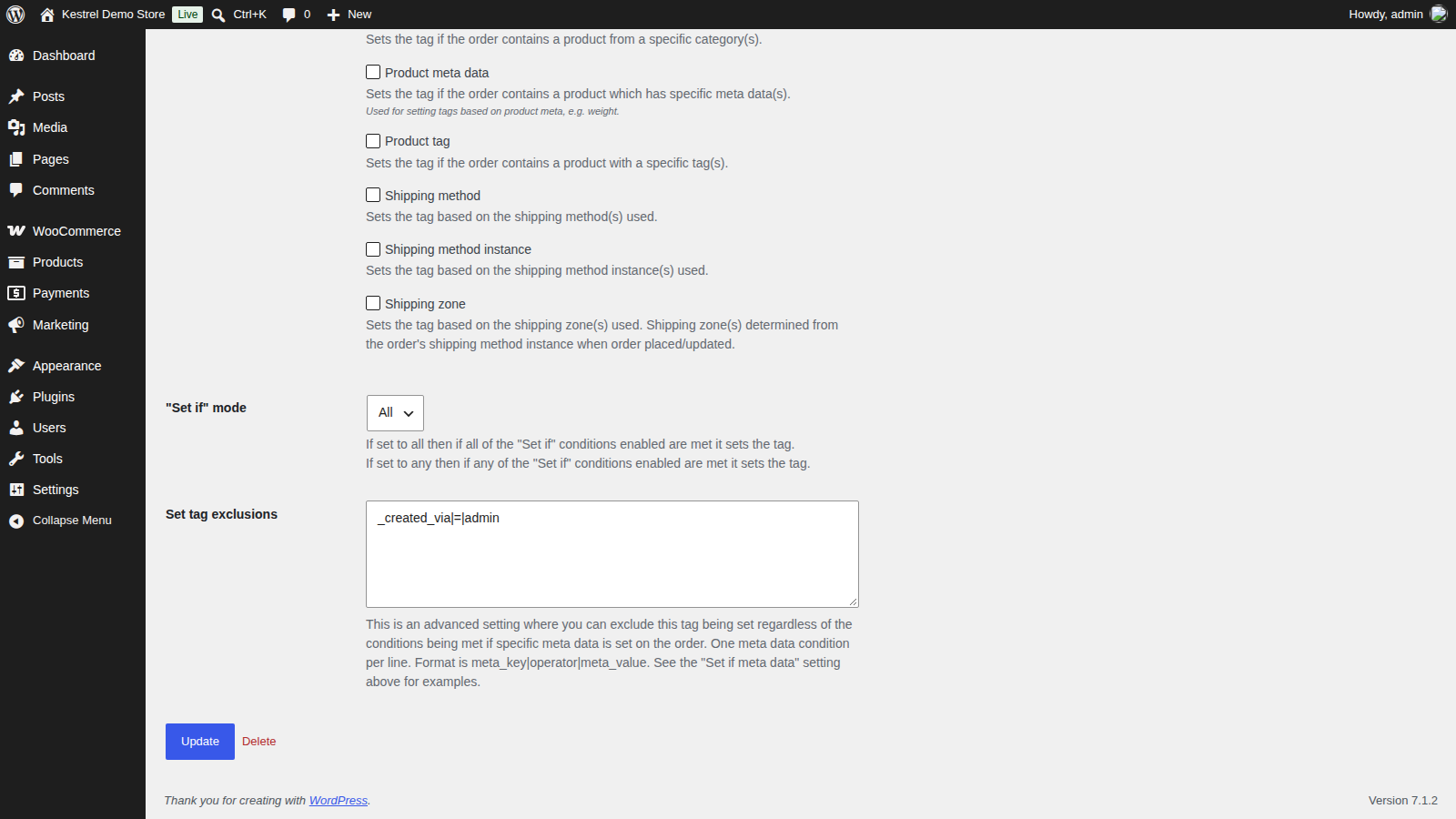
"Set if" mode
- All: every ticked Set if condition has to match. New tags start on All.
- Any: one matching condition is enough.
A rule can’t mix the two, such as "country is US and total over 100, or country is CA and total over 150". Create a tag for each branch instead.
Set tag exclusions
Stops the tag being set when the order’s meta data matches every line you enter, even if all of its Set if conditions match. It uses the meta data format and order meta only. For example, to keep a tag off orders you create in wp-admin:
_created_via|=|adminExclusions apply when a rule sets the tag, when the bulk page sets tags and when you use Set order tag in the orders list’s bulk actions.
Examples
- High value: Set on Order placed; Set if Order total
>=250. - First order from an account holder: Set on Order placed; Set if Customer order count
=1and Customer role Customer; mode All. - Local orders ready to pack: Set on Order update; Set if Order status Processing and Shipping zone your local zone; mode All.
- Has a note: Set on Order placed; Set if Customer note.
Common issues
Checkout block orders aren’t tagged on Order placed
The checkout block creates a draft order while the shopper checks out. WooCommerce 9.2 and later treat the draft as a new order once it’s placed, so Order placed runs. On earlier versions it never does for those orders. Update WooCommerce to 9.2 or later, or also tick Order update on the tag.
The Product condition doesn’t tell variations apart
By default the condition matches the parent product, so any variation counts. To match one variation, add the variations filter and pick the variation (see Product).
Customer order count is wrong for guest orders
By default the count is worked out from the customer’s account, so it doesn’t reflect a guest shopper’s own orders. Don’t rely on it for guest orders. To count guest orders by billing email instead, a developer adds the wcot_order_tags_set_if_customer_order_count_all filter (see the developer reference). The link under the field then reads "Guest orders are included (click for info)".
A meta data condition never matches
Check that:
- The key is spelled exactly, including any leading underscore.
- The order, item or product has a value for that key when the rule runs.
- There are no blank lines in the box, including at the end.
- Every line in the box matches; split them across tags if you need either one.
Order subscription renewal isn’t in the list
It only shows while WooCommerce Subscriptions is active. Activate it, then reload the tag’s edit screen.
Saving warns that the tag won’t be set automatically
When you click Update, the browser asks: "No "Set if" conditions have been enabled so this order tag will not set automatically. Are you sure you want to continue?" The tag has no Set if condition ticked. Click Cancel and tick one, or OK to keep it as a tag you add by hand. A matching prompt appears when no Set on option is ticked.
Keep learning
- Get started with Order Tags (creating tags, tagging by hand and the bulk page)
- Order Tags developer reference (the variations, guest order and customer role filters)