


Product Sample’s store-wide settings apply to every sample until you override them. You can turn samples on or off and set a different price, shipping class or tax for a category, a product or a single variation, and give a product’s samples their own stock and download files. For the store-wide settings, see Get started with Product Sample.
When you’d use this
- Offer samples in a few categories only, or switch them off for one category.
- Make samples free in one category and charge for them everywhere else.
- Charge a different price for samples of a premium product or variation.
- Give samples their own stock, separate from the full product.
- Give a downloadable product a shorter sample file.
How Product Sample picks which settings apply
For each setting, Product Sample uses the most specific value it finds: the variation, then its parent product, then the product’s category, then the store-wide setting. An empty field passes the choice up to the next level, so you only fill in what’s different.
- Categories: a sub-category’s settings come before its parent category’s. If a product is in more than one category with its own sample settings, Product Sample uses the first one it finds, so give those categories the same settings.
- Whether samples are on: a variation or product set to use the global or category settings follows its category, and a category set to Use global settings follows Enable samples for all products. A level set to disable samples turns them off for everything below it that doesn’t set its own choice.
- A price of 0: a sample price of 0 makes samples free at that level, even when the level above charges for them. Leave the field empty to use the price from the level above.
Category settings
Go to Products » Categories and add or edit a category. The sample fields sit below the standard category fields.
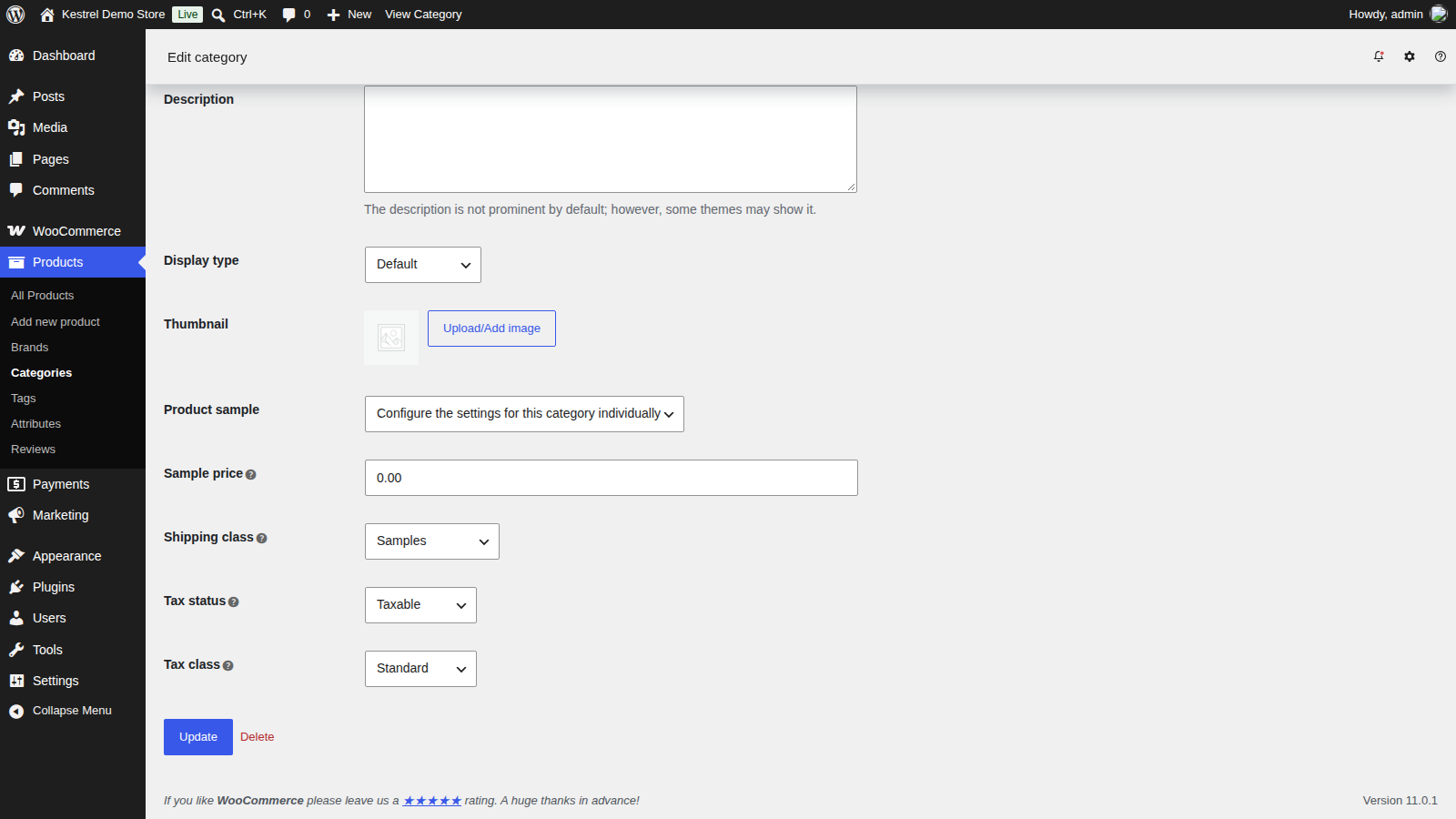
- Product sample: when you edit a category and choose to configure it individually, the empty fields are filled in with the store-wide values. Saving stores those values on the category, so later changes to the store-wide settings don’t reach it.
- Use global settings (Inherit parent settings on a sub-category): follows the store-wide settings, or the parent category’s.
- Configure the settings for this category individually: offers samples for every product in the category and its sub-categories, whatever the store-wide setting, and shows the fields below.
- Disable samples: turns samples off for the category and its sub-categories.
- Sample price: the price for samples in this category. Enter 0 for free samples.
- Shipping class: the shipping class for samples in this category.
- Tax status: Taxable, Shipping only or None for samples in this category.
- Tax class: the tax class for samples in this category.
- Product samples column: the categories list has a Product samples column showing Enabled or Disabled for each category, and where the choice comes from: "(inherited from global setting)", "(inherited from parent category)", or nothing when the category sets it.
Product settings
Open the product and use the Product data box. The sample fields are spread over the General, Inventory and Shipping tabs, next to the matching product fields.

- Product samples: on the General tab of simple and variable products.
- Use global/category settings: follows the category or store-wide settings.
- Configure the settings for this product individually: offers samples of this product whatever its category or the store-wide setting says, and shows the product’s own price and tax fields.
- Disable samples for this product: no sample button for this product. On a variable product, this also covers every variation set to follow the parent product.
- Sample price: on simple products configured individually. Leave it empty to use the category or store-wide price, or enter
0.00for a free sample. Variable products set the price on each variation. - Sample tax status: on products configured individually, when taxes are enabled. Taxable, Shipping only or None.
- Sample tax class: on products configured individually, when taxes are enabled. The tax class for this product’s samples.
- Sample stock: on the Inventory tab, unless samples are disabled for the product. Ticked by default: "Full product and samples share the same stock". Untick it to give samples their own stock (see how sample stock works).
- Manage sample stock: appears when Sample stock is unticked and stock management is on under WooCommerce » Settings » Products » Inventory. Tick it to count sample stock, which shows the next three fields.
- Sample stock quantity: how many samples you have. On variable products, set sample stock on each variation rather than on the product.
- Allow sample backorders: whether customers can order samples once the sample stock reaches 0, using WooCommerce’s usual choices (Do not allow, Allow, but notify customer, Allow).
- Low sample stock threshold: the sample stock level that triggers a low stock notification. Leave it empty to use your store-wide threshold.
- Sample stock status: appears when Sample stock is unticked and Manage sample stock isn’t on, on simple products. In stock, Out of stock or On backorder for the sample, regardless of the full product’s stock. With Kestrel’s Discontinued Products for WooCommerce active, Discontinued is in the list too: customers can’t order the sample, and the page shows Discontinued Products’ availability text.
- Sample weight: on the Shipping tab, when Sample stock is unticked. Product Sample saves the value, but shipping rates are worked out with the full product’s weight. To charge less to ship a sample, use a shipping class for samples instead.
- Sample dimensions: on the Shipping tab, when Sample stock is unticked. Like Sample weight, these are saved but shipping rates use the full product’s dimensions.
- Sample shipping class: on the Shipping tab, for products configured individually, when Sample stock is unticked. A product configured individually uses this field rather than the category or store-wide sample shipping class, even while the field is hidden. Left at No shipping class, its samples ship with no shipping class. The field is hidden while Sample stock ("Full product and samples share the same stock") is ticked, but a class set before ticking it is kept and used. To set or change the class, untick Sample stock, choose the class and save, then tick Sample stock again and save. The samples then keep sharing the full product’s stock and ship with the class you chose.
- Sample downloadable files: on the General tab of downloadable products, unless samples are disabled. Add the files customers get when they order a sample, with Add File: a Name customers see and the File URL. See downloadable samples.
- Sample download limit: how many times a customer can download each sample file. Leave it empty for unlimited downloads.
- Sample download expiry: how many days the sample download links last. Leave it empty for links that don’t expire.

Variation settings
Open a variable product, go to Variations and expand a variation. Variations without their own settings use the parent product’s, then the category and store-wide settings.
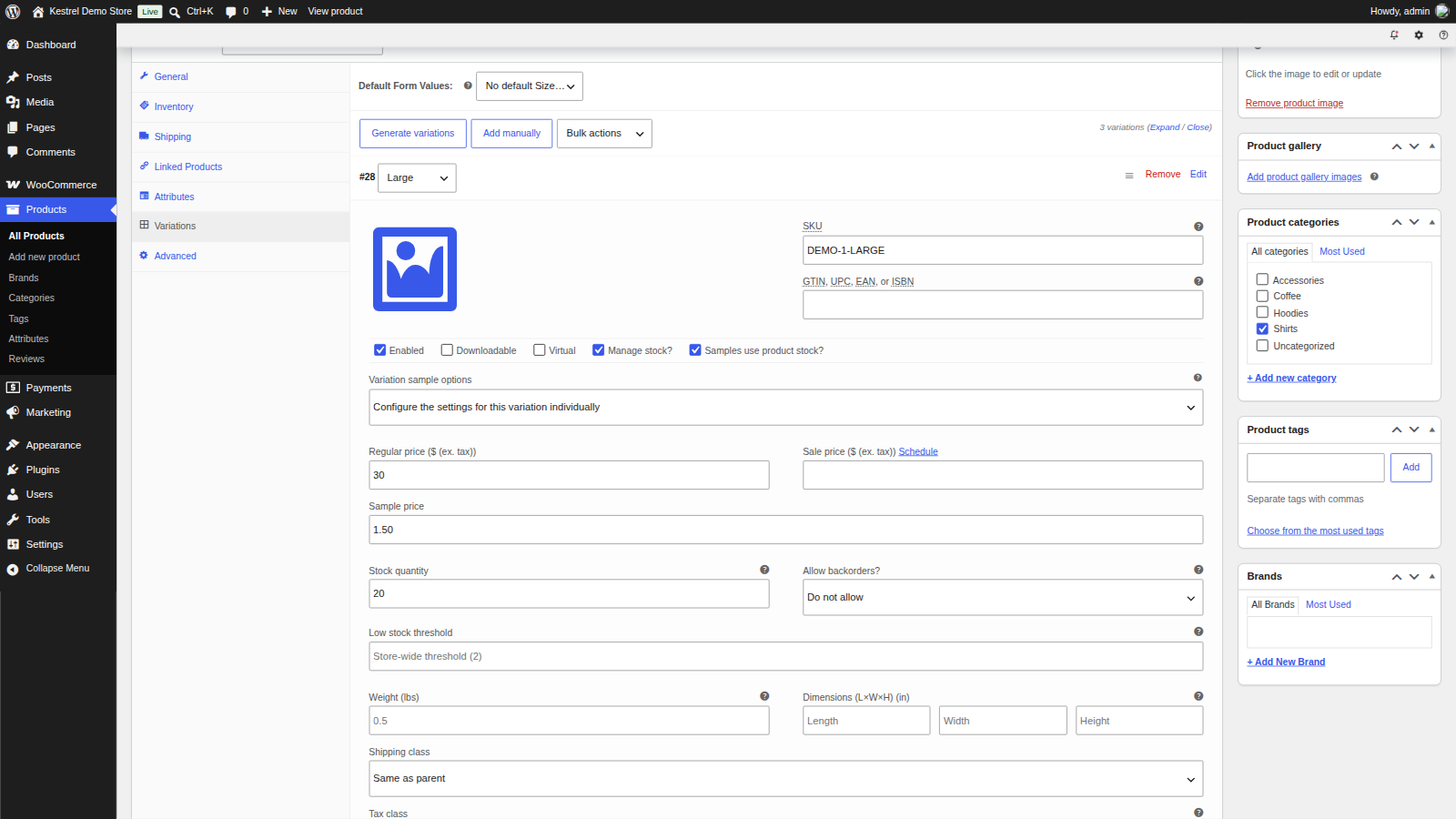
- Variation sample options:
- Use global/category/parent product settings: follows the parent product.
- Configure the settings for this variation individually: offers samples of this variation and shows its own price, shipping class and tax class.
- Disable samples for this variation: no sample for this variation, while its other variations keep theirs.
- Samples use product stock: ticked when the variation’s samples come from the variation’s stock. Untick it to give this variation’s samples their own stock.
A variation’s other sample fields work like the product’s: Sample price, Sample shipping class, Sample tax class, Manage sample stock, Sample stock quantity, Allow sample backorders, Sample low stock threshold, Sample stock status, Sample weight, Sample dimensions and the sample files. Two differences.
- The Sample price placeholder shows "0 (inherited)" whatever price the variation inherits. Leave the field empty to inherit, or enter a price.
- For Sample tax class, Same as parent uses the product’s sample tax class. For Sample shipping class, Same as parent uses the parent product’s sample shipping class, or the category or store-wide one when the parent product follows those.
How sample stock works
- Shared stock (the default): a sample is sold from the full product’s stock. Ordering one reduces the full product’s stock, and samples are available whenever the full product is in stock.
- Own stock, not counted: with Sample stock unticked and Manage sample stock off, the Sample stock status decides whether samples are available. Sample orders don’t touch the full product’s stock.
- Own stock, counted: with Manage sample stock on, each sample order reduces the sample stock quantity and adds the order note "Sample stock levels reduced". Samples follow your backorder choice once the quantity runs out, and the usual low stock and out of stock notifications are sent.
When a simple product is out of stock but its samples have their own stock, its page shows the sample button on its own, so customers can still order a sample.
Sample stock that’s counted separately goes back up when a sample order is cancelled or set back to Pending payment, and when you refund samples with Restock refunded items ticked. The order note "Sample stock levels increased" lists each sample and its new stock. For a sample with its own stock, editing the sample line on the order screen doesn’t change the full product’s stock.
Downloadable samples
For a downloadable product, customers who order a sample get the Sample downloadable files instead of the full product’s files, in their order emails and the Downloads tab of My account. Every file of every sample in the order is available, and the customer’s downloads of full products stay listed beside them. The Sample download limit applies per sample ordered, and the Sample download expiry counts from the day the order is completed. If a sample has no files of its own, customers who order it get no download.
When you save the product, WooCommerce’s file checks apply to sample files too. A file that fails one shows "The downloadable file … cannot be used as it does not exist on the server." or "The downloadable file … cannot be used as it does not have an allowed file type. Allowed types include: …" and isn’t saved.
Common issues
Samples of one product ship without the sample shipping class
The product is set to Configure the settings for this product individually, so it uses its own Sample shipping class. Untick Sample stock, set the class, save, then tick Sample stock again and save, or switch the product back to Use global/category settings and set its sample price and shipping class on its category.
Sample weight doesn’t change the shipping cost
Shipping rates use the full product’s weight and dimensions. Give samples their own shipping class and set its cost in your shipping zones.
Sample stock doesn’t go back up after a refund
Tick Restock refunded items when you refund the sample. Sample stock counted separately goes back up only for refunds that restock, and when an order is cancelled or set back to Pending payment. To correct it by hand, update Sample stock quantity on the product or variation.
The category says Enabled, but a product shows no sample button
Something more specific turns samples off or hides them: the product’s Product samples setting, the variation’s Variation sample options, or stock. Work through the sample button checklist.
Keep learning
- Get started with Product Sample (store-wide settings, the follow-up email and what customers see)
- Product Sample developer reference (the sample object and its hooks)