


Product Sample lets customers order a free or paid sample before they buy the full product: fabric swatches, tiles, paint, ingredients, or a short preview of a music or video file. An Order sample button sits next to Add to cart, the sample is labeled as a sample through the cart, checkout and order, and an optional follow-up email invites the customer back to buy the full product.

A sample isn’t a separate product. It’s a set of sample settings stored on the real product (price, stock, shipping, tax and downloads), and by default it draws on the same stock as the full product. You set samples up store-wide, then override them for a category, a product or a variation where you need to.
When you’d use this
- Offer free swatches or tiles so customers can check a color or texture before ordering.
- Charge a small amount for samples to cover postage.
- Give a shorter download, such as a preview track, before customers buy the full file.
- Offer samples in some categories only, or switch them off for certain products.
- Follow up after a sample order with links to buy the full products.
Requirements
- WordPress 6.2 or later, WooCommerce 8.2 or later, and PHP 7.4 or later.
- Compatible with WooCommerce’s cart and checkout blocks and High-Performance Order Storage.
- Samples work on simple and variable products. A grouped product doesn’t get a sample button itself, though the products in it do on their own pages, and external or affiliate products don’t offer samples.
Install and activate
Product Sample is sold on kestrelwp.com. Download the plugin from the Licensed downloads tab of your kestrelwp.com account and install it. Then go to Settings » Product Sample for WooCommerce activation and activate the key from your License keys tab to receive updates. See using sites against your activation limit for how activations count.
If you’re updating from an earlier version and the activation page shows the plugin as not activated, replace any key in the field with the license key from the License keys tab of your kestrelwp.com account, and click Save changes.
For upload, FTP and update steps, follow how to install and update WooCommerce extensions.
Set up Product Sample
1. Choose where samples are offered
Go to WooCommerce » Settings » Products » Product sample. Tick Enable samples for all products to offer a sample of every simple and variable product, or leave it unticked to offer samples only in the categories and products you choose in step 3.

2. Set the price and button, then save
Enter a Sample price, or leave it empty for free samples, and check the Button text. Then click Save changes, even if you kept every default. Until this screen has been saved once, every simple and variable product shows a sample button, whatever Enable samples for all products shows.
3. Turn samples on or off for categories and products
To offer samples in one category, edit the category under Products » Categories and set Product sample to Configure the settings for this category individually. To switch samples off for one product, open it and set Product samples to Disable samples for this product on the General tab. The category, product and variation settings page covers every option at each level.
4. Plan shipping for samples
If samples should ship at a different rate, create a shipping class for them under WooCommerce » Settings » Shipping » Classes, give it a rate in your shipping zones, and choose it in Shipping class for product sample.
5. Review the follow-up email
The sample follow-up email is on as soon as the plugin is active. Go to WooCommerce » Settings » Emails, click Manage next to Product sample follow-up and edit the wording.
6. Check it on your store
Open a product in a private browser window and click the sample button. The cart shows the product with your Cart/checkout text in front of its name, at the sample price.
Product sample settings
Go to WooCommerce » Settings » Products » Product sample. These are the store-wide defaults. Categories, products and variations can override the price, shipping class and tax settings (see how Product Sample picks which settings apply).
Enable samples for all products
Offers a sample of every simple and variable product in the store. Leave it unticked to offer samples only where a category, product or variation turns them on. A category, product or variation set to disable samples overrides this setting either way.
Sample price
The store-wide sample price, shown with your currency symbol. Leave it empty or enter 0 for free samples, or enter an amount such as 4.99 to charge for them.
Button text
The text on the sample button. If you leave it empty, the button reads "Order sample: {price}". Two placeholders work here:
{price}: the sample price, including the currency symbol. A free sample shows a zero price, such as $0.00, so for free samples you may prefer text like "Order a free sample".{currency}: your store’s currency symbol.
Enable on shop/archive pages
Adds the sample button next to Add to cart in your product listings, as well as on product pages. On the main shop page, only simple products get the button. The button is added to WooCommerce’s classic product listings, so product grids built with WooCommerce blocks don’t show it.
Maximum sample quantity
The most samples a customer can order, counted the way Maximum quantity logic sets. Leave it empty for no limit. If you offer free samples, a limit keeps the cost under control.
Maximum quantity logic
How the maximum is counted:
- Set a maximum number of samples per order (the default): the total quantity of samples in the cart, across all products.
- Set a maximum number of samples per category: the samples in the cart from the product’s first category. Samples of variations don’t count toward this limit.
- Set a maximum number of samples per product/variation: the samples of one product or variation.
A customer who goes over the limit sees a message such as "You cannot add more than 5 samples in a single order." With the per product or variation limit, every variation sample already in the cart counts toward the limit for the next sample, whichever product it belongs to.
Cart/checkout text
The label that marks a sample in the cart, checkout, order confirmation page, order emails and the order screens in your admin. The default is "Sample –", which goes in front of the product name ("Sample – White wall tile"). To put the label after the name, include the {name} placeholder, for example {name} (sample). To show no label, clear the field.
Shipping class for product sample
The shipping class samples use, so they can ship at a different rate from the full product, or for free. Set up the class first under WooCommerce » Settings » Shipping » Classes. The default is No shipping class.
Tax status for product sample
Taxable, Shipping only or None. Use None for samples you don’t charge tax on, or Shipping only to charge tax on the sample’s shipping alone.
Tax class for product sample
The tax class samples use, from the classes set up under WooCommerce » Settings » Tax.
Sample follow-up email
The Product sample follow-up email invites customers who ordered samples to buy the full products. Find it under WooCommerce » Settings » Emails and click Manage.

Once a day, Product Sample looks for orders placed exactly Email delay days earlier that contain a sample and are Completed at that point. An order completed after that day doesn’t get the email. It’s also skipped when the customer has completed an order without samples since then, and a registered customer who already got a follow-up doesn’t get another for sample orders placed before it. The email goes to the order’s billing email and greets the customer by their billing first name.
The HTML email lists each item from the order with a Buy it now link. The links open the product page with the sample buttons hidden, so the customer goes straight to the full product.

The check runs through WP-Cron, which needs visits to your site to run on time. If your host has turned WP-Cron off, make sure a server cron job runs it.
Enable/Disable
Sends the email. It’s ticked as soon as the plugin is active. The email is sent on its daily schedule whether or not this box is ticked. If you don’t want follow-up emails, contact support.
Email delay
How many days after the sample order to send the email. Empty or 0 means 7.
Subject
The subject line. The default is "How did you like our samples?" You can use {site_title}, {order_date} and {order_number}.
Email heading
The heading at the top of the email. The default is "How did you like our samples?"
Email body
The text above the list of products. The default is "Thanks for ordering samples from {site_title}. To order the full products, please click on the links below." Placeholders: {site_title}, {site_url}, {order_date} and {order_number}.
The HTML email shows this text only when Additional content has text too, so keep something in both fields.
Additional content
The text below the list of products, such as a sign-off. The default is "Thanks for shopping with us."
Email type
HTML, Plain text or Multipart. Use HTML: the plain text version shows the order’s details, the same way an order receipt does, instead of your Email body and the Buy it now links.
What customers see
- Product page: an Order sample button next to Add to cart. It adds the quantity in the product’s quantity box. On variable products, the button appears once the customer picks a variation that offers samples. If the full product is out of stock but its samples have their own stock, the page shows the sample button on its own.
- Product listings: the same button next to Add to cart, if Enable on shop/archive pages is on.
- Cart and checkout: the sample as its own line, labeled with your Cart/checkout text and priced at the sample price. A customer can have the same product in the cart as a sample and as the full product. Adding a sample shows "A sample of “White wall tile” has been added to the cart."
- Order confirmation, emails and My account: the sample’s labeled name. For downloadable products, the Downloads list holds the sample’s files rather than the full product’s.
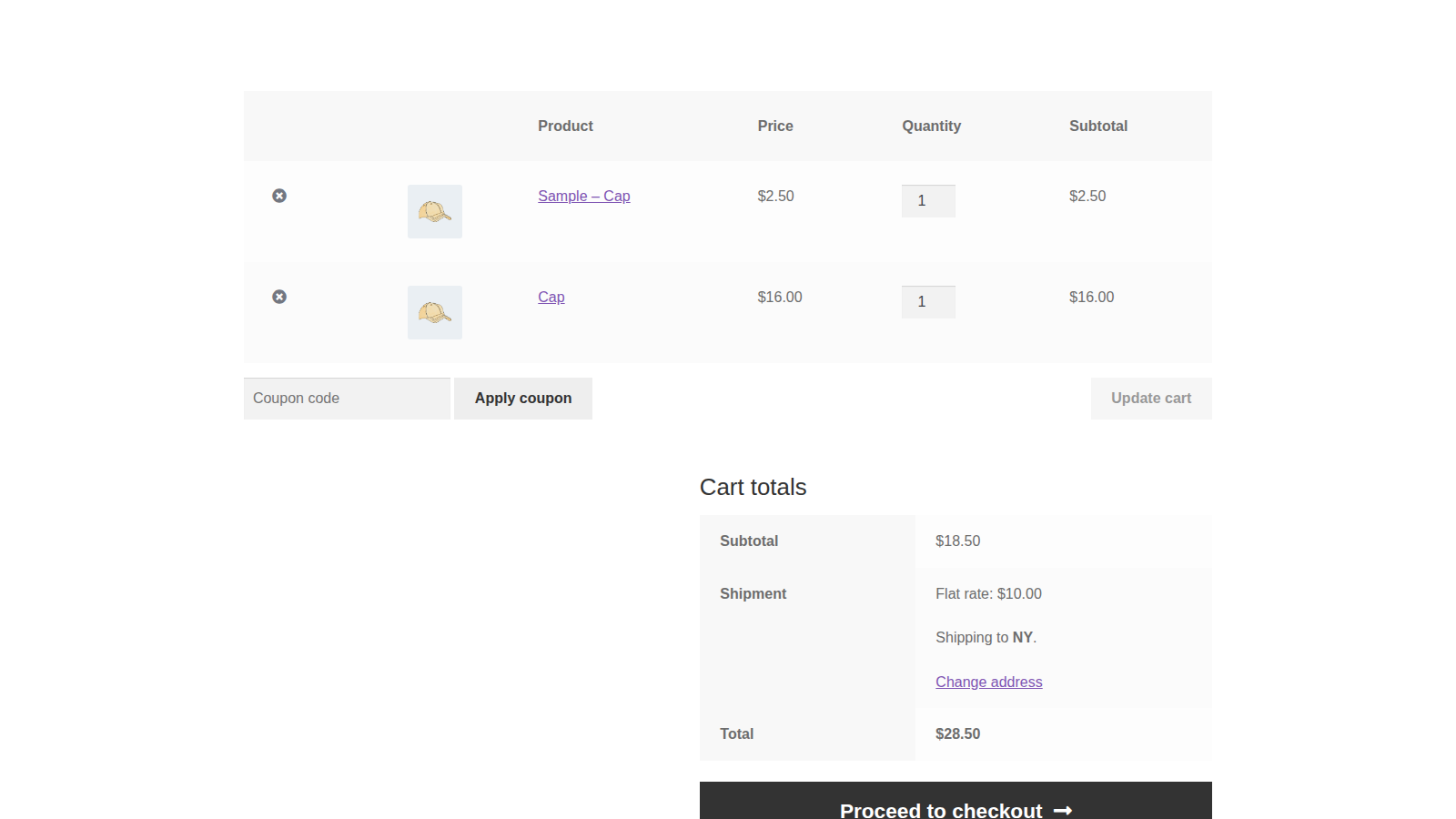
Sample orders in your admin
Samples appear in the order with their label, so you can tell them from full products at a glance. When a sample shares stock with the full product, it reduces the full product’s stock like any other sale. When it has its own stock, the order reduces the sample stock instead and adds the order note "Sample stock levels reduced". For stock options, see how sample stock works.
Compatibility
- Themes: Product Sample adjusts its buttons for the Astra, Bridge, Enfold, Flatsome, Jupiter and Woodmart themes, including their child themes.
- Barn2 plugins: Product Sample has built-in support for WooCommerce Product Table, WooCommerce Quick View Pro, WooCommerce Fast Cart and WooCommerce Bulk Variations.
- Barn2’s WooCommerce Wholesale Pro: adds Wholesale sample price and Wholesale maximum sample quantity to the Product sample settings, for wholesale customers. Set a Wholesale sample price: if it’s empty, samples are free for wholesale customers.
What Product Sample stores and sends
Sample settings are saved on your products, variations and categories, and the store-wide settings in your WordPress options. Orders mark each sample line, and the follow-up email records when each registered customer was last sent one.
Activating your license and checking for updates contact kestrelwp.com with your license key and site details.
Newsletter sign-up (optional): if you click Sign up on the plugin’s newsletter prompt in your admin, your name, email address, site name and address, language, and plugin, WordPress, WooCommerce and PHP versions are sent to Kestrel’s email provider, Klaviyo. Nothing is sent unless you sign up.
Common issues
Every product shows a sample button after installing
The store-wide settings haven’t been saved yet. Go to WooCommerce » Settings » Products » Product sample, set Enable samples for all products the way you want it and click Save changes.
The sample button doesn’t show on a product
Check these in order:
- The product is a simple or variable product. Grouped and external products don’t get a sample button.
- Samples are on for it: through Enable samples for all products, its category, or its own Product samples setting, and nothing more specific disables them.
- The sample is in stock. A sample that shares stock is hidden when the full product is out of stock, and a sample with its own stock is hidden when that stock runs out (unless it allows backorders).
- The page address doesn’t end in
?samples=no, which the follow-up email’s links add.
The sample button doesn’t show in product listings
Turn on Enable on shop/archive pages. On the main shop page, only simple products get the button, and product grids built with WooCommerce blocks don’t show it.
"You cannot add more than 5 samples in a single order."
The customer reached your Maximum sample quantity. The message names a category or product when Maximum quantity logic counts per category ("You cannot add more than 5 samples from this product category in a single order.") or per product ("You cannot add more than 5 samples of “White wall tile” in a single order."). Raise the limit or change how it’s counted.
Customers don’t get the follow-up email
- Check that the sample order was Completed by the day the email was due.
- With High-Performance Order Storage on, the email only finds orders when compatibility mode is on under WooCommerce » Settings » Advanced » Features, which keeps a copy of orders in the WordPress posts table.
- For guest orders, the check for a later purchase looks at all guest orders together: once any guest completes an order without samples, guest sample orders from before that don’t get the email.
- WP-Cron has to run. If your host has turned it off, set up a server cron job.
Customers get the follow-up email more than once
The email goes out once for each product sampled in the order, and each copy lists the whole order. A customer who sampled three products gets three copies. If that’s a problem for your store, contact support.
The follow-up email is missing its main text
Fill in Additional content: the HTML email shows Email body only when Additional content has text. If Email type is Plain text, switch it to HTML.
"The Product Sample for WooCommerce license key has not been activated, so plugin is inactive!"
Samples keep working, but the plugin can’t get updates until you activate your key. Click the link in the notice, or go to Settings » Product Sample for WooCommerce activation, and activate the key from the License keys tab of your kestrelwp.com account.
"This plugin requires WooCommerce version 8.2 or higher."
The notice starts with Kestrel Product Sample for WooCommerce. Update WooCommerce to 8.2 or later; WordPress 6.2 and PHP 7.4 are the other minimums.
Keep learning
- Product Sample category, product and variation settings (overrides, stock and downloadable samples)
- Product Sample developer reference (the sample object and its hooks)
- How to install and update WooCommerce extensions (installing, updating and fixing upload errors)
- Using sites against your activation limit (how license activations count)