


If you run a rental store on WooCommerce, you already know the problem. Customers rarely want to rent just one item. They need complete setups, which is where WooCommerce rental bundles make all the difference. The photographer needs a camera, a lens, a tripod, and a bag. The event planner needs tables, chairs, and a marquee. The DIY customer needs the whole tool kit, not just a single drill.
You could list those items separately and hope the customer assembles the right set. But then you’re the one stuck checking, by hand, whether every single piece is free on the same dates. Miss one, and you’ve got an awkward email and a double-booking.
Rental bundles in Rental Products for WooCommerce fix exactly this. Build the package once, drop in the rental products that belong in it, and the extension does the coordination for you – availability, pricing and deposits all handled as a single bookable product. No extra bundle or composite plugin required.
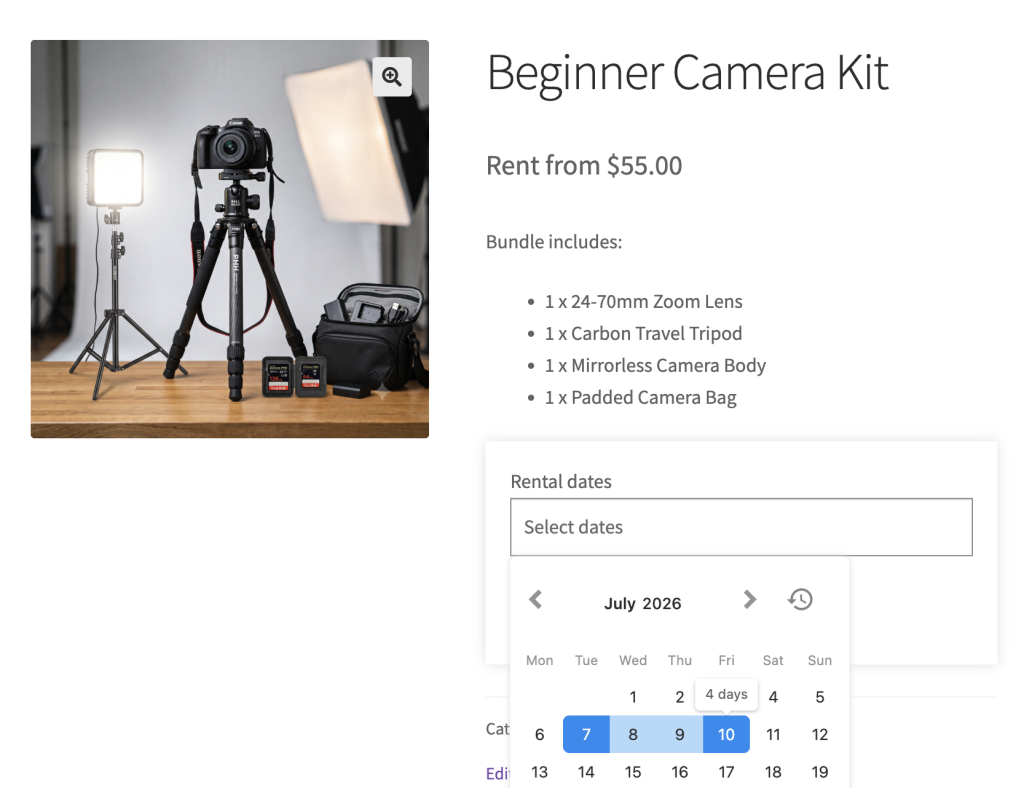
What a rental bundle actually does
Set up a bundle once, add the individual rental products that belong in it, and the extension handles the rest:
- Availability is checked across every bundled item. If any single piece is already booked for the selected dates, the whole bundle is blocked automatically – so you can’t accidentally rent out a kit that’s missing a part.
- Pricing is set at the bundle level, independent of what each item is listed for individually. You decide what the package costs.
- A single security deposit applies to the bundle, not to each item separately, which keeps checkout clean and the total easy to understand.
- You can include multiple quantities of the same product in one bundle – two tripods, eighty chairs, three power packs.
The customer sees one product, picks their dates, and every included item is reserved together. Behind the scenes, stock is tracked independently per product, so your inventory numbers stay accurate as bundles go out and come back.
For stores offering tool kits, event packages, camera rigs or any equipment-hire set, this removes a lot of manual coordination – and gives customers a cleaner way to book.
Who rental bundles are for
Bundles suit any rental business where items go out together as a set:
- Photography & AV hire – a “Beginner camera kit” with a body, lens, tripod and bag.
- Event & party hire – a “Wedding package” combining tables, chairs and a marquee.
- Tool & equipment hire – a “Tiling starter set” with a cutter, mixer and trowels.
- Sports & outdoor – a “Weekend camping kit” with a tent, stove and sleeping bags.
- Music & production – a “Small gig PA” with speakers, a mixer and cables.
If your customers keep buying the same combination of items, that combination should be a bundle.
How rental bundles work, step by step
Setting up a bundle takes a few minutes once the individual rental products already exist in your store.
1. Create the individual rental products first
A bundle is built from products you’ve already set up as rentals. So make sure the camera, the lens, the tripod and the bag each exist as their own rental product, each with its own stock level. This is what lets the extension track real inventory for every component.
2. Add a new product and set it as a “rental bundle”
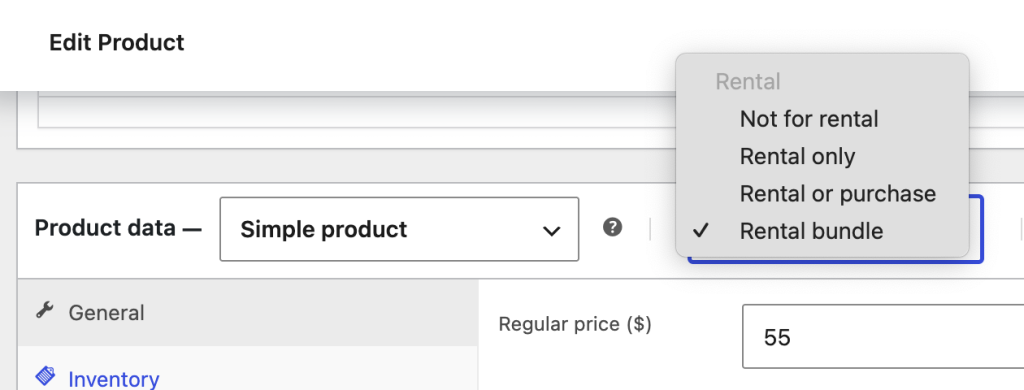
Create a new product as you normally would, then in the Rental dropdown choose Rental bundle. A new Bundle tab appears in the product data panel.
3. Add your bundled items
On the Bundle tab, use the Bundled rentals field to search for and add the rental products that make up the kit. To include more than one of something, add the same product multiple times.
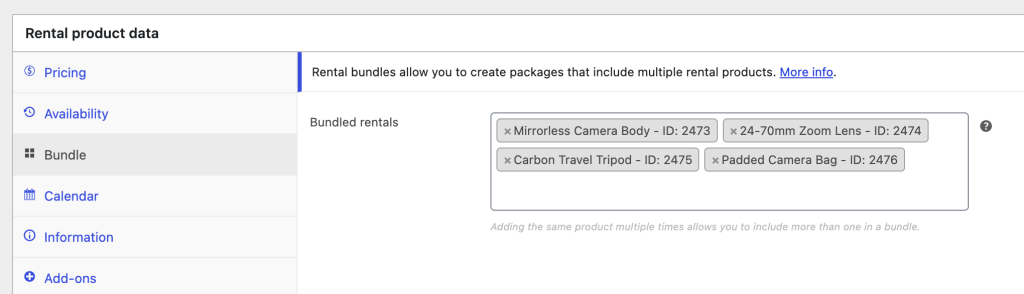
You can only add individual rental products to a bundle, not other bundles.
4. Set the bundle’s price, stock and rental rules
Pricing and rental rules are configured on the bundle itself:
- Price – what the package costs to hire. The individual items’ own prices are ignored when the bundle is booked, so you have full control over package pricing (and room to offer a kit discount).
- Stock – how many of this bundle can be out at once, on top of each component’s own stock.
- Rental rules – minimum and maximum hire days, pricing period, return window and so on apply to the whole bundle.
5. Add a security deposit (optional)
If you take deposits, set one on the bundle. A single deposit covers the whole kit – bundled items don’t each carry their own deposit, which keeps the checkout total clean and easy for the customer to understand.
6. Publish and you’re done
Publish the bundle and it behaves like any other rental product on the storefront – with all the cross-item logic running automatically.
What the customer sees
On the product page, the bundle shows a “Bundle includes:” summary listing every item and quantity – for example, “1 × Camera, 1 × Lens, 2 × Tripod, 1 × Bag.”
The customer picks their rental dates on the calendar, exactly as they would for a single rental product. The difference is what happens underneath: the calendar’s unavailable dates reflect every item in the kit. If the tripod is already booked next weekend, those dates are blocked on the bundle – even if the camera is free.
When they add the kit to the cart, all the included items are reserved together for the chosen dates at the single bundle price. If any component doesn’t have enough stock for the dates requested, the bundle simply shows as unavailable rather than letting an incomplete kit go out.
A quick example
Say you sell a “Complete party kit” containing 10 tables, 80 chairs and 1 marquee, priced at a flat weekend rate with one deposit.
| What you set up | What the extension does |
|---|---|
| Add Table ×10, Chair ×80, Marquee ×1 to the bundle | Reserves all 91 items together when the kit is booked |
| Set one weekend price on the bundle | Charges the package price, ignores individual item prices |
| Set one security deposit on the bundle | Adds a single deposit at checkout |
| Each item keeps its own stock | Blocks the kit’s dates if the marquee (or chairs, or tables) is short |
A customer books the kit for a Saturday. Behind the scenes, 10 tables, 80 chairs and 1 marquee are all marked out for that date. If another customer tries to book the same kit – or even just the marquee on its own – those dates are already gone.
Why this beats listing items separately
Without bundles, offering kits means one of two compromises: either you list everything individually and leave customers to self-assemble (and you to manually check availability), or you create a “kit” as a single product with no link to real stock – which leads straight to overbooking.
Rental bundles give you the best of both:
- One clean product for the customer to book.
- Real, per-item inventory so your stock numbers never lie.
- Automatic cross-item availability so an incomplete kit can never go out.
- Package-level pricing and a single deposit so the checkout stays simple.
It’s the difference between looking like you offer kits and actually managing them properly.
Good to know
A few practical details worth keeping in mind:
- Bundles are made of simple rental products. You can’t nest a bundle inside another bundle.
- Bundle rules win. Minimum/maximum hire days, the pricing period and the return window are set on the bundle and apply to the whole kit; the individual items’ own rules don’t override it.
- Out-of-stock components block the kit. If any included item is fully booked or out of stock for the requested dates, the bundle is unavailable for those dates.
- Inventory stays per product. Every component’s stock is tracked separately, so the same camera can appear in several kits and your numbers stay correct across all of them.
Frequently asked questions
Do I need a separate bundles or composite-products plugin?
No. Rental bundles are built into Rental Products for WooCommerce – there’s nothing extra to install or configure.
Can I put more than one of the same item in a bundle?
Yes. Add the same product as many times as you need – that’s how you include two tripods, ten tables or eighty chairs in one kit.
How is the bundle priced?
You set a price on the bundle itself. The individual items’ prices aren’t charged when the kit is booked, so you can price the package however you like – including a discount versus hiring everything separately.
What about the security deposit?
A single deposit is set on the bundle and applied once at checkout, rather than collecting a separate deposit for every item.
What happens if one item in the kit is already booked?
The bundle’s calendar blocks those dates automatically. A kit can only be booked when every component is available for the chosen dates, so you never send out an incomplete set.
Is the stock for each item still tracked individually?
Yes. Each component keeps its own stock and is reserved independently when a bundle is booked, so your inventory stays accurate even when an item belongs to several bundles.
Offer your first kit today
Rental bundles turn the messy, manual job of coordinating multi-item hires into a single bookable product – with cross-item availability, package pricing and one clean deposit handled for you.
It’s included in Rental Products for WooCommerce, along with live availability calendars, refundable deposits, an inventory dashboard, return reminders and more – $199/year, every feature included, with a 30-day money-back guarantee.
New to rental inventory in WooCommerce? Start with our guide to managing WooCommerce rental inventory.






Leave a Reply