


Phone Orders and Payments 4.0 adds an order desk, so your team can take an order over the phone from start to finish on one screen. Store Credit 5.2 gives customers a clear view of what they have to spend, and lets you sell credit without setting a fixed price first.
Phone Orders and Payments 4.0: take phone orders from an order desk
Version 4.0 adds a dedicated Order desk under a new Phone order menu, just below Dashboard, plus a New phone order button next to Add order on the Orders list. It’s built around the call itself: find the caller, build the order while you talk, and get paid before you hang up.
Find the caller and see their history
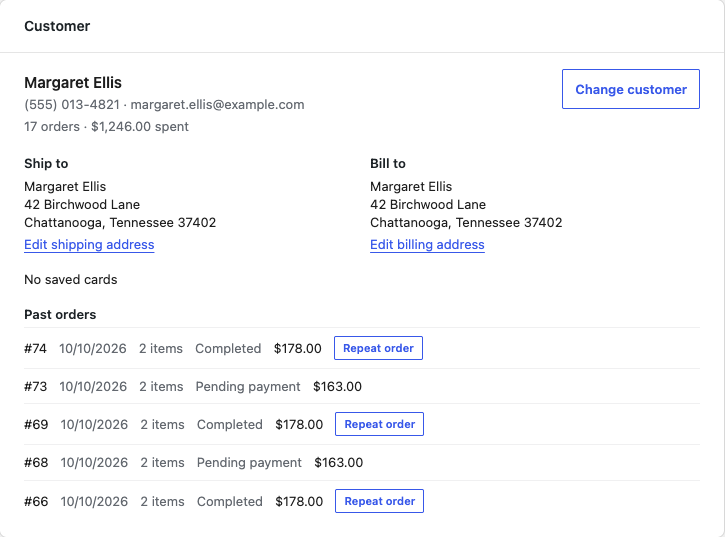
Search by phone number, email, or name. Phone numbers match however they were typed, so “(555) 013-4821” finds “555-013-4821”. The desk searches customer accounts and guests from past orders, and the customer card shows their addresses, saved cards (brand and last four), how many orders they’ve placed, and their recent orders. Repeat order rebuilds a past order at today’s prices (coupons aren’t carried over) and lists anything it couldn’t add.
Build the order the way checkout would
Add products by name or SKU, change a line’s price, apply coupons, add a fee or discount, and override the shipping cost when you need to. Returning customers get an Often buys row of the products they order most; new callers get your Bestsellers. Totals are calculated the same way as checkout, so tax, shipping, and coupon rules match what the customer would see online. The desk also handles most WooCommerce Product Add-Ons fields (file uploads and date pickers still go through the order screen) and WooCommerce Subscriptions products, which need the customer to have an account.
Choose how to take payment
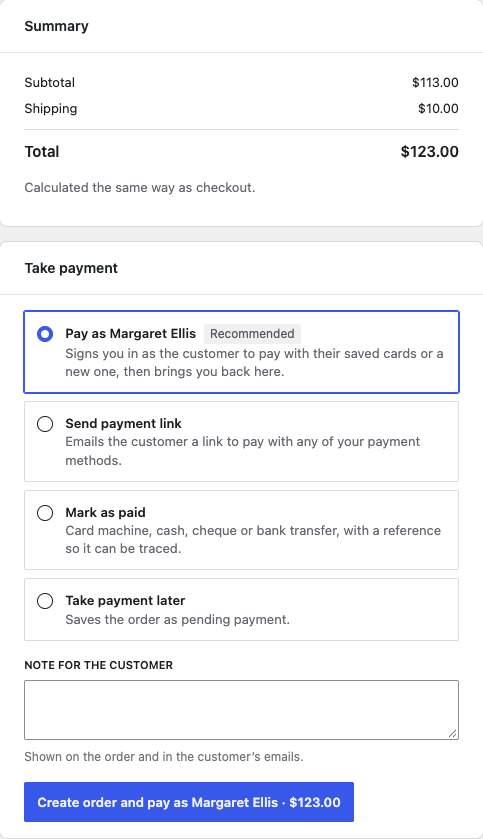
When the order’s ready, Take payment offers:
- Pay as [customer]: for account customers, signs you in as the customer for up to 30 minutes so you can pay with their saved cards or a new one, then brings you back to the desk. Whether saved cards appear depends on your payment gateway.
- Pay now: for guests, opens the order’s payment page so you can enter their card.
- Send payment link: emails the customer a link to pay with any of your payment methods.
- Mark as paid: for a card machine, cash, check, or bank transfer, with a reference so the payment can be traced.
- Take payment later: saves the order as pending payment.
In Order desk mode, unpaid orders also get a Take payment by phone button on the order screen, including on-hold orders customers placed with Phone payment at checkout. Phone payment itself now shows in the checkout block, has its own default order status setting, and can be hidden from signed-in customers.
Update from 3.x
Your workflow stays the same on update. Stores that already use Phone Orders and Payments stay in Legacy mode, which keeps the Phone order checkbox and terminal buttons on the order screen, with a few small changes:
- Your terminal settings move from WooCommerce » Settings » Payments » Phone payment to Phone order » Settings » Legacy terminals, and your saved values carry over.
- A terminal button now fills in the payment note but leaves the order status to you.
- Phone orders show “(phone order)” after the customer’s name in the orders list.
You’ll also see a notice offering to try the order desk or keep Legacy mode, and you can switch at any time under Phone order » Settings » Mode. Before you switch, know that the order desk replaces the order screen tools, and it creates guest orders for new callers rather than customer accounts. Version 4.0 also needs WordPress 6.5 and WooCommerce 9.0 or later.

For the full walkthrough, see Take phone orders on the order desk.
Store Credit 5.2: show customers their total balance
Store credit only works if customers remember they have it. Version 5.2 puts the number front and center.
See the total balance in My Account
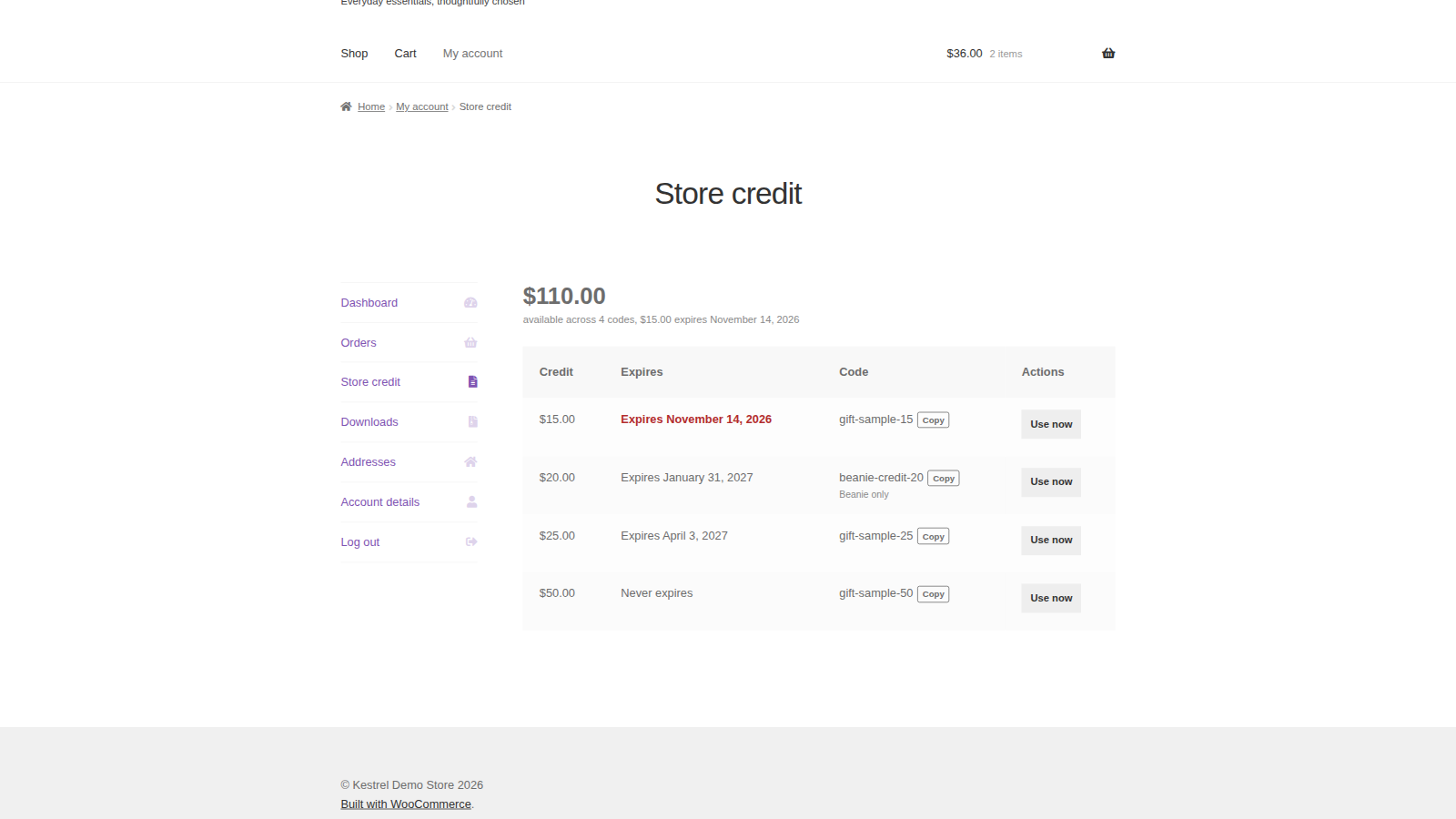
The Store credit page in My Account now opens with the customer’s total balance, how many codes it’s spread across, and how much expires soonest. Below that, each code shows its balance, when it expires, and any product or category it’s limited to, with a Copy button next to the code. The account dashboard shows the same total, with a link to the full list.
Put expiring credit first at cart and checkout
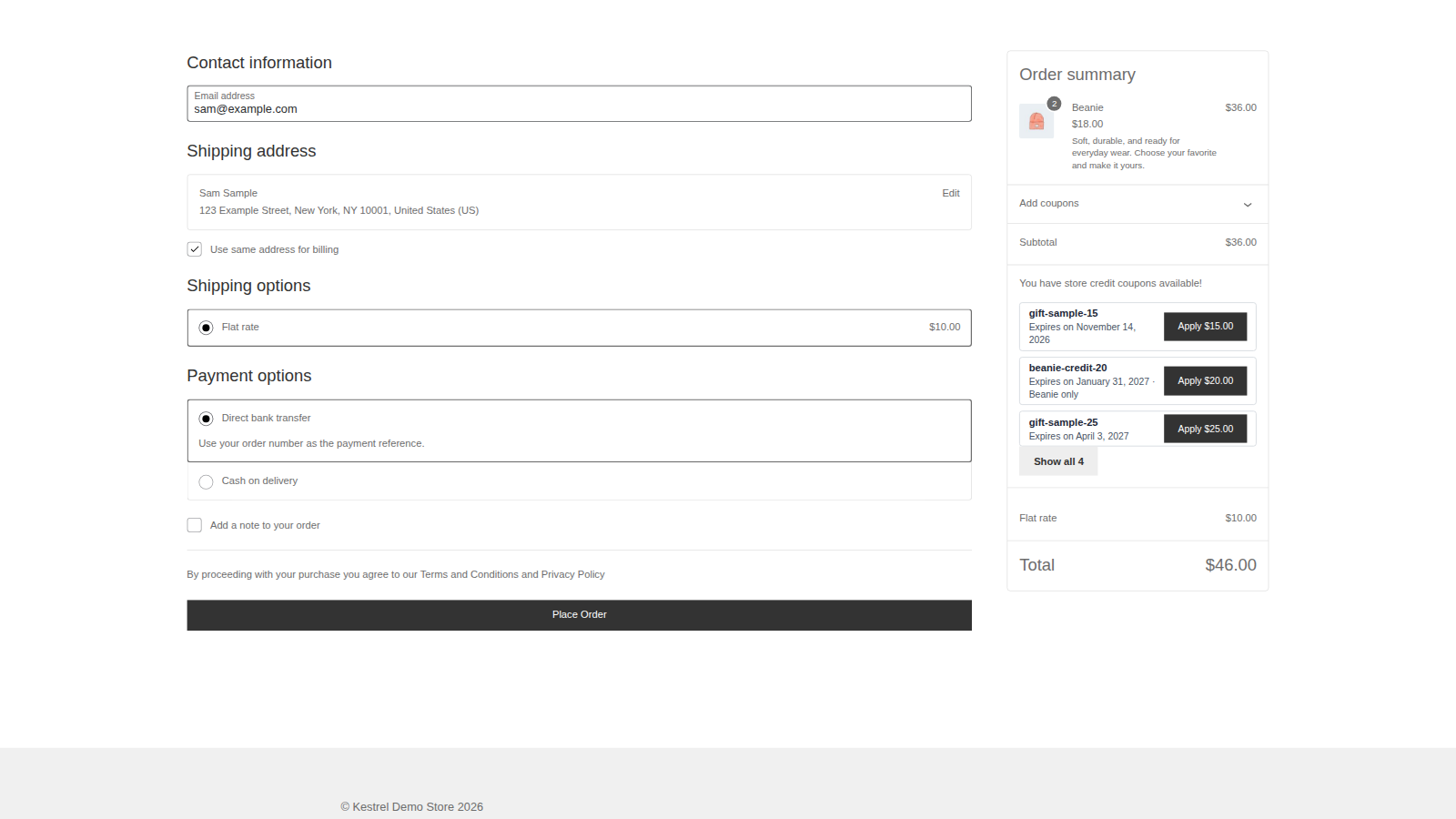
The coupon lists on the cart and checkout now show the credit that expires soonest first, and label credit that only works on certain products or categories, such as “Beanie only”. On the cart and checkout blocks, the list shows three codes with a Show all button for the rest, uses the notice text from Store Credit’s settings as its heading, and is now on by default, as it already was on the classic cart. Checkouts that replace WooCommerce’s coupon field, such as CheckoutWC, can apply credit from the list too.
Sell credit without a set price
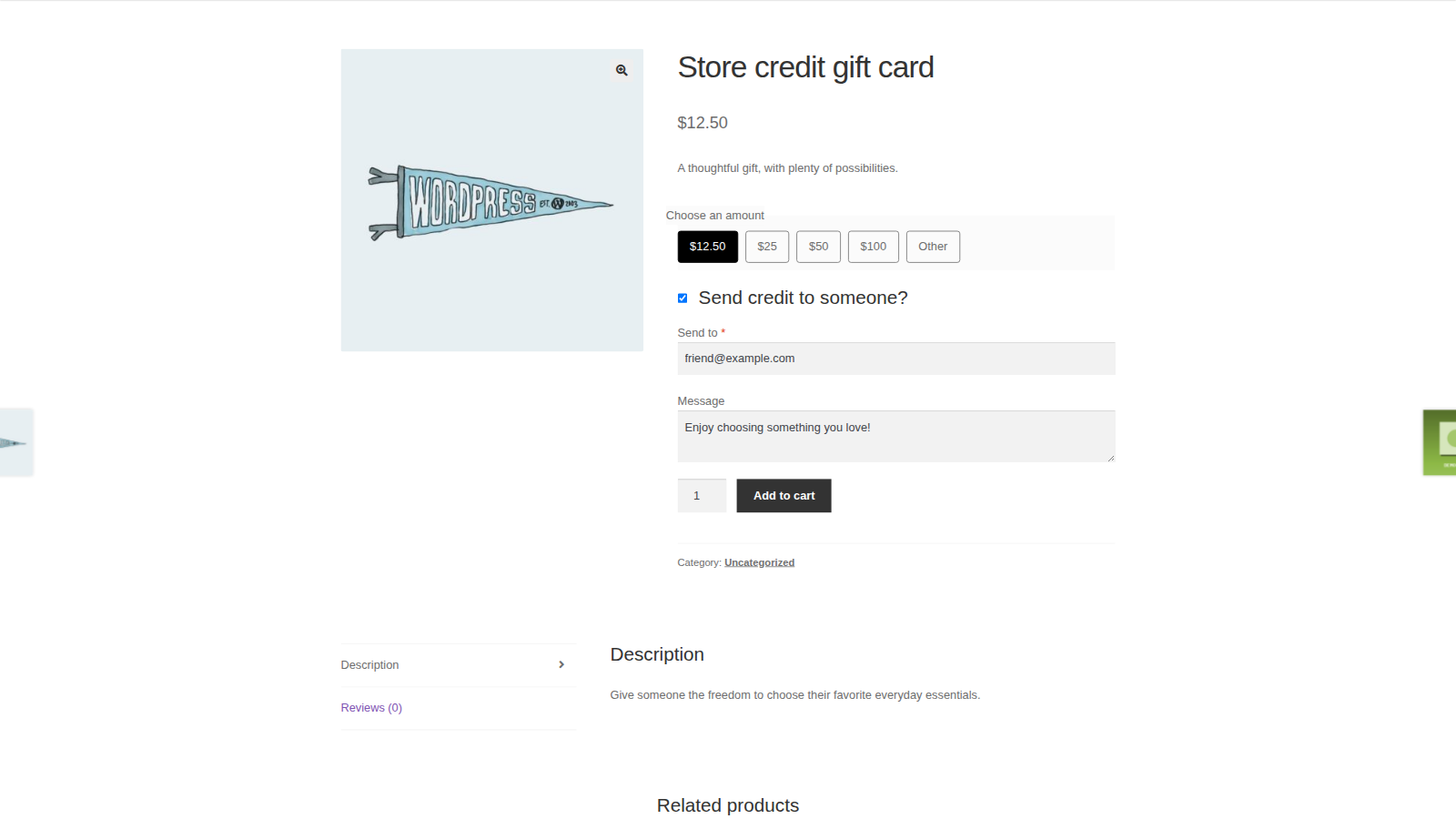
A store credit product with preset amounts or a custom amount no longer needs a regular price. It shows “From” your lowest amount in your shop, and its button reads Choose an amount. On the product page, preset amounts are now options customers can select by keyboard, they can include cents (such as $12.50), and the price updates to the amount the customer picks.
Version 5.2 also fixes credit applied to shipping in the Checkout block, so shipping isn’t charged twice and orders that credit covers in full can be placed. The default email for sent credit now includes the amount in its subject. If your theme overrides Store Credit’s My Account, cart list, or preset amount templates, update the overrides to show the new balance, labels, and options.
For setup details, see Get started with Store Credit and Sell store credit and gift cards.
Get the updates
Both updates are available now from your plugins screen, or from your kestrelwp.com account for licenses bought here. If you don’t have them yet, try Phone Orders and Payments for WooCommerce and Store Credit for WooCommerce.





Leave a Reply