


Store Credit for WooCommerce gives customers credit they can spend in your store. Each credit is a WooCommerce coupon with a balance: it’s tied to the customer’s email address, and they can spend it over several orders until the balance runs out or the coupon expires. You can send credit from your admin, and you can also sell credit and gift cards as products.
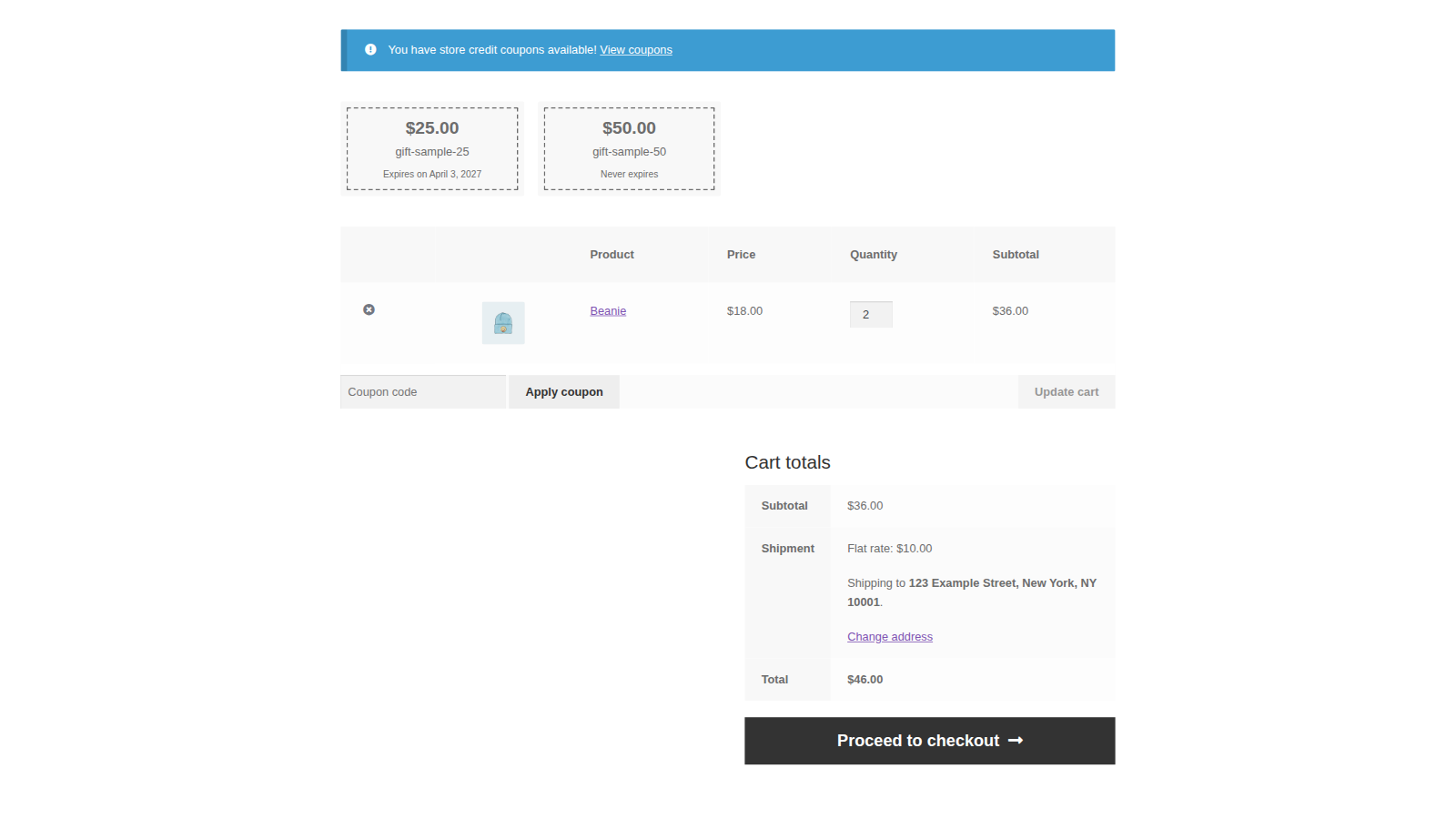
Because the credit is a coupon, customers redeem it in the coupon field at the cart or checkout, and it discounts products and, if you allow it, shipping. It isn’t a payment method or a wallet balance, so it can’t pay automatic subscription renewals. For that, see Account Funds.
When you’d use this
- Give a customer credit instead of a cash refund, or as a goodwill gesture.
- Send the same promotional credit to a list of customers’ emails.
- Let customers spend a balance over several orders, paying any difference with another payment method.
- Sell store credit or gift cards (see Sell credit and gift cards with Store Credit).
Requirements
- WordPress 6.0 or later, WooCommerce 8.2 or later, and PHP 7.4 or later.
- WooCommerce’s Enable coupons setting turned on.
- Compatible with WooCommerce’s cart and checkout blocks and High-Performance Order Storage.
- Works alongside Avalara AvaTax, PDF Invoices & Packing Slips and WooCommerce Shipping & Tax.
Install and activate
How you get updates depends on where you bought Store Credit:
- Bought on kestrelwp.com: download the plugin from the Licensed downloads tab of your kestrelwp.com account and install it. Then go to Settings » Store Credit for WooCommerce activation and activate the key from your License keys tab to receive updates. See using sites against your activation limit for how activations count.
- Bought on WooCommerce.com: install the plugin from your WooCommerce.com account. Updates come through your WooCommerce.com connection, with no license key to enter.
For upload, FTP and update steps, follow how to install and update WooCommerce extensions. Updating from an older version updates your settings and existing coupons automatically.
Set up Store Credit
1. Turn on coupons
Go to WooCommerce » Settings » General and make sure Enable coupons is ticked. Until it is, Store Credit shows the notice "Store Credit for WooCommerce – WooCommerce coupons are not enabled. Enable coupons."
2. Review the settings
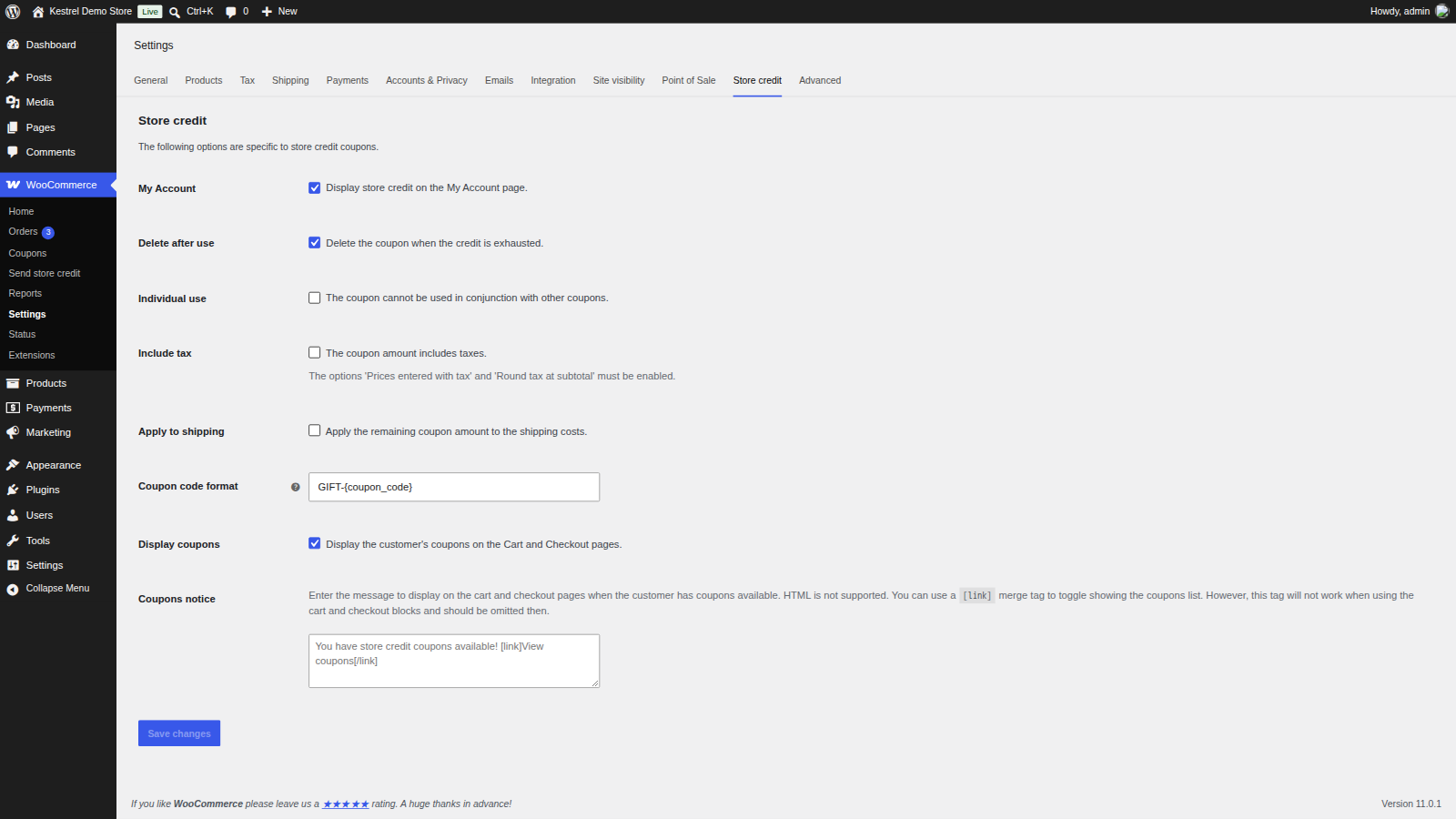
Go to WooCommerce » Settings » Store credit, check each setting (see Settings), and click Save changes.
3. Send yourself some credit
Go to WooCommerce » Send store credit. Enter a Credit amount, choose your own customer account under Customer(s), and click Send credit. You’ll see "Store credit sent to the customer." and get the Send store credit email with the coupon code.
4. Redeem it
Log in to your store as that customer, add a product to the cart and go to the cart or checkout. Your credit appears in the coupon list there (see What customers see). Apply it, check the order total, and place a test order. The order received page shows a Store credit used row, and the coupon’s balance under Marketing » Coupons goes down by the amount used.
Settings
All on WooCommerce » Settings » Store credit. Settings that shape a coupon (Individual use, Include tax, Apply to shipping, Coupon code format) apply to coupons created after you change them. Existing coupons keep the values they were created with; to change one, edit the coupon (see Manage Store Credit coupons).
My Account
Adds a Store credit page to your customers’ My Account area, listing their available coupons. On by default.
Delete after use
Moves a coupon to the trash once its balance reaches zero and an order that used it is marked Completed, as long as no Pending payment, Processing or On hold order still uses it. On by default. If a later refund returns credit to it, the coupon comes back out of the trash. Turn this off to keep used-up coupons in your coupons list.
Individual use
Marks new Store Credit coupons as individual use. Off by default. A Store Credit coupon never stops other coupons from being used with it, and other Store Credit coupons can always be added alongside a WooCommerce coupon marked individual use. A WooCommerce coupon marked individual use still blocks other regular WooCommerce coupons.
Include tax
Off by default, the credit amount is entered before tax and works like a fixed cart discount that also lowers the tax. For example, with 20 percent tax, a 10.00 credit takes 12.00 off the order total (10.00 plus the 2.00 tax on it).
Turn it on to enter credit amounts with tax included, so a 10.00 credit takes 10.00 off the total (8.33 plus 1.67 tax). It’s only available when taxes are on, Prices entered with tax is set to include tax, and Rounding is set to round tax at subtotal level, all under WooCommerce » Settings » Tax. Otherwise the checkbox is grayed out.
Apply to shipping
Lets credit left over after the products are discounted also discount shipping. Off by default. For example, a 55.00 credit on a 50.00 cart with 10.00 shipping leaves 5.00 to pay. The shipping discount shows on the order as a negative shipping line named "Discount:" followed by the shipping method. Grayed out when shipping is turned off in WooCommerce.
Coupon code format
The format of generated coupon codes. Each code is 16 random letters and numbers, and {coupon_code} marks where it goes, so GIFT-{coupon_code} adds a prefix. If you leave out {coupon_code}, the code goes at the end of your text. A prefix or suffix doesn’t make the random part shorter.
Display coupons
Shows logged-in customers their available Store Credit coupons on the cart and checkout pages, so they can apply one with a click. On by default, on both the classic and block cart and checkout.
Coupons notice
The message above the coupon list on the cart and checkout. The default reads "You have store credit coupons available! View coupons". [link] and [/link] mark the text that opens the list on the classic cart and checkout; if you leave them out, Store Credit adds " [link]View coupons[/link]" when you save. HTML isn’t supported. Shown only when Display coupons is on.
The cart and checkout blocks show the list open, so they use your message as the list’s heading and leave out the [link] text.
Send store credit
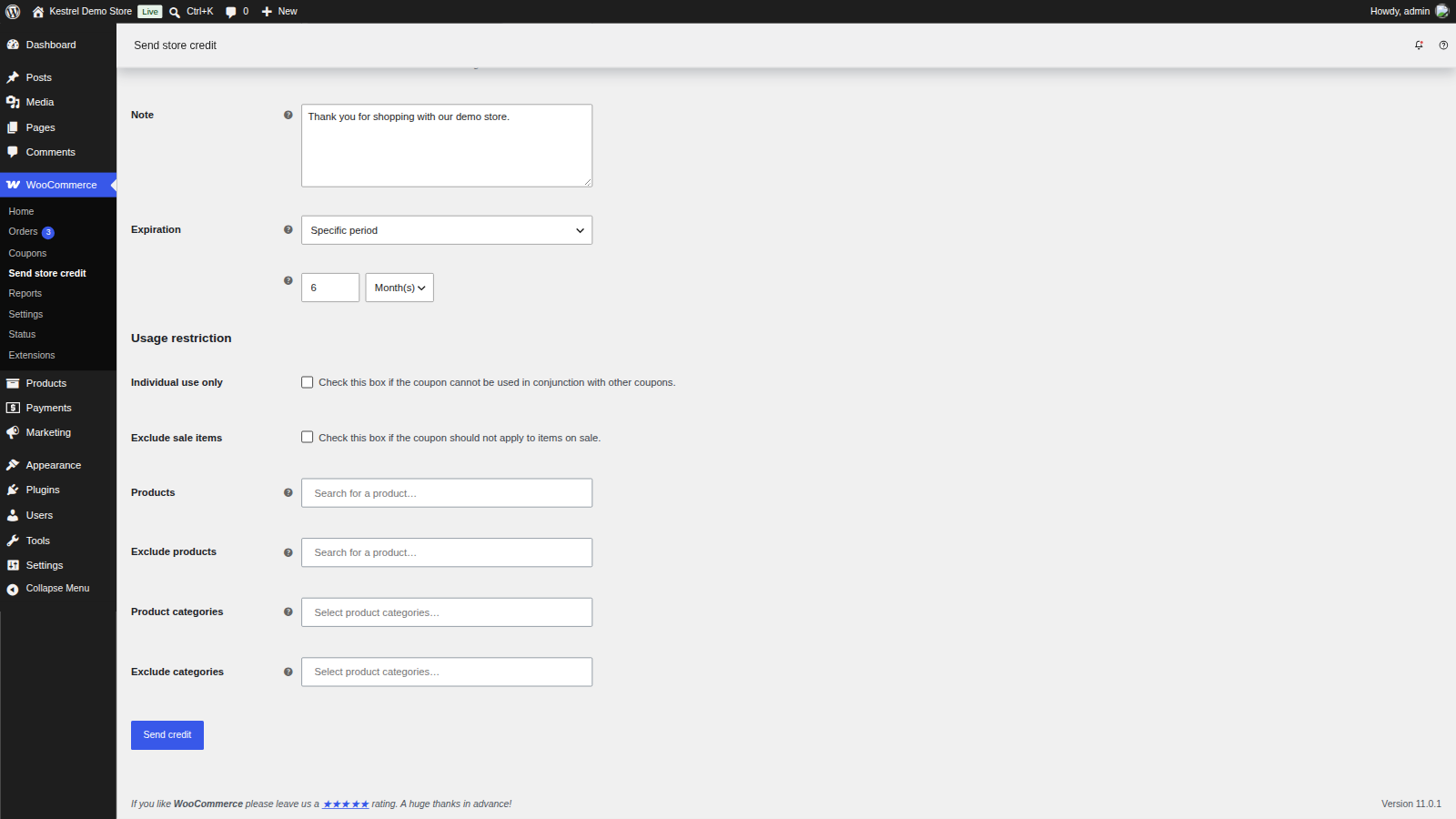
Go to WooCommerce » Send store credit to create a coupon for one or more customers and email it to them. The coupon uses your Store credit settings for tax, shipping and code format.

Credit amount
The amount the coupon is worth. Required.
Customer(s)
Search for registered customers by name or email, or type any email address, including a guest’s. Required. Each customer gets the Send store credit email.
If you choose more than one customer, Store Credit creates one coupon that lists all of them under Allowed emails: they all get the same code and share its balance. To give each customer their own credit, send it to one customer at a time.
Note
A message for the customer. It appears at the top of the email and is saved as the coupon’s description, which also helps you find the coupon later.
Expiration
Never expires (the default), Specific date, or Specific period (a number of days, weeks, months or years from the day you send it).
Usage restriction
These work like the same restrictions on any WooCommerce coupon:
- Individual use only: starts from the Individual use setting.
- Exclude sale items: the credit doesn’t discount products on sale.
- Products and Exclude products: the products the credit can or can’t be spent on.
- Product categories and Exclude categories: the same, by category.
A coupon with product, category or sale restrictions discounts only the matching items rather than the whole cart. The email lists the products and categories the credit is valid for.
How customers use their credit
- Customers apply a Store Credit coupon in the normal coupon field, or from the coupon list on the cart and checkout.
- The discount is the smaller of the coupon’s balance and what’s left to pay. Whatever they don’t use stays on the coupon for next time, and if the order costs more than the balance, they pay the rest with another payment method.
- Customers can combine several Store Credit coupons, and use them with your other WooCommerce coupons. Store Credit coupons are applied after all other coupons; with several, the one with the smallest balance goes first.
- WooCommerce’s Maximum spend restriction doesn’t apply to Store Credit coupons. Their balance is the limit.
- Credit can’t discount fees.
- WooCommerce checks the coupon’s Allowed emails when the customer places the order, not when they apply the coupon. If neither their billing email nor their account email matches, the coupon is removed with an error at that point.
- Customers can’t use Store Credit coupons while a Store Credit product is in their cart.
- An order paid entirely with credit gets the payment method "Store credit".
- Credit goes back on the coupon when an order is cancelled or refunded in full (see How credit is restored).
What customers see
Cart and checkout
On the classic cart and checkout, a logged-in customer with available credit sees your Coupons notice at the top of the page. Clicking its link opens their coupons, each showing the balance, the code and when it expires; clicking a coupon applies it. This also works on checkouts that replace WooCommerce’s coupon form, such as CheckoutWC. On the cart and checkout blocks, the coupons appear in the order summary under your Coupons notice text, with an Apply button showing each balance. The first three are listed, and Show all lists the rest.
Both lists show the credit that expires soonest first, and credit that never expires last. A coupon limited to certain products or categories is labeled with them, for example "Gift wrap only". Coupons already in the cart aren’t listed.
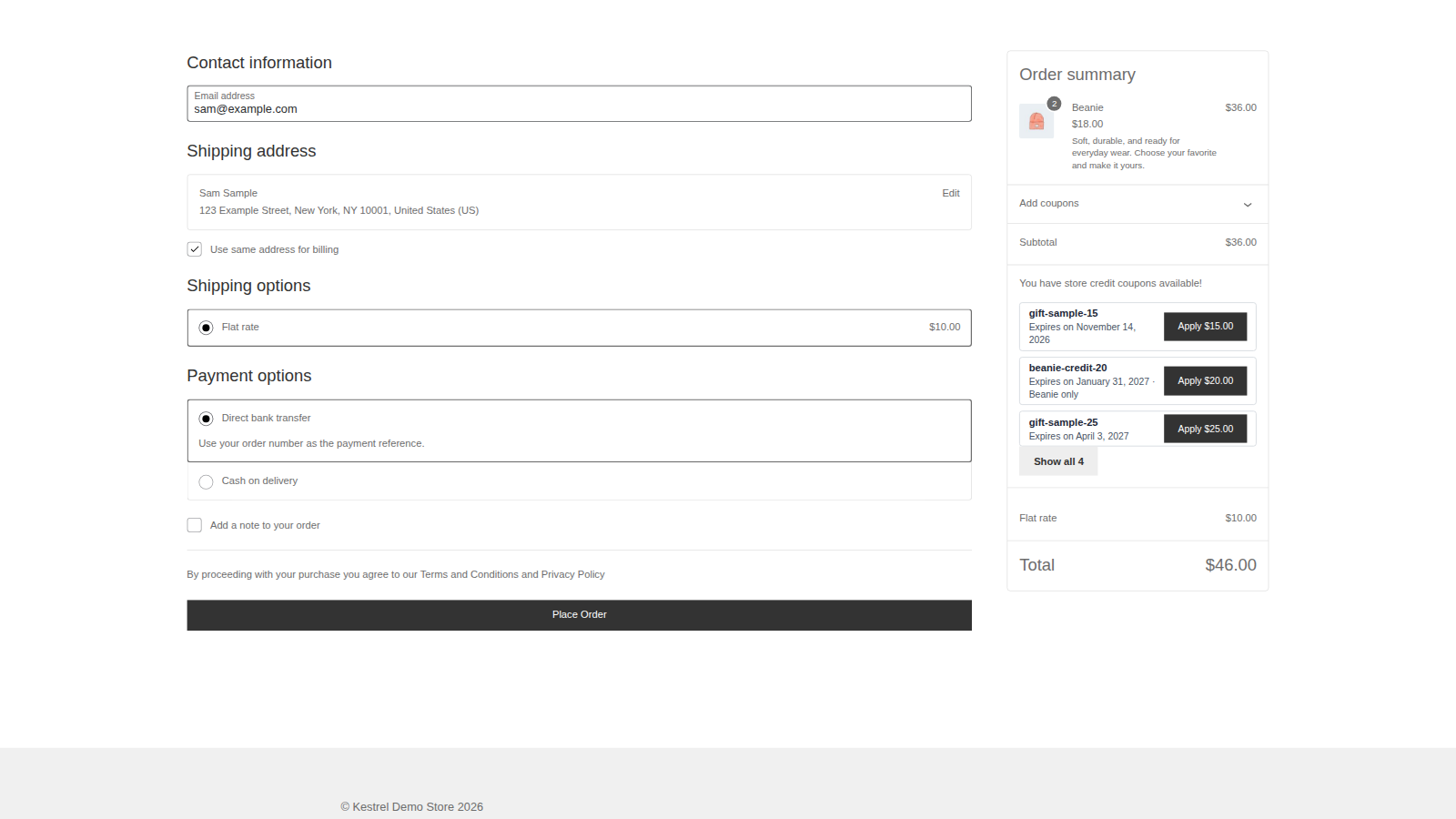
Applied credit shows in the totals as "Store credit:" followed by the code.
My Account
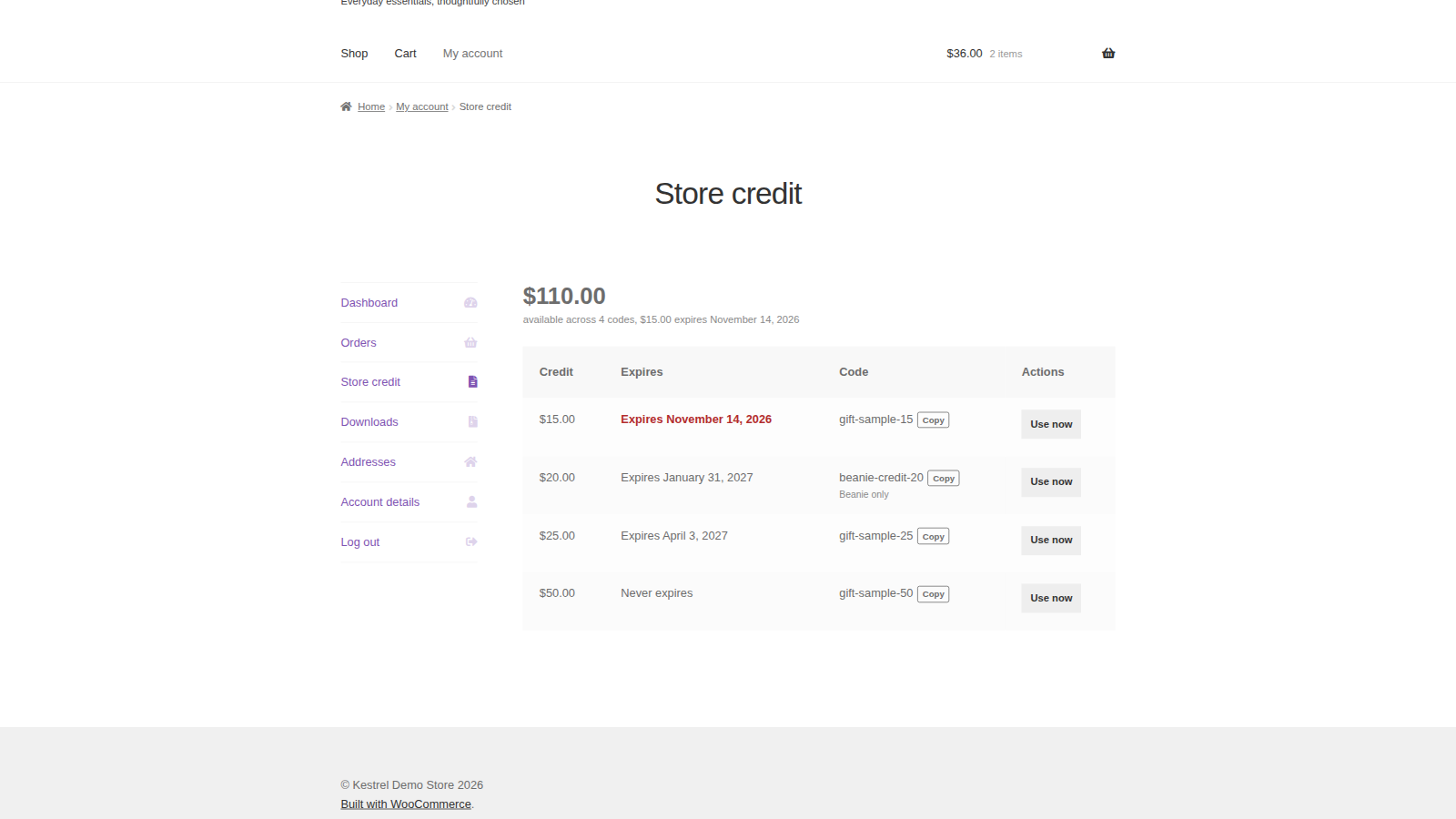
With the My Account setting on, customers get a Store credit page in their account. It starts with their total balance, how many codes it’s spread across, and how much expires soonest. Below that, each available coupon shows its balance, when it expires, its code with a Copy button and any product or category limit, and a Use now button, with the credit that expires soonest first. When they have credit, the account dashboard shows the same total with a View your store credit link. Used-up and expired coupons aren’t listed.
A coupon appears there only if its Allowed emails includes the email address on the customer’s account.
The Send store credit email
The email shows your note, the code and a Redeem now button, plus the expiry date and any product or category restrictions. The default subject is "You’ve received {coupon_amount} in store credit from {site_title}". Edit the subject, heading, button text and wording under WooCommerce » Settings » Emails » Send store credit. In the subject and heading, {coupon_code} and {coupon_amount} insert the code and amount.
The Redeem now button and the Use now button in My Account open your store with the coupon applied. If the cart is empty, the customer lands on your shop page with "The store credit will be applied after adding some products to the cart." and the credit is applied when they add a product.
Orders
Order emails, the order received page and My Account orders show a Store credit used row with the credit spent.
Common issues
"Store Credit for WooCommerce – WooCommerce coupons are not enabled."
Tick Enable coupons under WooCommerce » Settings » General. Store Credit coupons are WooCommerce coupons, so they need it.
The coupon list doesn’t show on the cart or checkout
Work through these:
- The customer is logged in. The list is only for logged-in customers.
- Display coupons is on under WooCommerce » Settings » Store credit.
- The customer has a coupon with a balance that hasn’t expired, and its Allowed emails includes their account email.
- The coupon isn’t already applied to the cart.
"This coupon cannot be used on this cart."
The cart contains a Store Credit product, or the coupon’s restrictions don’t match the cart. Customers can’t spend store credit while buying store credit; they need to buy the credit in a separate order.
"There is no credit remaining on this coupon."
The coupon’s balance is zero. Check its usage under Marketing » Coupons (see Manage Store Credit coupons).
The coupon is removed when the customer places the order
The coupon’s Allowed emails doesn’t match the customer’s billing email or account email. Edit the coupon and add the right email.
Several customers share one coupon
You chose more than one customer on Send store credit, which creates a single coupon for all of them. To give someone their own credit, send it to them separately, then remove their email from the shared coupon’s Allowed emails if they shouldn’t use it.
Customers don’t get the Send store credit email
Only Send store credit and Store Credit product purchases send it; coupons you create by hand under Marketing » Coupons don’t. Check that the email is enabled under WooCommerce » Settings » Emails » Send store credit, and look for sending errors under WooCommerce » Status » Logs.
Include tax or Apply to shipping is grayed out
Include tax needs taxes on, prices entered with tax, and tax rounded at subtotal level. Apply to shipping needs shipping turned on in WooCommerce.
Credit with tax included is off by a cent
Under WooCommerce » Settings » Tax, set Prices entered with tax to include tax and turn on rounding at subtotal level.
The Store credit page in My Account shows "page not found"
Go to Settings » Permalinks and click Save Changes to refresh your site’s links.
The Store credit page in My Account shows an old balance or no coupons
Check that the coupon’s Allowed emails matches the customer’s account email (a different billing email or guest checkout email won’t match). If it does, your host or a caching plugin may be caching the My Account page; exclude it from caching.
Keep learning
- Sell credit and gift cards with Store Credit
- Manage Store Credit coupons (finding coupons, usage, refunds and order edits)
- How to install and update WooCommerce extensions
- Get started with Account Funds (a wallet balance that works as a payment method)