


Every Store Credit balance is a WooCommerce coupon with the Store credit discount type, so you manage it under Marketing » Coupons like any other coupon. This page covers creating one by hand, finding a customer’s coupons, seeing where credit was spent, and what happens to the balance when orders are edited, cancelled or refunded.
When you’d use this
- Create credit for a customer without sending the Store Credit email.
- Look up a customer’s balance, or see which orders used a coupon.
- Return credit to a customer after a cancelled, refunded or edited order.
- Cancel credit you no longer want a customer to use.
- Answer a customer’s request to export or erase their data.
Create a Store Credit coupon by hand
- Go to Marketing » Coupons and click Add coupon.
- Enter or generate a coupon code.
- Under Coupon data » General, set Discount type to Store credit and enter the credit in Coupon amount. The Store Credit coupon options appear below.
- Under Usage restriction, add the customer’s email to Allowed emails.
- Click Publish.
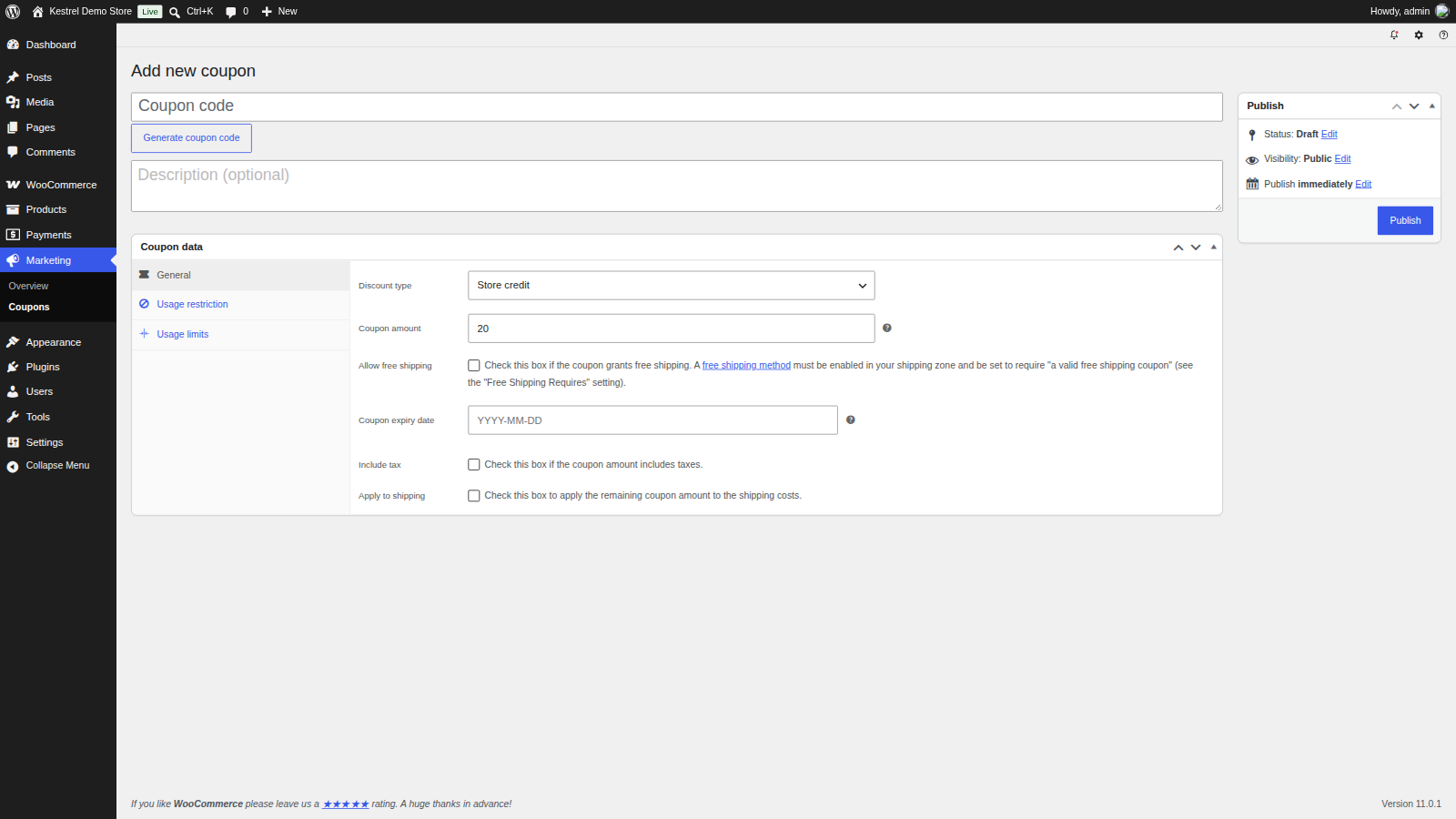
Give each customer their own coupon, restricted to their email. Anyone with a code that isn’t restricted can spend its balance. A coupon created here doesn’t send the Store Credit email; to create and email one in a step, use Send store credit.
Store Credit coupon options
Store credit coupons get two extra checkboxes on the General tab. A new coupon starts with your Store credit settings; once you save it, it keeps its own values, so later changes to the settings don’t affect it.
- Include tax: the coupon amount includes tax. See Include tax for the difference and the tax settings it needs. Hidden when your tax settings don’t allow it, unless the coupon already has it on.
- Apply to shipping: leftover credit also discounts shipping. Hidden when you tick WooCommerce’s Allow free shipping, which takes its place.
WooCommerce’s Maximum spend doesn’t apply to Store Credit coupons. The other usage restrictions work as they do for any coupon.
Find a customer’s coupons
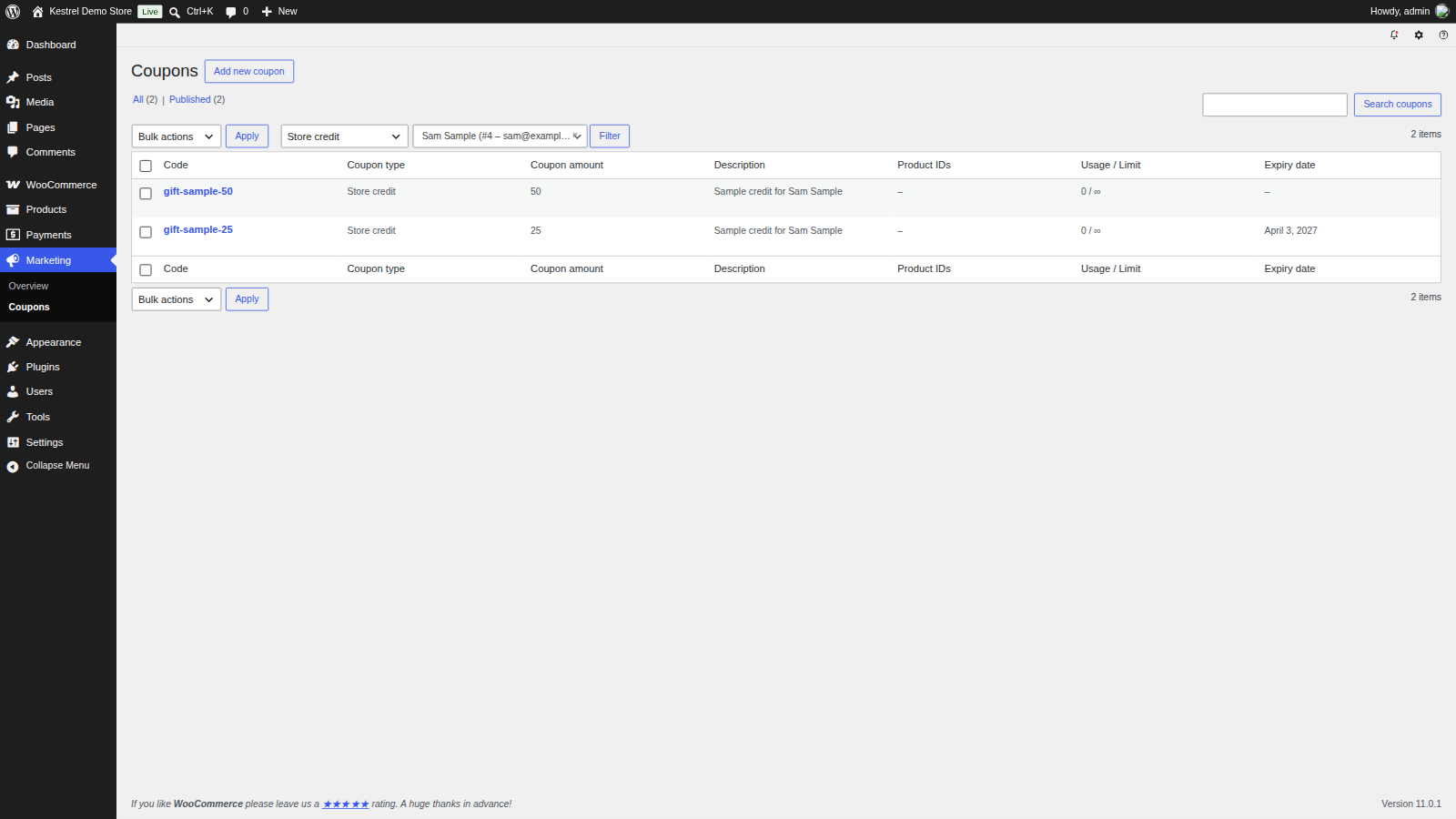
Go to Marketing » Coupons. Filter by the Store credit coupon type, and use Filter by customer or email to pick a customer or type an email address. A coupon belongs to a customer when their email is in its Allowed emails. The coupon’s Coupon amount is its remaining balance, and its description holds any note sent with it.
Track how a coupon was used
Open the coupon. The Store credit usage box lists each order that used it, with the order number, date, status and Credit used, plus the coupon’s Initial amount and Total used. Cancelled and refunded orders aren’t listed, because their credit went back on the coupon.
How credit is restored
The coupon’s balance goes down as soon as the order is placed, before it’s paid. Store Credit puts credit back on the coupon when:
- The order’s status changes to Cancelled or Refunded.
- You remove the coupon from the order on the order screen.
- You edit the order so that it needs less credit than was used.
A Failed order keeps its credit, because the customer can still pay it. To give the credit back, remove the coupon from the order, or cancel the order.
A partial refund doesn’t return credit, because the order’s status doesn’t change. To give back part of the credit, edit the coupon’s Coupon amount under Marketing » Coupons.
If you move a cancelled or refunded order back to another status, Store Credit removes its restored coupons from the order, since their credit is already back on the coupons. Apply them again on the order screen if the customer should still use them.
Edit orders that used credit
On an order that’s Pending payment or On hold, you can apply a Store Credit coupon with Apply coupon or remove one, like any coupon. The credit used and the coupon’s balance update to match. After changing items, quantities or taxes, click Recalculate so the totals and the credit used are right.
The order shows Store credit used in its totals, and shipping credit as a negative shipping line. For integrations such as an ERP, the WooCommerce REST API includes a store_credit field with the credit used on each order.
Exhausted and expired coupons
A coupon with no balance left stays in your coupons list until Delete after use moves it to the trash (see Delete after use). Avoid trashing used-up coupons by hand while their orders are still open, because a cancellation or refund puts credit back on them.
Expired coupons can’t be applied and don’t show in My Account or the cart and checkout list. To extend one, change its Coupon expiry date.
To cancel credit a customer hasn’t spent, move the coupon to the trash, or remove their email from Allowed emails. Orders that already used it keep their discount.
Subscriptions
Customers can use Store Credit on the first order of a WooCommerce Subscriptions subscription and on renewal orders they pay themselves. Store Credit isn’t a payment method, so it can’t pay automatic renewals; for that, see Get started with Account Funds.
Personal data requests
Store Credit adds "Store credit for WooCommerce coupon data" to WordPress’s personal data tools under Tools:
- Export: every Store Credit coupon whose Allowed emails includes the customer’s email, with its code, balance and the email.
- Erase: only when Remove personal data from orders on request is on under WooCommerce » Settings » Accounts & Privacy. Store Credit removes the email from each coupon, and permanently deletes a coupon that has no other allowed email. With the setting off, the coupons are kept and the erasure report says so.
Store Credit keeps customers’ emails on their coupons and the credit used on orders, in your own database.
If you click Sign up on the plugin’s newsletter prompt in your admin, your name, email address, site name and address, and WordPress, WooCommerce and PHP versions are sent to Kestrel’s email provider, Klaviyo. Nothing is sent unless you sign up.
Deleting the plugin keeps your coupons and orders. If your site’s wp-config.php sets WC_REMOVE_ALL_DATA to true, it also removes the Store Credit settings.
Common issues
The customer’s balance is lower than expected
Open the coupon and check Store credit usage. Credit is taken when an order is placed, so an unpaid, on-hold or failed order may be holding it. Cancel that order, or remove the coupon from it, to put the credit back.
A refund didn’t give the credit back
Only a full refund that changes the order to Refunded restores credit. After a partial refund, add the credit back by editing the coupon’s Coupon amount.
Coupons disappeared after a reactivated order
Moving an order out of Cancelled or Refunded removes its restored Store Credit coupons. Apply them again with Apply coupon on the order screen.
The order total is wrong after editing items
Click Recalculate on the order screen. Coupons can only be changed while the order is Pending payment or On hold.
A used-up coupon is gone from the list
Delete after use moved it to the trash. Look under Marketing » Coupons » Trash. Turn the setting off to keep used-up coupons.