


Store Credit adds a Store credit product type, so customers can buy credit for themselves or as a gift card for someone else. When the order is paid, Store Credit creates a Store Credit coupon for the buyer or the person they chose and emails it to them. You set the price and the credit value, and you can offer preset amounts or let customers choose their own.
When you’d use this
- Sell gift cards that customers send to a friend’s email address.
- Sell prepaid credit at a bonus, such as 12.00 of credit for 10.00.
- Let customers choose how much credit to buy, within limits you set.
Create a Store credit product
- Go to Products » Add New Product and give the product a name.
- In Product data, choose Store credit as the product type. Store credit products are always virtual, so the Shipping tab disappears.
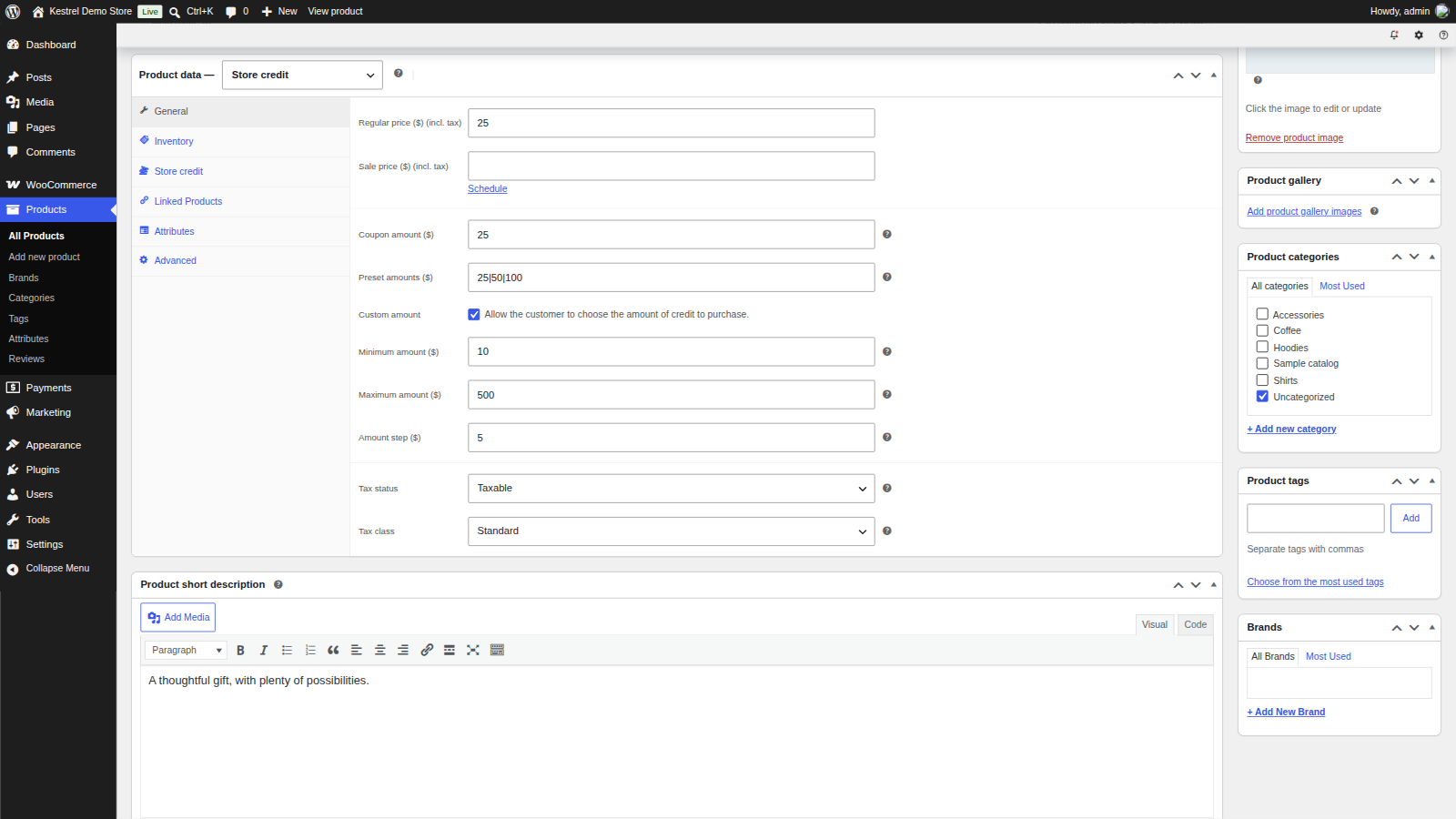
- On the General tab, enter a Regular price, or leave it empty if customers will choose a preset or custom amount. To give a different credit value or offer amounts, fill in the fields under General tab.
- Open the Store credit tab and set how the coupon works and whether customers can send it to someone else (see Store credit tab).
- Publish the product, then buy it on your store in a test order to check the credit arrives.
General tab
Regular price
What the customer pays. Without a coupon amount, it’s also the credit value, even when the product is on sale. A Sale price lowers what they pay but not the credit they get. If you don’t want tax on credit purchases, set Tax status to None.
You can leave it empty when you offer Preset amounts or Custom amount, so customers always choose. The product’s price then shows as "From" your lowest amount (or no price, if customers can enter any amount with no minimum), and its button in your shop and other product lists reads Choose an amount and opens the product page.
Coupon amount
The credit value when it differs from the regular price. For example, a 10.00 product with a 12.00 coupon amount gives 12.00 of credit. Leave it empty to use the regular price. Customers see the credit amount in their cart, but it’s worth saying so in the product description too.
Preset amounts
Amounts customers can pick on the product page, separated by |, such as 10|12.50|25. Use your store’s decimal separator for amounts with cents. Customers see them as options under "Choose an amount", and the amount they pick becomes both the price and the credit. The price on the product page changes to the amount they choose.
Custom amount
Lets customers type their own credit amount, which becomes the price. Off by default. With preset amounts, it adds an Other option that shows the amount field.
Minimum amount
The smallest custom amount. Only shown with Custom amount on.
Maximum amount
The largest custom amount. Only shown with Custom amount on.
Amount step
The interval custom amounts must follow. A step of 5 allows 5, 10, 15 and so on. Only shown with Custom amount on.
When you set a minimum or maximum, the product page explains it, for example "Enter an amount between 10.00 and 500.00 with increments of 5.00."
Store credit tab
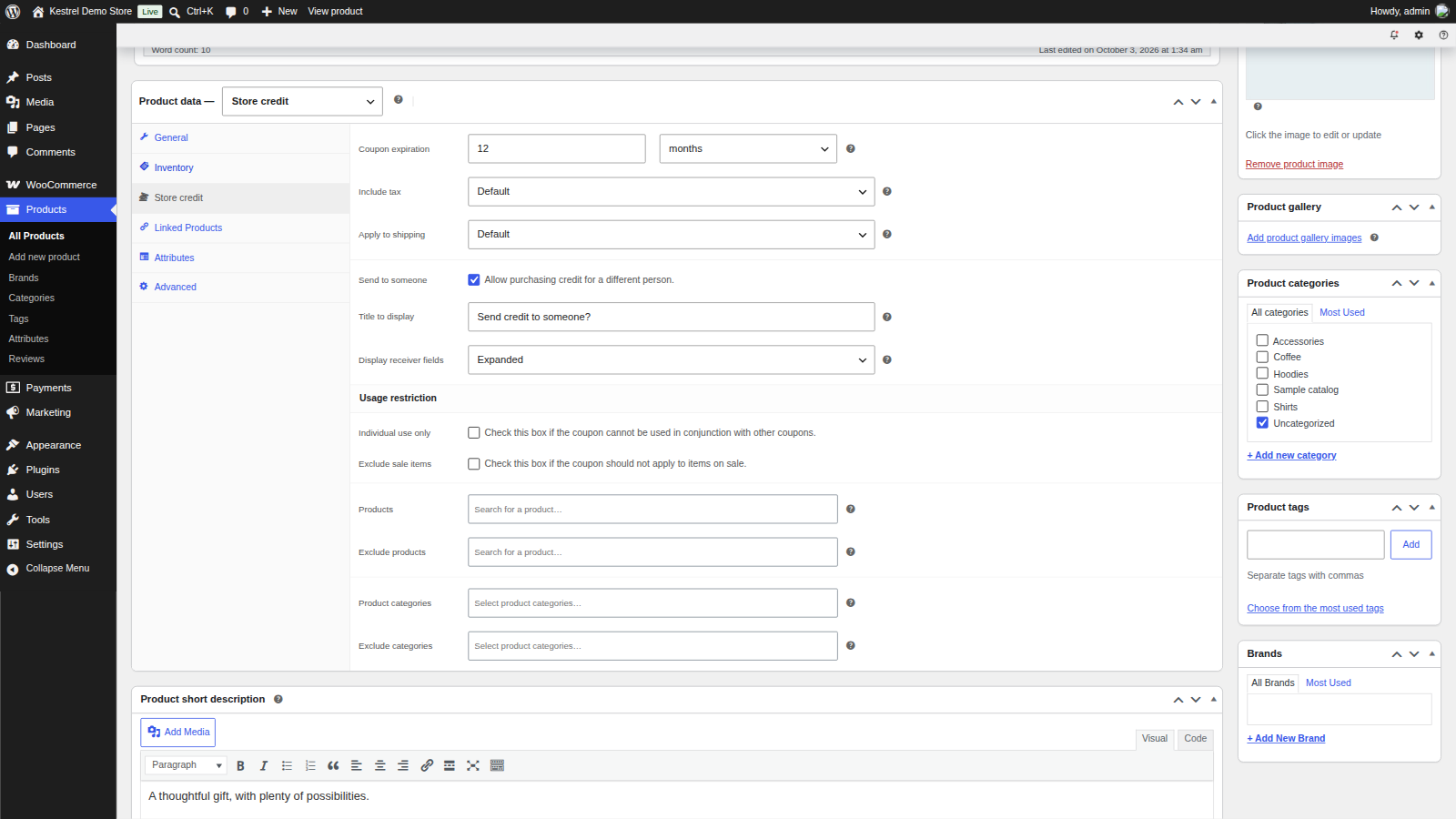
Coupon expiration
How long the coupon lasts after it’s created, as a number of days, weeks, months or years. Leave it empty for credit that never expires.
Include tax
Default uses the Include tax setting; Yes or No overrides it for coupons from this product. Only shown when your tax settings allow tax-inclusive credit.
Apply to shipping
Default uses the Apply to shipping setting; Yes or No overrides it. Only shown when shipping is turned on in WooCommerce.
Send to someone
Adds a form to the product page so the buyer can send the credit to another person as a gift card. On by default for new Store credit products; turn it off for credit customers buy for themselves only.
Title to display
The heading on the gift form’s checkbox. The default is "Send credit to someone?".
Display receiver fields
Whether the gift form is Collapsed (the default; the customer ticks the checkbox to open it) or Expanded when the page loads.
Usage restriction
Individual use only, Exclude sale items, Products, Exclude products, Product categories and Exclude categories restrict the coupons this product creates, the same way they work on Send store credit.
What customers see
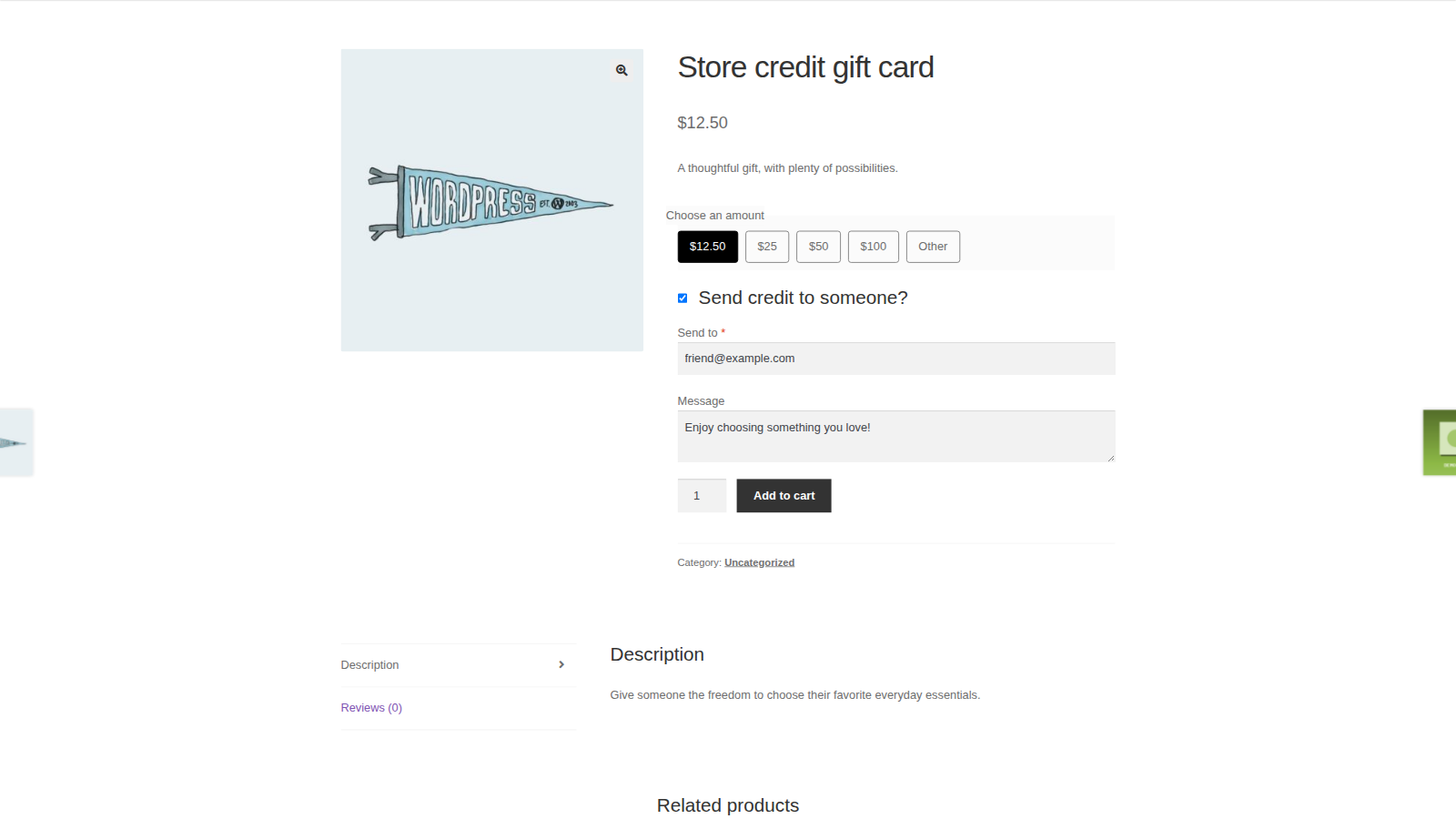
On the product page, customers pick a preset amount or enter their own under Credit amount, if you offer them. With Send to someone on, they can tick the gift checkbox and fill in Send to (the recipient’s email, required) and an optional Message.
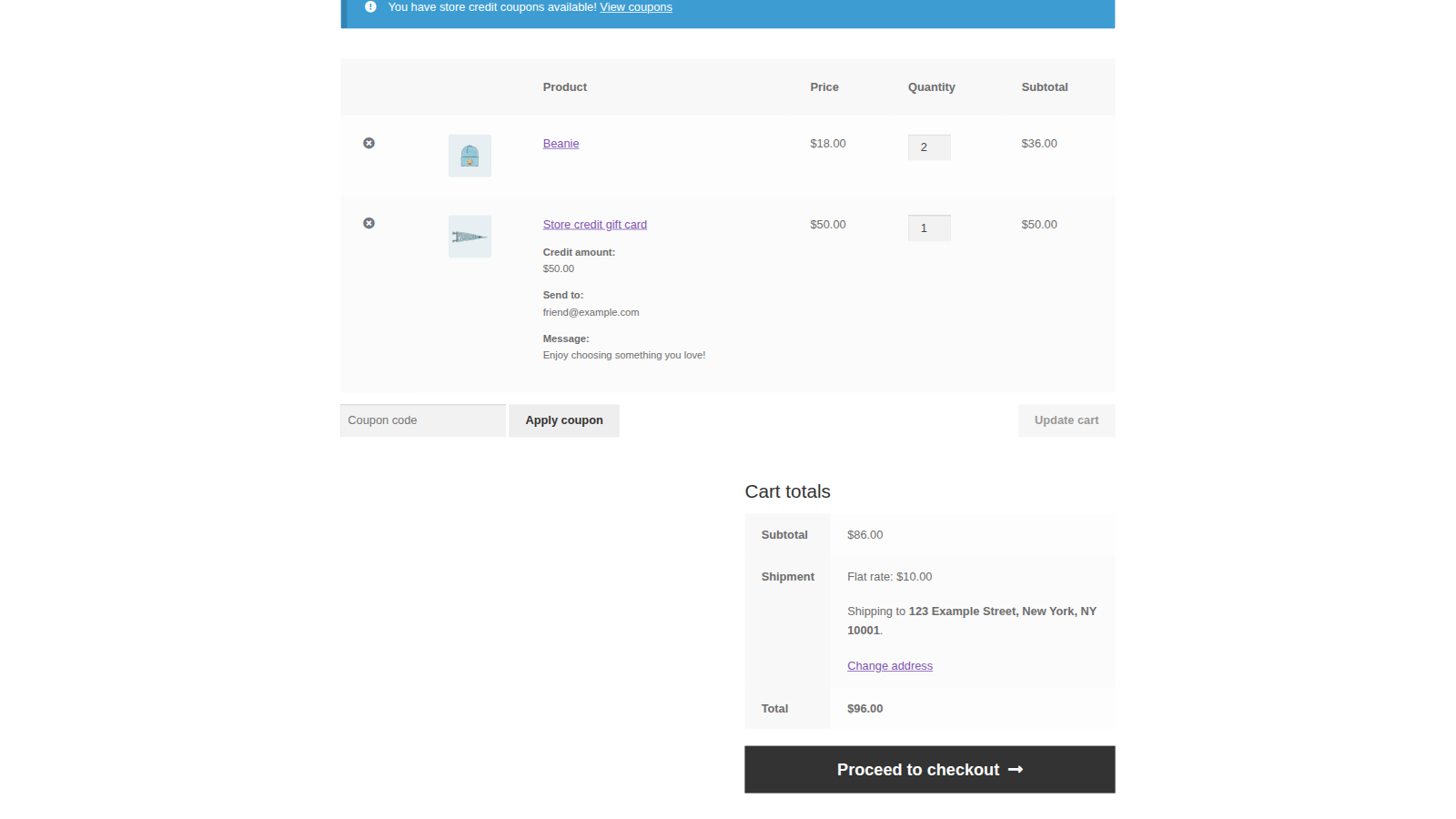
The cart shows the Credit amount and, for a gift, the recipient and message. Customers can buy several Store credit products, or several of the same one, in one order, each with its own recipient.
They can’t spend existing store credit on an order that includes a Store credit product. Applying a Store Credit coupon to that cart shows "This coupon cannot be used on this cart."
What happens after purchase
- Store Credit creates the coupons when the order reaches Processing or Completed. Orders waiting for payment, or On hold (for example, a bank transfer), don’t get their coupons until you mark them Processing or Completed.
- Store credit products don’t need shipping or processing, so an order with only Store credit products moves to Completed as soon as it’s paid.
- Each unit is its own coupon: buying three gives three separate coupons, which aren’t combined.
- The coupon goes to the gift recipient’s email if there is one, otherwise to the buyer’s billing email. It’s restricted to that email, and the gift message becomes the coupon’s description and appears in the email.
- The recipient gets the Send store credit email with the code.
Common issues
The product shows as out of stock
The product has nothing to sell: there’s no regular price, coupon amount or preset amount, and Custom amount is off. Set a Regular price, add Preset amounts, or turn on Custom amount.
"Enter a credit amount."
The product has no regular price or coupon amount to fall back on, and the customer didn’t choose or enter an amount. Customers need to pick one, or you can set a regular price as the default.
"The credit amount is not valid."
The customer entered an amount when Custom amount is off, or entered zero or less.
"The minimum credit amount is …", "The maximum credit amount is …" or "The credit amount has an interval of …"
The amount is outside your Minimum amount or Maximum amount, or doesn’t match the Amount step.
"Send to" is a required field.
The customer ticked the gift checkbox but didn’t enter the recipient’s email.
The customer paid but no coupon arrived
Check the order status: coupons are created only at Processing or Completed. If it’s On hold or Pending payment, confirm the payment and change the status. Then check the email under WooCommerce » Settings » Emails » Send store credit and the recipient’s spam folder. You can find the coupon under Marketing » Coupons by filtering for the recipient’s email (see Find a customer’s coupons).