


Most stores chase repeat business with discount campaigns. You schedule a sale, email a coupon, cut the price for a weekend, and hope people come back. It works often enough to keep doing it, but it’s manual, it trains customers to wait for the next markdown, and the reason to return ends when the sale does.
WooCommerce cashback flips that around. Instead of discounting the sale you’re making now, you reward it after the fact with store credit, and that credit only has value if the customer comes back to spend it. With Account Funds for WooCommerce, you set the rules once and every qualifying order earns credit automatically.
Reward the next order instead of discounting this one
A discount is spent at the moment of purchase. It lowers the price of this order and creates nothing for the next one. Cashback does the opposite: the customer pays full price today and leaves with a balance that’s only useful on their next visit, so a single sale becomes a reason to make a second one.
Cashback still costs you margin, but you pay that cost when the customer returns, not on the order they’ve already decided to place. It’s also real money in your store rather than an abstract points balance the customer has to decode. Once credit lands in their account, it feels like theirs, and unspent money is a strong nudge to return.
How cashback works in Account Funds
Each cashback reward in Account Funds is a set of rules. When a customer pays for an order that matches them, Account Funds adds store credit to their balance as soon as the order reaches Processing or Completed. There are no codes to hand out, no manual crediting, and nothing for the customer to enter at checkout.
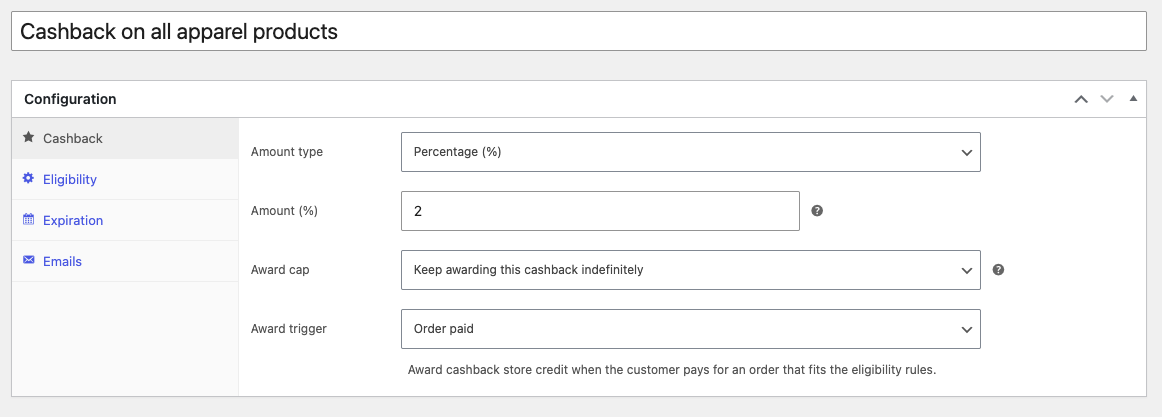
The Cashback tab holds the core settings:
- Amount type: a fixed amount, or a percentage.
- Amount: how much the customer earns.
- Award trigger: Order paid awards once per paid order, and Product purchase awards for each eligible product in a paid order.
- Award cap: keep awarding indefinitely, or stop after a set number of Maximum awards, counted across all customers. When a reward reaches it, the reward shows as Depleted and stops awarding.
To limit how often one customer can earn a reward, use Award limits on the Eligibility tab: Once per customer, or Once per product on a Product purchase reward. The cashback rewards documentation covers every setting.
See the math on a $100 order
Say you run a 5 percent Order paid reward, and a customer places a $100 order. The percentage uses the order total, including tax and shipping, so they earn $5 in store credit once the order is paid.
If that customer applied $20 of existing store credit at checkout, cashback is calculated on what was left to pay, so 5 percent of $80 earns $4. Your Minimum order value and Maximum order value compare against that same total.
Product purchase rewards work per product line instead. A percentage uses the line total, which is what the customer paid for that product after discounts and before tax. For a percentage reward, set Product quantity to Award cashback once per eligible product ignoring its quantity in the same order. The line total already includes every unit, so 10 percent on three $10 items earns $3; the default multiply setting would count the quantity a second time. Multiply is the right choice for fixed amounts, where $2 back on three units earns $6.
Cashback also follows the order after it’s awarded. If the order is cancelled, fails, or is refunded in full, Account Funds voids the cashback it earned, and a refund that includes line items voids the order’s Order paid cashback (and Product purchase cashback for the refunded products).
Control when cashback applies
The Eligibility tab decides when a reward applies, and its options change with the award trigger.

For Order paid rewards, you can require a minimum or maximum order value, include or exclude orders by the products, categories, or product types they contain, and exclude orders that contain free items, products on sale, or a coupon. Two of these behave differently than you might expect:
- Product and category rules decide which orders qualify, not what’s counted: the reward in these screenshots pays 2 percent on the whole order total whenever the order contains something from the chosen category. To pay cashback only on the items in a category, use a Product purchase reward with Some product categories.
- Exclusions apply to the whole order: one sale item or one coupon anywhere in the order stops a reward that excludes them. They don’t remove those items from the calculation and pay on the rest.
If you sell store credit products, set Eligible orders to Order does not contain product types and pick Store credit, so customers don’t earn cashback on credit they buy. Top-ups from My Account earn no Order paid cashback unless you turn on Allow rewards in the Account Funds settings.
To keep your total cost predictable, remember that Maximum awards limits how many times a reward pays, not how much credit it gives out. A percentage reward grows with order value, so a few large orders can cost more than you planned. If a promotion needs a firm budget, use a fixed amount on an Order paid reward; 100 maximum awards at $10 each can’t pay out more than $1,000.
Put cashback to work
The same rules cover different goals:
- A baseline loyalty layer: a small percentage back on every order, always on, so every purchase seeds the next.
- Specific inventory you want to move: higher cashback on a category through a Product purchase reward, without discounting its shelf price.
- Bigger baskets: a fixed bonus only above a minimum order value, such as $10 back on orders over $100, to lift average order size.
- A first-order bonus: a fixed amount with Once per customer, so each customer earns it on their first qualifying order.
- A campaign without a sale: schedule a reward to run between two dates, so you get the urgency of a promotion while your prices stay intact.
If you want the credit to create its own deadline, each reward’s Expiration tab can make the credit it awards expire after a set period or on a fixed date, which gives customers a gentle push to come back before it’s gone.
Show customers what they’ll earn
Cashback only changes behavior when customers know about it, so Account Funds shows the reward in three places:
- Product pages: logged-in customers see “Earn up to $X in store credit upon purchase!” when an active reward applies.
- Cart and checkout: the classic cart and checkout show “Earn $X in store credit for placing this order!” (the Cart and Checkout blocks don’t show this message).
- Email: when the credit lands, customers get the Store credit awarded email. Check that it’s enabled under WooCommerce » Settings » Emails.
Cashback also shares one balance with the rest of Account Funds, so credit a customer earns here sits alongside credit from signup and review rewards or from a refund to store credit, and all of it spends the same way at checkout. Membership stores can use the same balance for recurring member credit, which is why store credit makes a better membership perk than discounts.
Set up your first cashback reward
- Go to Account funds » Cashback and click Add new cashback reward, then give it a name you’ll recognize in the rewards list.
- On the Cashback tab, choose the amount type and amount, the Award cap, and the Award trigger.
- On the Eligibility tab, set which orders or products qualify, any exclusions, and the Award limits.
- Optionally, set an expiration on the Expiration tab and choose the customer email on the Emails tab.
- Set the status to Active, or to Scheduled to run between two dates, and click Create.
The point of cashback isn’t the reward itself; it’s the return trip. Set the rules once, and every order you’re already taking earns you a reason for the next one. Get Account Funds for WooCommerce to launch your first cashback reward.





Leave a Reply