


A customer changes their mind about an order. You process the refund, the money goes back to their card, and a few business days later it lands in their bank account. The transaction is closed, and usually, so is the relationship: the revenue leaves your store for good, and the customer has no particular reason to come back.
A WooCommerce refund to store credit closes the order without closing that door. The money stays in your store as a balance the customer can spend on their next order, and with Account Funds for WooCommerce, it’s one button on the refund screen you already use.
Refund the order, but keep the customer.
What a refund to store credit does
Instead of sending the refund back through the original payment method, you credit the amount to the customer’s store credit balance. They spend it at checkout on a future order, either covering the whole order or applying part of it and paying the rest with another payment method. The money moves from paid for an order to ready to spend on the next one, and it never leaves your store.
That credit is a real balance in your store, not a coupon code or a points total. Customers can see it on the store credit tab in My Account, and it’s available to spend as soon as the refund is recorded.
Keep refunded revenue working for your store
A refund to store credit changes what a return costs you, and what it can lead to:
- The revenue stays in your store: a card refund is money gone, but a store credit refund is money waiting to be spent with you again.
- Nothing goes back through your gateway: WooCommerce records the refund without contacting your payment provider, so there’s no second transaction to process or wait on. (Processing fees on the original sale generally aren’t returned either way, so think of this as keeping revenue rather than saving fees.)
- The return becomes the start of the next sale: a customer with a balance has a concrete reason to come back, and their next order starts with money they already consider theirs.
Store credit works best as part of a wider program. The same balance can hold cashback customers earn on orders, rewards for signing up or leaving reviews, and member perks, which is why we think store credit makes a better membership perk than discounts. Refunds add one more way for credit to land in the wallet.
Offer store credit in a way customers welcome
The honest worry is that store credit can feel like you’re keeping someone’s money. In practice it’s often the faster option: the balance is ready the moment you record the refund, with none of the “three to five business days” wait of a card refund. If you present it as an instant refund the customer can use right away, it reads as a convenience rather than a penalty.
It also doesn’t have to be all or nothing. The store credit button sits beside WooCommerce’s usual refund options, so you decide order by order. Offer credit as the easy default, and refund to the original payment method when a customer asks for it or your policy calls for it. Rules about refunds vary by region and payment provider, so make sure your returns policy says clearly when you offer store credit and when you refund to the card.
Refund a WooCommerce order to store credit
The refund starts the same way as any other WooCommerce refund:
- Open the order under WooCommerce » Orders and click Refund.
- Enter the quantities or amounts to refund on the line items, or a refund total, and add a reason if you’d like one.
- Click Refund $X via store credit, next to Refund manually.
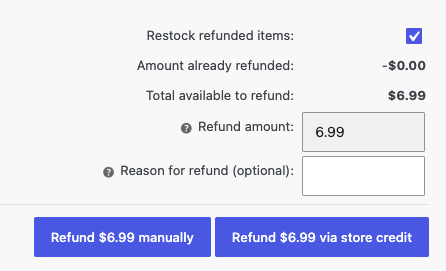
Account Funds credits the amount to the customer’s balance and adds the order note “Refunded $X via store credit.” As with any WooCommerce refund, you can refund up to what the customer paid for the order. If you’ve renamed store credit in the Account Funds settings, the button uses your label instead.
Know when the button appears
The Refund $X via store credit button shows on orders that:
- belong to a customer account, since a guest order has no balance to credit;
- weren’t paid with the Store credit payment method;
- contain something other than store credit products or top-ups.
Orders paid with store credit don’t need the button: refund them as usual with the refund button WooCommerce shows for the payment method, and the amount goes back to the customer’s balance.
Tell the customer where the refund went
Account Funds doesn’t send its own email for a refund to store credit, and WooCommerce’s refund email gives the amount without saying where it went. Close that gap with a note to the customer on the order, something like “We’ve added $25 to your store credit balance. You’ll see it at checkout on your next order.” WooCommerce emails customer notes to the customer, and they can check their new balance on the store credit tab in My Account.
That one line does a lot of work. A customer who knows the credit is waiting is far more likely to spend it than one who’s left wondering whether the refund went through.
Keep every refund on the books
Each store credit refund is its own transaction under Account funds » Wallets, recorded as an Order refunded credit and tied to the order it came from. Filter the Wallets screen by customer or event to see every refund to credit, which gives you an audit trail for your own accounting.
Account Funds also handles the related balance changes on the order:
- Undo a refund: delete a store credit refund from the order’s items list, and Account Funds removes the credit from the customer’s balance. If their balance is now lower than the refund amount, nothing is removed and the order note says so; debit what’s left from the Wallets screen instead.
- Cancel an order paid with store credit: the credit the customer used goes back to their balance.
- Refund an order that earned cashback: a full refund, or any refund that includes line items, voids the cashback that order earned, so customers don’t keep a reward for a purchase they returned. (A refund of an amount without line items leaves it in place.) The cashback rewards docs cover the details.
For every refund scenario, including orders that mix store credit with other payments, see the Account Funds refunds documentation.
Turn your next refund into a repeat order
Refunding to store credit is the simplest way to stop treating returns as pure loss. It takes no new process, just a different button on the refund screen and a short note to the customer, and every refund you route this way keeps revenue in your store instead of sending it back to the bank.
It’s also one part of a larger loop. Customers can earn credit through cashback and rewards, spend it at checkout alongside other payment methods, and get it back from a refund, all in the same balance. Get Account Funds for WooCommerce to offer store credit refunds on your next return.





Leave a Reply