


The order desk is one screen for taking an order over the phone. You find the caller, add their items, coupons, fees and shipping, and see the same totals your checkout would charge. Then you take payment through your own payment gateway, send a payment link, or record a payment you took another way.
The order desk is available when Mode is Order desk under Phone order » Settings, the default on new installs. If your store uses Legacy mode, see Choose a mode.
Open the order desk
Go to Phone order in the admin menu, or click New phone order next to Add order in WooCommerce » Orders. The Order desk tab opens, ready to search for the caller.

1. Choose the customer
Type a phone number, email address or name in Find by phone, email or name. Matching customer accounts appear as you type, and so do guests from past orders. Phone numbers match however they’re formatted.
Choose the customer. Their card shows their contact details, order count and total spent, their saved cards (Saved: or No saved cards) and their Past orders. An unpaid past order has a Take payment link. To start again with someone else, click Change customer.
The card shows Bill to and Ship to (Same as billing when they match). Edit either one, then click Done. Changes apply to this order only, not to the customer’s saved addresses.
New callers: click Add a new customer, fill in their details (an email address is required) and click Use this customer. The order is placed as a guest; the order desk doesn’t create accounts. If the email already belongs to an account, choose Use their account or Continue as a guest.
2. Add the items
- Search with Add a product by name or SKU and choose a result. Stock shows next to each one. For a variable product, choose its options, then click Add to order.
- Often buys: lists the products the customer orders most, and Bestsellers: lists your store’s bestsellers for customers without past orders. Click one to add it.
- Change quantities in Qty, and remove a line with its remove button.
- To charge a different price for this order, click Change price, enter the price and click Set. The original shows as Was, and Reset puts it back.
Repeat a past order: click Repeat order next to one of the customer’s past orders. Its items, add-on choices and shipping are added at today’s prices, and its addresses if the desk doesn’t have any yet. Coupons aren’t carried over. The desk lists anything Not added from the past order and any Price changed since the past order.
3. Add coupons, fees and shipping
These appear once the order has an item.
- Coupon: enter a code and click Apply.
- Add a fee or discount: enter a Name and Amount, choose Fixed amount or Percentage of items, and tick Taxable if tax applies. Use a negative amount for a discount.
- Shipping: choose a rate for the shipping address. To charge something else, click Edit cost, enter the amount and click Set. Use the rate’s cost puts the rate back.
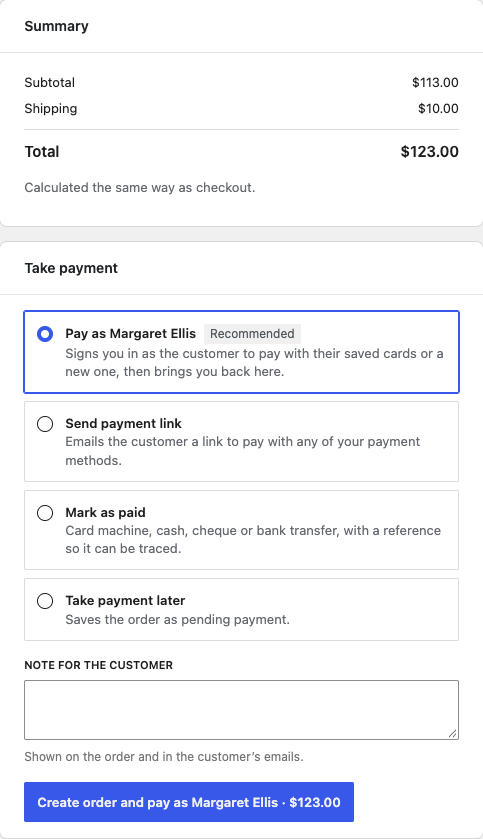
The Summary shows the subtotal, discounts, shipping, tax and total, calculated the same way as your checkout. If something needs fixing, such as an out of stock item, the desk says so before you can create the order.
4. Take payment
Under Take payment, choose how the customer will pay, add an Order note if you like (it shows on the order and in the customer’s emails), and click the button at the bottom. It creates the order and takes you to payment.
- Pay as [customer]: for customers with an account, and the recommended option. You’re signed in as the customer on your store for up to 30 minutes, and the order’s payment page opens. Pay with one of their saved cards or enter a new one. A banner, and a link in their My Account menu, lets you Switch back to [your name]. When the payment goes through, you’re brought back to the order desk.
- Pay now: for guests. The order’s payment page opens so you can enter the card, then you’re brought back to the order desk.
- Send payment link: emails the customer a link to pay with any of your payment methods. The order needs an email address. A customer with an account signs in to pay.
- Mark as paid: for a payment you took another way. Choose how it was paid in How was it paid? (card machine, cash, cheque or bank transfer) and enter a Reference, such as the receipt or transaction number. The order is marked as paid and your usual order emails go out.
- Take payment later: saves the order as Pending payment.
After the order is created, the desk shows Order #[number] created, or is paid. While payment is due you can still pay as the customer, Email the payment link, Copy payment link, or Check payment to see whether it has come through. Open order goes to the order, and Start a new order clears the desk for the next call.
Every step, such as who marked an order paid, who signed in as the customer and when they switched back, is recorded in the order notes.
Take payment for an order later
To take payment for any unpaid order, open it in WooCommerce » Orders and click Take payment by phone in the order details. The order desk opens with that order’s payment options. This includes orders customers placed at checkout with Phone payment.
Product Add-Ons and Subscriptions
WooCommerce Product Add-Ons: when you choose a product with add-ons, its options open so you can set them before Add to order. Required options are marked (required). Some kinds of add-on, such as file uploads, can’t be set on the order desk; the desk names them, and you add that product from WooCommerce’s order screen instead.
WooCommerce Subscriptions: subscription products show their full price in search results, and the Summary shows Total today and what each renewal will charge. A subscription needs a customer account, so a guest or new caller has to register first. If your store doesn’t allow subscriptions in the same order as other products, the desk flags the product that can’t go with the others. A shipping cost you change on the desk applies to the first payment only; renewals charge your normal shipping rate.
Common issues
I can’t find the order desk
The order desk only appears in Order desk mode. Go to Phone order » Settings and set Mode to Order desk.
Pay as [customer] isn’t offered
It isn’t offered for guests (use Pay now), for administrator and shop manager accounts, or while you’re already signed in as a customer. Switch back first, or use Send payment link.
No saved cards show for a customer
The customer needs a card saved with your gateway, and the gateway has to support saved cards. You can still use Pay as [customer] and enter a new card, or send a payment link.
The payment link won’t open for me
An order on a customer account can only be paid by that customer, and you’re signed in as staff. Send the link to the customer, or use Pay as [customer].
"The email couldn’t be sent. Copy the payment link and send it another way."
Click Copy payment link and send the link yourself, then check your store’s email setup.
"Subscriptions need a customer account. Find the customer’s account, or have them register first."
You chose a guest or new caller for an order with a subscription. Find the customer’s account, or ask them to register on your store first.
A product can’t be added on the order desk
The desk shows the reason on the item, such as out of stock or no longer sold. For add-ons the desk can’t set, add the product from WooCommerce’s order screen.
Keep learning
- Get started with Phone Orders and Payments (Mode, settings, Phone payment at checkout, refunds)
- Take phone orders in Legacy mode (the order screen workflow with virtual terminals and card machines)