


In Legacy mode you take a phone order on WooCommerce’s own order screen. You take the payment in your payment provider’s virtual terminal or on a card machine, and the plugin records the result on the order.
Legacy mode is on when Mode is Legacy mode under Phone order » Settings. Stores that used Phone Orders and Payments before version 4.0 stay in Legacy mode until they switch. To take orders on one screen and get paid through your own gateway instead, see Take phone orders on the order desk.

1. Add your terminals
Go to Phone order » Settings and fill in Legacy terminals (see Legacy terminals). Click Save changes.
2. Start the order
Go to WooCommerce » Orders and click Add order, or open an existing order. Tick Phone order in the General column. The billing and shipping fields open for editing, and Payment method is set to Phone payment if none was chosen.
3. Add the customer and products
Choose the customer, or fill in the billing details. To save a new customer for next time, fill in the billing details including Email address, then click Create customer account, which shows while no customer is chosen. The account is assigned to the order and linked to earlier guest orders with the same email. WooCommerce sends the customer its new account email so they can set a password.
Add the products, shipping and taxes as for any manual order, and click Recalculate.
4. Take the payment
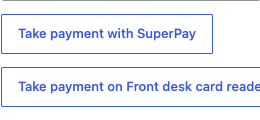
With Phone payment as the payment method, your terminals show as buttons under the billing details:
- Take payment with [terminal] opens your provider’s virtual terminal. Each billing and shipping field has a copy link, so you can paste the details into the terminal.
- Take payment on [card machine] reminds you to take the payment on that machine.
Take the payment, then copy the transaction ID from your provider into WooCommerce’s Transaction ID field.
5. Record it and save
- Add a payment note for adds a private note with the terminal you choose and the transaction ID, such as "Phone order paid with Square virtual terminal. Transaction ID: 12345." Clicking a terminal button ticks it.
- Set order status to processing changes the order to Processing when you save.
Click Create or Update. The order only moves to Processing if it has products or a fee, a total above zero and a transaction ID. Otherwise it keeps its status (Pending payment for a new order) and a note explains why.
Legacy terminals
Go to Phone order » Settings. These settings show in Legacy mode only. Click Save changes after any change.
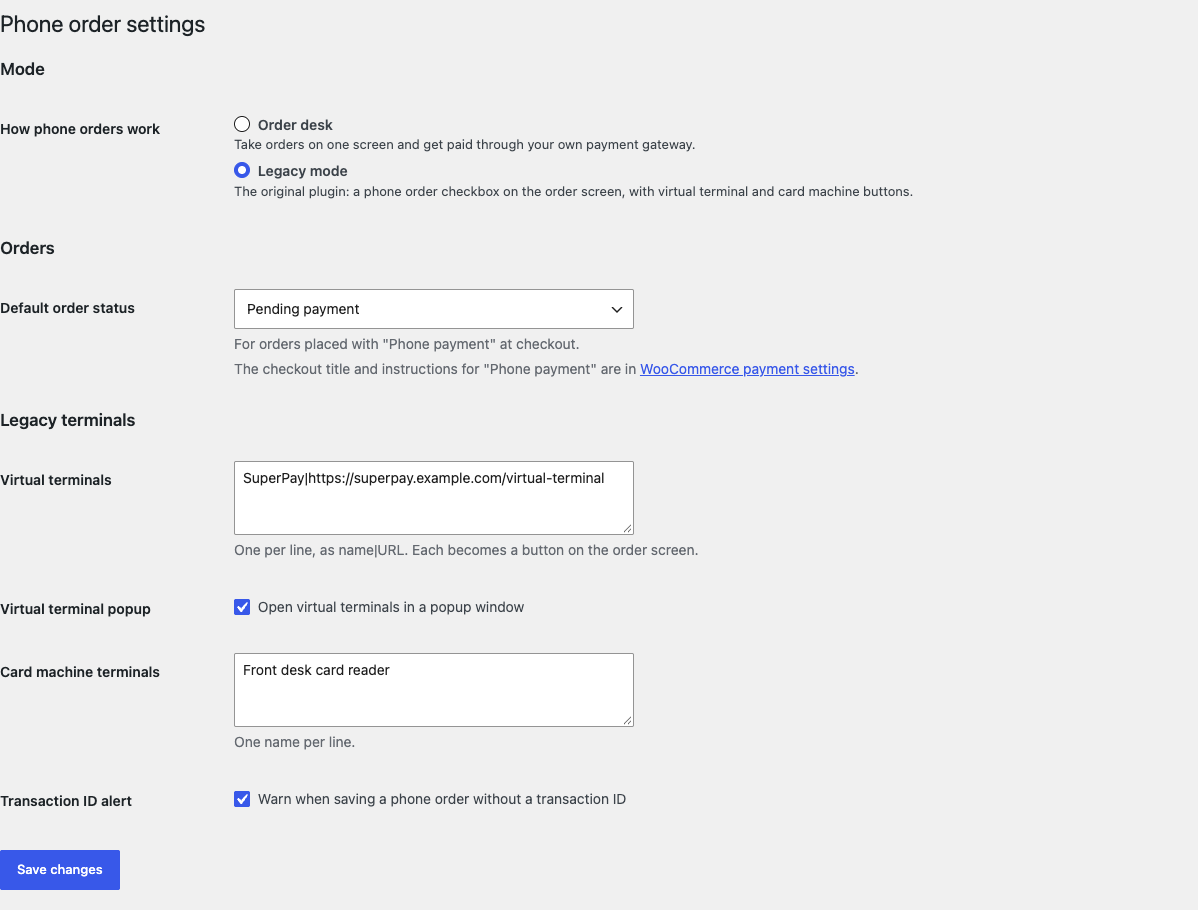
- Virtual terminals: your payment provider’s virtual terminals, one per line as
name|URL, such asSuperPay|https://example.com/virtual-terminal. Each becomes a button on phone orders. A line without a web address is skipped. - Virtual terminal popup: opens virtual terminals in a popup window. On by default. Turn it off to open them in a new tab, for example if your browser blocks the popup.
- Card machine terminals: your card machines, one name per line. Each becomes a button on phone orders. These names are also offered under Mark as paid on the order desk.
- Transaction ID alert: warns you when you save a phone order with a payment note but no Transaction ID. On by default.
Common issues
The terminal buttons don’t show on the order
Check these in order:
- Mode is Legacy mode.
- Phone order is ticked on the order, and Payment method is Phone payment.
- At least one terminal is saved under Legacy terminals. Each virtual terminal line needs both a name and a web address, as
name|URL.
The order didn’t move to Processing
The order needs products or a fee, a total above zero, and a Transaction ID. Add what’s missing and save again.
The virtual terminal doesn’t open
Your browser blocked the popup. Allow popups for your site’s admin, or turn off Virtual terminal popup to open terminals in a new tab.
Keep learning
- Get started with Phone Orders and Payments (Mode, settings, Phone payment at checkout, refunds)
- Take phone orders on the order desk (taking orders on one screen and getting paid through your own gateway)