


Phone Orders and Payments lets your staff take an order over the phone on one screen, the order desk, then get paid through your own payment gateway: with the customer’s saved card, a payment link, or a card machine, cash, cheque or bank transfer you record against the order. Stores that used the plugin before version 4.0 can keep using Legacy mode, which works on WooCommerce’s order screen.
The plugin never stores card details. Card payments go through your gateway on the order’s payment page, or happen outside your store and are recorded on the order.
When you’d use this
- Take an order over the phone and charge the customer’s saved card, without a separate virtual terminal.
- Send a caller a link to pay online, or record a payment you took on a card machine, in cash, by cheque or by bank transfer.
- Repeat a regular customer’s past order, or add the products they usually buy in one click.
- Let customers place an order online and call you to pay.
Requirements
- WordPress 6.5 or later, WooCommerce 9.0 or later, and PHP 7.4 or later.
- Compatible with WooCommerce’s cart and checkout blocks and High-Performance Order Storage.
- Legacy mode only: Phone payment turned on, so it can be chosen on the order screen. Tick Hide on checkout to keep it off your checkout.
- Staff who take phone orders need to be shop managers or administrators.
- Optional: WooCommerce Product Add-Ons and WooCommerce Subscriptions products can be sold on the order desk.
- To use Pay as [customer] with saved cards, a payment gateway that saves cards and offers them on the order’s payment page.
Install and activate
How you get updates depends on where you bought Phone Orders and Payments:
- Bought on kestrelwp.com: download the plugin from the Licensed downloads tab of your kestrelwp.com account and install it. Then go to Settings » Phone Orders and Payments activation, enter the license key from the License keys tab and activate it to receive updates. See using sites against your activation limit for how activations count.
- Bought on WooCommerce.com: install the plugin from your WooCommerce.com account. Updates come through your WooCommerce.com connection, with no license key to enter.
For upload, FTP and update steps, follow how to install and update WooCommerce extensions.
Choose a mode
The plugin has two modes. Go to Phone order » Settings, choose one under Mode, and click Save changes. You can switch at any time, and existing orders aren’t changed.
- Order desk: take orders on one screen and get paid through your own payment gateway. This is the default on new installs. See Take phone orders on the order desk.
- Legacy mode: a Phone order checkbox on WooCommerce’s order screen, with virtual terminal and card machine buttons. See Take phone orders in Legacy mode.
The two don’t mix: the order screen’s phone order tools only appear in Legacy mode, and the order desk only appears in Order desk mode.

If you used Phone Orders and Payments before version 4.0
Your store stays in Legacy mode when you update, so nothing changes until you decide. Your terminal settings are kept, and are now under Phone order » Settings » Legacy terminals. Admins see a notice on the Orders and Phone order screens with three choices:
- Try the order desk switches to the order desk.
- Keep legacy mode stays as you are and hides the notice.
- Remind me later hides the notice for two weeks.
Set up Phone Orders and Payments
1. Check the mode
Go to Phone order in the admin menu, just below Dashboard, and open the Settings tab. Check Mode is set to the one you want.
2. Decide whether customers see Phone payment at checkout
Phone payment lets customers place an order online and call you to pay. It’s off on new stores, like any other payment method; stores that had an earlier version keep their setting. The Phone payment section of the plugin’s settings shows whether it’s on. To change it, click Manage and see Phone payment at checkout. You don’t need it to take phone orders.
3. Take a test order
In Order desk mode, follow Take phone orders on the order desk with a test product and choose Take payment later. The order appears in WooCommerce » Orders as Pending payment, with "(phone order)" after the customer’s name and Phone order taken by: with your name on the order.
In Legacy mode, follow Take phone orders in Legacy mode instead.
Settings
Go to Phone order » Settings. Click Save changes after any change.
- Mode: Order desk or Legacy mode. See Choose a mode.
- Phone payment: shows whether Phone payment is on at checkout. Manage opens its settings (see Phone payment at checkout).
- Default order status: the status of orders customers place with Phone payment at checkout. On hold by default. You can choose any status except Cancelled, Refunded, Failed and Draft. Applies in both modes.
In Legacy mode, the page also has Legacy terminals, covered in Take phone orders in Legacy mode.
Phone payment at checkout
Phone payment is a payment method customers can choose at checkout, on the classic checkout or the checkout block, to place the order and call you to pay. Turning it off only removes it from checkout: the order desk and the Legacy mode tools work either way.
Go to WooCommerce » Settings » Payments and open Phone payment, or click Manage on the plugin’s settings.
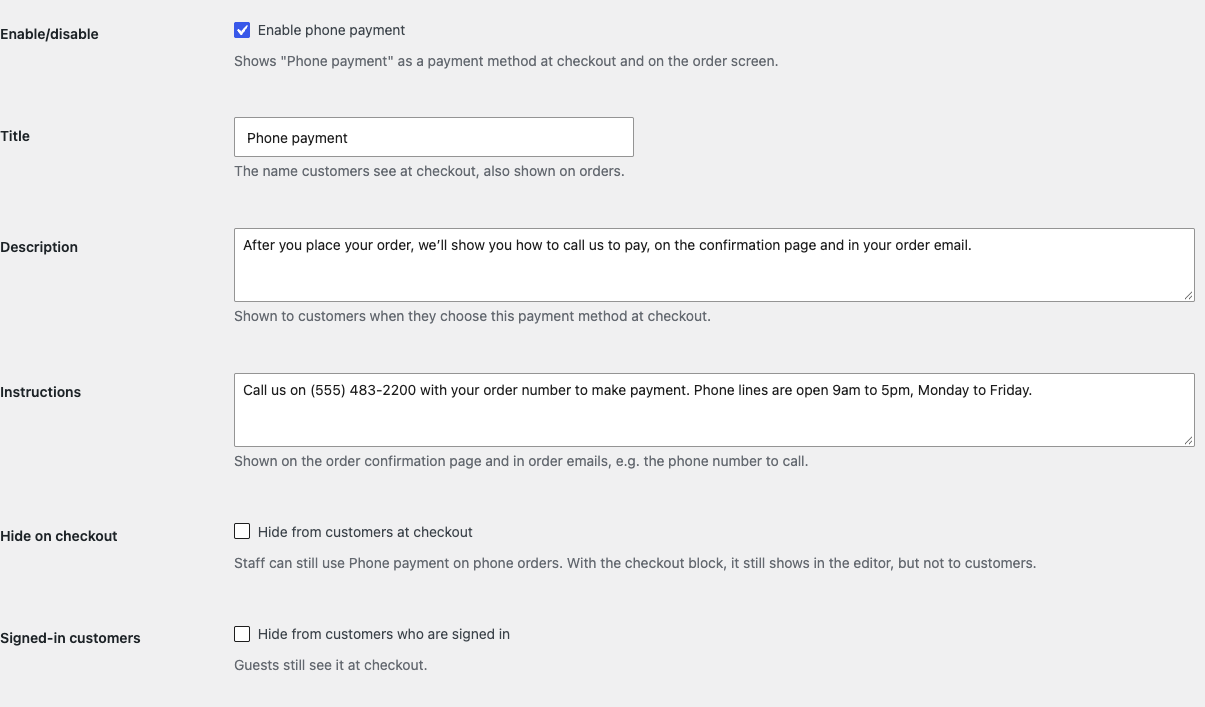
- Enable/disable: shows Phone payment at checkout and on the order screen. Off on new stores.
- Title: the name customers see at checkout, also shown on orders. Default "Phone payment".
- Description: shown to customers when they choose the method at checkout.
- Instructions: shown on the order confirmation page and in the customer’s order emails while the order is unpaid. Put how to pay here, such as your phone number and opening hours. Left empty, customers are told you’ll contact them to take payment.
- Hide on checkout: hides Phone payment from all customers at checkout, while staff can still use it on phone orders. On the checkout block, it still shows while you edit the checkout page.
- Signed-in customers: hides Phone payment from customers who are signed in. Guests still see it.
What customers see
When a customer chooses Phone payment:
- The order is placed with your Default order status (On hold unless you changed it) and the note "Awaiting phone payment." Stock is reduced and the cart is emptied.
- Your Instructions show on the order confirmation page and in their order emails.
- The order is flagged as a phone order.
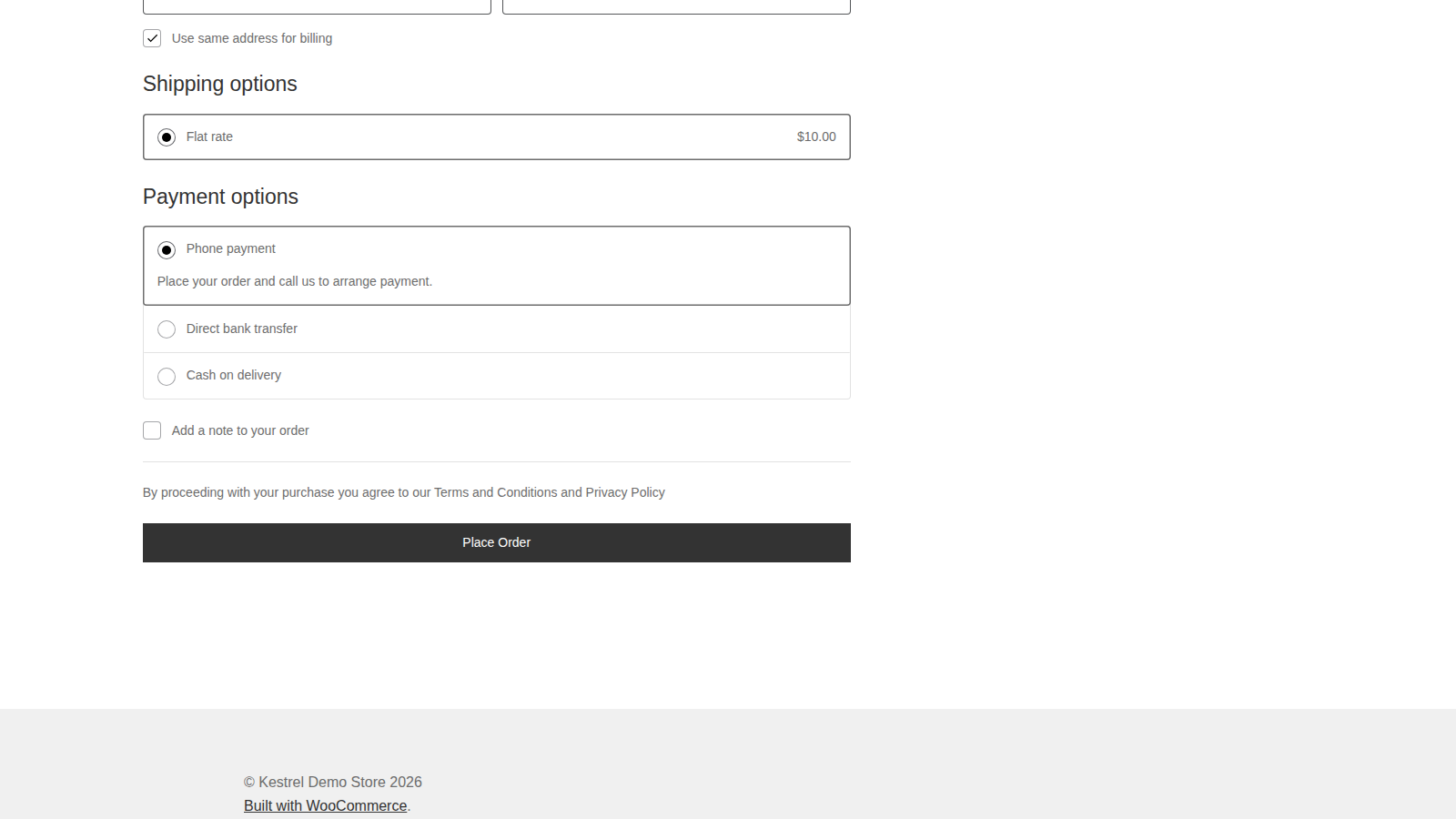
When they call, open the order and click Take payment by phone to take payment on the order desk. In Legacy mode, take the payment with your terminals, as in Take phone orders in Legacy mode from step 4.
Phone orders in the orders list
In WooCommerce » Orders, phone orders show "(phone order)" after the customer’s name, in both modes. To list only phone orders, choose Phone orders in the filter above the list and click Filter. Other orders lists the rest.
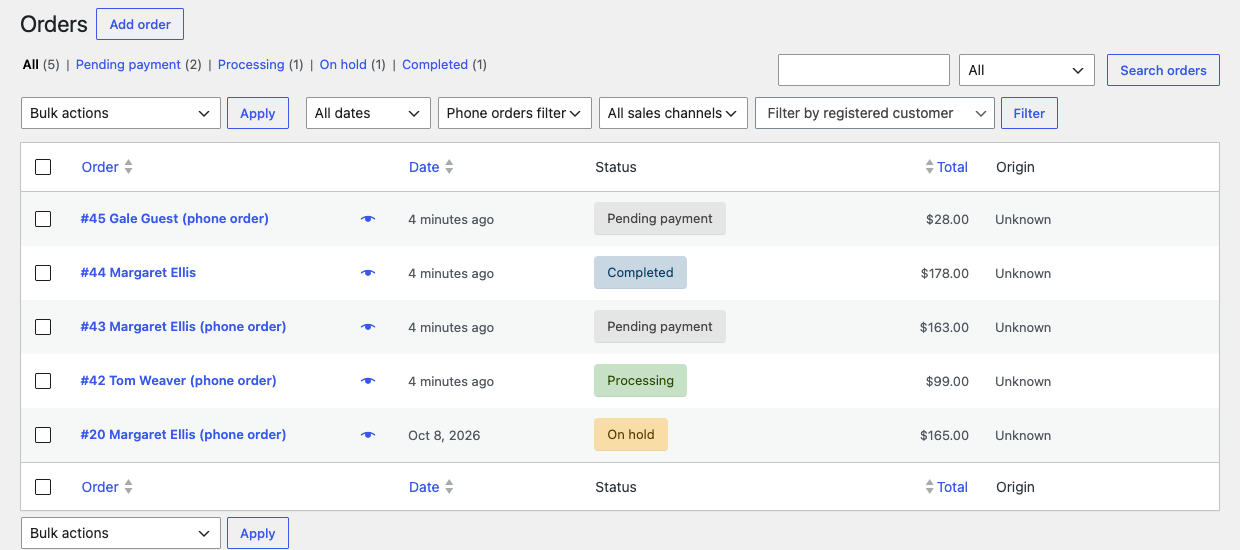
If you changed the old " – Phone order" label with a translation plugin, change the new "%s (phone order)" text instead.
Refunds and card details
- Refunds: a payment made through your gateway on the order desk is refunded like any other order paid with that gateway. A payment you marked as paid, or took in a virtual terminal or on a card machine, is refunded there, then recorded with WooCommerce’s manual refund on the order.
- Card details: the plugin never stores them. Taking card payments by phone may still bring PCI requirements for your business, so check with your payment provider.
Common issues
I can’t find the order desk
The order desk only appears in Order desk mode. Go to Phone order » Settings and set Mode to Order desk.
The Phone order checkbox and terminal buttons are gone from the order screen
They only appear in Legacy mode. Either take orders on the order desk, or set Mode back to Legacy mode.
Customers can choose Phone payment at checkout
Turn off Enable/disable in the Phone payment settings, or tick Hide on checkout. Either way, you can still take phone orders.
Customers don’t see Phone payment at checkout
Check that Enable/disable is ticked, and Hide on checkout and Signed-in customers are unticked, then click Save changes.
FAQ
Does the plugin charge the customer’s card?
Not itself. On the order desk, payments go through your own payment gateway on the order’s payment page, or by a payment link. In Legacy mode you take the payment in your provider’s terminal or on your card machine and record it.
Do I still need a virtual terminal?
Not on the order desk: Pay as [customer], Pay now and Send payment link use the gateway your store already has. Legacy mode works with your provider’s virtual terminal.
Can the order desk create customer accounts?
No. New callers are placed as guest orders. Customers can register on your store with the same email, and Legacy mode’s Create customer account button still works.
Is this a point of sale system?
No. It’s for taking orders over the phone. It has no register, barcode scanning or in-person card reader.
Can I switch modes later?
Yes, at any time under Phone order » Settings » Mode. Existing orders aren’t changed.
Keep learning
- Take phone orders on the order desk (finding the customer, adding items, and the ways to take payment)
- Take phone orders in Legacy mode (the order screen workflow with virtual terminals and card machines)
- How to install and update WooCommerce extensions (installing, updating and fixing upload errors)
- Using sites against your activation limit (how license activations count)
- Changing text in a plugin (changing the "(phone order)" label and other wording)