


A WooCommerce merchant came to our support team with a simple-sounding request: they were running a fundraiser and wanted customers to be able to add an optional donation to a cause at checkout. Nothing fancy. A few preset amounts, maybe a “choose your own,” and have it land on the order.
They’d already tried the obvious route, installing a donation plugin, and it hadn’t gone smoothly inside their optimized checkout.
Here’s what we told them, and what we confirmed by actually setting it up: if you already run Order Delivery for WooCommerce, you don’t need a separate donation plugin at all.
Order Delivery has a built-in tip field, and a tip field is a donation prompt with a different label. With a couple of settings you can turn it into a clean, optional “add a donation” prompt that sits in your checkout and adds straight to the order total.
This guide walks through exactly how, where it works, and (just as important) where it doesn’t.
How we tested this
This isn’t a plugin roundup written from the search results. It started as a real support request from Custom Sticker Shop (customstickershop.us), a veteran-owned sticker store running a Wounded Warrior Project fundraiser. We set the whole thing up on our end to confirm the advice held, and Custom Sticker Shop now runs it live on their checkout.
We tested with Order Delivery for WooCommerce running inside CheckoutWC, and placed a real test order. Here’s what we confirmed:
- The tip/donation field renders in the CheckoutWC checkout, not just the default WooCommerce one.
- Selecting an amount adds it to the WooCommerce order total.
- The amount is recorded as a fee line on the order. It does not get its own donations report, so totaling what you’ve collected takes one extra step (covered below).
Last tested: June 2026, with current versions of Order Delivery and CheckoutWC.

What this setup does and doesn’t do
Before you wire anything up, here’s the honest scope. This approach is great for a simple, optional donation. It is not a fundraising platform.
| Requirement | Supported? | Notes |
|---|---|---|
| Add optional donation at checkout | Yes | Uses Order Delivery’s tip field |
| Preset donation amounts | Yes | Example: $1 / $5 / $10 |
| Custom donation amount | Yes | Leave the custom amount visible |
| Adds to order total | Yes | Recorded as a fee on the order |
| Works in CheckoutWC | Yes | Tested rendering in the optimized checkout |
| Auto round-up to nearest dollar | No | Use preset buttons instead |
If you need donor management, recurring donations, tax receipts, or campaign reporting, skip ahead to when to use a dedicated donation plugin. For an optional “round up for our cause” prompt, read on.
Why checkout is the right place to ask
Think of a donation the way you’d think of an order bump. An order bump asks the customer to add a product. A donation asks them to add a few dollars to a cause. Mechanically, it’s the same move: a small, optional, one-click add at the moment of highest intent.
Checkout is where that ask works:
- Timing. The customer already decided to buy and has their card out. Adding $5 to an $80 order barely registers. The same ask in a cold email gets ignored.
- Friction. A preset button is one tap. No second page, no separate transaction, no re-entering a card.
- Goodwill. A customer who rounds up for your cause feels good about the store they just bought from.
One rule: keep it optional and never pre-checked. Invite, don’t corner. An opt-in donation is a nice touch. A sneaky one is a refund request waiting to happen.
Your options, and the tradeoffs
There are three common ways to do this. They all work. They’re not equal.
1. A dedicated donation plugin. Plenty exist, and they’re the right answer if you need real fundraising features. The cost is another plugin to maintain, and many were built for the classic WooCommerce checkout, so their donate box doesn’t always show up where you want it in an optimized or customized checkout.
2. A “Donate $10” product. The no-extra-plugin workaround: a variable product with fixed-price variations. It works, but the donation lives on a product page rather than at checkout, and you’re now managing fake products in your catalog.
3. Order Delivery’s tip field. If you already run Order Delivery, this is the least work. The tip field is purpose-built to sit in the checkout as an optional, opt-in add-on with preset amounts and a custom box, which is exactly what a donation prompt needs.
The rest of this guide covers option 3.
Step-by-step: Turn the tip field into a donation
Here’s the whole setup.
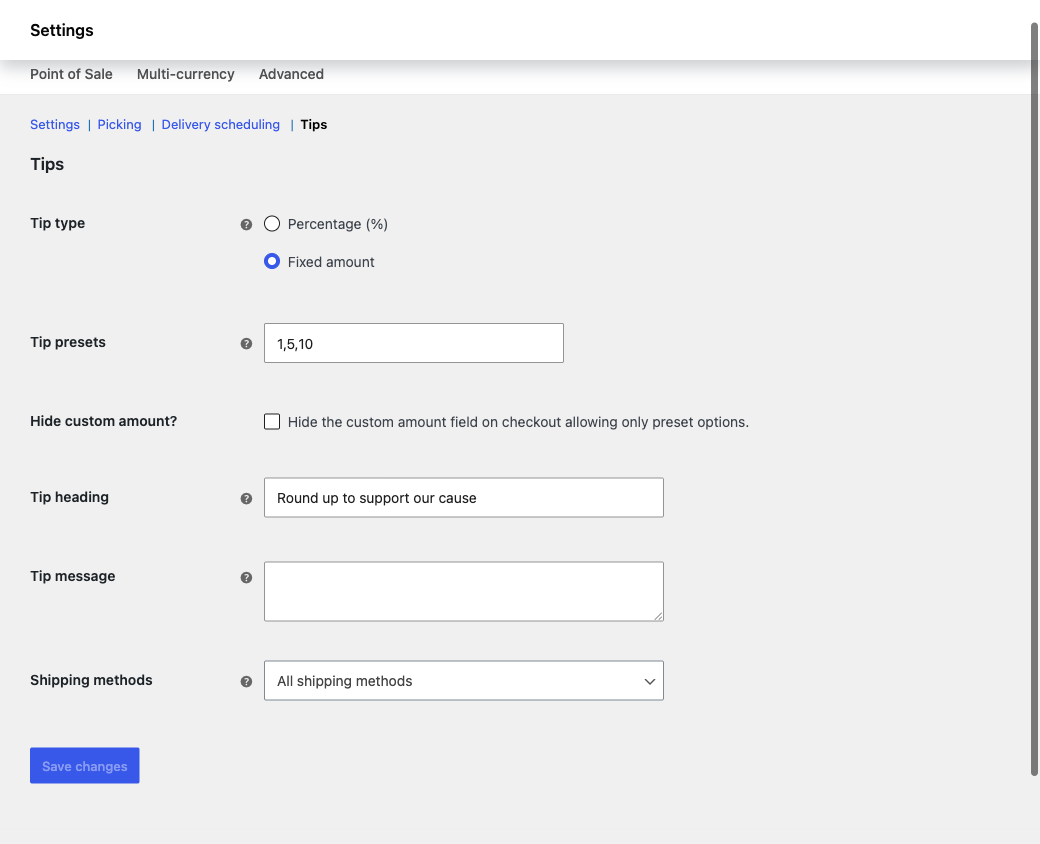
- Go to WooCommerce → Settings → Delivery and turn on Customers can add a tip.
- Open the Tips tab and set:
- Tip type: Fixed amount for set donation buttons, or Percentage if you’d rather offer “5% / 10% of my order.”
- Tip presets: the amounts you want, for example
1, 5, 10. - Tip heading: the wording customers see, for example “Round up to support our cause.”
- Leave Hide custom amount off so people can give whatever they want.
- Save.
The donation prompt now appears at checkout, and selecting an amount adds it to the order total.
No donation plugin, no fake products. The amount records as a fee line on the order, which keeps your order records clean (totaling donations across orders takes one extra step, covered below).
Relabel “tip” to “donation”
One cosmetic catch: out of the box, the line in your cart totals and on the order reads “Tip.” For a fundraiser you want it to say “Donation.”
The heading customers see at checkout is fully yours (you set it above), but the totals line uses a separate label. The quickest fix today is the free Say What? plugin, which swaps text strings anywhere on your site. Add two entries, both with the text domain woocommerce-order-delivery:
Tip→DonationDelivery details→ e.g.Support our cause

After that, the prompt, the totals line, the order, and the confirmation email all read “Donation.” (If you already use Loco Translate, you can make the same swap there instead. That’s the route Custom Sticker Shop took, and it carried through to the order screen and the email.) We’re also working on making this label a native setting, so this relabel step won’t be needed long term, but it works cleanly today.
Optional: Hide the delivery date
Order Delivery’s main job is letting customers pick a delivery or pickup date, so by default the tip field shares a section with a date picker. If you’re not scheduling deliveries and just want the donation on its own, you can hide the date with a one-line snippet.
If you use CheckoutWC, add this in CheckoutWC → Advanced → Scripts (scroll to the PHP Snippets section) and save:
add_filter( 'wc_od_checkout_needs_date', '__return_false' );That switches the delivery date off entirely, not just hidden, so there’s no leftover “please choose a date” prompt to trip checkout up. If anything looks off, toggle the snippet back off on the same screen. (You can see the result in the field screenshot above: just the donation prompt, no date picker.)
How it works in CheckoutWC
This is where Order Delivery and CheckoutWC fit together. CheckoutWC gives you a faster, conversion-optimized checkout, and because Order Delivery is built to integrate with it directly, the donation field renders cleanly right inside that flow, which is the part we specifically tested.
The practical bonus: Order Delivery is included with CheckoutWC Pro. So if you’re optimizing checkout for conversions anyway, the donation prompt comes along at no extra cost, next to the order bumps, side cart, and one-page checkout doing the heavier lifting.

How to track what you’ve collected
One genuinely rough edge, worth knowing up front: the donation is stored as a fee on each order, not in a dedicated donations report. The amount is on every order, but WooCommerce won’t total it for you. The built-in order export and the Analytics CSV both leave order fees off, so there’s no “donated this week” screen out of the box.
You have two good ways to fix that.
A small report (best for an ongoing total). We wrote a free snippet that adds a Donations report screen to your dashboard: running totals for all time, the last 30 days, and the last 7 days, plus every order and its donation. Add it with the free Code Snippets plugin (or your child theme’s functions.php) and it appears under WooCommerce > Donations report. Grab it here: Donations report snippet.

A spreadsheet export (no code). If you’d rather not add code, the free Advanced Order Export for WooCommerce has a “Fees & Discounts” field section: set a date range, include the donation fee, and the amount exports as its own column you can total.
Either way, the donation is recorded on every order, so your numbers are always there. If campaign-level reporting (donor records, multiple campaigns, tax receipts) is central to your fundraiser, that’s a sign you may want a dedicated donation plugin (see below).
Honest limitations
A few things to know going in:
- It’s not automatic round-up. The field offers preset amounts and a custom box. It won’t take an $18.40 order and auto-calculate a $0.60 round-up. Preset buttons plus a custom amount cover most “add a donation” cases. If true round-up-to-the-nearest-dollar is a hard requirement, this isn’t it (and it’s worth telling us).
- You’ll likely relabel “Tip.” See the Say What? step above. Minor, but plan for it.
- It’s a donation prompt, not a fundraising platform. No donor records, recurring gifts, tax receipts, or campaign dashboards.
When to use a dedicated donation plugin instead
Reach for a purpose-built donation/fundraising plugin if you need any of these:
- Donor management or a donor database
- Recurring or subscription donations
- Tax receipts or acknowledgement letters
- Multiple campaigns with individual goals and reporting
- Nonprofit-grade accounting separation
If you mostly want an optional “support our cause” prompt at checkout that adds to the order, the Order Delivery tip field gets you there without the extra moving parts.
FAQ
Not on its own. There’s no native donation field, so you add one with a plugin. If you already use Order Delivery, its tip field can serve as that field.
Yes, if you run Order Delivery. Its built-in tip field becomes the donation prompt, so you don’t add a separate donation plugin.
Yes. We tested it inside CheckoutWC and confirmed the donation field renders in the optimized checkout and adds to the order total.
Yes. Leave the custom amount option visible and customers can enter any amount alongside your preset buttons.
No. It offers preset amounts and a custom amount, not automatic round-up to the nearest dollar. Use preset buttons (for example $1 / $5 / $10) instead.
Yes. It’s added as a fee line on every order, so it appears on the order record and confirmation email.
There’s no built-in donations total in WooCommerce, and the standard order export and Analytics CSV both leave order fees off. The amount is saved on every order, so to total it across a period you have two options: add our free Donations report snippet, which puts a running total dashboard under WooCommerce > Donations report, or use a free order-export plugin like Advanced Order Export for WooCommerce and sum the donation column.
When you need donor management, recurring donations, tax receipts, or campaign-level reporting. For a simple optional donation, the tip field is enough.
Get started
If you already use CheckoutWC Pro, you already have Order Delivery in your account. Turn on the tip field, relabel it, place one test order to confirm it lands on the total, and you can have a checkout donation prompt live today.
If you don’t use CheckoutWC yet, Order Delivery works on its own. CheckoutWC gives you the optimized checkout flow around it, and includes Order Delivery in the Pro plan.
Either way, you’ll be asking for the donation where people are most likely to say yes: right as they’re already checking out.






Leave a Reply