


Customers can add to their own store credit balance in two ways: by buying a store credit product you create, such as $50 of credit, or by topping up any amount from their My Account page. The credit lands in their balance once the order is paid.
When you’d use this
- Sell prepaid credit in set amounts that customers spend down over time.
- Offer bonus credit, such as $55 of credit for $50, with a sale price.
- Let customers add exactly the amount they want from My Account.
- Run a wallet for regular buyers who’d rather pay once and order often.
Create a store credit product
1. Add the product
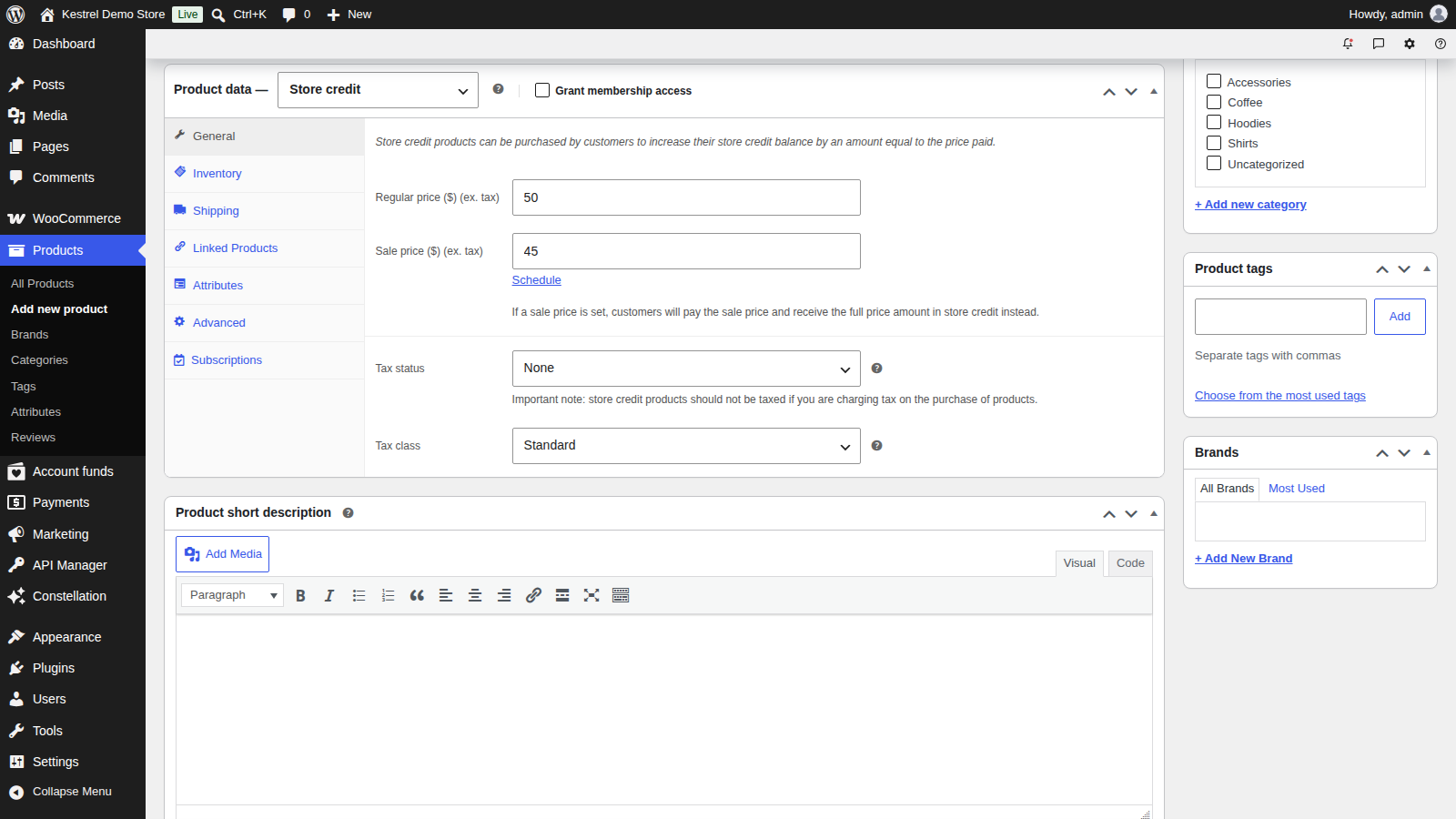
Go to Products » Add new product and choose Store credit as the product type. The editor shows the usual simple product fields, with a note: "Store credit products can be purchased by customers to increase their store credit balance by an amount equal to the price paid."
2. Set the price
The Regular price is the amount of credit the customer receives. If you set a Sale price, customers pay the sale price but still receive the regular price in credit, as the note under the field says: "If a sale price is set, customers will pay the sale price and receive the full price amount in store credit instead."
3. Check the tax status
New store credit products start with a tax status of None. Keep it that way if you charge tax on the products customers buy with the credit, so the same purchase isn’t taxed twice: the editor reminds you, "Important note: store credit products should not be taxed if you are charging tax on the purchase of products."
4. Publish it
Store credit products are always saved as virtual, so they need no shipping. They don’t support variations, so create a separate product for each amount you want to sell.
Let customers top up from My Account
Turn on Enable "My Account" top-up under Account funds » Settings, and set the minimum and maximum amounts there.

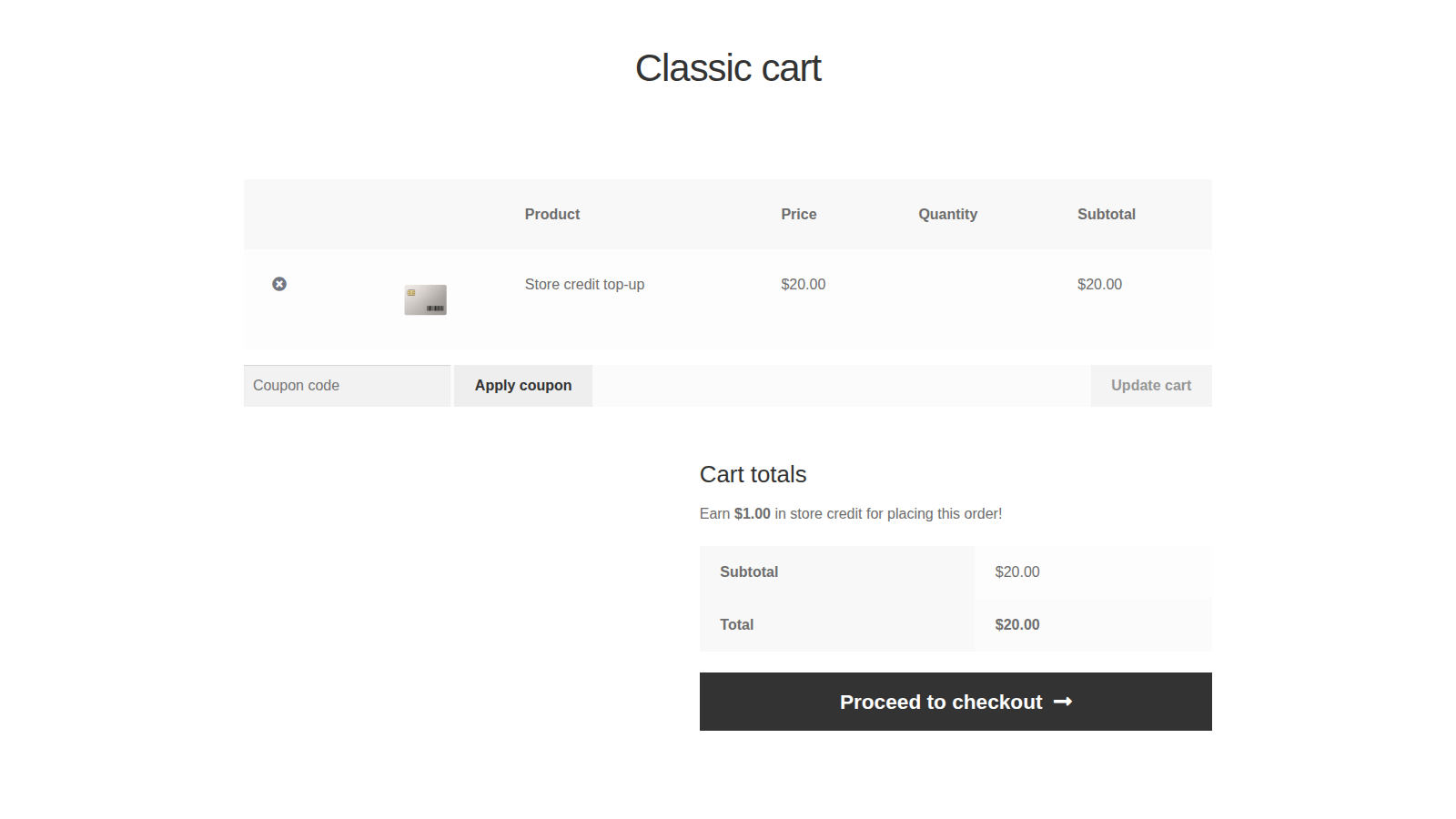
Customers then see a top-up form on their My Account store credit tab, with the minimum and maximum shown. They enter an amount and click Top-up, and see "Top-up of $X has been added to cart." The cart line is named "Store credit top-up" and shows the top-up image. A top-up is always quantity one, so to add more, the customer tops up again.
If you’ve set a Maximum top-up, a customer can have one top-up in the cart at a time. While one is there, the tab shows "You have "Store credit top-up" in your cart." with a View Cart button instead of the form.
When top-up is off, the tab lists your store credit products instead.
Customers need an account
Store credit belongs to a customer account, so when the cart contains a store credit product or a top-up, checkout requires the customer to create an account or log in, even if you allow guest checkout. Store credit can’t be used to pay for those orders.
When credit is added
Credit is added once the order reaches Processing or Completed, and only once per order:
- A store credit product adds its regular price, times the quantity bought.
- A top-up adds the amount the customer entered.
The order gets the note "Added $X in store credit to the customer’s balance.", and in Account funds » Wallets the credit appears as an Order paid event with the note "Customer bought store credit deposit." or "Customer bought store credit top-up." On their My Account tab, customers see the order under Recent deposits.
Rewards on store credit purchases
Store credit products earn cashback like any other product when a reward’s eligibility covers them. To exclude them from an Order paid reward, set its Eligible orders to Order does not contain product types and pick Store credit (see Eligible orders).
Orders containing a top-up earn no Order paid cashback unless you turn on Allow rewards.
Refunds and cancellations of store credit purchases
Refunding or cancelling an order doesn’t remove the store credit the customer bought in it. Refunding a top-up line item also adds the refunded amount to the customer’s balance, with the order note "Granted $X in store credit to the customer after refunding order items."
To take back credit after refunding or cancelling a store credit purchase:
- Open the order and note the credit to remove: the amount added when it was paid, plus any amount in a "Granted…" note.
- Go to Account funds » Wallets and click Add transaction.
- Pick the customer, set Type to Debit — decrease the customer balance, enter the amount, and add a Note with the order number.
- Click Create transaction.
A debit can’t be larger than the customer’s available balance. If they’ve already spent some of the credit, you can only remove what’s left. For the full steps, see Manage customer balances in Account Funds.
The Refund $X via store credit button doesn’t appear on orders that contain only store credit products or top-ups, or while a top-up line is being refunded.
Report on store credit sales
WooCommerce » Reports » Deposits charts store credit product and top-up sales over time. For individual credits, use Account funds » Wallets.
Common issues
The customer paid but didn’t receive the credit
Check that the order reached Processing or Completed. Orders awaiting payment, such as bank transfers on hold, add the credit only once you mark them paid. Then check the order notes for "Added $X in store credit to the customer’s balance."
The top-up form doesn’t show
Turn on Enable "My Account" top-up in Account Funds settings. If the customer already has a top-up in the cart and you’ve set a maximum, the tab shows a cart notice instead of the form.
Customers can’t pay for a store credit product with their balance
That’s expected: store credit can’t buy store credit, so the Store credit payment method and the apply control are hidden while the cart contains a store credit product or top-up.
Guests are asked to create an account
Checkout requires an account whenever the cart contains store credit, so the credit has somewhere to go.
The credit amount doesn’t match what the customer paid
With a sale price, customers receive the regular price. If you changed the regular price before the order was paid, the credit uses the price at the time of payment.
A refunded store credit purchase left the credit in the balance
Refunds and cancellations don’t remove purchased credit. Remove it with a debit, as described in Refunds and cancellations of store credit purchases.