


Every change to a customer’s store credit is a transaction in Account funds » Wallets, whether a reward, a purchase, a payment or an adjustment you made. From there you can look up any customer’s balance, add or remove credit, and void or edit transactions. Each customer’s balance is also on their user profile.
When you’d use this
- Add credit as a goodwill gesture or a promotion.
- Correct a balance, or take back credit that shouldn’t have been awarded.
- Check why a customer’s balance is what it is.
- Change when a credit expires.
Find a customer’s balance
- Users » All Users has a column, named after your plural label, with each customer’s balance. Click a balance to open Account funds » Wallets filtered to that customer.
- On a user’s profile, the store credit section shows their balance in Amount, with a Manage in Wallets → link.
- In Account funds » Wallets, choose a customer in the customer filter and click Filter.
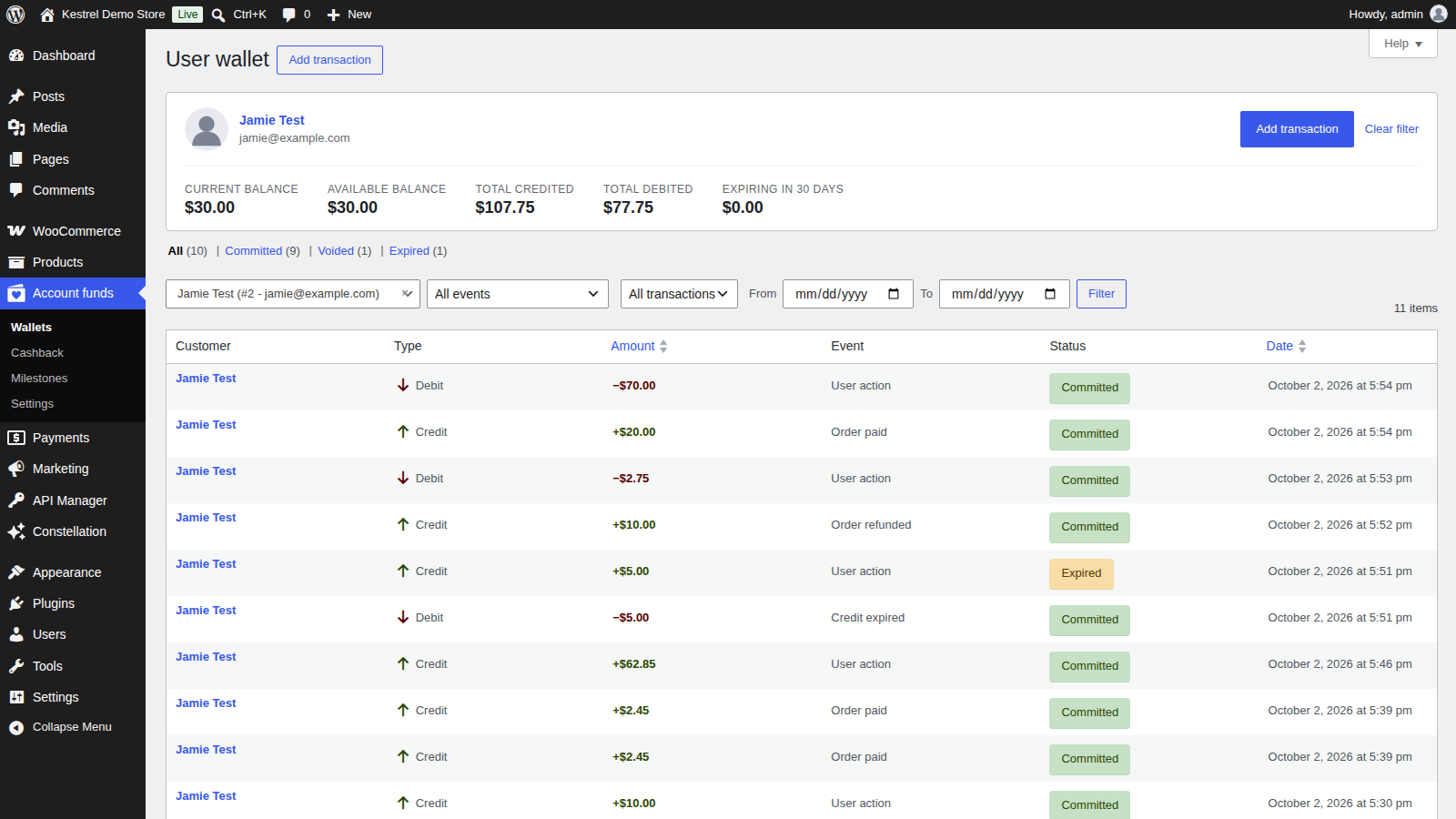
Filtered to one customer, Wallets shows five cards above their transactions:
- Current balance: everything credited minus everything debited.
- Available balance: what they can spend now, which leaves out credit held by orders that aren’t paid yet.
- Total credited and Total debited.
- Expiring in 30 days: credit due to expire in the next 30 days.
Click Clear filter to go back to all customers. Customers who earned credit as guests appear with their email address and a Guest badge.
The Wallets list
Each row shows the Customer, Type (Credit or Debit), Amount, Event, Status and Date. Filter by customer, by event (All events or one event), by type (All transactions, Credit or Debit), and by date with From and To.
Transaction events
| Event | What creates it |
|---|---|
| User action | A credit or debit added by staff, in Wallets or on a user profile |
| Customer account registration | A registration milestone reward |
| Product review | A review milestone reward |
| Product purchase | A Product purchase cashback reward |
| Order paid | Order paid cashback, a store credit product or top-up purchase, or credit spent on an order |
| Order refunded | A refund to store credit |
| Order cancelled | Applied credit returned when an order is cancelled |
| Order failed | Applied credit returned when an order fails |
| Credit expired | The debit that removes the unspent part of an expired credit |
| Data migration | Balances carried over from versions before 4.0 |
| Other | Transactions created by custom code |
Transaction statuses
- Committed: counts toward the balance.
- Voided: cancelled, and no longer counts. Cashback from a cancelled or refunded order becomes voided, and so does any transaction you void.
- Expired: a credit whose unspent part was removed by a Credit expired debit.
Add or remove store credit
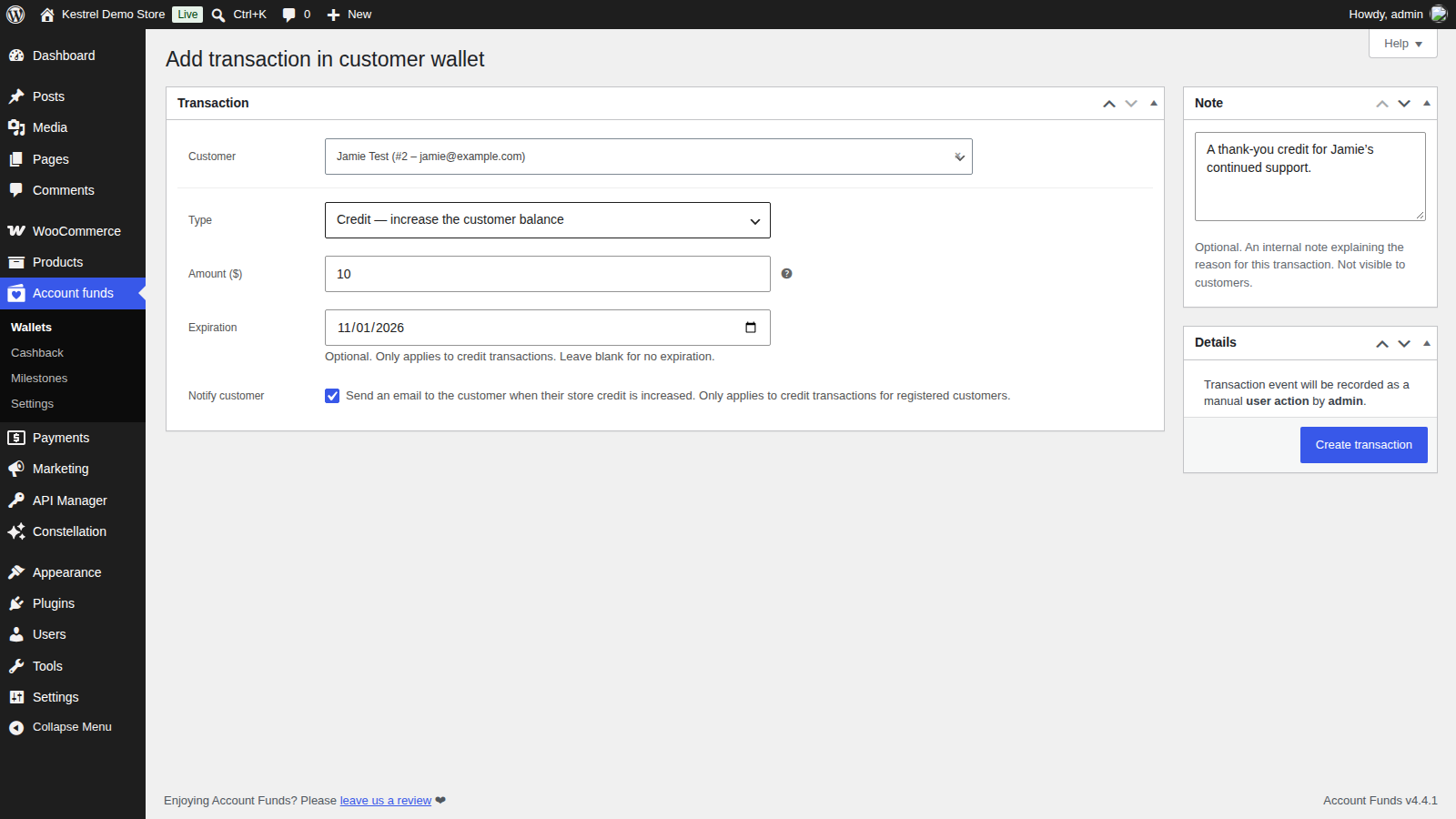
Go to Account funds » Wallets and click Add transaction.
Customer
Search by name, email or ID and pick the customer.
Type
Credit — increase the customer balance or Debit — decrease the customer balance.
Amount
The amount to credit or debit, greater than zero. A debit can’t be larger than the customer’s available balance.
Expiration
Optional, and only for credits. Pick a date for the credit to expire, or leave it blank so it never expires.
Notify customer
Sends the customer the Store credit increased email. Only applies to credits for registered customers.
Note
Optional. A private note on why you made the change, which customers don’t see.
Click Create transaction. It’s recorded as a User action by you.
Change the balance from a user profile
On the customer’s user profile, change Amount to the new total and click Update User. Account Funds records the difference as a credit or debit, with the note "Store credit manually increased by a shop manager." or "Store credit manually decreased by a shop manager." Raising a balance this way always sends the Store credit increased email, if it’s enabled under WooCommerce » Settings » Emails.
There’s no bulk adjustment, so change balances one customer at a time.
Edit a transaction
Click a transaction in Account funds » Wallets to open it. The page shows its Source, such as the order, refund, product, review or user behind it, related links, and for reward credits the reward that awarded it. A transaction’s amount can’t be changed, but you can edit:

- Status: choose Voided to cancel the transaction, or Committed to restore it. Voiding asks you to confirm: "Voiding this transaction will recalculate the customer’s balance. Continue?"
- Expiration: for committed credits, choose Does not expire or Expires on… and a date. A date in the past expires the credit as soon as you save, after a confirmation.
- Note: a private note for your records.
Click Update transaction to save.
To correct an amount, void the transaction and add a new one, or add a credit or debit for the difference.
An expired credit is locked: "This credit was offset by an automatically created debit and cannot be edited. Void the offsetting debit if you need to reverse the expiration." Open the matching Credit expired debit and void it to give the credit back, then open the credit and set a later Expiration or Does not expire. Otherwise it expires again at the next daily check.
Who can manage balances
Store administrators and shop managers, or any role that can manage WooCommerce, can see the Wallets screen, add and edit transactions, and see balances on the Users screen and user profiles.
Reports and support details
- WooCommerce » Reports » Deposits charts store credit product and top-up sales.
- WooCommerce » Status includes an Account Funds section with your label, gateway, partial payment, reward and top-up settings. Include the system status report when you contact support.
Common issues
"Cannot debit an amount larger than the available store credit balance."
The debit is more than the customer can spend right now. Credit held by an unpaid order isn’t available; check the Available balance card, then debit that amount or less.
The user profile and the Available balance card show different amounts
Credit applied to an order that isn’t paid yet still counts in the current balance but not the available balance. It’s debited when the order is paid, or released if the order fails or is cancelled.
The customer didn’t get an email when I added credit
In Wallets, tick Notify customer when you add the credit. Also check that Store credit increased is enabled under WooCommerce » Settings » Emails.
"Please select a customer." or "Could not resolve the customer for this transaction."
Pick a customer from the search results in the Customer field before clicking Create transaction.
An expired credit can’t be edited
Void its Credit expired debit instead, which returns the expired amount to the balance. Then edit the credit’s expiration so it doesn’t expire again the next day.
A customer earned credit as a guest and can’t use it
Guest credit is kept against the email address. Once the customer registers an account with that email, the credit joins their account.