


Account Funds keeps its settings in three places: Account funds » Settings for labels and customer top-ups, WooCommerce » Settings » Payments » Store credit for the payment method and partial payments, and WooCommerce » Settings » Emails for its four emails. Rewards have their own settings on each reward, covered in Set up cashback rewards in Account Funds and Reward signups and reviews in Account Funds.
Labels
Go to Account funds » Settings. The Labels section sets what customers see store credit called. Click Save changes after editing.

Singular label
The name for store credit in its singular form. Blank by default, which uses "Store credit". It’s used in the Store credit awarded email’s title and in the {store_credit_singular} merge tag.
Plural label
The name for store credit in its plural form. Blank by default, which uses "Store credit". This is the label customers see most: it names the Store credit payment method at checkout, the My Account tab, and the store credit row in the cart and checkout totals. In wp-admin it heads the balance column under Users » All Users, the section on each user profile, and the Refund $X via store credit button.
Where the labels appear
Both labels replace "Store credit" in customer-facing text and emails, and messages such as the "Earn…" notices and the My Account balance line use one or the other, so set both. Some text keeps its own wording around the label: the cart line for a top-up reads "Store credit top-up", with your plural label in place of "Store credit". The admin menu stays Account funds whatever you enter.
Translate the labels
After you save a custom label, WPML and Polylang Pro list it among their translatable admin texts, so you can translate it per language from your multilingual plugin’s string translation screen.
Show store credit as points instead of money
Store credit is always an amount in your store’s currency, so a balance of 50 means 50 of your currency. To present it as points, set both labels to something like "Points", give rewards fixed amounts, and hide the currency symbol next to store credit amounts with CSS:
/* Hide the currency symbol on store credit amounts */
tr.account-funds .woocommerce-Price-currencySymbol,
tr.account-funds-discount .woocommerce-Price-currencySymbol,
.store-credit-reward .woocommerce-Price-currencySymbol,
.woocommerce-MyAccount-account-funds > p:first-child .woocommerce-Price-currencySymbol,
.woocommerce-account-funds .woocommerce-Price-currencySymbol {
	display: none;
}
This covers the store credit row in the classic cart and checkout totals, the "Earn…" messages, the balance line on the My Account tab, and the My Account Funds widget. It leaves the symbol on real money, such as order totals in the tab’s Recent deposits list. See how to add custom CSS to your site for where to put it.
The symbol still shows in the Cart and Checkout blocks, which display store credit amounts as plain text, and in emails, order totals and wp-admin.
Funding
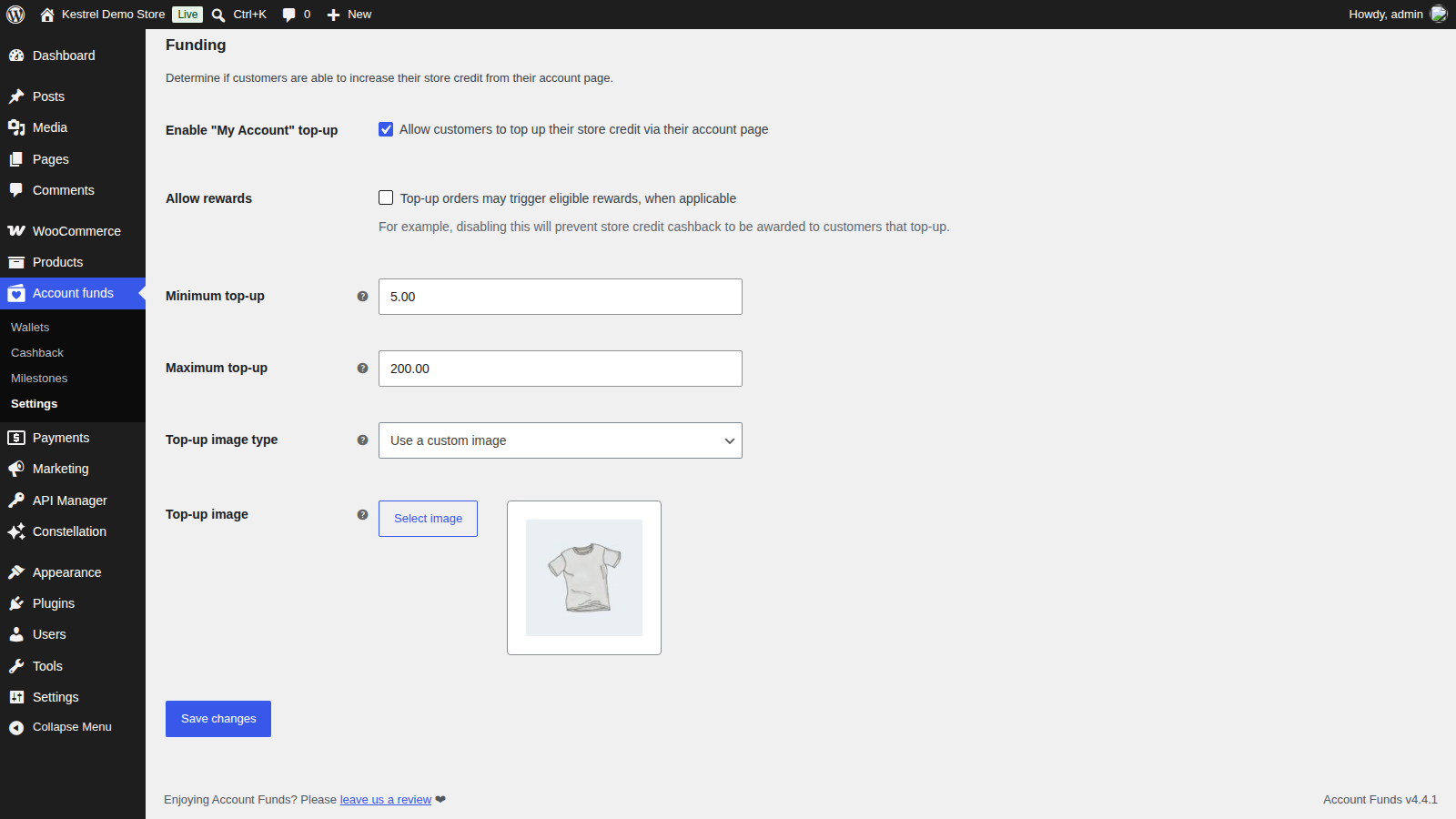
The Funding section on Account funds » Settings decides whether customers can add store credit to their own balance from My Account. The options after Enable "My Account" top-up appear once it’s turned on. For the customer’s side of a top-up, see selling store credit and top-ups.
Enable "My Account" top-up
Shows a top-up form on the customer’s My Account store credit tab, where they enter an amount and add it to the cart. Off by default. While it’s off, the tab lists your store credit products instead.
Allow rewards
Lets orders that contain a top-up earn rewards. Off by default. While it’s off, an order with a top-up in it doesn’t earn Order paid cashback, so customers can’t earn credit on the credit they buy.
Minimum top-up
The smallest amount a customer can top up at once. Default 1. Below it, the customer sees "The minimum amount that can be topped up is $X".
Maximum top-up
The largest amount a customer can top up at once. Blank by default, for no maximum. Above it, the customer sees "The maximum amount that can be topped up is $X". With a maximum set, a customer can have one top-up in the cart at a time: the tab shows a notice with a View Cart button in place of the form until they check out or remove it.
Top-up image type
The image shown for the top-up in the cart. Use default image (the default) shows Account Funds’ own image, and Use a custom image shows the one you choose under Top-up image.
Top-up image
Appears with Use a custom image. Click Select image to choose or upload an image from your media library.
Store credit payment method
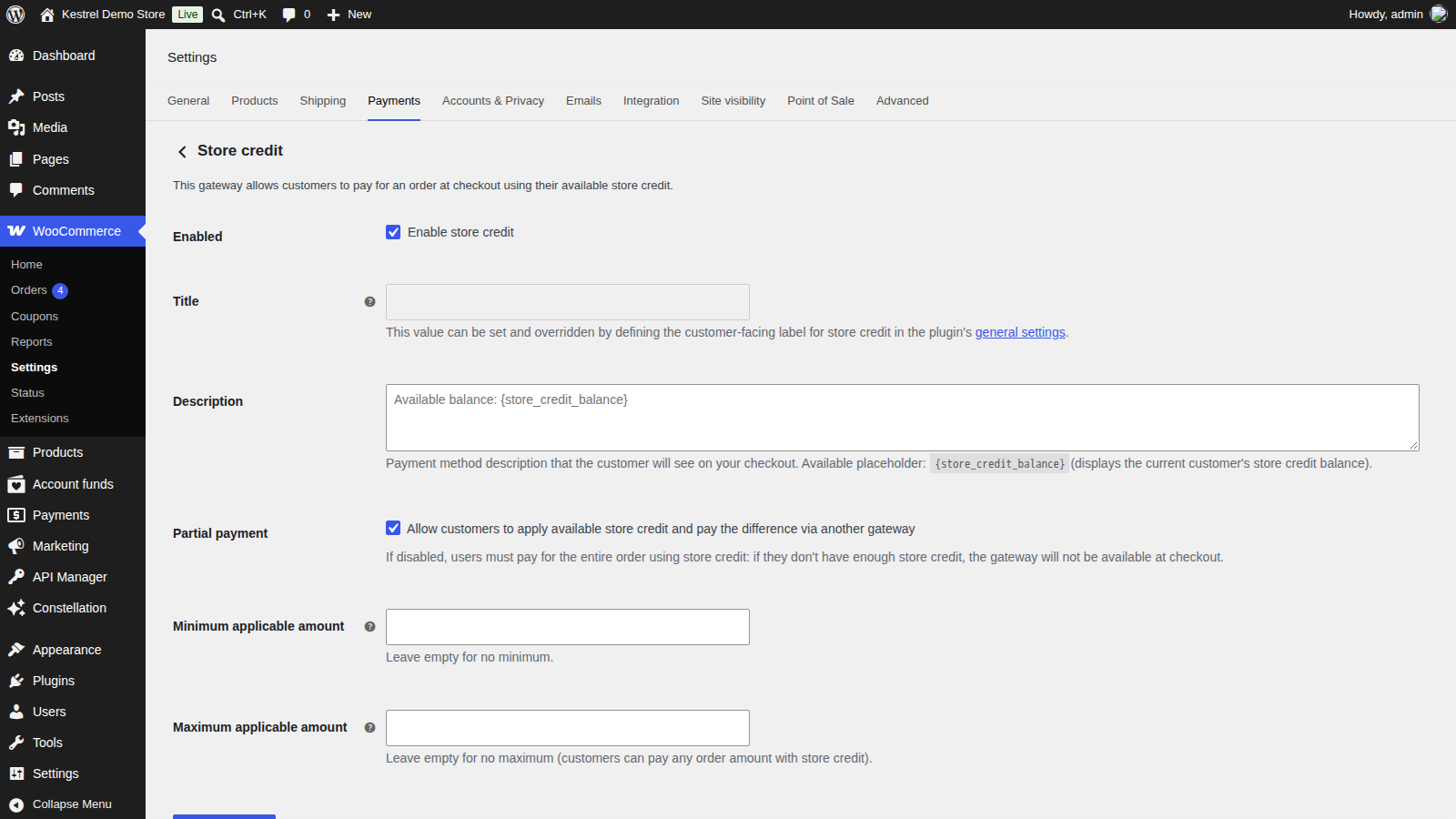
Go to WooCommerce » Settings » Payments and open Store credit. You can also click the gateway settings link at the top of Account funds » Settings. How customers pay with credit is explained in paying with store credit.
Enabled
Enable store credit turns the payment method on. On by default. While it’s off, customers can’t pay with store credit or apply it as a partial payment, but rewards keep awarding credit and store credit products still sell. Account Funds shows a notice on its screens: "The store credit gateway is not enabled. Customers will not be able to pay for orders using their store credit."
Title
Read-only. The payment method’s title is always your Plural label; change the label to change the title.
Description
The text customers see under the payment method at checkout. The {store_credit_balance} placeholder shows the customer’s available balance, as in the field’s suggested text, "Available balance: {store_credit_balance}".
Partial payment
Allow customers to apply available store credit and pay the difference via another gateway. On by default. Customers choose an amount of credit to apply in the cart or at checkout, and pay any remainder with another payment method. If the amount covers the whole order, checkout completes without another payment method.
With it off, customers can only use store credit to pay for the entire order, and the payment method is hidden at checkout when their balance doesn’t cover the total.
Minimum applicable amount
The least store credit a customer can apply to an order as a partial payment. Blank by default, for no minimum. When the customer’s balance or the order total is below the minimum, they can still apply up to that smaller amount, so small orders can be fully covered.
If a customer enters less than the minimum, the classic cart and checkout apply no credit, and the Cart and Checkout blocks show "The minimum amount of store credit that can be applied is $X."
Maximum applicable amount
The most store credit a customer can apply to an order as a partial payment. Blank by default, for no maximum. The apply field starts at the largest amount the customer can use: the lowest of their available balance, the order total and this maximum.
Store credit emails
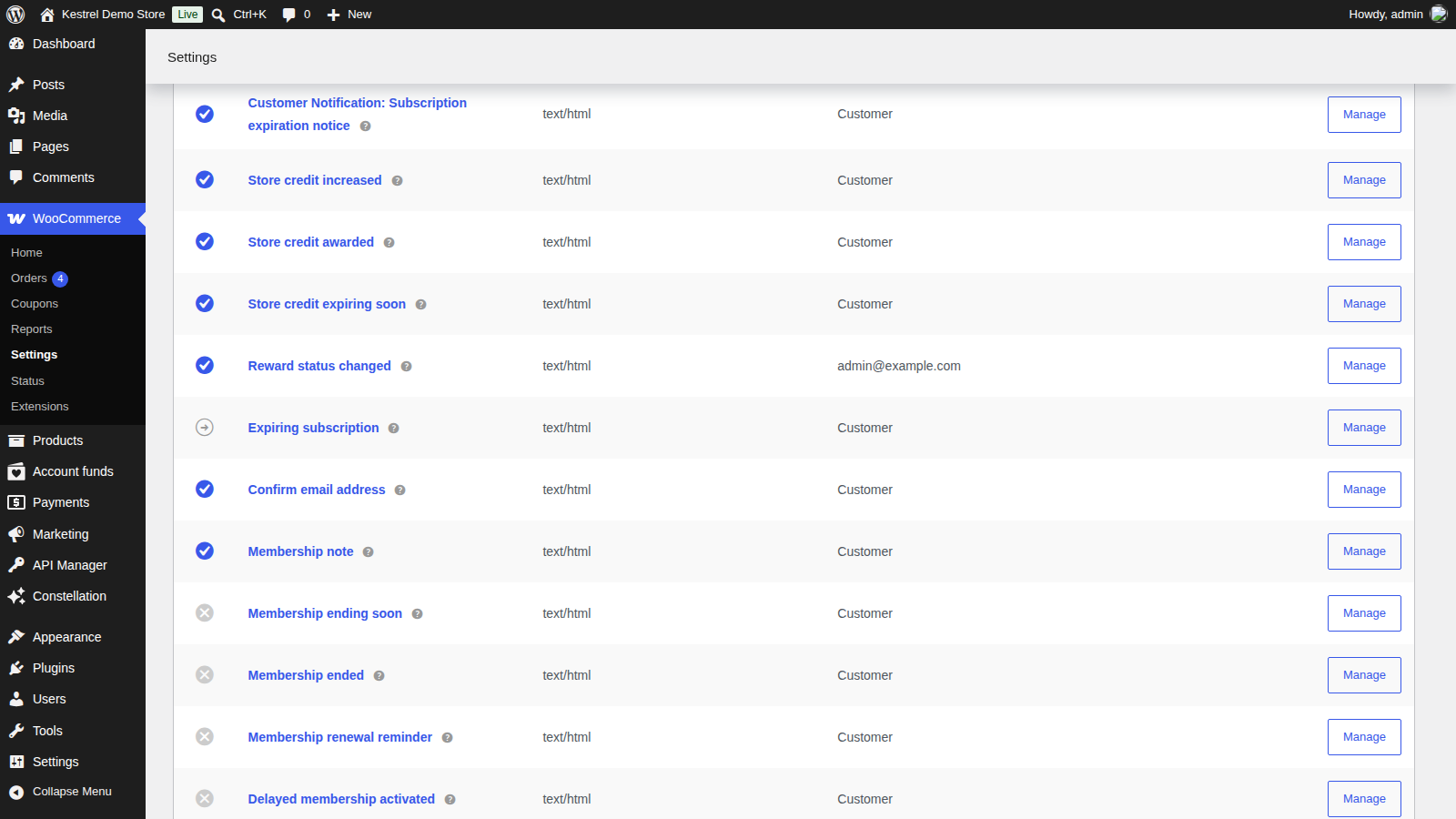
Account Funds adds four emails to WooCommerce » Settings » Emails, where you enable, edit and preview them like any WooCommerce email. Their titles use your labels, so they’re listed as "Store credit awarded" and so on with your label in place of "Store credit".
Store credit awarded
Sent to the customer when a cashback or milestone reward credits them. When one order or action earns several rewards, those using this email are combined into one email for the total, and a reward with its own override sends its own. Enabled by default on new installs; on sites updated from a version before 4.1 it starts off, so turn it on to send it.
Each reward can use this email as it is, skip it or override its subject, heading and additional content, from the reward’s Emails tab (see reward emails). The Message field sets the text above the balance. Placeholders: {site_title}, {amount}, {balance}, {customer_name}, {store_credit_singular} and {store_credit_plural}.
Store credit increased
Sent to the customer when you add credit by hand: by raising the Amount on their user profile, or with Notify customer ticked when you add a credit in Account funds » Wallets. Enabled by default. The Message field sets the text above the new balance, and the {funds_amount} placeholder shows it.
Store credit expiring soon
Sent to the customer once, a set number of days before awarded credit expires. Enabled by default. Placeholders: {site_title}, {expiring_total}, {balance}, {customer_name}, {store_credit_singular} and {store_credit_plural}.
Notification period (days)
How many days before the credit expires the email is sent. Default 7.
Reward status changed
Sent to you when a reward changes status on its own: when it’s depleted, or when a scheduled reward starts or ends. Off by default.
Recipient(s)
Who receives it, as a comma-separated list of email addresses. Blank by default, which sends it to your site’s admin email address.
Common issues
Checkout still says "Store credit" after I changed the label
The payment method’s title and the My Account tab follow the Plural label, not the singular one. Set the plural label and save. If your site is multilingual, also check the label’s translation in WPML or Polylang Pro.
The top-up form doesn’t show in My Account
Turn on Enable "My Account" top-up and save. While it’s off, the tab lists your store credit products instead. If a maximum is set and the customer already has a top-up in the cart, the tab shows a notice with View Cart in place of the form.
Customers can’t top up a small amount
They’re below Minimum top-up and see "The minimum amount that can be topped up is $X". Lower the minimum, or leave it at a small value such as 1.
A customer clicked Apply but no credit was applied
On the classic cart and checkout, an amount below Minimum applicable amount applies nothing. Ask the customer to enter at least the minimum. On the Cart and Checkout blocks, they see "The minimum amount of store credit that can be applied is $X." instead.
I don’t get Reward status changed emails
The email is off by default. Turn it on under WooCommerce » Settings » Emails, and check Recipient(s).
Customers aren’t told about expiring credit
Check that Store credit expiring soon is enabled. The email only goes out for credit that has an expiration date, which comes from the reward’s Expiration tab or the expiration you set on a manual credit.
Keep learning
- Get started with Account Funds
- Accept store credit at checkout with Account Funds (how full and partial payments work)
- Expire and schedule store credit rewards in Account Funds (reward emails and expiration)
- How to add custom CSS to your site