


Every cashback and milestone reward in Account Funds has an Expiration tab, which decides whether the store credit it awards expires, and an Emails tab, which decides how customers hear about it. A reward can also be scheduled to run between two dates. Expiration applies to each credit a customer receives; scheduling applies to the reward itself.
When you’d use this
- Make reward credit use-it-or-lose-it, such as 90 days after it’s awarded.
- Give holiday credit that must be spent by a set date.
- Run a cashback promotion for a weekend without switching it on and off by hand.
- Send a reward-specific email, or no email, when a reward pays out.
Set when awarded credit expires
Open the reward under Account funds » Cashback or Account funds » Milestones, and go to the Expiration tab.
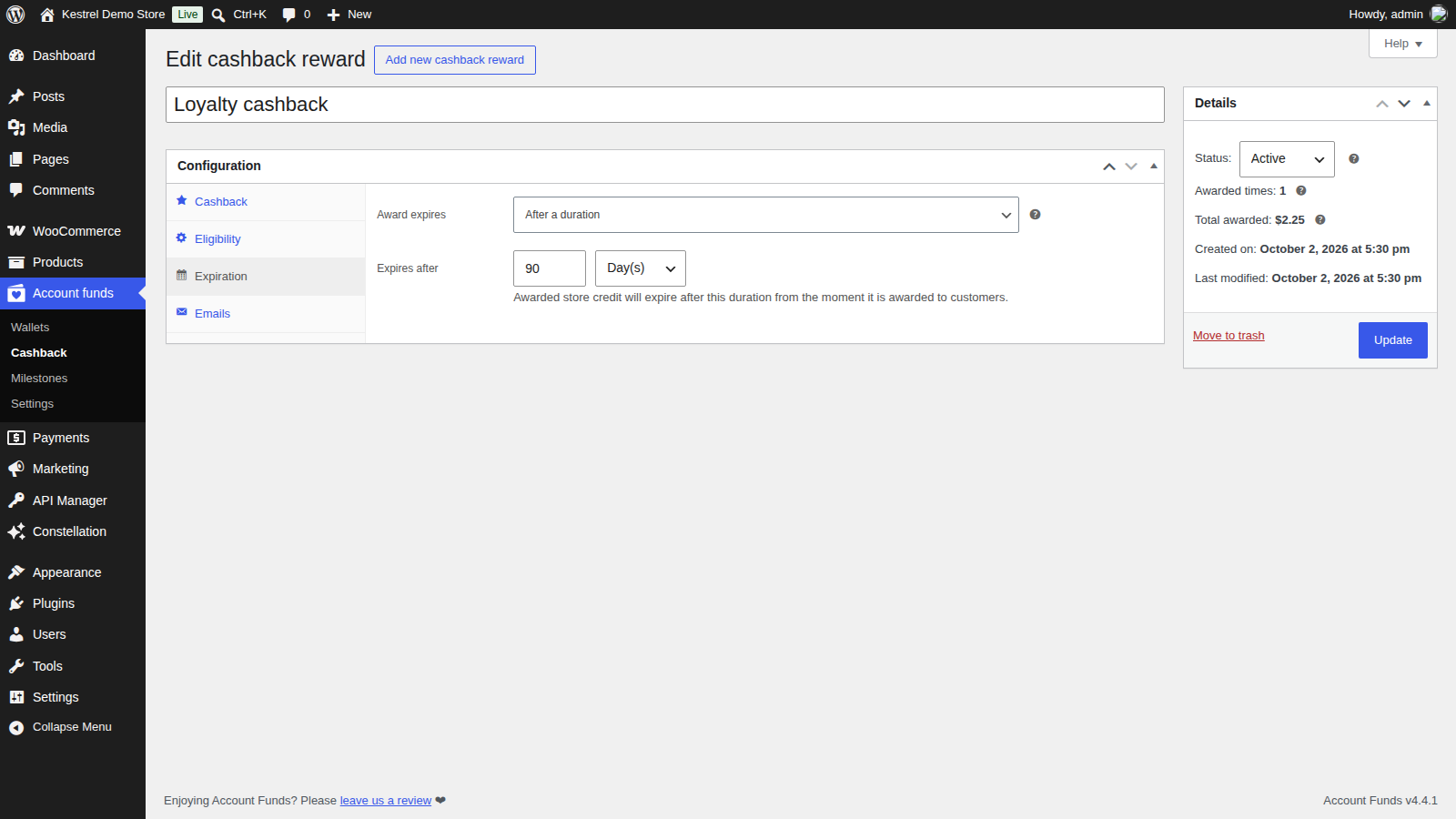
Award expires
Never expires (the default), After a duration or On a specific date.
Expires after
Appears with After a duration. A number and a unit, Day(s), Week(s), Month(s) or Year(s), counted from the moment each credit is awarded. With 90 days, credit awarded on March 1 expires on May 30, and credit awarded a week later expires a week later.
Expires on
Appears with On a specific date. All credit from the reward expires at the end of this date, whenever it was awarded. Once the date has passed, the reward can’t award credit that wouldn’t already be expired, so its status changes to Depleted.
Each credit gets its expiration date when it’s awarded. Changing a reward’s Expiration tab affects credit it awards from then on, not credit customers already have; to change that, edit the credit’s expiration in Account funds » Wallets.
How expiration works
- Only credit with an expiration date expires, and each credit expires on its own date. The rest of the customer’s balance isn’t affected.
- When a customer spends store credit, the credit that expires soonest is used first, so what expires is only what they haven’t spent.
- Once a day, Account Funds finds expired credit and records a Credit expired debit for the unspent part. In Account funds » Wallets, the original credit shows the Expired status.
- When you filter Account funds » Wallets to one customer, the Expiring in 30 days card shows how much of their balance is about to expire.
- Credits you add by hand can have an expiration date too, set in the Expiration field when you add the transaction.
If you’ve enabled Store credit expiring soon under WooCommerce » Settings » Emails, customers get one reminder before credit expires, 7 days ahead by default. Its Notification period (days) is covered in Account Funds settings.
Schedule a reward
In the reward’s Details box, set Status: to Scheduled. Two fields appear:
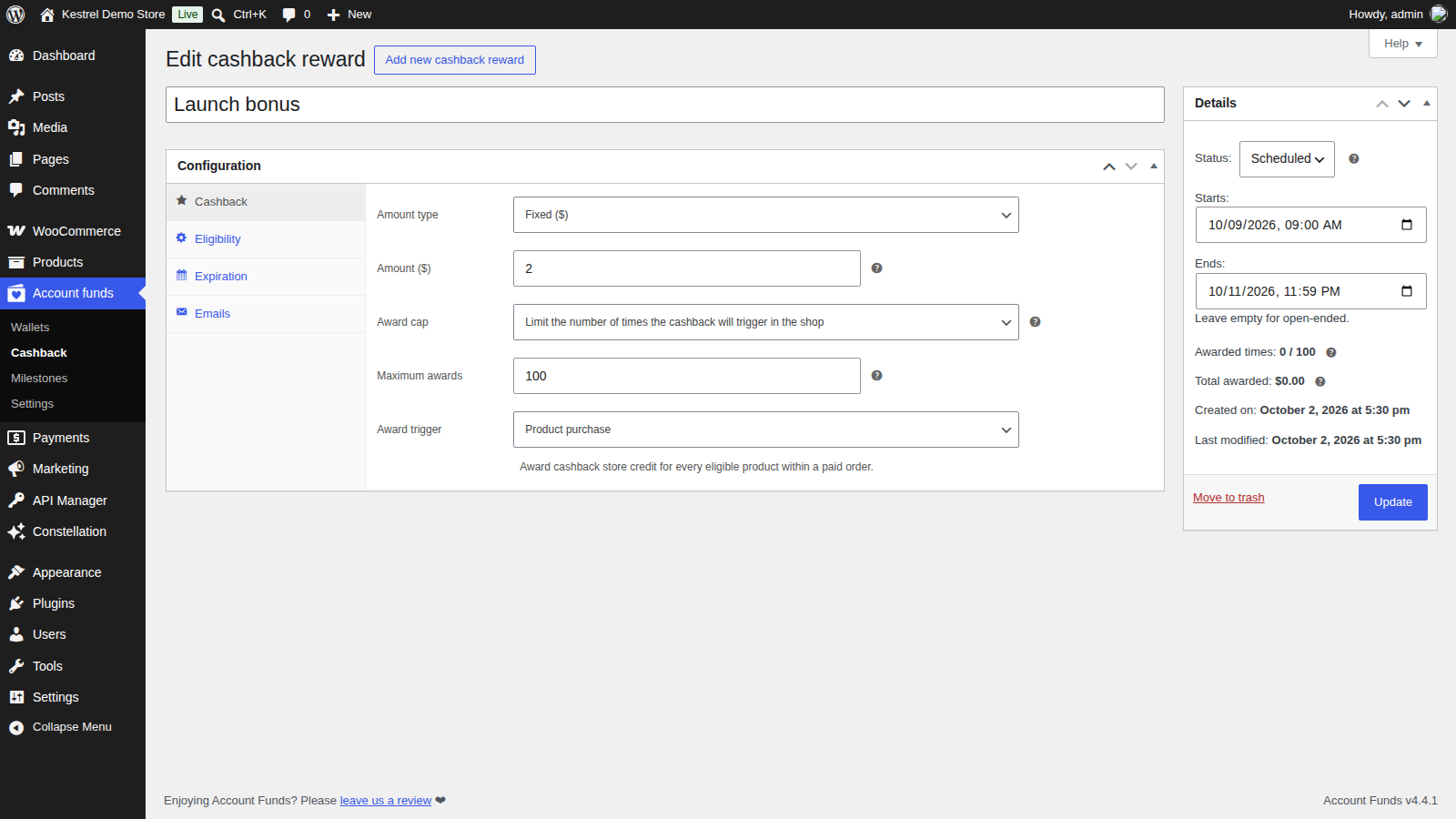
- Starts: the date and time the reward becomes Active.
- Ends: the date and time it becomes Inactive.
Either can be left empty for an open-ended window ("Leave empty for open-ended."). Click Update to save.
Account Funds checks scheduled rewards every hour, so a reward can start or end up to an hour after the time you set. Until it starts, the reward shows Scheduled in the rewards list and awards nothing. If its end time has already passed when it’s checked, it goes straight to Inactive.
Scheduling decides when a reward can award credit, and the Expiration tab decides how long that credit lasts. A weekend promotion might run from Friday to Sunday and award credit that expires 30 days later.
Choose the reward emails
The Emails tab sets how this reward uses the Store credit awarded email.

Email behavior
- Enabled (use global defaults): the default. The customer gets the Store credit awarded email as you’ve set it up under WooCommerce » Settings » Emails, combined with any other rewards they earned at the same time.
- Disabled: this reward sends no email.
- Override (custom email content): this reward sends its own email, with the subject, heading and additional content below.
Email subject
Appears with Override (custom email content). Replaces the email’s subject for this reward. Leave blank to use the default.
Email heading
Appears with Override (custom email content). Replaces the email’s heading for this reward. Leave blank to use the default.
Additional content
Appears with Override (custom email content). Replaces the text shown below the email’s message for this reward. Leave blank to use the default.
The tab lists the placeholders you can use. If the Store credit awarded email is turned off for the whole store, the tab shows "The store credit awarded email is currently disabled. Enable it in the WooCommerce email settings to configure notifications behavior for this reward." For the email’s own settings, see Store credit awarded.
When a reward is depleted
A reward’s status changes to Depleted when it reaches its Maximum awards, or when its Expires on date has passed. A depleted reward awards nothing more, and if you’ve enabled the Reward status changed email, you’re told when it happens.
To bring a reward back, fix what depleted it: raise Maximum awards or choose to keep awarding indefinitely, or pick a later Expires on date or another Award expires option. Click Update, and the reward comes back as Inactive. Then set Status: to Active and update it again.
Common issues
Credit didn’t expire on its date
Expired credit is processed once a day, so it can take up to a day to show. Account Funds runs the check as a scheduled action. If it’s overdue, look under WooCommerce » Status » Scheduled Actions for pending actions in the kestrel_store_credit group, and make sure your site’s scheduled actions are running.
A scheduled reward didn’t start on time
Scheduled rewards are checked hourly, so allow up to an hour. If it still shows Scheduled, check its Starts: time and the same scheduled actions as above.
A reward with an expiration date shows Depleted
Its Expires on date has passed. Choose a later date or another Award expires option, then reactivate it as described in When a reward is depleted.
I changed a reward’s expiration, but customers’ credit didn’t change
Each credit keeps the expiration it was given when it was awarded. Edit individual credits in Account funds » Wallets to change them.
A customer didn’t get the expiring soon email
Check that Store credit expiring soon is enabled and that the credit has an expiration date. The email goes out once, Notification period (days) before the credit expires, so credit that expires sooner than that when it’s awarded gets no reminder.
Customers don’t get an email for one reward
Check the reward’s Email behavior. If it’s Enabled (use global defaults), check that Store credit awarded is enabled under WooCommerce » Settings » Emails.
Keep learning
- Set up cashback rewards in Account Funds
- Reward signups and reviews in Account Funds
- Account Funds settings (the four store credit emails)
- Manage customer balances in Account Funds (editing a credit’s expiration)