


With saved cards turned on, logged-in customers can store a card in Clover and pay with it next time, and WooCommerce Subscriptions and WooCommerce Pre-Orders can charge it automatically. Card details are stored by Clover, not in your store’s database. Clover allows one saved card per customer, and this page explains how that limit works at checkout and in the customer’s account.
When you’d use this
- Let returning customers check out without entering their card again.
- Charge subscription renewals with WooCommerce Subscriptions.
- Take payment for pre-orders when they’re released, with WooCommerce Pre-Orders.
Turn on saved cards
Go to WooCommerce » Settings » Payments » Clover Credit Card, turn on Tokenization and click Save changes.
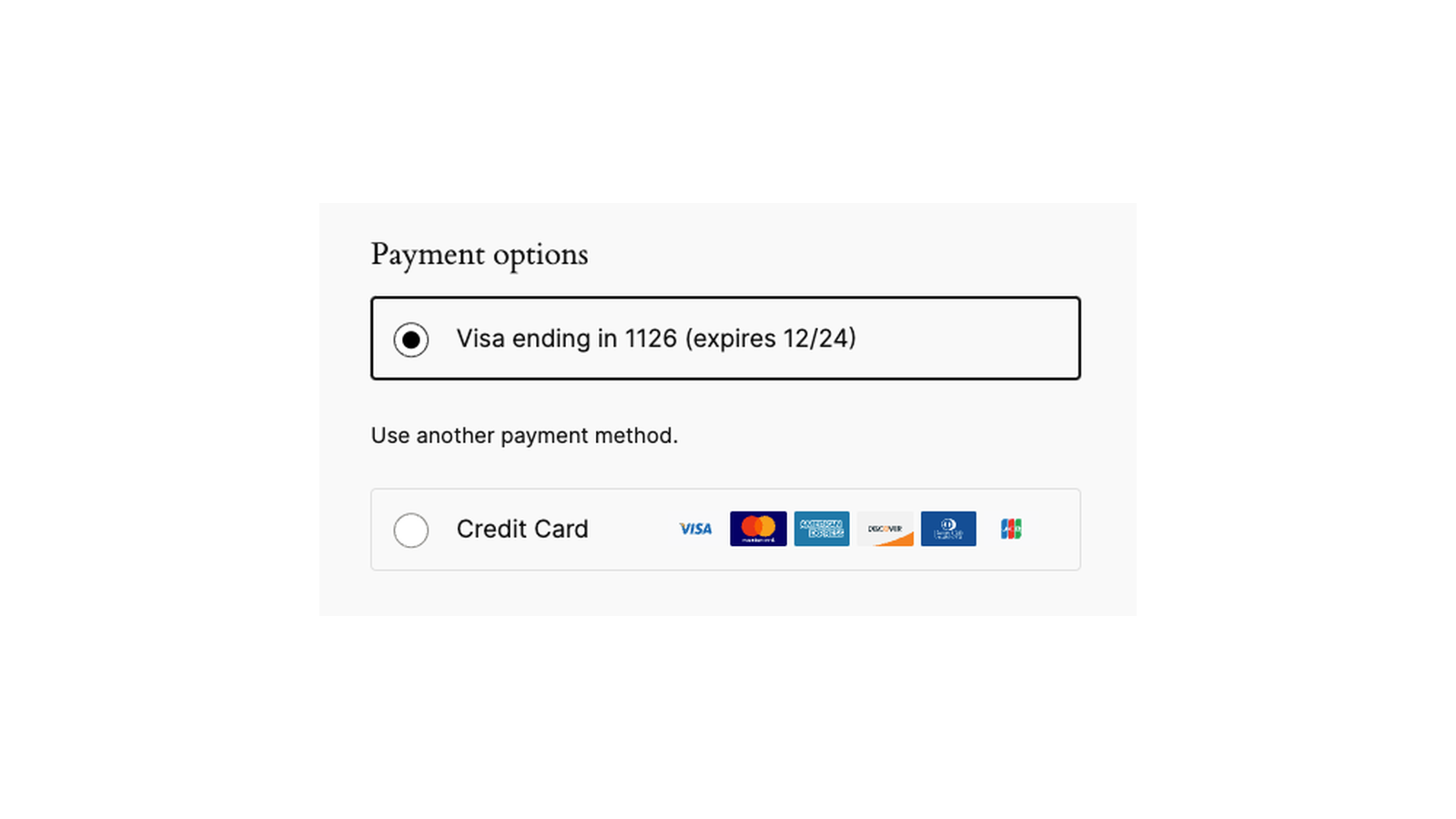
Logged-in customers then see Securely Save to Account under the card form at checkout, and can add a card under My account » Payment methods. When they save a card, Clover may email them to confirm it.

If WooCommerce Subscriptions or WooCommerce Pre-Orders is active and Tokenization is off, the admin shows "Clover Credit Card is inactive for subscription transactions. Please enable tokenization to activate Clover Credit Card for Subscriptions." (or the same message for pre-order transactions). Orders that need a saved card save it automatically, without the checkbox.
The one saved card limit
Each customer can save one Clover card. Once they have one:
- At checkout they can pay with the saved card, or choose Use a new card and pay without saving it. The Securely Save to Account checkbox is grayed out, with the message "You can only store one saved payment method in your account. To use a different payment method, please delete the existing payment method from your account."
- My account » Payment methods » Add payment method shows the same message instead of a card form.
- For a cart that contains a subscription, they have to pay with the saved card, because a subscription needs a saved card. The classic checkout shows the message above instead of a new card form. The checkout block shows "Please use your stored card to pay. To use a different payment method, please delete the existing card from your account."
To use a different card, the customer deletes the saved card under My account » Payment methods, then adds the new one.
Change the card on a subscription
- The customer deletes the saved card under My account » Payment methods. If a subscription uses it, they see "Deleting this payment method will disable automated billing on your subscription(s) until you add a new payment method." and click Confirm delete.
- They add the new card under Add payment method, or save it during their next checkout.
- A notice reads "You have a subscription (#[number]) that is not linked to any payment method! Link your subscription to this payment method." Following the link, or the Link to #[number] link next to the card in Payment methods, opens the subscription’s change payment method page, where they choose the new card.
Until they link the subscription, its renewals can’t be charged. A renewal without a card fails with "Subscription Renewal: payment token is missing/invalid." Customers can also change the payment method of a subscription that isn’t active.
Subscriptions and Pre-Orders
With Tokenization on, Clover for WooCommerce supports WooCommerce Subscriptions (automatic renewals and payment method changes) and WooCommerce Pre-Orders (charging when the pre-order is released). Renewals are charged to the saved card without the customer present.
Subscriptions moved from the retired First Data Payeezy gateways keep renewing through Clover after a saved card migration. See Switch from First Data to Clover.
Manage a customer’s saved card
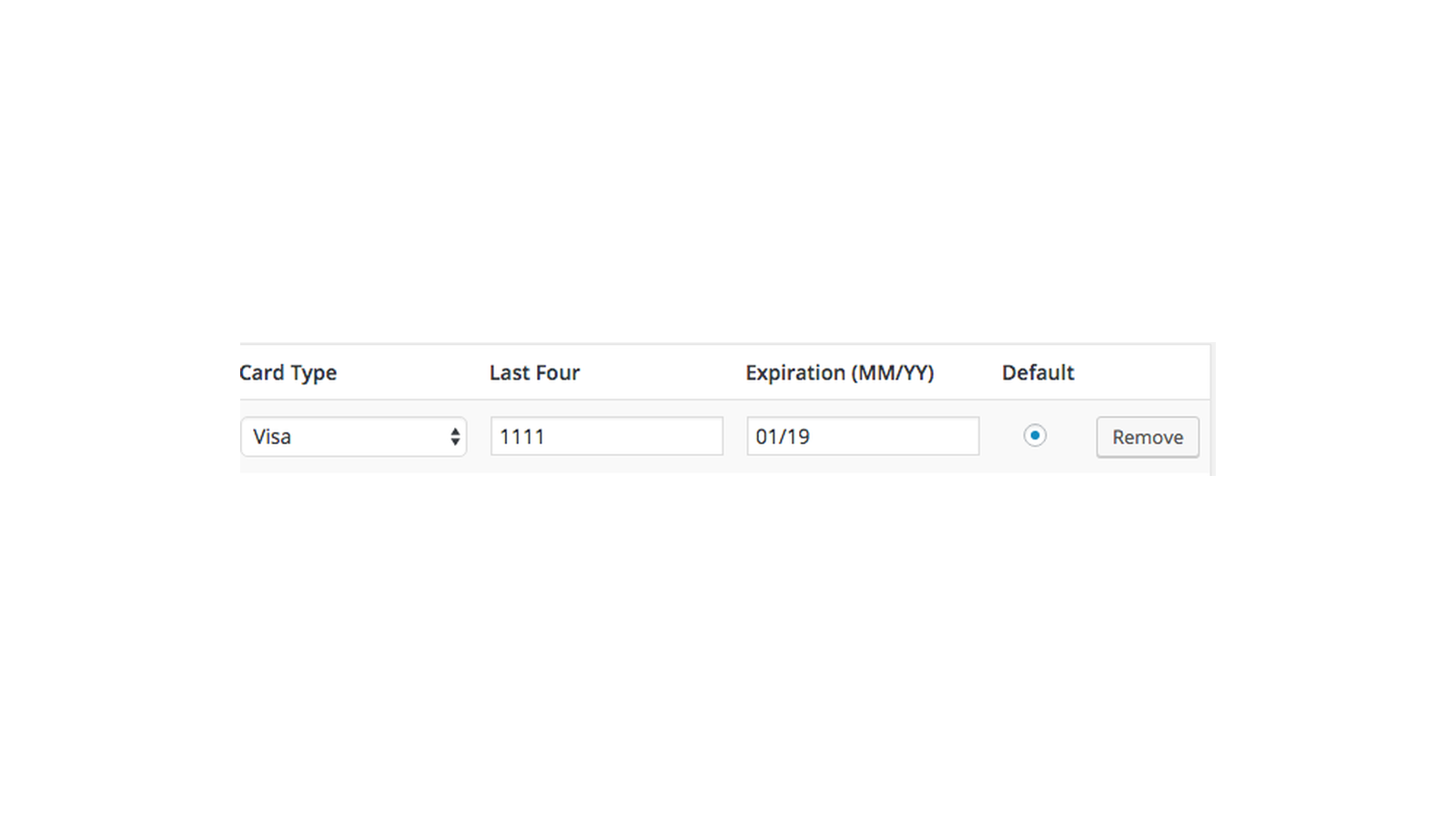
Go to Users, edit the customer and scroll to Clover by First Data Payment Tokens. It lists their saved card with its token ID, card type and expiration, and Remove deletes it. Removing a card here or in My account also deletes it from the customer’s record in Clover. (Cards migrated from First Data have no Clover record, so removing one only removes it from your store.)
Saved cards belong to an environment, so cards saved while testing in Sandbox don’t show or work in Production.
Common issues
Customers can’t save a second card
That’s Clover’s one card limit. They delete the saved card under My account » Payment methods first, then save the new one.
A subscription renewal failed after the customer changed cards
The customer deleted the old card but hasn’t linked the subscription to the new one. Ask them to use the Link to #[number] link under My account » Payment methods, or to change the payment method from the subscription in My account. Then retry the renewal order.
There’s no Securely Save to Account checkbox
Tokenization is off, the customer isn’t logged in, or they already have a saved card (the checkbox is then grayed out).
Keep learning
- Clover settings (Tokenization)
- Switch from First Data to Clover (migrating saved cards)
- Troubleshoot Clover