


Every Clover for WooCommerce setting lives under WooCommerce » Settings » Payments » Clover Credit Card. This page defines each one in the order it appears on screen. For the steps to connect your Clover account, see Get started with Clover.
General
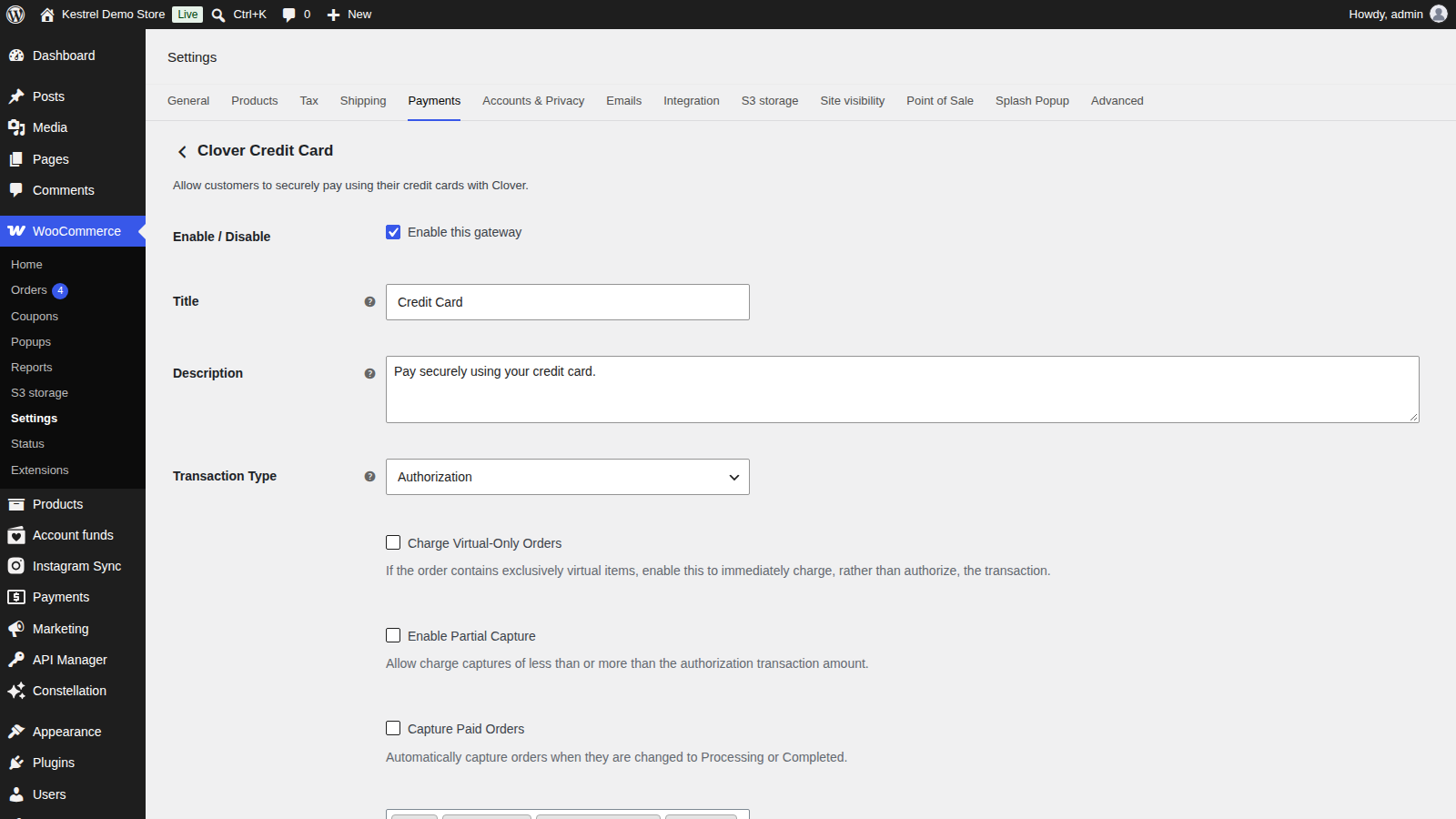
Enable / Disable
Enable this gateway offers Clover at checkout. Off by default. Clover only shows at checkout once the credentials for the selected Environment are entered.
Title
The payment method name customers see at checkout and in their order details. Default "Credit Card".
Description
The text shown under the title at checkout. Default "Pay securely using your credit card."
Transactions
- Transaction Type: what happens when a customer pays. See Capture and refund Clover payments.
- Charge (the default) takes the payment when the customer places the order.
- Authorization only holds the order total on the card. The order goes to On hold until you capture the payment from the order screen.
- Charge Virtual-Only Orders: charges orders that contain only virtual products straight away, instead of authorizing them. Use it when customers should get downloads or access as soon as they pay. Off by default. Only shown when Transaction Type is Authorization.
- Enable Partial Capture: lets you enter the amount to capture on the order screen, instead of capturing the order total. You can capture up to the amount you authorized, not more. The setting’s description reads "Allow charge captures of less than or equal to the authorization transaction amount." Off by default. Only shown when Transaction Type is Authorization.
- Capture Paid Orders: captures an authorized payment automatically when you change the order to Processing or Completed. Off by default. Only shown when Transaction Type is Authorization.
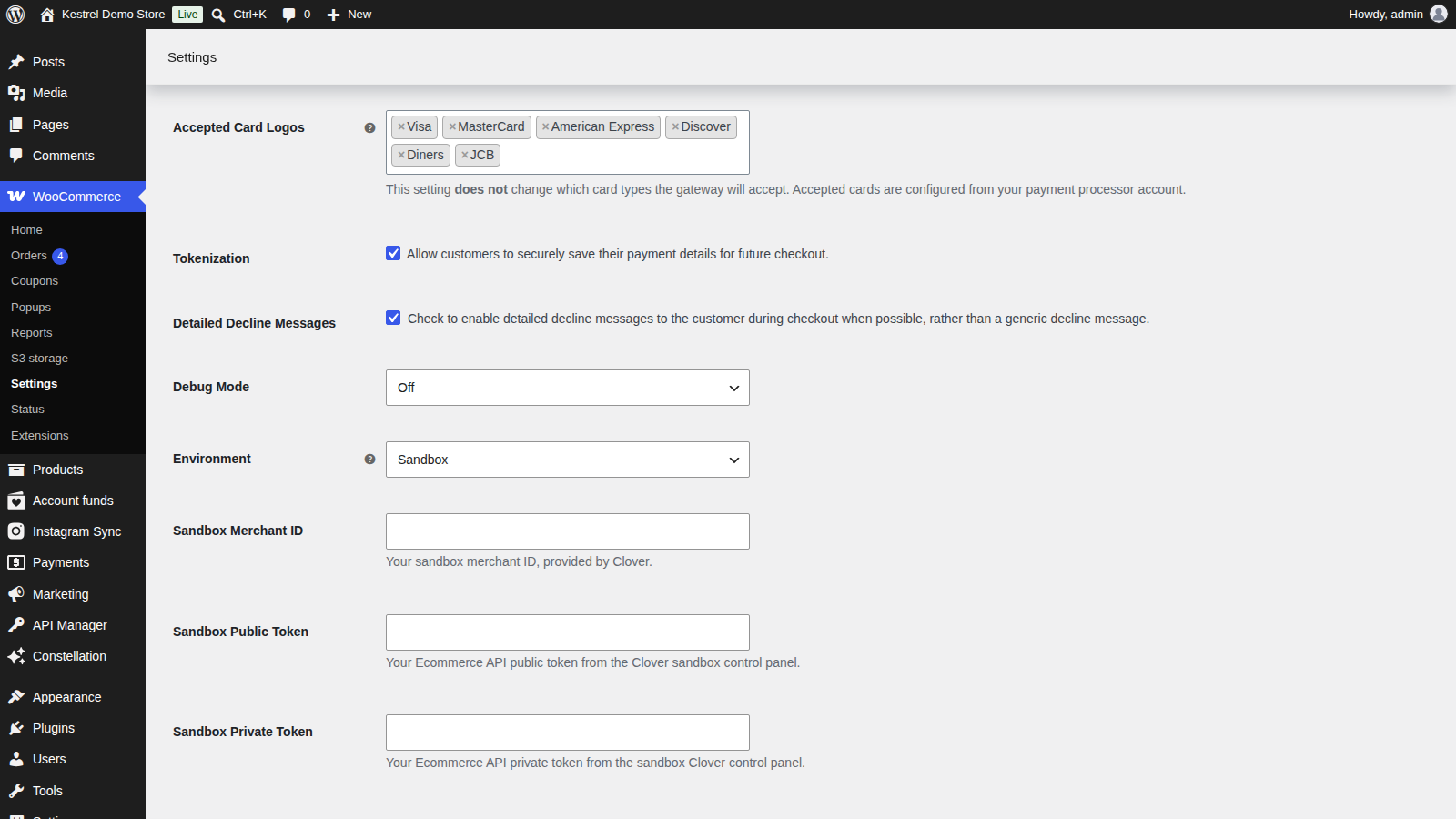
- Accepted Card Logos: the card logos shown at checkout (Visa, MasterCard, American Express, Discover, Diners and JCB by default). This is display only; the cards you can accept are set by your Clover account.
Saved cards and messages
Tokenization
Allow customers to securely save their payment details for future checkout. Off by default. Turn it on to offer Securely Save to Account at checkout and saved cards under My account » Payment methods. WooCommerce Subscriptions and WooCommerce Pre-Orders need it. Cards are saved in Clover, not in your store. See Saved cards and subscriptions with Clover.
Detailed Decline Messages
Shows customers the reason Clover gives for a declined payment, when Clover gives one, instead of "An error occurred, please try again or try an alternate form of payment." On by default.
Debugging and environment
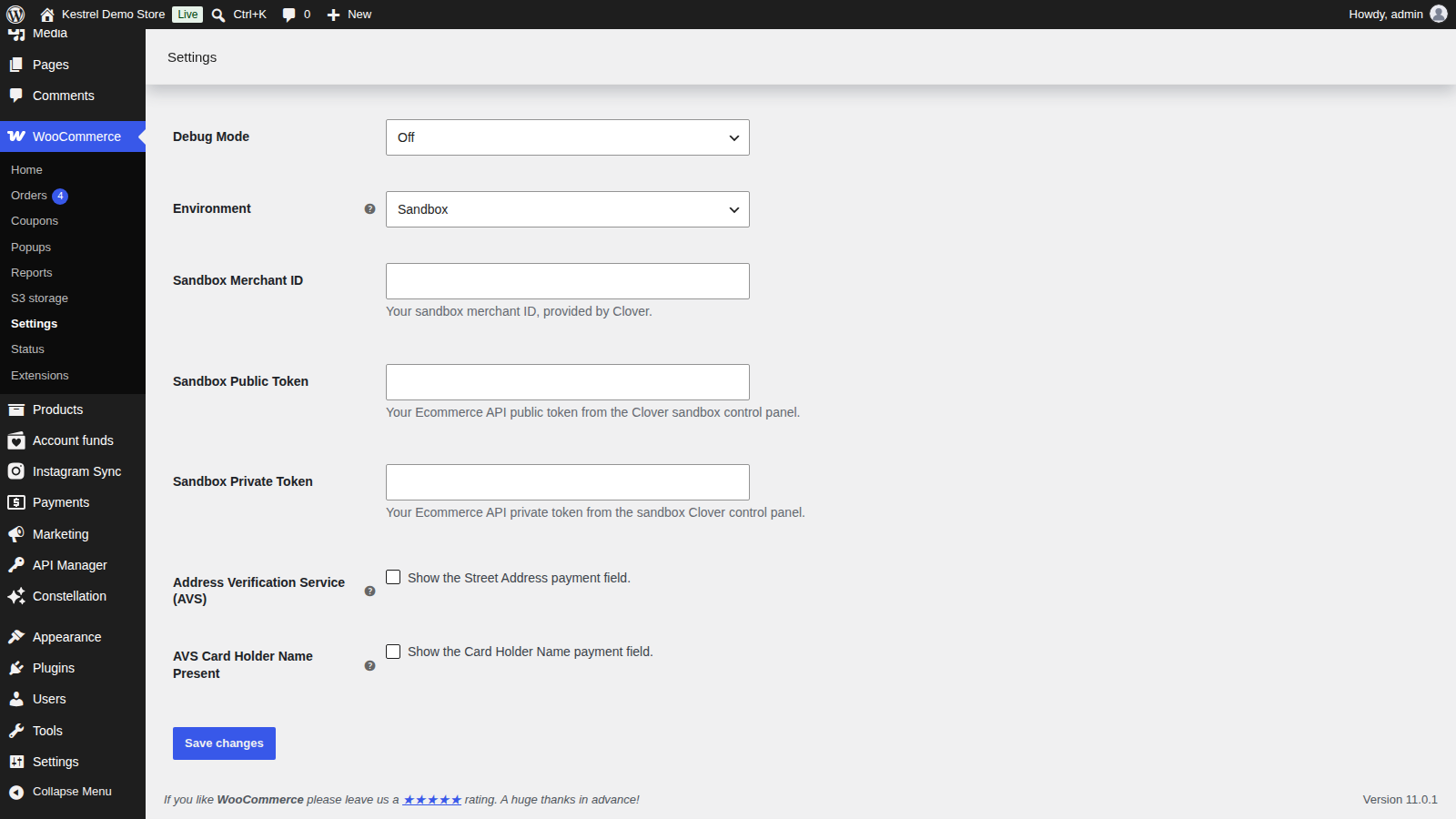
Debug Mode
- Off (the default).
- Show on Checkout Page: shows detailed errors and the Clover requests and responses on the checkout page. Use it only while testing, since every visitor sees it.
- Save to Log: writes them to the log under WooCommerce » Status » Logs (source
first_data_clover_credit_card). - Both: does both.
Card numbers and other sensitive data are removed from what’s shown and logged. While Debug Mode is on in production, the admin shows "Heads up! Clover Credit Card is currently configured to log transaction data for debugging purposes." Turn it off once you’ve solved the problem.
Environment
Production (the default) takes real payments. Sandbox sends payments to Clover’s sandbox, uses the sandbox credentials below, and shows test card numbers at checkout. Saved card migration from First Data only runs in Production.
Connection
Each environment has its own three fields, and only the selected environment’s fields show. Clover for WooCommerce can’t take payments until all three are filled in.
Merchant ID
Your Clover merchant ID, under Account & Setup » Merchants in the Clover dashboard. Shown when Environment is Production.
Sandbox Merchant ID
Your merchant ID from your Clover sandbox account. Shown when Environment is Sandbox.
Public Token
The Public token from Account & Setup » Ecommerce API Tokens in the Clover dashboard (token type Hosted iFrame + API/SDK). Shown when Environment is Production.
Sandbox Public Token
The Public token from your Clover sandbox dashboard. Shown when Environment is Sandbox.
Private Token
The Private token from the same Clover screen. Shown when Environment is Production. If payments fail with "Authentication failed. Your API credentials (Private Token) could not be verified.", this token is wrong for the selected environment.
Sandbox Private Token
The Private token from your Clover sandbox dashboard. Shown when Environment is Sandbox.
Fraud fields
These two settings come last on the screen. Each adds a field to the card form; the fraud rules that use them are set in your Clover dashboard. See Protect your Clover checkout from card testing and fraud.
Address Verification Service (AVS)
Show the Street Address payment field. Adds a required Street Address field to the card form, so Clover can check it with the card issuer. Off by default. Clover’s address checks also need the Address Verification System fraud tool turned on in your Clover account. The form always asks for a Postal Code, whatever this setting.
AVS Card Holder Name Present
Show the Card Holder Name payment field. Adds a required Card Holder Name field to the card form. Off by default. Turn it on if your Clover address verification rules need the card holder’s name.
Card security code
There’s no setting for the card security code. Clover always asks for it when a customer enters a new card, and never asks for it when they pay with a saved card.