


360° Image turns a product’s gallery photos into a rotating view that shoppers can drag or swipe to spin the product. You tick one box on the product, and its product page shows the rotating view in place of the usual image gallery.

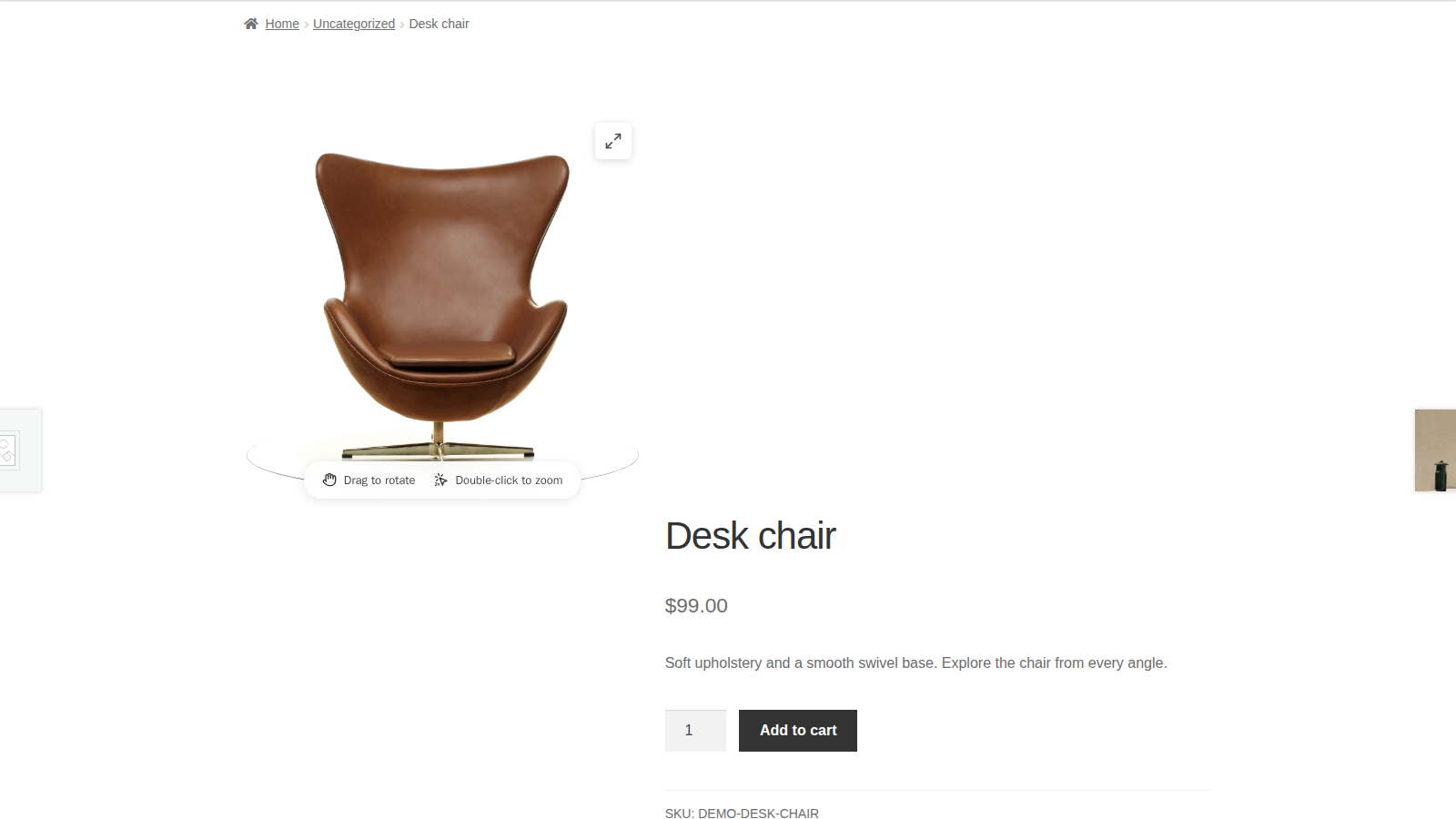
360° Image plays back photos you’ve already taken; it doesn’t create a 3D model or take the photos for you. Every frame comes from the product’s gallery, so the rotation is only as smooth as the set of photos you upload.
When you’d use this
- Let shoppers turn a product to see every side, such as shoes, furniture or a piece of jewelry.
- Show a product from all angles without filling the page with separate gallery images.
- Add a rotating view to a product description, a landing page or a blog post, next to the normal gallery.
Requirements
- WordPress 6.3 or later, WooCommerce 8.0 or later, and PHP 7.4 or later.
- Compatible with WooCommerce’s checkout block and High-Performance Order Storage.
- A set of photos of the product taken from evenly spaced angles, added to the product gallery.
- The rotator replaces the classic product image gallery and WooCommerce’s Product Image Gallery block on single product pages.
Install and activate
How you get updates depends on where you bought 360° Image:
- Bought on kestrelwp.com: download the plugin from the Licensed downloads tab of your kestrelwp.com account and install it. Then go to Settings » 360° Image for WooCommerce activation and activate the key from your License keys tab to receive updates. See using sites against your activation limit for how activations count.
- Bought on WooCommerce.com: install the plugin from your WooCommerce.com account. Updates come through your WooCommerce.com connection, with no license key to enter.
For upload, FTP and update steps, follow how to install and update WooCommerce extensions.
Set up a 360° view
1. Turn it on for the product
Go to Products and edit the product. In the WC 360 Image Settings box in the side column, tick Replace Image with 360 Image.
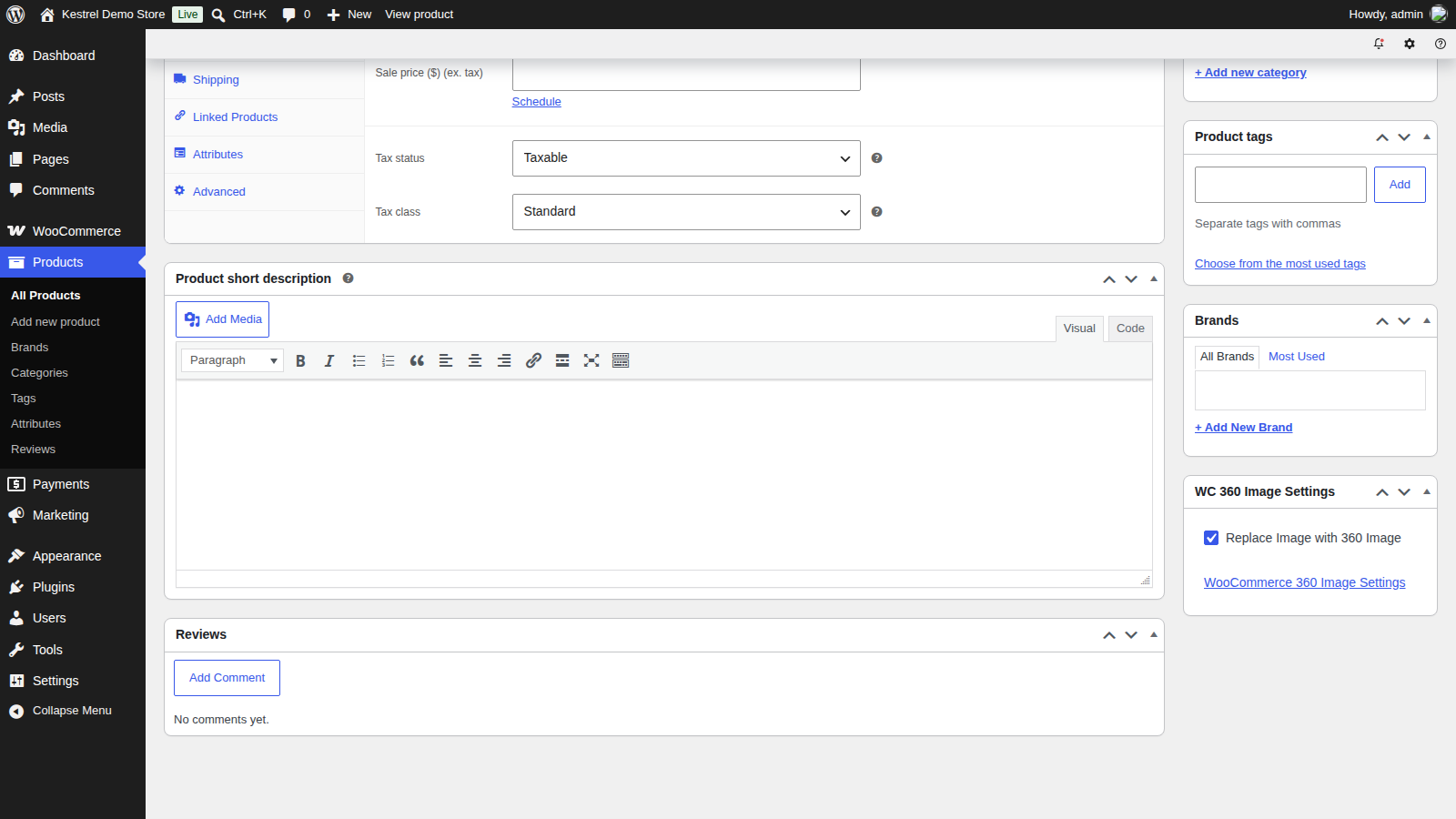
2. Add the photos to the product gallery
In the Product gallery box, click Add product gallery images and select your photos in rotation order. The rotator plays the gallery images in the order the gallery shows them, so drag them into place if they upload out of order. Naming the files in sequence (chair-01.jpg, chair-02.jpg and so on) keeps them in order as they upload.
The product image (the featured image) isn’t part of the rotation. Keep it as a clear photo of the product, because your shop, category and search pages, and links shared on social media, still use it.

3. Update the product and check it
Click Update, then open the product page. Drag across the image, or swipe on a phone, and the product should turn. If you see the normal gallery instead, check that the product has gallery images and that the box is ticked.
Settings
Go to WooCommerce » Settings » Products » 360 Images. These settings apply to every rotating view on your store.
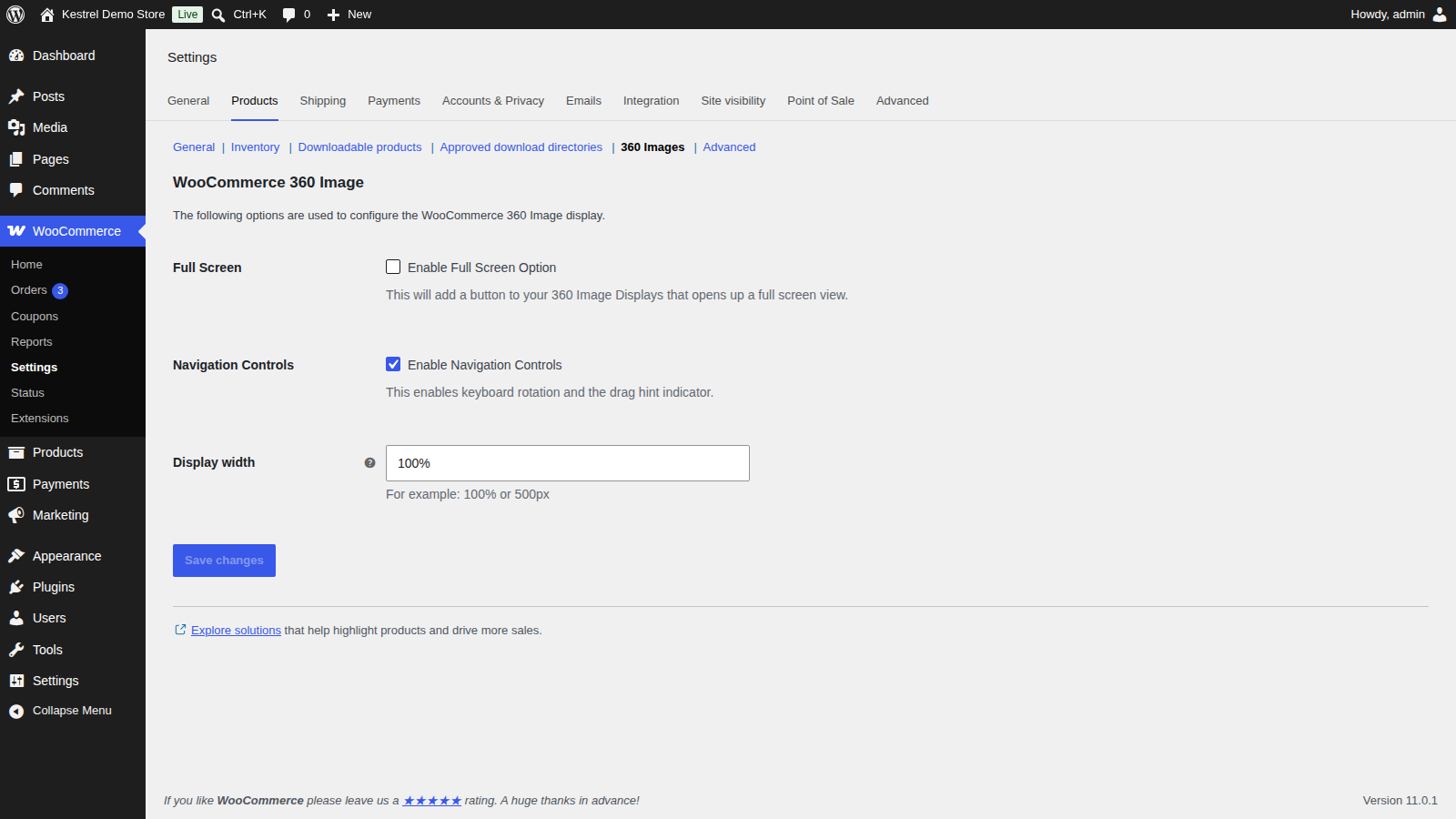
Full Screen
Tick Enable Full Screen Option to add a button that opens the rotating view full screen. Off by default.
Navigation Controls
Tick Enable Navigation Controls to let shoppers turn the product with their keyboard’s arrow keys, and to show a small hint on the image that it can be dragged. On by default.
Display width
How wide the rotating view is on the product page. Enter a percentage, such as 100%, or a fixed width with its unit, such as 500px. Always include the unit: a number on its own, or anything that isn’t a width, doesn’t apply. Default 100%, which fills the space your theme gives the product images.
Show the rotation elsewhere with the shortcode
The [wc360] shortcode shows a product’s rotating view anywhere shortcodes work: a product description, a page or a post. You don’t need to tick Replace Image with 360 Image for it, so you can keep the normal gallery and add the rotation further down the product page. You can add several to one page.
- id: the product to show. Leave it out in that product’s own description, and it uses the current product. Elsewhere, add the product’s ID, as in
[wc360 id="123"]. - width: the viewer’s width. A number on its own is in pixels (
[wc360 width="400"]); you can also use any CSS width, such as100%. Without it, the viewer is up to 600px wide and centered.
The shortcode also accepts height, but ignores it: the viewer keeps the shape of your photos.
If the shortcode shows "Note: This is not a valid product ID!", the id doesn’t belong to a product. "Note: There are no gallery images for this product!" means the product has no gallery photos yet.
Take photos that rotate well
- Take 12 to 36 photos at evenly spaced angles all the way around the product. A turntable lets you rotate the product without moving the camera.
- Keep the lighting, background and framing the same in every shot.
- Export the photos at the size you’ll show them, unless you rely on full screen view. A slightly lower export quality is hard to see in a moving rotation and makes each file much smaller.
- Use an image optimization plugin or a CDN if the product page loads slowly. 360° Image already loads WordPress’s large image size for each frame, not your original upload, and loads frames as they’re needed.
Upgrade from version 1.x
Version 2.0.0 replaced the rotation engine, so dragging works the same way in current browsers, and it added swiping and keyboard turning. If any product already had the rotation turned on when you updated, your store keeps the 1.x look so product pages don’t shift: Display width is set to 41% and frames load at full size. Change Display width to 100% for the new full-width default.
Some developer filters from 1.x no longer work. See the 360° Image developer reference.
Common issues
The product page still shows the normal gallery
The rotation only replaces the gallery when all of these are true:
- Replace Image with 360 Image is ticked on that product, and you clicked Update.
- The product has at least one image in its product gallery. The product image alone isn’t enough.
- You’re on the product’s own page. Shop, category and search pages always show the product image.
If all three are true, your theme may build the product images in its own way. Switch to a default WordPress theme on a staging site to check, and use the [wc360] shortcode in the product description if your theme can’t show the rotation in place of its gallery.
The rotation is in the wrong order
The frames follow the order of the product gallery. Drag the gallery images into rotation order in the Product gallery box and update the product.
The arrow keys don’t turn the product
Tick Enable Navigation Controls under WooCommerce » Settings » Products » 360 Images.
The width I set doesn’t change anything
Include a unit, such as 500px or 80%. If the view still doesn’t reach full width, your theme limits the space around the product images; set Display width to 100% and check your theme’s product page layout.
The shortcode viewer is small
Without a width, the shortcode viewer is at most 600px wide. Add one, such as [wc360 width="100%"].
The sale badge doesn’t show over the image
The rotating view sits above the page’s other product image elements. Add this to your site’s custom CSS (see how to add custom CSS to your site):
span.onsale { z-index: 999 !important; }Variations don’t have their own rotation
The rotation uses the product’s shared gallery, so every variation shows the same frames.
Keep learning
- 360° Image developer reference (auto-rotate, drag and frame size filters)
- How to install and update WooCommerce extensions
- How to add custom CSS to your site