


Product Finder adds an advanced search form to your WooCommerce store. Shoppers build a search from rows such as "Color is Blue" or "Product Category is not Clearance", add keywords and a price range, and get the matching products on a results page.
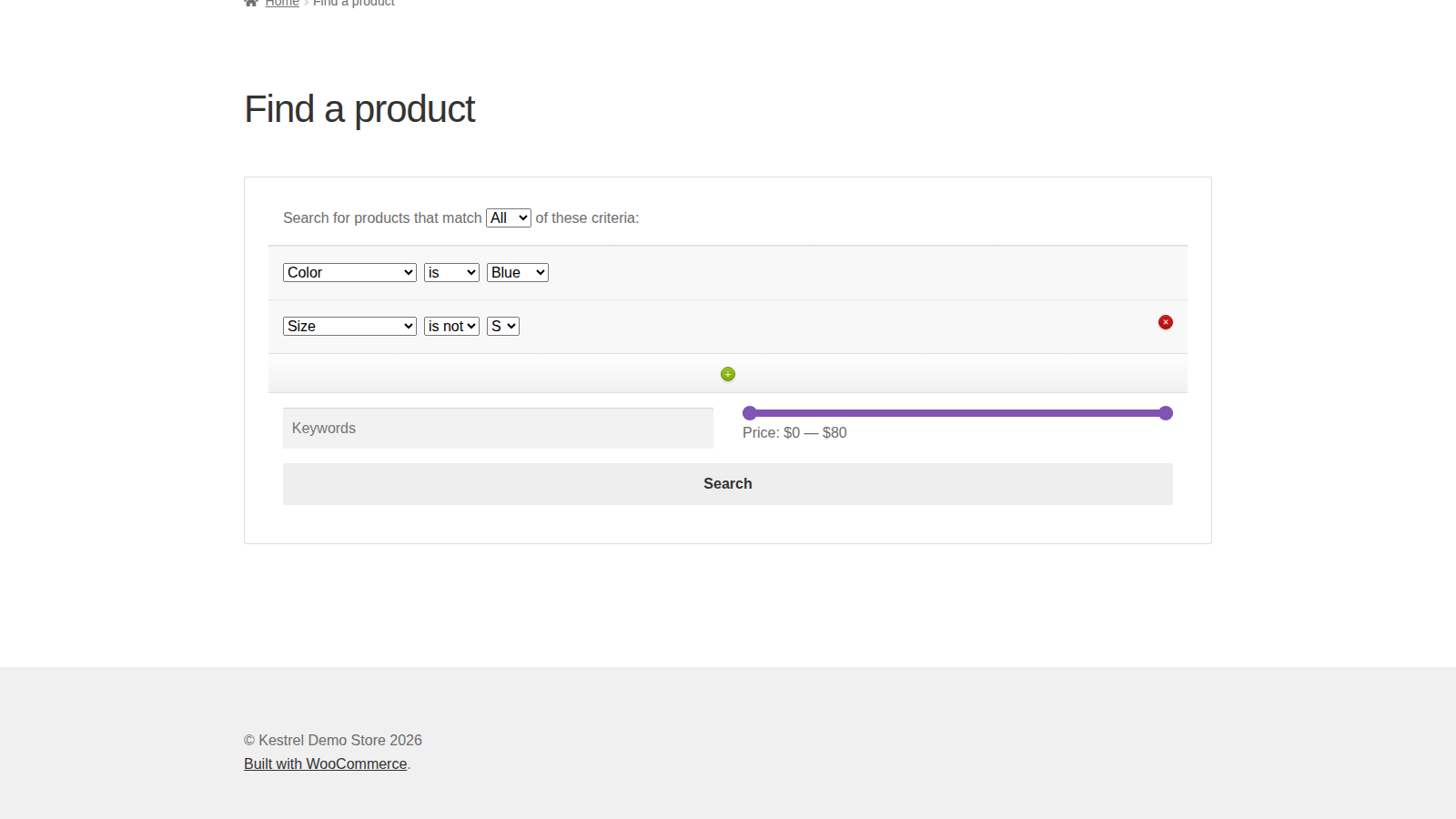
It’s a search form rather than a live filter: results load as a new page when the shopper clicks Search. Only product categories and global attributes (the ones under Products » Attributes) can be searched, so attributes you add to a single product don’t appear in the form. Only published products appear in the results; drafts, private and pending products never do.
When you’d use this
- Help shoppers narrow a large catalog by several attributes at once, such as size, color and material.
- Let shoppers leave out what they don’t want, such as a category or a material.
- Put a "find your product" form on a landing page, in a sidebar, or both, each with its own criteria.
- Combine an attribute search with keywords and a price range.
Requirements
- WordPress 6.3 or later, WooCommerce 8.0 or later, and PHP 7.4 or later. WooCommerce must be active before you activate Product Finder.
- Compatible with WooCommerce’s cart and checkout blocks and with High-Performance Order Storage.
- Product categories or global attributes for shoppers to search by.
Install and activate
- Bought on kestrelwp.com: install the plugin by following how to install and update WooCommerce extensions.
- Bought on WooCommerce.com: install the plugin from your WooCommerce.com account. Updates come through your WooCommerce.com connection, with no license key to enter.
Set up Product Finder
1. Choose the criteria
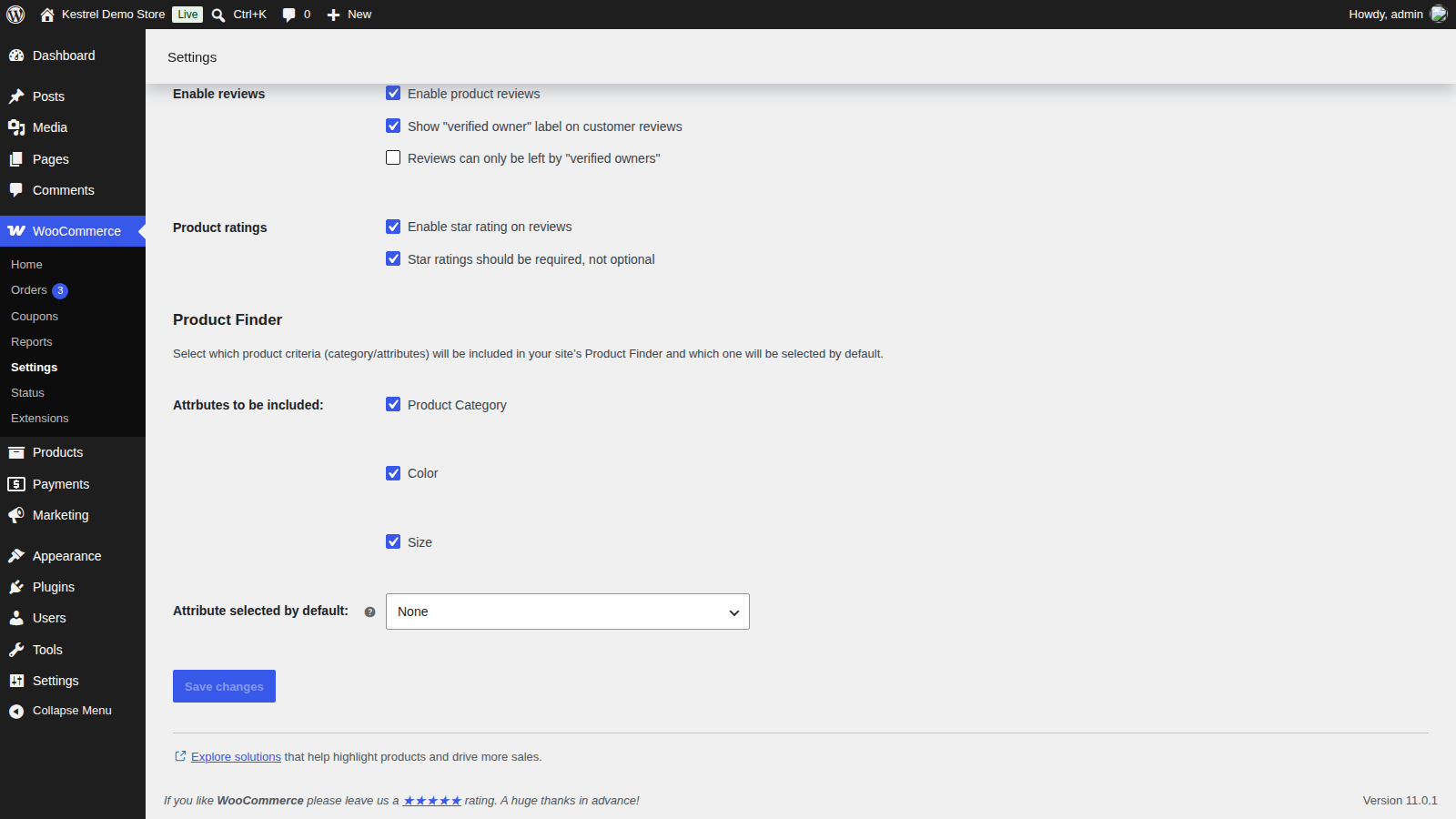
Go to WooCommerce » Settings » Products » General and scroll to the Product Finder section. Under Attributes to be included, Product Category and every global attribute start ticked. Untick any that shoppers shouldn’t search by, then click Save changes.
2. Add the form to a page
Edit the page where the form should appear, add a Shortcode block, and enter [woocommerce_product_finder]. Publish or update the page.
3. Check it
Open the page in a private browser window. In the first row, choose a criterion under Select criteria, pick a value, and click Search. You land on your shop page under the heading "Search Results", showing only the matching products.
How searches work
- Each row is one criterion: the shopper picks a category or attribute under Select criteria, chooses is or is not, then picks a value. A row left on Select criteria is ignored.
- The value list only shows categories or attribute terms that have at least one product. Categories appear in one alphabetical list without nesting, and choosing a parent category also finds the products in its subcategories.
- Add row adds another row, and Remove row removes any row except the first.
- "Search for products that match All of these criteria" requires a product to match every row. Switch it to Any to find products that match at least one row.
- Keywords searches product names and descriptions, the same way WordPress search does.
- The price slider runs from 0 to the highest price among the products the page lists: your whole catalog on an unfiltered shop page or an ordinary page, that category’s products on a category page, and on a results page the products that match the shopper’s other choices (or your whole catalog when nothing matched). When your shop shows prices including tax but you enter them without, the top of the slider includes tax.
- Price only limits a search when a handle is away from its end of the slider. While either handle is away from its end, a Reset price link next to the price puts both back.
- Every field is optional, and none can be made required.
Results load on your shop page under the heading "Search Results", using WooCommerce’s standard shop template. Nothing updates as the shopper changes the form; they click Search again. If the results page also shows a Product Finder form, in a sidebar for example, it shows the search the shopper just ran, price included, so they can change it.
Product Finder settings
Go to WooCommerce » Settings » Products » General and scroll to the Product Finder section. Its criteria are the defaults for the shortcode, the template tag and the action, and a shortcode can override them for one form (see Shortcode). Each widget chooses its own criteria in its own settings (see Widget).
- Attributes to be included: a checkbox for Product Category and one for each global attribute. Forms offer the ticked ones under Select criteria. Every box is ticked until you untick it and save, including the box for a global attribute you create later, so a new attribute appears in forms straight away.
- Attribute selected by default: the criterion every row starts on, with its first value already chosen. None, the default, starts rows on Select criteria. A row that starts on a criterion is part of every search until the shopper changes it, so a default limits each search to one value until the shopper picks another. It applies to every form that offers that criterion, widgets included; on a form that doesn’t offer it, rows start on Select criteria.
Add the form to your store
Shortcode
[woocommerce_product_finder] shows a form that uses your settings. Two optional attributes override them for that form:
use_category:yesorno, to include or leave out Product Category.search_attributes: a comma-separated list of attribute slugs, such assize,color. Use the slug shown under Products » Attributes, without thepa_prefix. The form offers only these attributes, whether or not they’re ticked in the settings. Leave it empty (search_attributes="") to offer no attributes, for a form that searches by category alone.
For example, this form offers only the size and color attributes, without categories:
[woocommerce_product_finder use_category="no" search_attributes="size,color"]Type the quotation marks as straight quotes. Curly quotes, which some editors add when you paste, stop the attributes from working.
Widget
Go to Appearance » Widgets and add the Product Finder for WooCommerce widget to a widget area. Its settings have a Title, "Product Finder" by default, and under Select which criteria to include: a checkbox for Product Category and one for each global attribute, all ticked to start.
The widget offers only the criteria ticked in its own settings, whatever the Product Finder settings include. A global attribute you create after saving the widget shows in it, ticked, until you untick it there. A widget can share a page with a shortcode form or another widget, and each form keeps its own criteria and rows.
Theme templates
To show the form from a theme template or another plugin, use the template tag or action in the Product Finder developer reference.
What customers see
The form appears under the heading Product Finder, with the All / Any choice, the criteria rows, Add row, Keywords, the price slider and a Search button. Searching opens your shop page with the heading "Search Results" and the matching products.

Translate Product Finder
Product Finder’s labels, such as Add row, Keywords and Search, use WordPress’s standard translation functions (text domain woocommerce-product-finder), so you can change or translate them with a translation tool such as Loco Translate; see changing text in a plugin. A few messages the form shows while it loads options, such as Loading options… and No options found, are fixed in English and can’t be translated. Product Finder has no WPML or Polylang integration of its own, so test your multilingual setup on a staging site first.
Common issues
Select criteria has no options
- You saved the Product Finder settings with nothing ticked. Tick the criteria you want and save again.
- In a widget, nothing is ticked in the widget’s own settings. Open the widget under Appearance » Widgets, tick the criteria and save it.
- A shortcode’s
search_attributeslists a slug that doesn’t exist, or includespa_. Check the slugs under Products » Attributes. - The attribute was added to a single product rather than created under Products » Attributes. Only global attributes can be searched, so create it there and assign it to your products.
A criterion’s values say "No options found"
None of that category’s or attribute’s terms is assigned to a product yet. The value list only shows terms that have at least one product.
The value list never loads, or Add row does nothing
The form loads values and new rows from your site after the page opens, which needs Product Finder’s script. Optimization plugins that delay, defer or combine JavaScript, such as Autoptimize, WP Rocket or Asset CleanUp, can stop it. Exclude Product Finder’s script (woocommerce-product-finder/assets/js/frontend/scripts.min.js) from those features, then clear your cache.
Every search is limited to one category or attribute
Attribute selected by default fills in the first row with that criterion’s first value. Set it to None, or ask shoppers to change the first row before searching.
A widget shows different criteria from your settings
Each widget offers the criteria ticked in its own settings, not the ones in the Product Finder settings. Open the widget under Appearance » Widgets, tick or untick its criteria, and save it.
The price slider doesn’t appear
The slider only appears when at least one of the products the page lists has a price above zero; on a category page, that means a product in that category. If your products have prices and the slider is still missing, check for a code snippet that turns it off (see the Product Finder developer reference).
Search results don’t look like your shop page
Product Finder shows results with WooCommerce’s standard shop template, rather than a shop layout your theme or page builder builds itself. Themes that replace the shop page their own way can show the results without your usual layout; Divi is one known case. Contact support and tell us which theme you use.
Keep learning
- Product Finder developer reference (the template tag, action and price slider filter)
- How to install and update WooCommerce extensions
- Changing text in a plugin (renaming the form’s labels)
- How to add custom CSS to your site (styling the form)