


Product Likes adds a like button to your products. Customers click it to save products they like and find them again on a Likes tab in My Account, and a dashboard shows you which products and which customers collect the most likes.
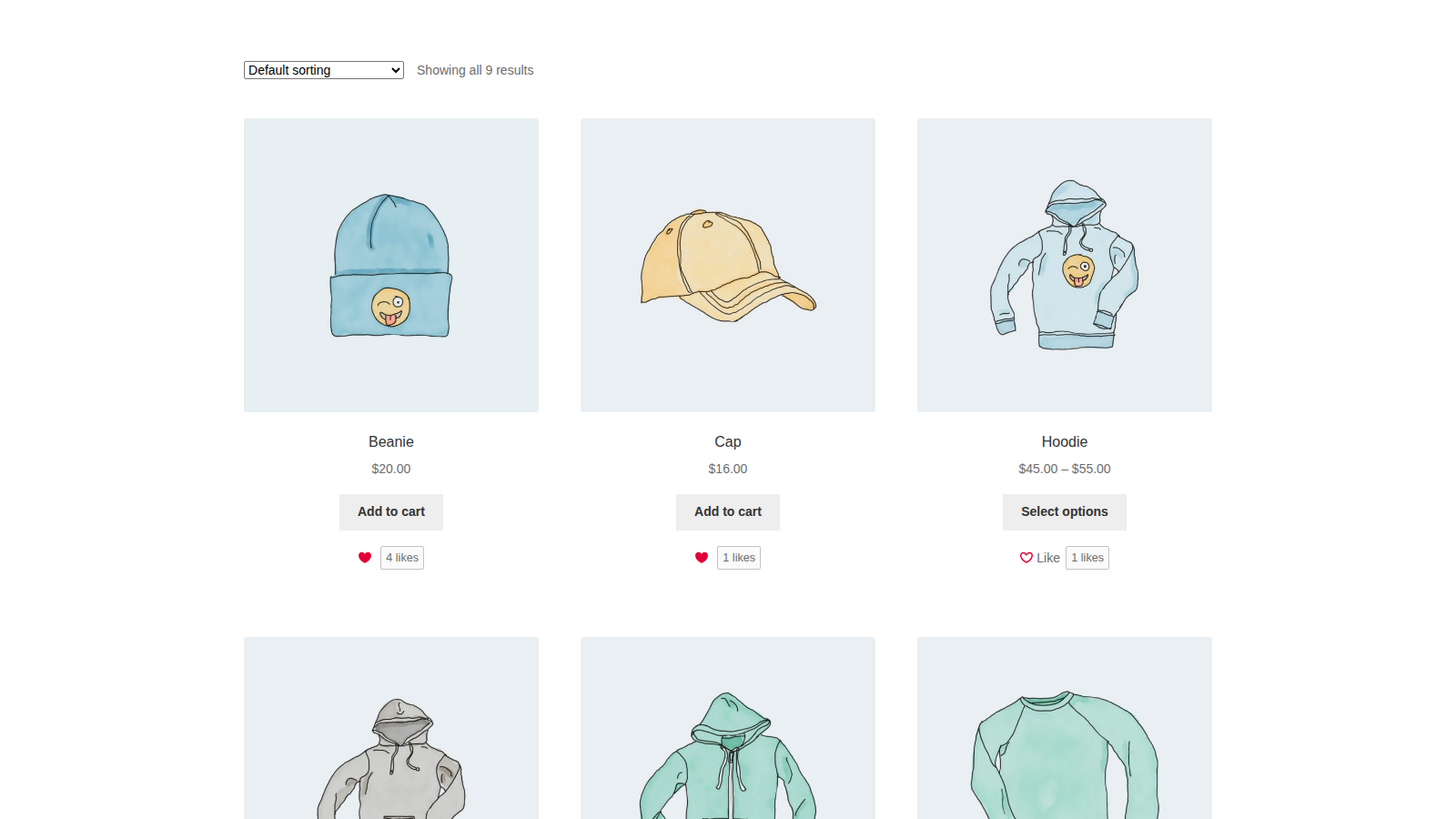
Likes are a simple list of favorites. They don’t send emails or alerts when a liked product changes, and customers can’t share or export their list.
When you’d use this
- Let shoppers save products to come back to, without a full wishlist.
- See which products get attention before they sell.
- Show a "most liked" list on your home page or a landing page.
- Find the customers who liked a product, for example before you restock it.
Requirements
- WordPress 6.3 or later, WooCommerce 8.5 or later, and PHP 7.4 or later.
- Compatible with WooCommerce’s cart and checkout blocks and High-Performance Order Storage.
- Your theme’s product pages and product lists use WooCommerce’s standard product meta and product loop areas, which most themes do (see The like button doesn’t show on product pages).
Install and activate
How you get updates depends on where you bought Product Likes:
- Bought on kestrelwp.com: download the plugin from the Licensed downloads tab of your kestrelwp.com account and install it. Then go to Settings » Product Likes activation, enter the license key from your License keys tab and activate it to receive updates. See using sites against your activation limit for how activations count.
- Bought on WooCommerce.com: install the plugin from your WooCommerce.com account. Updates come through your WooCommerce.com connection, with no license key to enter.
For upload, FTP and update steps, follow how to install and update WooCommerce extensions.
Set up Product Likes
1. Check the settings
Go to WooCommerce » Settings » Products » Product likes. On a new install every option is on, with the Heart icon, so like buttons show straight away. Change anything you need and click Save changes.
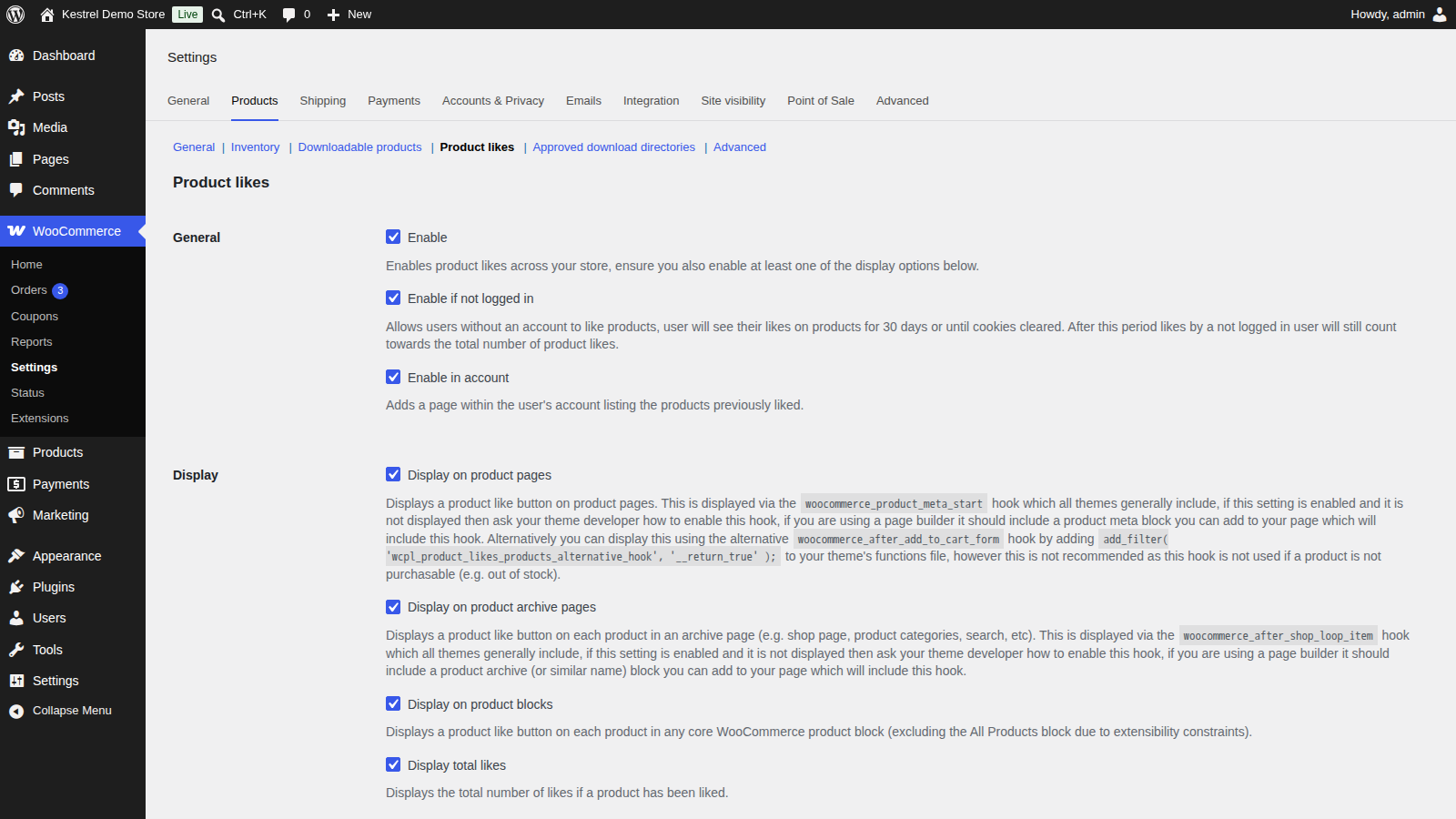
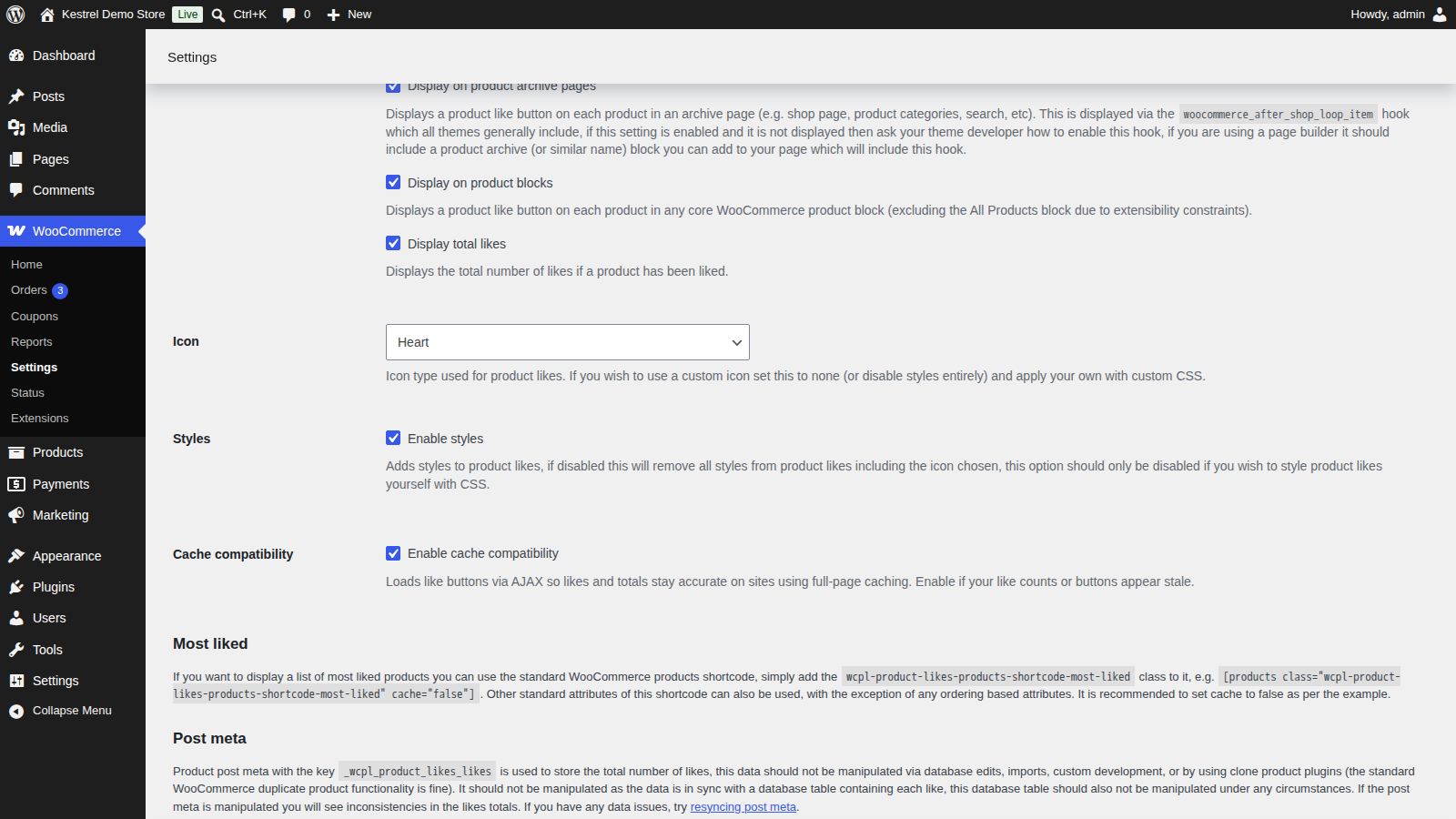
If you updated from an earlier version, turn on Enable cache compatibility if your site uses full-page caching (see Enable cache compatibility).
2. Like a product
Open your shop page in a private browser window and click Like under a product. The Like label disappears to show the product is liked, and the count next to it goes up by one. Click again to unlike it.
3. Check the dashboard
Go to Products » Likes. The product you liked shows 1 in the Likes column. Click the number: the like from your private window is listed as Guest likes: 1.
How likes are counted
- A logged-in customer’s likes belong to their account, so they see them on any device.
- A guest’s likes belong to a cookie in their browser,
wcpl_product_likes, which lasts 30 days. They see their likes until the cookie expires or is cleared. Their likes keep counting in product totals after that, but don’t move into an account if they register or log in later. - Each like is saved in Product Likes’ own database table, and each product’s total is saved on the product. Product Likes keeps the two in step as customers like and unlike. Editing either one directly, importing totals, or copying products with a cloning plugin makes totals drift. WooCommerce’s own Duplicate is fine: the copy starts with no likes.
Product Likes settings
Go to WooCommerce » Settings » Products » Product likes.
Enable
Turns likes on across your store. At least one Display option must also be on for buttons to show. With this off, there are no buttons, no Likes tab and no cookie.
Enable if not logged in
Lets shoppers who aren’t logged in like products. Their likes are remembered in their browser for 30 days (see How likes are counted).
Enable in account
Adds the Likes tab to My Account, listing the products the customer liked.
Display on product pages
Adds the button to single product pages, at the start of WooCommerce’s product meta area (where the SKU, categories and tags appear).
Display on product archive pages
Adds the button to each product on your shop, category, tag and search results pages, after the add to cart button.
Display on product blocks
Adds the button to each product in WooCommerce’s product grid blocks, such as Products by Category, Hand-picked Products, On Sale Products and Newest Products. The All Products block and Product Collection blocks you add to a page don’t show it.
Display total likes
Shows the number of likes next to the button, such as "3 likes". While Enable styles is on, products with no likes don’t show a count.
Icon
Heart (the default), Star, Thumbs up or None. For your own icon, choose None (or turn off Enable styles) and add it with custom CSS.
Enable styles
Loads Product Likes’ styling, including the icon. Turn it off only if you’ll style the button entirely with your own CSS.
Enable cache compatibility
Loads each page’s like buttons, counts and security token with one request after the page loads, so pages served from a full-page cache still show current likes. While it’s on, the buttons appear a moment after the rest of the page, which is expected. It’s on for new installs. Stores that updated from an earlier version have it off until they turn it on.
Show your most liked products
Add WooCommerce’s products shortcode with Product Likes’ class to any page, for example in a Shortcode block:
[products class="wcpl-product-likes-products-shortcode-most-liked" cache="false"]- It lists products with at least one like, most liked first.
- Other attributes of the shortcode, such as
limitandcolumns, still work, but ordering attributes are ignored. - Use the class on its own: the list only changes when
classis exactly that value. cache="false"keeps the order current as likes come in.
The likes dashboard
Go to Products » Likes. Store administrators and shop managers can open it.

- Product Totals lists every product with its SKU and Likes. Click a number to see the customers who liked it, plus a Guest likes count.
- Customer Totals lists each user with the Customer, Administrator or Shop manager role, with their Email, Phone and Likes. Click a number to see the products they liked. Users with other roles aren’t listed.
- Both tabs can be searched and sorted, show 100 rows per page, and have Print and Export buttons. Export downloads a CSV file.
- Settings opens the Product Likes settings.
Fix like totals or delete all likes
Two tools sit on a separate admin page. Open it from the Post meta section at the bottom of the Product Likes settings (the "resyncing post meta" link), or go to /wp-admin/admin.php?page=wcpl-product-likes-debug on your site. Only administrators can open it. Back up your database first: both tools ask "Are you sure?" and can’t be undone.
Resync post meta
Rebuilds every product’s total from the saved likes, then shows "Product likes post meta resynced." Use it when a product’s count looks wrong. It can only fix totals if the likes table itself hasn’t been edited.
Delete all likes
Removes every like and every product’s total, then shows "All likes deleted."
What customers see
- A like button with your chosen icon and a Like label on product pages and product lists, with the count beside it. After a click, the label disappears and the count goes up. Clicking again unlikes the product.
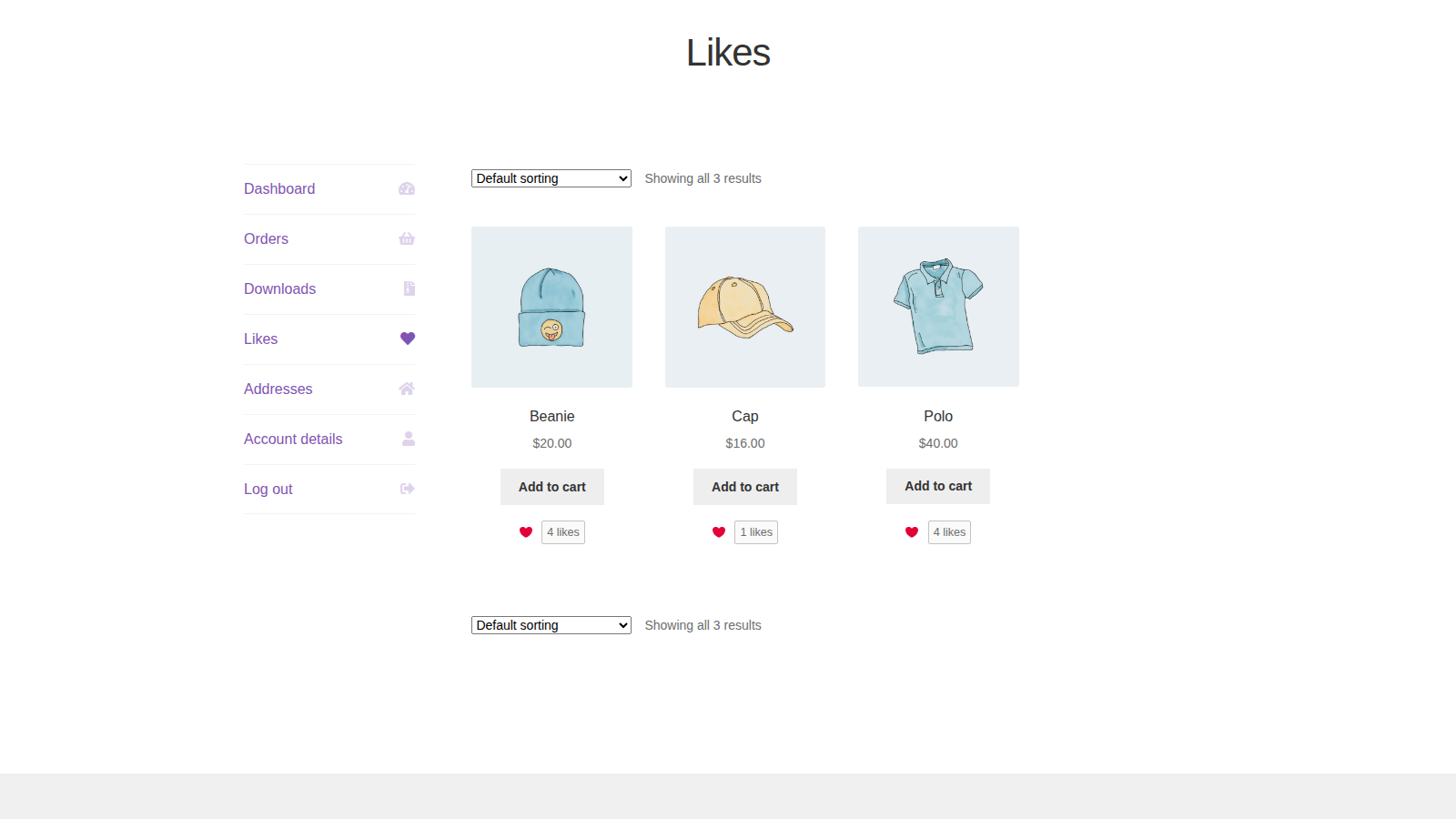
- A Likes tab in My Account, after Downloads (or after Orders if your store has no Downloads tab). It shows the liked products 20 per page, in four columns. Products that are no longer in your catalog, such as drafts, hidden products or out of stock products you hide, aren’t listed, unless none of the customer’s liked products is still visible (see common issues). A customer who hasn’t liked anything sees "No products liked yet."
What Product Likes stores
- Each like: the product, and the customer’s account or a random ID for the guest’s browser.
- Each product’s total, as the
_wcpl_product_likes_likescustom field. - The
wcpl_product_likescookie: a random ID that lasts 30 days. It’s set for every visitor while Enable is on, including logged-in customers, so list it in your cookie policy.
Likes aren’t included in WordPress’s Export Personal Data and Erase Personal Data tools. Deleting the plugin leaves likes, totals and settings in your database; to remove the likes, use Delete all likes before you delete the plugin.
Newsletter sign-up (optional): if you click Sign up on the plugin’s newsletter prompt in your admin, your name, email address, site name and address, language, and plugin, WordPress, WooCommerce and PHP versions are sent to Kestrel’s email provider, Klaviyo. Nothing is sent unless you sign up.
Common issues
The like button doesn’t show on product pages
- Check that Enable and Display on product pages are on. For guests, Enable if not logged in must be on, too.
- Your theme or page builder’s product template leaves out WooCommerce’s product meta area, where the button goes. In Elementor and similar builders, add the product meta widget or block to your single product template.
- If your template can’t include it, a developer can move the button below the add to cart button with a filter (see the Product Likes developer reference). Some products that can’t be bought, such as an out of stock simple product, then don’t show it.
The like button doesn’t show on shop or category pages
Check Display on product archive pages. The button follows each product’s add to cart button in WooCommerce’s product loop, so a theme or page builder that builds its own product grid may leave it out. In a page builder, use its WooCommerce product archive widget.
The like button doesn’t show in a product block
Only WooCommerce’s product grid blocks, such as Products by Category, show it (see Display on product blocks). The All Products block and Product Collection blocks you add to a page don’t.
Like counts or buttons look out of date
A full-page cache is serving an old copy of the page. Turn on Enable cache compatibility and clear your cache. If you leave it off, keep your cache lifetime at 10 hours or less so the security token in cached pages stays valid.
The Likes tab shows "page not found"
Go to Settings » Permalinks and click Save Changes without changing anything. That refreshes your site’s links so the Likes tab works.
The Likes tab is missing from My Account
Turn on Enable in account (and Enable). Guests don’t have an account, so they only see their likes on the buttons.
A product’s like count looks wrong
Run Resync post meta to rebuild every total from the saved likes.
A guest’s likes disappeared
Their cookie expired after 30 days, they cleared their cookies, or they’re using another browser or device. If they’ve since logged in, the Likes tab only shows likes made while logged in.
The Likes tab shows products the customer didn’t like
This happens when none of the products the customer liked is still visible in your catalog, for example because they’re all drafts or hidden. Once they like a product that’s visible, the tab shows only their likes.
Keep learning
- Product Likes developer reference (changing the button text and position)
- How to install and update WooCommerce extensions
- Using sites against your activation limit
- How to add custom CSS to your site (custom icons and button styling)