


Variation Prices changes how your store shows the price of variable products: as a range, a starting price such as "From $50", a maximum price, a list of every variation’s price, or your own wording with prices with and without tax. It can also update the main price on the product page as shoppers pick options. It works for grouped products and variable subscriptions too.
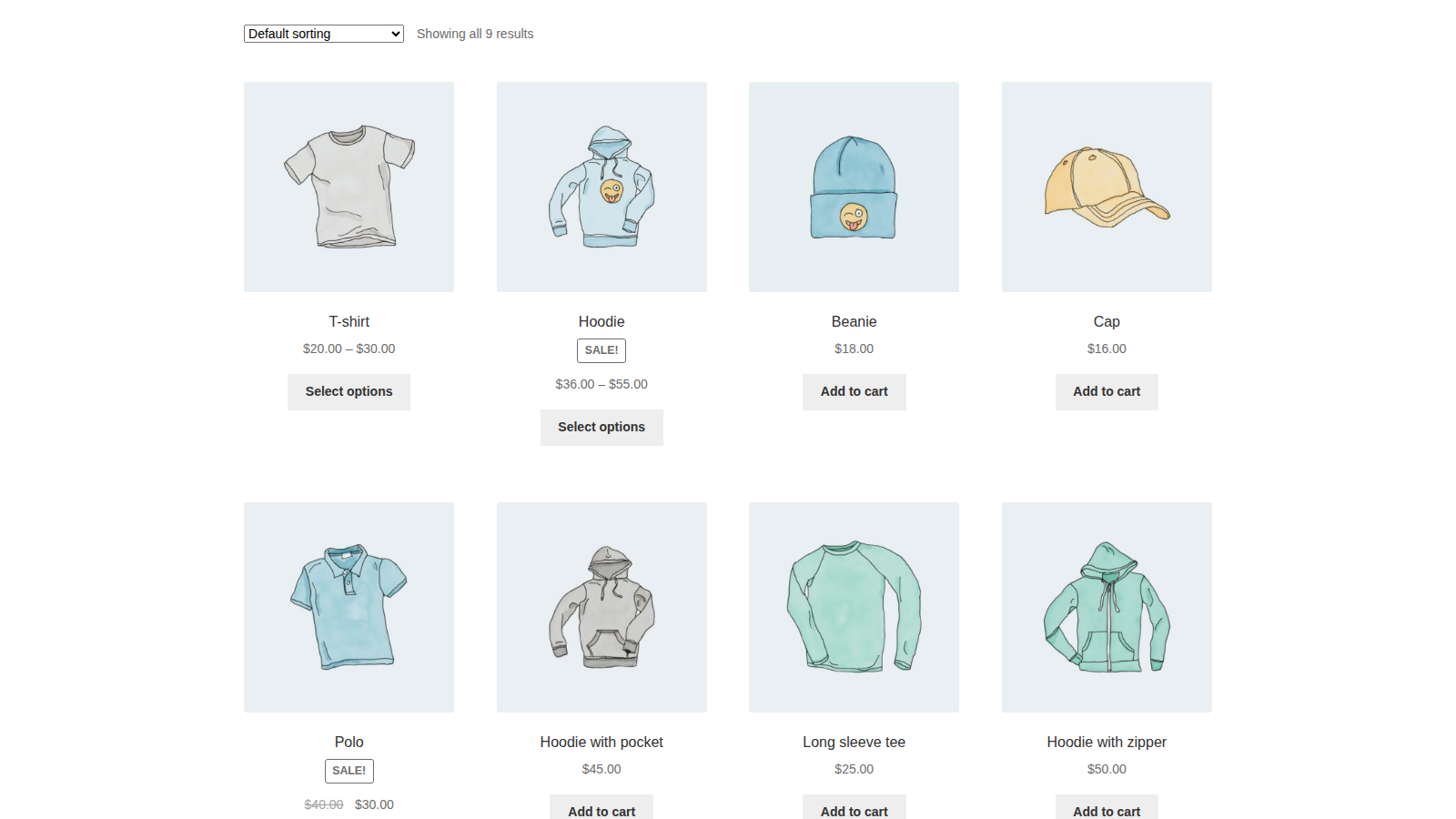
Variation Prices only changes how prices look. It never changes what customers pay, and it doesn’t add discounts or pricing rules: set each variation’s price in WooCommerce as usual, or with a pricing plugin.
When you’d use this
- Show "From $50" instead of "$50 – $250" on your shop pages.
- List every size and its price under the product name, for products with only a few variations.
- Add "+ VAT", or show prices with and without tax side by side.
- Show the price of the chosen variation at the top of the product page as shoppers pick options.
- Hide the price on the product page until the shopper has chosen what they want.
Requirements
- WordPress 6.3 or later, WooCommerce 9.9 or later, and PHP 7.4 or later. WooCommerce must be active.
- Compatible with WooCommerce’s cart and checkout blocks and High-Performance Order Storage.
- Variable subscriptions need WooCommerce Subscriptions.
Install and activate
Variation Prices is sold on kestrelwp.com. Download the plugin from the Licensed downloads tab of your kestrelwp.com account and install it. Then go to Settings » Variation Prices for WooCommerce activation and activate the key from your License keys tab to receive updates. See using sites against your activation limit for how activations count.
For upload, FTP and update steps, follow how to install and update WooCommerce extensions.
If you’re updating from an earlier version and the activation page shows the plugin as not activated, replace any key in the field with the license key from the License keys tab of your kestrelwp.com account, and click Save changes.
Set up Variation Prices
1. Open the settings
Go to WooCommerce » Settings » Products » Variation prices.

2. Choose a format
Pick a Price display format. Under Product type, tick each kind of product it should apply to (Variable products is ticked to start with). Click Save changes, even if you kept the defaults: the format starts applying once the settings are saved.
3. Check your store
Open your shop page and a variable product’s page in a private browser window. The product’s price uses your format. On the product page, pick options and watch the main price change (unless you turned off Show selected variation price).
Settings
All settings are on WooCommerce » Settings » Products » Variation prices and apply to every product of the types you tick. The examples in the screen’s lists use your store’s currency.
Price display format
How the price of an affected product is shown:
- Price range e.g. $50 – $100 (the default): the lowest and highest price, with your Price range separator between them.
- Starting price (long) e.g. From $50: the lowest price after "From".
- Starting price (short) e.g. $50+: the lowest price with a plus sign.
- Maximum price e.g. Up to $100: the highest price after "Up to".
- List all variation prices: every variation’s options and price, one per line. On a grouped product, each product in the group with its price. Best for products with only a few variations.
- Custom: your own wording, set in the two custom format fields below.
If every variation costs the same, every format except List all variation prices and Custom shows just that price.
Price range separator
What appears between the lowest and highest price. Only shown with Price range. Default – (a dash). For example, / shows "$50 / $100", and to shows "$50 to $100".
Custom format for products with different variation prices
Only shown with Custom. The wording for products whose variations have different prices, using the custom format placeholders. Default from {min_inc_tax} to {max_inc_tax}.
Custom format when all prices are the same
Only shown with Custom. The wording for products whose variations all cost the same. Default {min_inc_tax}.
Product type
Which products the format applies to:
- Variable products: ticked by default.
- Grouped products: the price of a grouped product, worked out from the products in the group.
- Variable subscriptions: only shown when WooCommerce Subscriptions is active.
Other product types, including simple products, keep WooCommerce’s normal price.
Hide the price until a variation is selected
Hides the main price on the product page when it loads. Once the shopper’s choices match a single variation, its price appears. Off by default. While it’s on, Show selected variation price is hidden and always applies.
Show selected variation price
Updates the main price on the product page as the shopper picks options: it narrows to the variations that still match, then shows the price of the variation they’ve chosen. On by default.
- On products with more than 30 variations, WooCommerce loads variations only once every option is chosen, so the main price changes at that point.
- If the product has default options (Default Form Values on its Variations tab), the page opens with that variation’s price.
- Variable subscriptions aren’t updated: WooCommerce Subscriptions shows the chosen subscription’s price itself.
When it’s off, the main price keeps your format, and WooCommerce shows the chosen variation’s own price above the add to cart button as usual.
Disable on Shop page
For variable and grouped products, keeps WooCommerce’s normal price display on the shop page, on product category and tag pages, and in the related products and upsells under a product. The product’s own price on its page, and product lists on other pages (such as product blocks on your home page), still use your format. Off by default.
Use in admin
Also uses your format for prices in the WordPress admin, such as the price column on the Products screen. Off by default.
Custom format placeholders
Type any wording in the custom format fields, and use these placeholders for the prices:
| Placeholder | Shows |
|---|---|
{min_inc_tax} | The lowest price, including tax |
{max_inc_tax} | The highest price, including tax |
{min_exc_tax} | The lowest price, excluding tax |
{max_exc_tax} | The highest price, excluding tax |
{min_regular_inc_tax}, {min_regular_exc_tax} | The regular price of the lowest-priced variation, struck through, when it’s on sale |
{max_regular_inc_tax}, {max_regular_exc_tax} | The regular price of the highest-priced variation, struck through, when it’s on sale |
The regular price placeholders show nothing when the price isn’t discounted, so you can leave them in your format all the time. Amounts with and without tax are worked out from your Display prices in the shop setting (WooCommerce » Settings » Tax) and the tax rate for the shopper’s location. If you have no tax rates set up, the two give the same amount.
Some examples:
from {min_exc_tax} to {max_exc_tax} + VATshows "from $50 to $100 + VAT".From {min_exc_tax} excl. tax / {min_inc_tax} incl. taxshows the starting price both ways.{min_regular_inc_tax} From {min_inc_tax}shows the cheapest variation’s regular price struck through before its sale price.
What customers see
On your shop, category and search pages, and in product blocks, affected products show their price in your format. On the product page, the main price uses your format until the shopper picks options, then updates as described under Show selected variation price.

Cart, checkout, orders and emails show the price of the variation the customer bought, as usual.
Show the price elsewhere with the shortcode
On a single product page, [variation_prices] shows the product’s price in your format. Use it in a page builder layout or a block theme template that doesn’t show WooCommerce’s price where you want it. On products Variation Prices doesn’t change, such as simple products, it shows their normal price. It shows nothing on other pages.
Works with other plugins
- WooCommerce Subscriptions: tick Variable subscriptions under Product type to format variable subscription prices.
- WooCommerce Attribute Swatches by Iconic: the fees you add to attribute options are included in the prices Variation Prices shows. When a variation’s price with fees is 1,000 or more, every format except List all variation prices shows it without your currency formatting.
- WooCommerce Restaurant Ordering by Barn2: the product prices Restaurant Ordering shows use your format.
- Pricing plugins: Variation Prices formats the prices WooCommerce reports for each variation. Role-based, wholesale and dynamic pricing plugins that change prices through WooCommerce’s own price filters show up in the format.
What Variation Prices stores and sends
Variation Prices stores its settings in your WordPress database. Apart from license activation and update checks with kestrelwp.com, it doesn’t send store or customer data anywhere.
Newsletter sign-up (optional): if you click Sign up on the plugin’s newsletter prompt in your admin, your name, email address, site name and address, language, and plugin, WordPress, WooCommerce and PHP versions are sent to Kestrel’s email provider, Klaviyo. Nothing is sent unless you sign up.
Common issues
The format doesn’t show after installing
Go to WooCommerce » Settings » Products » Variation prices and click Save changes once, even if you keep the defaults. Variable products get the format once the settings are saved.
The custom format shows "{min}" or "{max}"
{min} and {max} aren’t placeholders in the custom format fields. Use {min_inc_tax} and {max_inc_tax}, or the _exc_tax versions (see Custom format placeholders).
Prices with or without tax look wrong when more than one tax rate applies
The placeholders for the opposite of your Display prices in the shop setting use one tax rate for the shopper’s address. If more than one rate applies (for example GST and PST), or you calculate tax from your shop’s address, use only the placeholders that match that setting ({min_inc_tax}/{max_inc_tax} when prices display including tax).
The main price doesn’t change when a shopper picks options
Check that Show selected variation price is ticked. On products with more than 30 variations, the price changes only once every option is chosen. Variable subscriptions aren’t updated by Variation Prices.
Prices are missing from related products and upsells
Hide the price until a variation is selected also hides the prices of other variable and grouped products shown on a product page, such as related products and upsells. Tick Disable on Shop page to show their normal prices there. That also keeps WooCommerce’s normal price display on your shop and category pages.
A grouped product’s page shows no price
With Hide the price until a variation is selected on and Grouped products ticked, a grouped product’s own price stays hidden, because there are no options to choose. Untick Grouped products under Product type, or turn off Hide the price until a variation is selected.
The shop page still shows WooCommerce’s normal price
Disable on Shop page is ticked, or the product’s type isn’t ticked under Product type.
Variable subscriptions show their normal price
WooCommerce Subscriptions must be active, and Variable subscriptions ticked under Product type.
Prices in the admin didn’t change
Tick Use in admin.
Customers are charged a different price from the one shown
Variation Prices only changes how prices are displayed. Customers pay the price of the variation they choose. If you need different prices, change them in the product’s Variations tab or with a pricing plugin.
Keep learning
- Variation Prices developer reference (filters for changing the format per product and the price markup)
- How to install and update WooCommerce extensions
- Using sites against your activation limit
- How to add custom CSS to your site (styling the price list)