


On Lightspeed Retail R-Series, products reach WooCommerce through the Product Importer: you load Lightspeed items into its table, then import and link the ones you want. Linked products then update from Lightspeed in the background. This page covers the importer, how linked products stay up to date, and the tools on each product. It assumes you’ve finished Set up Lightspeed R-Series.
When you’d use this
- Bring all or part of your Lightspeed catalog into WooCommerce.
- Update a product from Lightspeed now, instead of waiting for the background job.
- Link an existing WooCommerce product to its Lightspeed item, or send a WooCommerce product to Lightspeed.
- Understand how matrix items, sale prices, categories and archived items come across.
Load products into the importer
Go to Lightspeed » Product Importer. Loading copies Lightspeed items into the importer’s table; nothing is added to your store yet.
- Load products from Lightspeed loads your whole catalog. A progress bar shows while it runs: keep the tab open until it finishes, or you’ll need to start again. Once loaded, the button reads Reload products from Lightspeed.
- Search Lightspeed finds specific single or matrix items by name, SKU and other fields, so you can load just those.
Archived items aren’t loaded while Ignore archived Lightspeed products when loading products is on (the default). The importer also shows when the background jobs last ran and when they’ll run next.


Import and link products
Select products in the table and choose an action from Bulk actions, or use the links in a product’s row:
- Import & Link with Woo: creates the product in WooCommerce with the status from Product status on import, and links it so Lightspeed keeps it up to date.
- Update via Lightspeed: for imported products, pulls the latest data from Lightspeed straight away.
- Remove: takes a product out of the importer’s table. It doesn’t delete anything in Lightspeed or WooCommerce. To remove a product that’s already imported, trash and permanently delete its WooCommerce product first.
To import a group, such as one category, filter or search the table, select the products and use Bulk actions. To import everything loaded, use Import and link all the products in the importer on Lightspeed » Settings » Store settings.
The table shows each product’s Name, Price, SKU, Inventory in your primary store, Category, Import date and Last update. The last column is the link: untick it to unlink a product, which then stops receiving updates from Lightspeed. Matrix items appear stacked with their variations, and show "-" for SKU and inventory.
How linked products stay up to date
Three things update linked products from Lightspeed:
- The Lightspeed product changes job, every minute by default, picks up changed items (see Background jobs).
- Add to cart and checkout. When a shopper adds a product to the cart, and again on the classic checkout before the order is placed, the plugin fetches its current Lightspeed stock first. WooCommerce then blocks the add or the order if there isn’t enough stock.
- Manual updates: Update via Lightspeed in the importer, or Manual update via Lightspeed on the product.
After the first import, Lightspeed only overwrites the details ticked in Selective sync for WooCommerce products. In the other direction, saving a product or changing its stock sends the details ticked in Selective sync for Lightspeed products (stock only, by default) to Lightspeed in the background, retrying up to 20 times if Lightspeed is busy.
New items you create in Lightspeed are handled by the New Lightspeed products job: by default they’re loaded into the importer and listed in a notice ("Good news! … new Lightspeed item(s) have been added to the Lightspeed import table"), ready for you to import.
Matrix products
Lightspeed matrix items become WooCommerce variable products. Importing a matrix item creates the variable product with its featured image and gallery, its attributes, and one variation per matrix item, each with its own image, SKU, stock, regular price and sale price (if you use a Sale price level).
- Lightspeed counts each matrix variation as a separate item, so your Lightspeed item count is higher than your WooCommerce product count.
- Attribute names can be up to 28 characters and can’t be reserved WordPress terms, such as Type. The importer names any attribute it can’t import; rename it in Lightspeed and update the product.
- Merging items in Lightspeed isn’t supported. Delete the affected WooCommerce products and import the merged item.
- When you update a matrix product by hand, variations deleted in Lightspeed are removed, while Prune deleted Lightspeed variations is on.
Sale prices
The Lightspeed Default price becomes the WooCommerce regular price. For sale prices, create a price level named exactly Sale in Lightspeed (it’s case-sensitive), set each product’s sale price there, and tick Sale price in Selective sync for WooCommerce products. Without a Sale price level, ticking it shows "Could not save the "Sale price" for Lightspeed selective sync. Please set up a "Sale" PriceLevel in your Lightspeed store first!"
When you first add the Sale price level, Lightspeed fills it with each product’s Default price. Set the real sale prices in Lightspeed before the next sync, or WooCommerce sale prices end up equal to the regular price. A sale price of 0.00 leaves the WooCommerce sale price empty while Set empty Sale Price on zero is on.
Categories and brands
Products get their Lightspeed category, with its parent categories, when they’re imported or updated, as long as you imported categories first under Lightspeed » Settings » Product categories. Category import is one-time: it adds Lightspeed categories that aren’t in WooCommerce yet, but doesn’t update or delete categories you already have, and nothing goes from WooCommerce to Lightspeed. Sibling categories need different names, because WordPress needs unique category addresses.
Lightspeed manufacturers become WooCommerce brands, refreshed daily.
Archived and deleted items
When an item is archived in Lightspeed, what happens to its WooCommerce product depends on Handle archived Lightspeed products on update: by default nothing, or it can be removed or set to Draft the next time it updates. Run Update via Lightspeed on the products to apply the setting straight away. Items deleted in Lightspeed, rather than archived, have nothing to update from, so handle their WooCommerce products by hand.
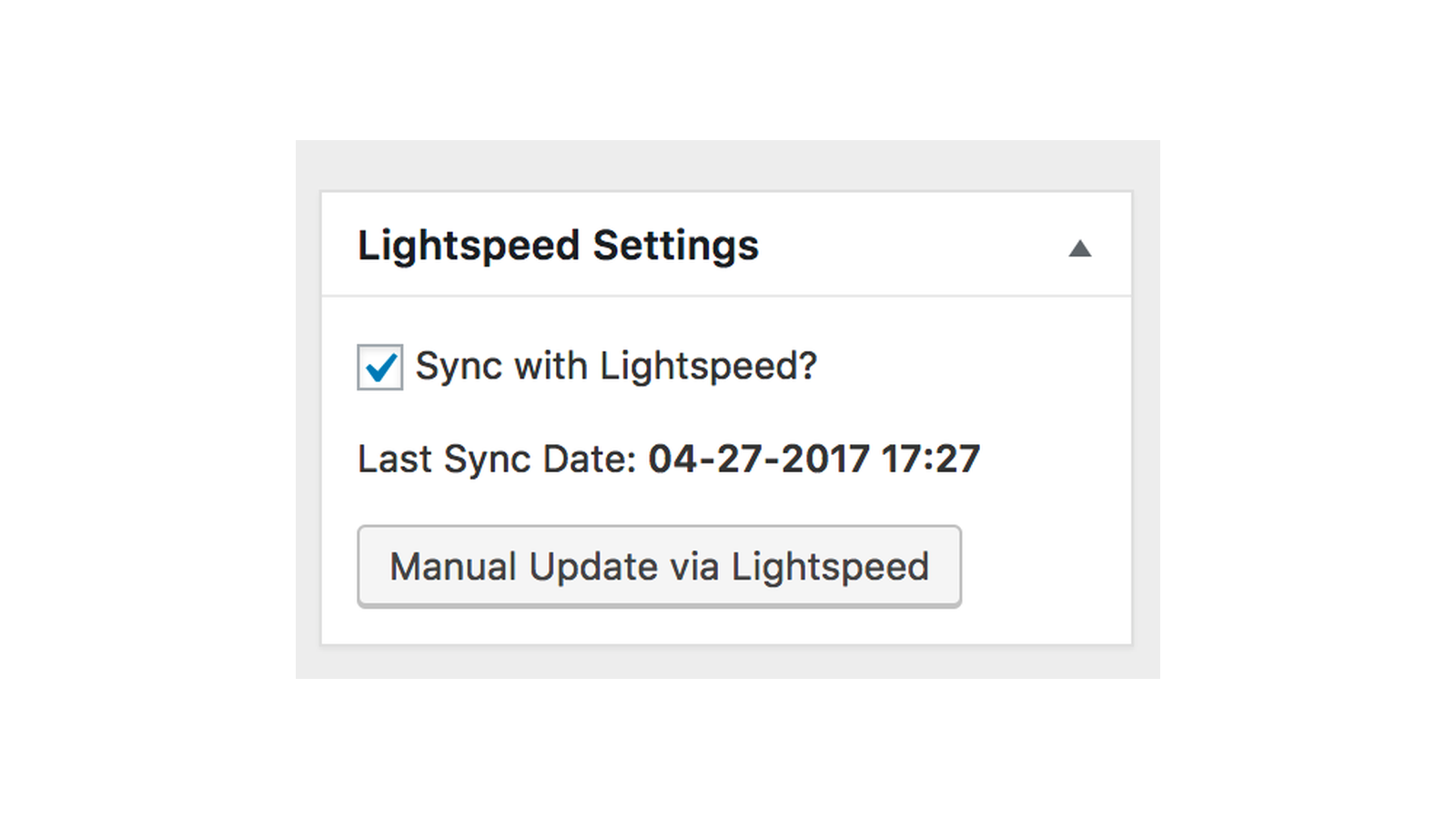
The Lightspeed Settings box on a product
Each product’s edit screen has a Lightspeed Settings box.
For a linked product:
- Link with Lightspeed?: untick to stop the product receiving updates from Lightspeed.
- Last sync date: when it last updated from Lightspeed.
- Manual update via Lightspeed: pulls the latest data from Lightspeed now.
For a product that isn’t linked:
- Create this product in Lightspeed: sends the product, with its SKU, price, stock and images, to Lightspeed once and links it. It doesn’t check whether the item already exists in Lightspeed, so check first to avoid a duplicate. Lightspeed allows at most three attributes on a matrix item, and the matching matrix attribute set must already exist in Lightspeed. You can’t send products to Lightspeed in bulk.
- Link with Lightspeed: finds the Lightspeed item whose System, Custom or Manufacturer SKU matches the product’s SKU, and links them. To link a variable product, enter its Lightspeed matrix ID as the WooCommerce SKU first.
Common issues
"Could not relink! Lightspeed product with SKU: ‘…’ could not be found."
No Lightspeed item has that SKU in any of its SKU fields. Check the SKU on both sides.
"Could not relink! There was more than one matching Lightspeed product with sku: ‘…’."
Two Lightspeed items share the SKU. Make it unique in Lightspeed, then link again.
"Could not import the Lightspeed attribute … the name is a reserved WordPress term."
Rename the attribute in Lightspeed, for example Type to Item type, then update the product. The same applies to "the name is too long (28 characters max)".
"Lightspeed allows a maximum of 3 attributes for matrix products, your product has more than 3 attributes."
Reduce the product to three attributes before creating it in Lightspeed.
"To remove imported items from the table, first trash and delete the corresponding WooCommerce product."
Remove only works for products that aren’t imported. Trash the WooCommerce product, empty the trash, then remove it from the table.
More fixes are on Troubleshoot Lightspeed R-Series.