


Fixes for the problems Lightspeed Retail R-Series stores run into most: products or stock that don’t update, changes that don’t reach Lightspeed, and sales that don’t sync. Each issue starts with what you see and quotes the plugin’s messages, so you can search for the one in front of you.
For X-Series, see Troubleshoot Lightspeed X-Series.
When you’d use this
- A product, stock level or sale doesn’t sync the way you expect.
- You see an error message from the plugin or from Lightspeed.
- You’re collecting details before contacting support.
Find out what happened
- The logs. Open WooCommerce » Status » Logs. The plugin writes errors to
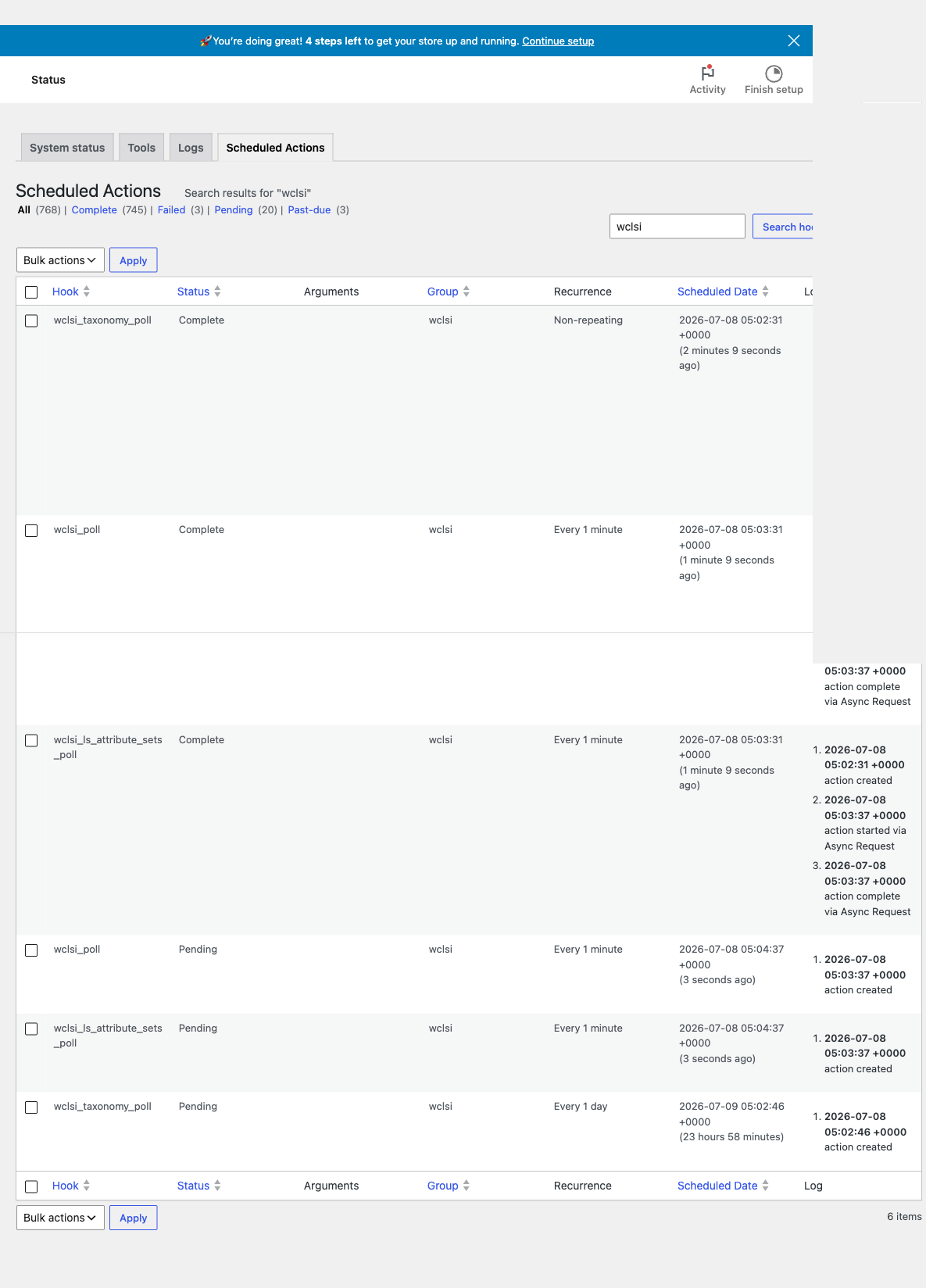
wclsi-errors-logand sync activity towclsi-sync-events-log. For more detail, turn on Debug mode under Lightspeed » Settings » Store settings, repeat the action, and readwclsi-debug-log. Turn it off afterward. - Scheduled jobs. Background work runs through Tools » Scheduled Actions. Filter the group to
wclsito see the pollers (wclsi_poll,check_for_new_ls_prods,wclsi_ls_attribute_sets_poll) and changes waiting to go to Lightspeed (wclsi_sync_changes_to_lightspeed), with their pending, failed and complete counts. - Order notes, for sales.
Lightspeed is the source of truth for products and stock. If WooCommerce and Lightspeed disagree, fix the data in Lightspeed and let it sync.
Connection
The connection fails, or products don’t load after connecting
The Lightspeed employee who authorizes the connection needs inventory privileges. Reconnect from Lightspeed » Connection while logged in to Lightspeed as an employee who has them.
"Your connection to Lightspeed has expired and cannot be renewed automatically. Please reconnect to Lightspeed from the settings page."
Go to Lightspeed » Connection and click Reconnect to Lightspeed R-Series. Your products stay linked.
cURL error 6 or cURL error 28
Your server can’t reach Lightspeed’s API at api.merchantos.com: error 6 is a DNS failure, and 28 is a timeout. This is a hosting network issue. Send your host the full error from the wclsi-errors-log log.
Lightspeed is slow or not responding
Check the Lightspeed status page for an outage before changing settings. While Lightspeed’s API keeps failing, the plugin briefly stops checking it at add to cart, so shoppers can still buy based on WooCommerce’s stock.
"Lightspeed API Error -"
Lightspeed rejected a request; the code and message follow. A 429 means the rate limit (see Rate limit errors (429) during bulk edits); other codes usually mean the data didn’t suit Lightspeed, and the rest of the message names the item.
The Product Importer
"Could not find a primary Lightspeed inventory shop ID."
Choose a Primary Lightspeed inventory store under Lightspeed » Settings » Store settings and save.
"Could not find store timezone. This is required for syncing products."
The connection didn’t finish reading your Lightspeed store. Reconnect from Lightspeed » Connection.
The importer stalls or errors on a large catalog
On catalogs of a thousand or more items, the importer’s database query can hit a MySQL limit, with an error like "The SELECT would examine more than MAX_JOIN_SIZE rows". Ask your host to set SQL_BIG_SELECTS=1 or raise MAX_JOIN_SIZE for your database.
Loading products stopped partway
"Error: something went wrong with loading products from Lightspeed! Refresh to see if some products loaded successfully." Loading needs the tab open until it finishes. Reload the page to see what loaded, then click Reload products from Lightspeed.
Products and stock
Changes in Lightspeed don’t show up in WooCommerce
- Check that Lightspeed product changes is enabled under Lightspeed » Settings » Background jobs.
- Check Tools » Scheduled Actions for
wclsi_poll: it should be pending or complete, not failed or stuck. If it was working before, change its interval, save, and change it back, which reschedules it. - Make sure WP-Cron runs. On a low-traffic site, or with
DISABLE_WP_CRONset and no real cron job, jobs run late or not at all. - Check that the detail is ticked in Selective sync for WooCommerce products (see the next issue).
- To update a product now, click Manual update via Lightspeed on it, or Update via Lightspeed in the Product Importer.
A price, description or stock level won’t update from Lightspeed
Selective sync for WooCommerce products on the WooCommerce products sync tab decides which details Lightspeed may overwrite. If the detail is unticked there, Lightspeed changes don’t reach WooCommerce. The two selective sync settings run in opposite directions, which is easy to mix up:
- Selective sync for WooCommerce products: what Lightspeed writes into WooCommerce. Its Stock Quantity box also controls the stock check at add to cart and checkout.
- Selective sync for Lightspeed products: what WooCommerce sends to Lightspeed. To stop orders sending stock to Lightspeed, untick Stock quantity here.
My stock changes in WooCommerce keep reverting
Lightspeed overwrites WooCommerce stock on every update and at add to cart. Change stock in Lightspeed instead, and stop other plugins, such as inventory managers or bulk editors, from writing stock to synced products.
Stock doesn’t match between WooCommerce and Lightspeed
Only your Primary Lightspeed inventory store syncs. Stock in other stores isn’t counted. Correct the count in Lightspeed and update the product.
Changes in WooCommerce don’t reach Lightspeed
If Lightspeed changes come through but WooCommerce changes don’t, check Tools » Scheduled Actions for pending or failed wclsi_sync_changes_to_lightspeed actions. A backlog builds up when Lightspeed’s rate limit is busy; the plugin waits and retries up to 20 times. While changes are queued, the admin shows "Syncing changes to Lightspeed! The events are being processed in the background." Also check that the detail is ticked in Selective sync for Lightspeed products: only Stock quantity is, by default.
"Warning: a sync update for Lightspeed Product has failed!"
A change couldn’t be sent to Lightspeed after all its retries. The notice names the product and lists the error. Check the product’s stock and details in Lightspeed, fix the cause, then save the product to queue the change again. It’s common after bulk-editing many products at once.
Rate limit errors (429) during bulk edits
Lightspeed limits how fast the plugin can call its API, and editing many products at once floods the queue. The plugin paces its requests and retries rate-limited ones, but it helps to:
- Raise the intervals under Background jobs, and avoid intervals under a minute.
- Bulk-edit in smaller batches and let the queue clear between them.
- Let large imports of variable products and images finish before making more changes.
New Lightspeed products don’t appear
- Check that New Lightspeed products is enabled under Background jobs, and what New Lightspeed products should be: is set to. By default they’re only loaded into the Product Importer, where you import them.
- A new matrix item is only found once it has at least one variation.
- Lightspeed sometimes timestamps a new item later than it was created, so it falls outside the job’s look-back window. A developer can widen the window; see the developer reference.
You can always load a missing item yourself with Search Lightspeed in the Product Importer.
Sale prices import as the regular price, or not at all
Only a Lightspeed price level named exactly Sale, with a capital S, becomes the WooCommerce sale price, and Sale price must be ticked in Selective sync for WooCommerce products. When you first add the Sale level, Lightspeed copies each product’s Default price into it, so set the real sale prices in Lightspeed. See Sale prices.
Archived Lightspeed products still show in WooCommerce
Handle archived Lightspeed products on update leaves them alone by default. Set it to Remove from WooCommerce or Change Product to "Draft" state, save, then run Update via Lightspeed on the products in the Product Importer. Items deleted in Lightspeed, rather than archived, can’t be updated; unpublish or delete them in WooCommerce.
Categories don’t update from Lightspeed
Category import is a one-time action that only adds new categories: categories edited or deleted in Lightspeed keep their old WooCommerce version, which is why new products can land in an old category. To refresh, click Delete cache and Import categories on the Product categories tab, then update the products. For a full rebuild, remove the old categories in WooCommerce first.
Images are missing
Images download in the background after import, through Cloudinary. Very large images, over about 2 MB or 2,000 pixels, can time out in WordPress ("There was a timeout downloading images for …. Please try again."). Resize them in Lightspeed, then update the product. Check also that Images is ticked in Selective sync for WooCommerce products.
A matrix product’s variations aren’t all syncing
If the first import brought in only some variations, later updates can skip the rest. Check that the item is a matrix in Lightspeed and each variation has a unique SKU. Then delete the WooCommerce product, empty the trash, and import it again from the Product Importer.
A linked product stopped updating after I replaced it in Lightspeed
The plugin links by Lightspeed’s internal item ID, so when you archive an item and create a new one in its place, the WooCommerce product keeps following the archived item. Delete the WooCommerce product and its importer row, load the new item and import it. Or rename the archived item’s Custom SKU in Lightspeed (for example, add _ARCHIVED), remove its importer row, and click Link with Lightspeed on the product to link it to the new item by SKU.
"Cannot set attribute1 on an Item with ItemAttributeSet type …"
Lightspeed returns this when a matrix item has had attributes removed, for example going from three to two. It comes from Lightspeed’s API, so contact Lightspeed support about it.
At add to cart and checkout
Shoppers see "Could not add product to cart. Please try again or contact us for assistance."
The plugin couldn’t fetch the product’s stock from Lightspeed, so it stopped the add rather than risk overselling. The admin then shows "Warning: there was an error with syncing the inventory of product …" with Lightspeed’s error. Usually Lightspeed was briefly unavailable or rate limited; check the error and the logs. Developers can change the shopper message with the wclsi_inventory_sync_error filter.
"Sorry, there was an error with syncing inventory for one or more of your products in your cart."
The same problem on the classic checkout. The shopper can try again a few seconds later.
Sales
Sales sync has its own page: Sync sales to Lightspeed R-Series covers missing sales, missing Employee and Register fields, sales without tax and mismatched totals.