Installation
To install this extension, follow our installation instructions.
What Order Delivery Does
The Order Delivery for WooCommerce extension adds a delivery or pickup date field – or an estimated date – to the checkout process.
This allows customers to select or view when their order will be delivered or ready for pickup.

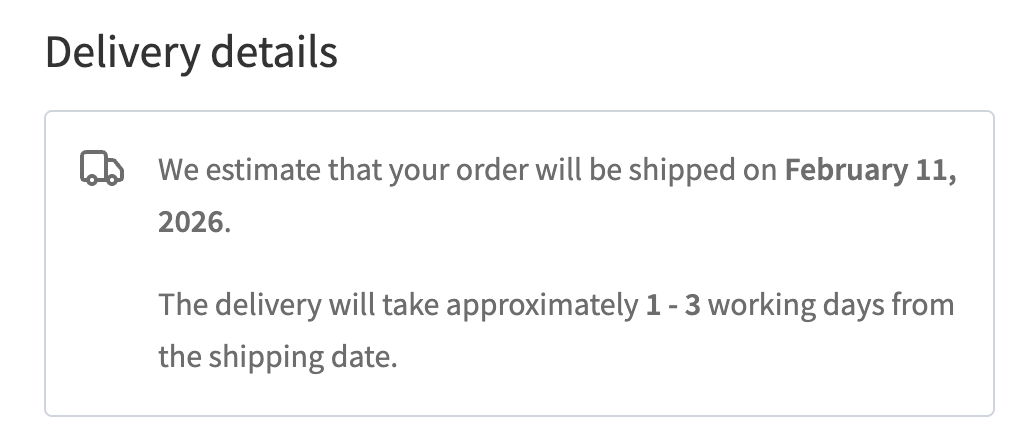
After an order is placed, the chosen date/time is confirmed in the customer’s order emails and account.
Merchants can also see the date/time on the order, making it easier to manage fulfillment and scheduling.
Before You Begin
- Ensure your WordPress timezone settings (Settings > General) are set correctly, this ensures accurate delivery/pickup timings.
- Ensure you have shipping/pickup methods configured to your requirements in WooCommerce settings.
Settings
Once installed, head on over to WooCommerce > Settings > Delivery & Pickup Dates.
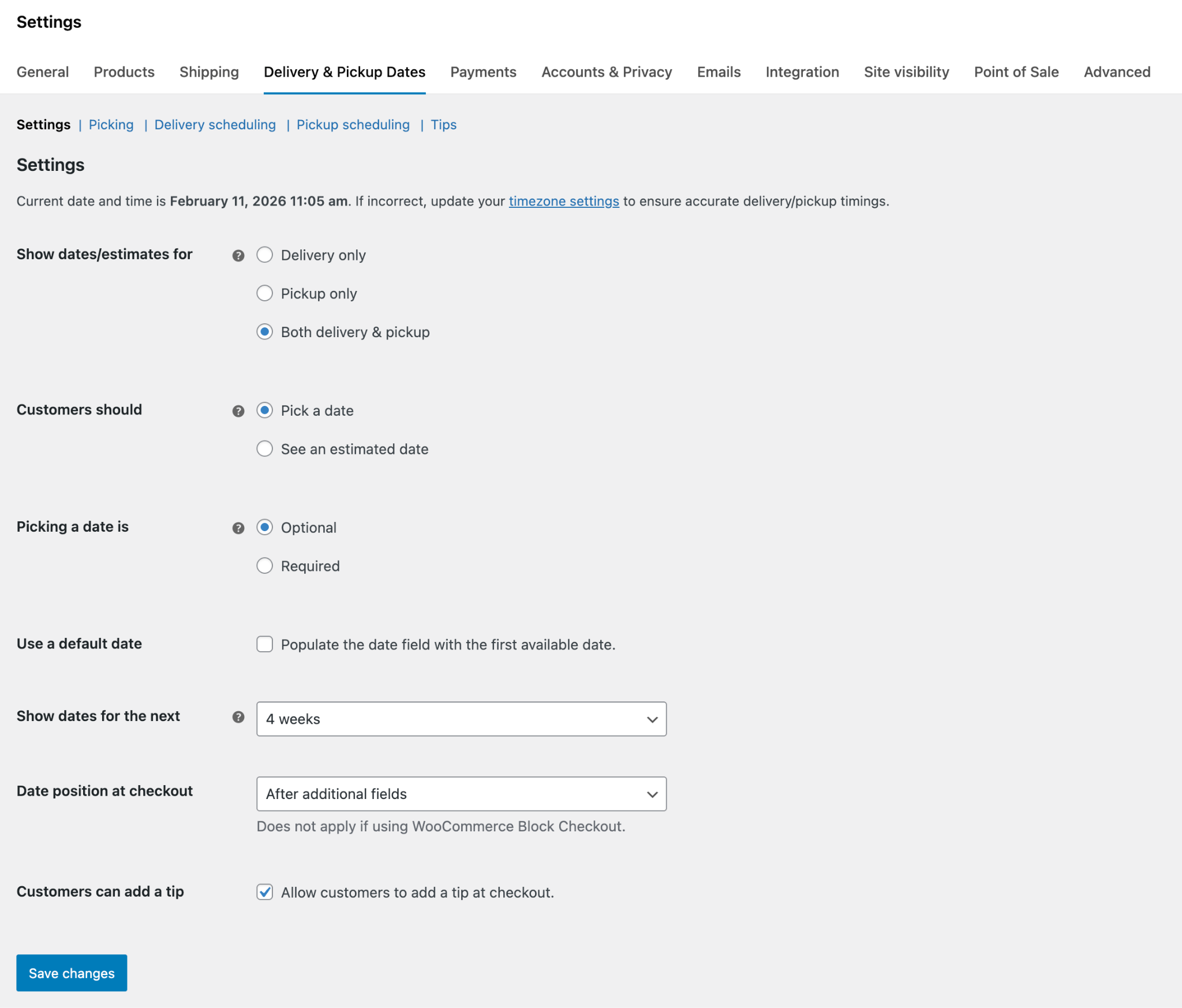
This section is split into the following sections:
- Settings
- Picking
- Delivery Scheduling*
- Pickup Scheduling*
- Tips*
* These sections appear only if the corresponding delivery, pickup, or tip options are enabled.
In the Settings section, you’ll see general settings to configure, Below is a breakdown of what each setting does:
Show delivery/estimates for
Choose whether customers see dates for delivery only, pickup only, or both delivery and pickup.
Customers should
Specify whether customers must select a date during checkout or are shown an estimated delivery or pickup date instead.
Picking a date is
Choose whether selecting a date is required or optional.
This setting appears only when Customers should pick a date is enabled.
Use a default date
Choose whether the first available date is automatically selected in the date field.
This setting appears only when Customers should pick a date is enabled.
Show dates for the next
Set how many weeks into the future customers can select a date from the calendar.
This setting appears only when Customers should pick a date is enabled.
Date position at checkout
Select where the delivery or pickup details appear on the checkout page.
If you are using the WooCommerce Block checkout, this setting does not apply, as the position cannot currently be customized.
Customers can add a tip
Enable or disable the option for customers to add a tip for delivery or pickup during checkout.
Once you’ve configured these settings to suit your needs, click Save Changes.
Next, we’ll move on to configuring the Picking settings.
Picking
The Picking section is where you define how long it takes to process an order.
The settings configured here are used to calculate which dates are available in the checkout date picker, or which estimated delivery or pickup dates are shown – depending on the option you selected earlier.

For an in-depth guide to this section, see:
How to configure Picking Days and Lead Time in Order Delivery for WooCommerce.
Order picking cut-off-time
Set a daily cut-off time for preparing orders. For example, if order processing ends at 3:00 PM, set this to 15:00. Orders placed after this time will be treated as if they were placed the following day when calculating available or estimated dates.
Leave this field empty if you do not want to use a cut-off time.
Order picking days
Select the days on which you prepare orders. Enable the days you operate.
If certain days have specific cut-off times, you can define them here. If left empty, they will inherit the global order picking cut-off time.
Lead time in days
Define the minimum number of days required to process an order before it is ready for shipping or pickup.
Only enabled order picking days are counted toward the lead time; non-picking days are excluded from the calculation.
Disable specific dates
Disable order picking on specific dates, such as holidays or planned closures. These dates are excluded from all checkout date calculations.
Once you’ve configured all the settings above to suit your needs, click Save changes.
Next, we’ll move on to configuring the Delivery Scheduling settings.
Delivery & Pickup Scheduling
The Delivery Scheduling and Pickup Scheduling sections are where you define the days, time frames, and ranges during which you deliver orders and/or allow customer pickups.
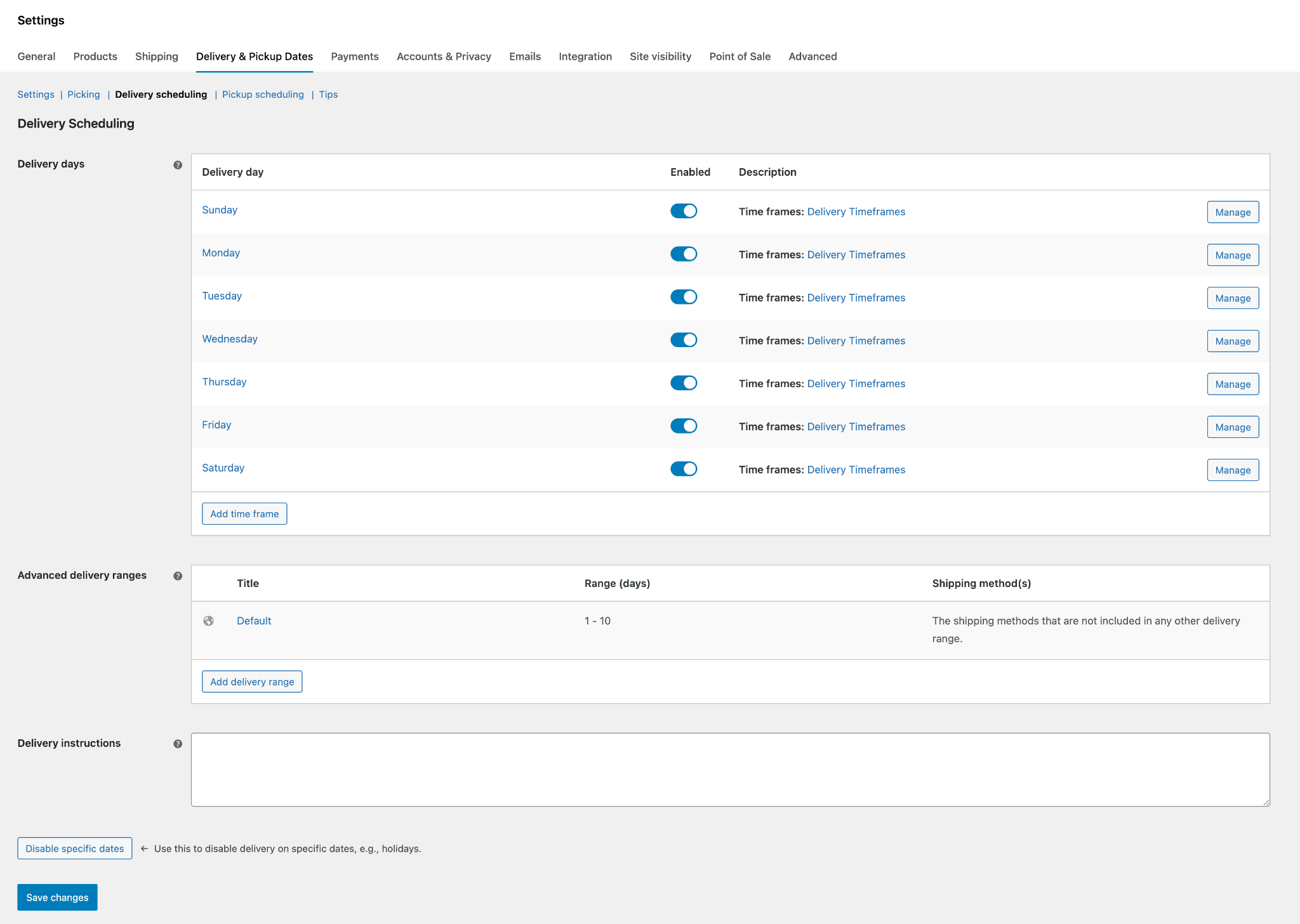
The settings configured here are used to calculate which dates are available for selection in the checkout date picker, or which estimated delivery or pickup dates are displayed – depending on the option you selected earlier.
For an in-depth guide to this section, see:
How to configure Delivery and Picking Scheduling in Order Delivery for WooCommerce.
Sections
The Delivery Scheduling section appears when Show delivery/estimates for is set to Delivery only or Both delivery & pickup.
The Pickup Scheduling section appears when Show delivery/estimates for is set to Pickup only or Both delivery & pickup.
The available settings for delivery and pickup scheduling are the same. In the example below, we’ll focus on Delivery Scheduling – you can configure Pickup Scheduling in the same way.
Delivery days
This section is where you choose the days on which you deliver orders to customers. Be sure to click Save Changes before adding time frames – this ensures your selected delivery days are saved.
Time frames
If you want customers to choose a delivery time frame during checkout, you’ll need to add one or more time frames.
Click Add time frame to open the time frame editor.
We recommend using frequency-based time frames, as this allows you to define a start and end time and automatically generate time frames in 30- or 60-minute intervals, rather than creating each one manually.
Below is a summary of the available options:
Title
An internal reference for the time frame.
Starting time
The time the delivery time frame begins.
Ending time
The time the delivery time frame ends.
Frequency
Recommended: set this to 30 or 60 minutes to automatically create time frames at these intervals between the starting and ending times. To create time frames manually, set this to No frequency.
Order limit
Set a maximum number of orders allowed for the time frame. Once the limit is reached, the time frame will no longer be available.
When using frequency-based time frames, the limit applies to each generated time frame individually. Set this to 0 for no limit.
Shipping methods
Restrict the availability of this time frame based on the shipping method selected at checkout.
Fee amount
Charge an additional fee for selecting this time frame.
Assign to delivery days
Choose which delivery days this time frame applies to.
You can create multiple time frames for each delivery day, if needed.
Advanced delivery ranges
This setting allows you to define different delivery time windows for different shipping methods. For each range, you specify how many days after an order is placed (for example, from 3 to 7 days) and which shipping methods the range applies to. These ranges are used to display estimated delivery dates to customers and to limit which dates they can select at checkout.
If you offer only one type of delivery, you can use the default range. Create an advanced range when you offer multiple shipping speeds (such as standard and express) and want each option to have its own earliest and latest delivery window, ensuring customers see accurate dates and estimates for the shipping method they choose.
Note: It is important to keep in mind that advanced delivery ranges should be ordered by priority, e.g., 1 – 1 day (premium delivery), should be higher than 2-3 days (standard delivery).
Delivery instructions
Add any instructions you want customers to see for deliveries.
Disable specific dates
Use this section to disable specific dates, such as holidays or planned closures. Disabled dates are excluded from all checkout date calculations.
Tips
This section lets you offer customers the option to add a tip for delivery or pickup during checkout.

For an in-depth guide to this section, see:
How to configure Tips in Order Delivery for WooCommerce.
Tip type
Choose whether tips are calculated as a percentage or a fixed amount.
Tip presets
Define preset tip options for customers to select. For multiple presets, enter values separated by commas, e.g., 5,10,20.
Hide custom amount?
By default, customers can enter a custom tip amount. Enable this option to disable custom amounts.
Tip heading
Enter the text that will appear as a heading above the tip options.
Tip message
Optionally, enter a message to display below the custom amount field.
Shipping methods
Select which shipping methods the tip options apply to. By default, tips are available for all shipping methods.
Orders
Once an order has a delivery or pickup date, both customers and merchants can view the relevant information.
What customers see
After placing an order with a delivery or pickup date, customers will see this information in:
- Their order confirmation emails
- Their order history in their account
What you see
As a merchant, you can view delivery and pickup details in several key areas of the WooCommerce dashboard.
Orders list
The Order Delivery extension adds two columns to the orders list:
- Shipping date – The date by which the order needs to be shipped
Delivery / Pickup date* – The date and time the customer expects the order, or when it can be picked up
*If you offer both delivery and pickups, an additional indicator shows whether the order is for delivery or pickup.
The orders list also includes helpful filters to narrow down orders:
- Shipping dates
- Delivery / Pickup dates
You can enable either or both filters to view orders by preset date ranges, or specify a custom date range.
Order details
When editing an order, a meta box labeled Delivery details or Pickup details shows the order’s delivery/pickup date and time frame.
From this meta box, you can edit the date or time frame if necessary. Once updated and the order is saved, the customer will see the revised information in their account.
Compatibility
Order Delivery is compatible with these extensions.