


Delivery and pickup schedules decide which days and times customers can choose: the weekdays you deliver or open for pickup, optional time frames with order limits, extra fees, and holidays. Delivery and pickup each have their own schedule, under WooCommerce » Settings » Delivery & Pickup Dates » Delivery scheduling and Pickup scheduling, and they work the same way.
A schedule section only appears when Show dates/estimates for includes it (see Order Delivery settings). The steps below use the delivery labels; the pickup section uses "pickup" in their place.
When you’d use this
- Deliver on some weekdays only, or open for pickup on different days than you deliver.
- Let customers choose a time slot, such as 09:00 to 12:00, and cap how many orders each slot takes.
- Charge extra for Saturday delivery or an early morning slot.
- Offer an express shipping method with an earlier first date than standard shipping.
- Block a public holiday for customers in one country or state.
How to use it
1. Turn on your delivery days
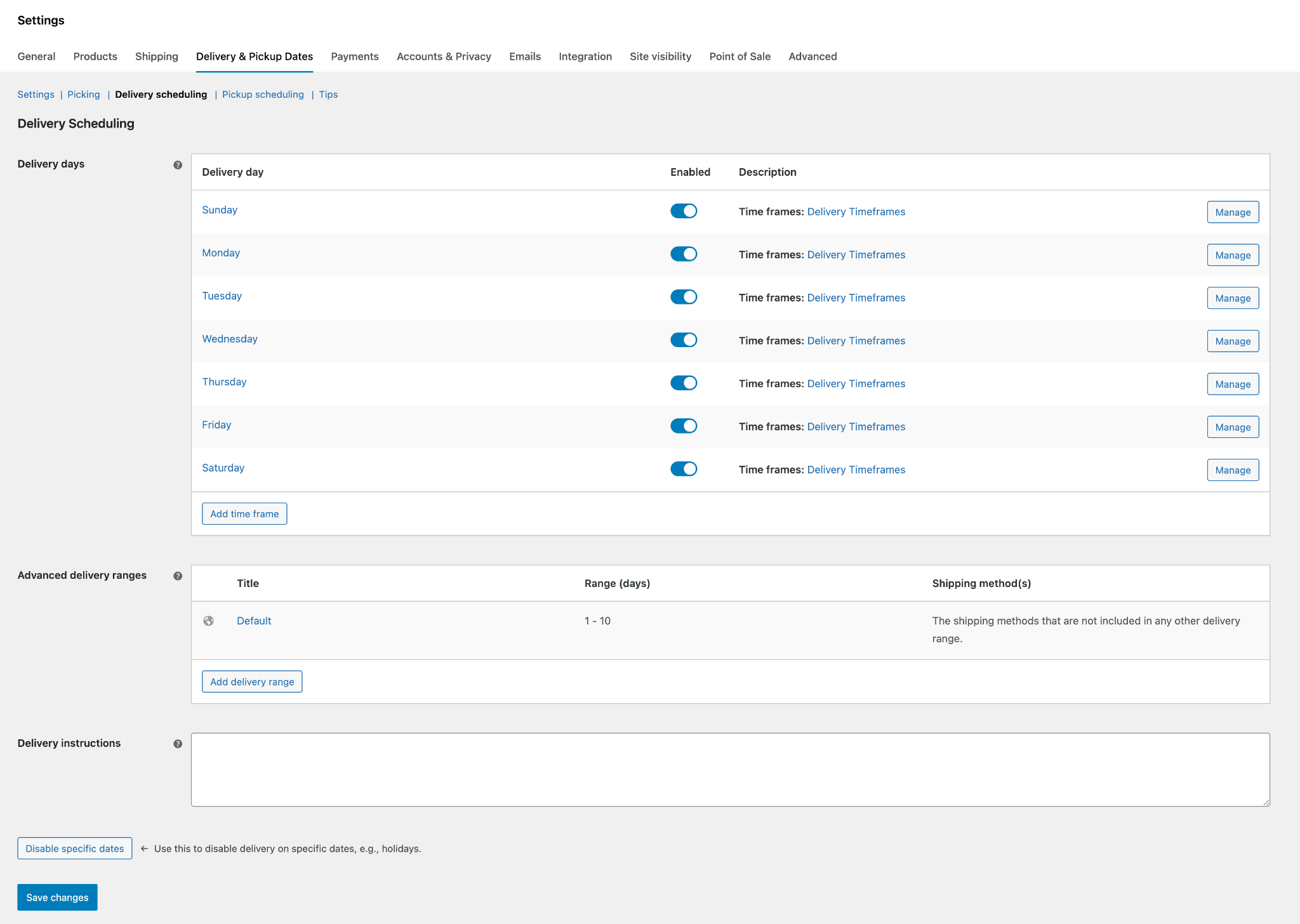
In Delivery days, every weekday is on by default. Click Manage on a day you don’t deliver and turn off Enable/disable, or click Set Up on a day that’s off to turn it on. Click Save changes on the section before you open a day, or the section’s unsaved changes are lost.
2. Add time frames
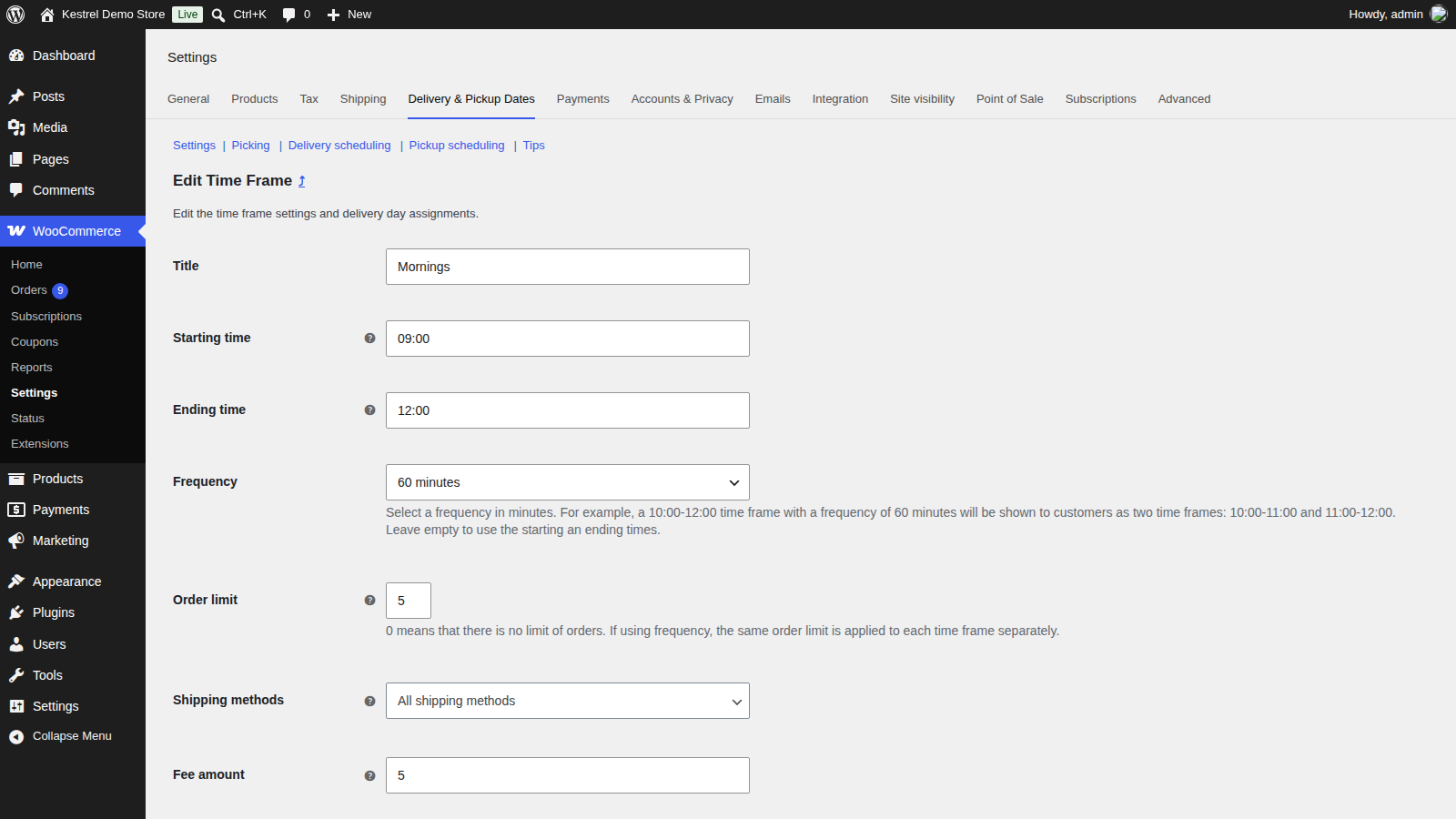
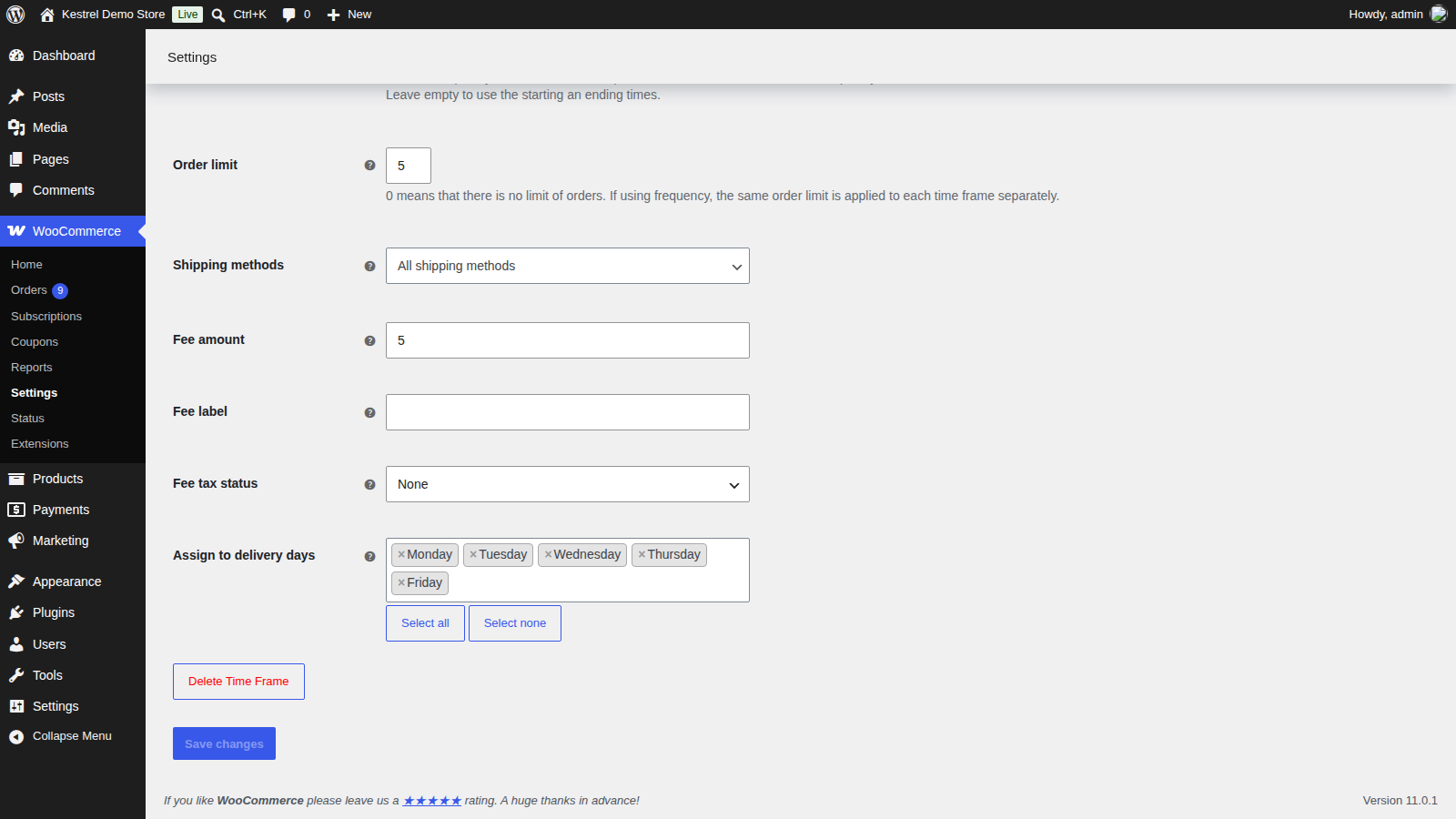
To let customers choose a time as well as a date, click Add time frame under Delivery days. Give it a Title for your own reference, a Starting time and Ending time, and pick the days under Assign to delivery days.
Set Frequency to split a long window into slots. For example, a "Mornings" time frame from 09:00 to 12:00 at 60 minutes gives customers three choices: 09:00 – 10:00, 10:00 – 11:00 and 11:00 – 12:00. Customers see only the times, never the title.
3. Set order limits
Set Order limit on a time frame to cap how many orders it takes; with a frequency, each slot gets that limit. On a day without time frames, set the limit in the day’s own settings instead. A full slot or day can’t be chosen. Only orders that are Processing, On hold or Completed take up a place, so unpaid, cancelled, refunded and failed orders don’t.
4. Limit days or time frames to shipping methods
Use Shipping methods on a day or a time frame to say which methods can use it. For example, to deliver with your "Flat rate" method only on Saturdays:
- Open Saturday, choose Only specific shipping methods and pick Flat rate.
- Open each other day, choose All shipping methods, except… and pick Flat rate.
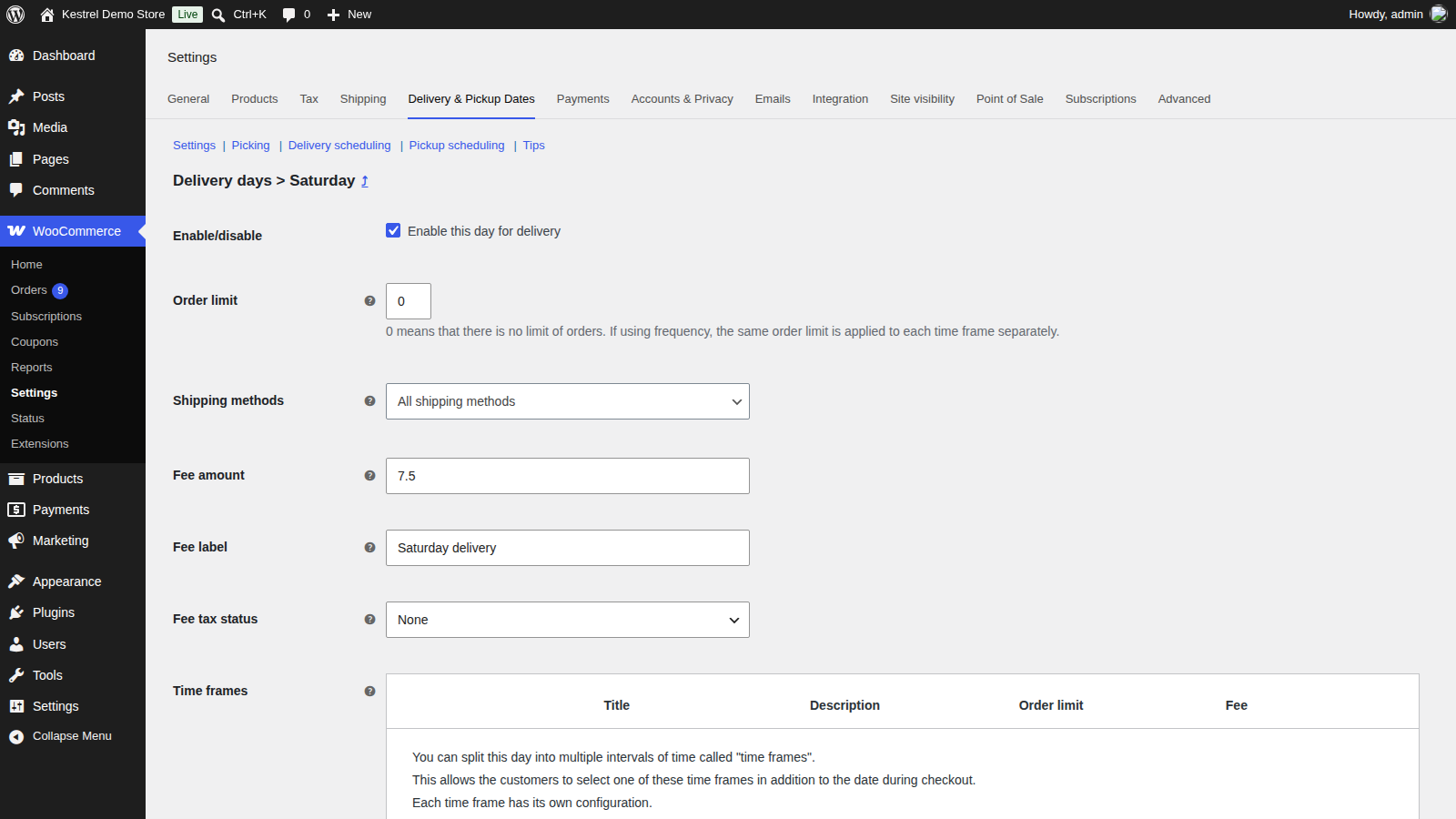
A day’s own Shipping methods, Order limit and fee only show while it has no time frames. Once a day has time frames, set those on each time frame instead. If none of a day’s time frames allow the customer’s method, the day can’t be chosen.
5. Give shipping methods their own range
Ranges set how many days after the shipping date each method can deliver. Every store has a Default range of 1 to 10 days for methods no other range lists. To give a method its own timing, click Add delivery range, enter a Title, From (days) and To (days), and pick its Shipping methods. For example:
| Title | From – To (days) | Shipping methods |
|---|---|---|
| Express | 0 – 1 | Express flat rate |
| Standard | 2 – 3 | Flat rate |
| Default | 1 – 10 | Everything else |
The first range in the list that includes the customer’s method wins, so drag specific ranges above general ones. From (days) sets the earliest date; the calendar’s last date comes from Show dates for the next, not To (days). How Order Delivery calculates delivery and pickup dates shows how ranges combine with picking and lead time.
6. Add delivery and pickup instructions
Enter text in Delivery instructions (or Pickup instructions), such as your delivery hours or where to collect orders. It shows under the Delivery details (or Pickup details) heading at checkout.
Charge a fee for a day or time frame
Enter a Fee amount on a day without time frames, or on a time frame, to add a fee to the order when the customer chooses it. Use your store’s price format without a currency symbol, such as 7.50.
Give it a Fee label, such as "Saturday delivery", so customers know what it’s for. With no label, the fee is called "Scheduled delivery" or "Scheduled pickup". When taxes are on, set Fee tax status and Fee tax class too.
At checkout, a time frame with a fee shows the amount next to the time, such as "09:00 – 10:00 (+ $5.00)". The fee appears with the order’s other fees in the cart, the order and emails.
Block holidays and closures
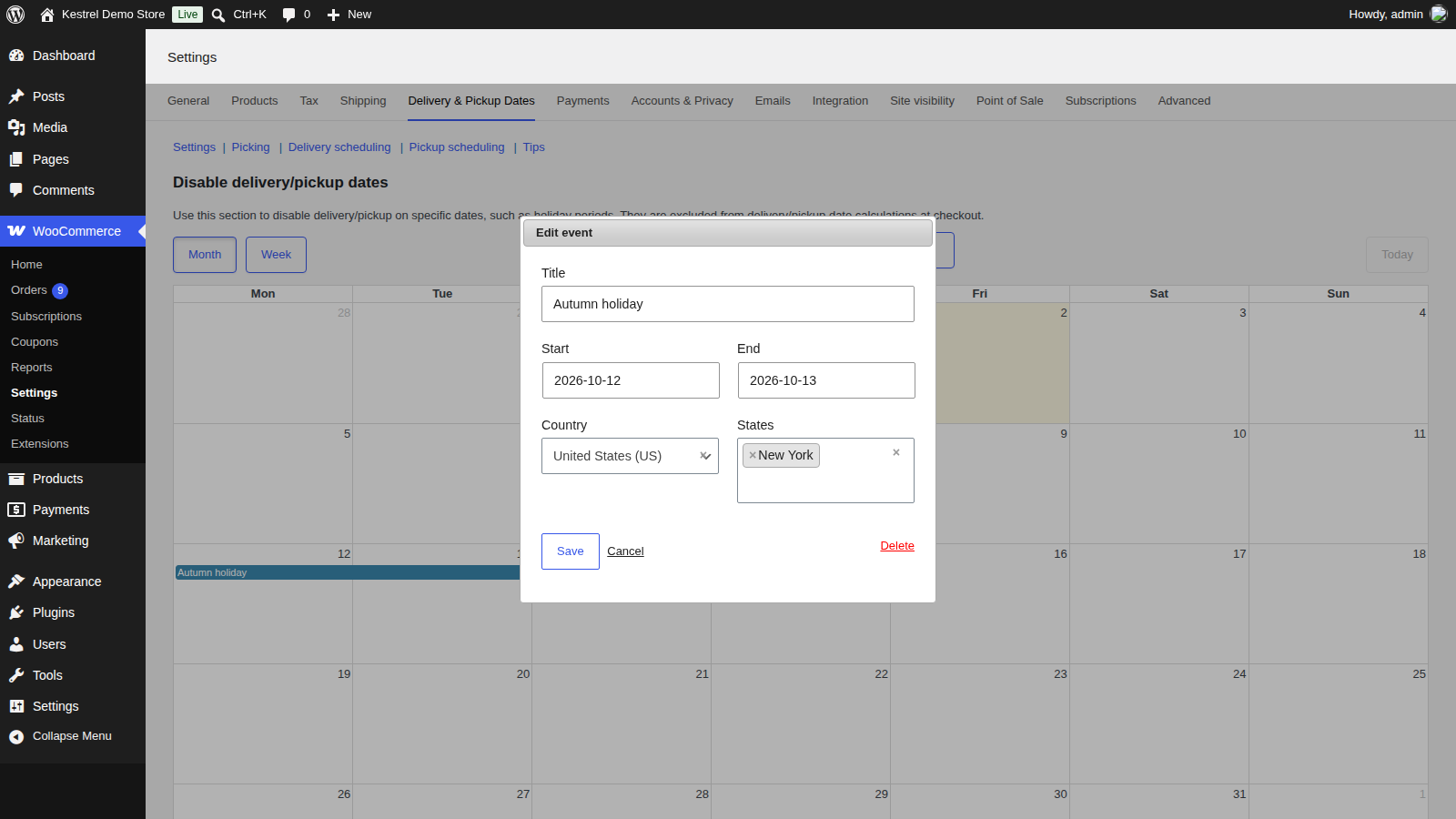
Click Disable specific dates in Delivery scheduling or Pickup scheduling to open the Disable delivery/pickup dates calendar, and add an event with a Title, Start and End. Both buttons open the same calendar, so a date you block applies to deliveries and pickups alike.
To block a date only for some customers, choose a Country, and optionally States. The event then applies only to customers whose shipping address is there. Events can’t be limited by shipping zone or postcode.

To stop preparing orders on a date, block it in the Picking section’s own Disable specific dates calendar instead. That moves the shipping date, which moves every delivery and pickup date after it.
Use with Table Rate Shipping
With Table Rate Shipping active, every Shipping methods list (on days, time frames and ranges) lets you pick individual table rates as well as the whole Table Rate method. For example, you can offer Saturday morning delivery only with the rate for orders over $50.
Common issues
A day I turned on doesn’t appear at checkout
The day may not allow the customer’s shipping method, its time frames may not, or it may be full. Check the day’s Description in Delivery days, which lists its time frames, order limits, fee and shipping methods. A blocked date in the Disable delivery/pickup dates calendar also hides it.
A holiday I blocked for delivery is also blocked for pickup
Delivery and pickup share one disabled dates calendar. Limit the event to a Country and States if it only applies to some customers.
The fee shows as "Scheduled delivery"
The day or time frame has no Fee label. Add one.
I can’t find the order limit or shipping methods on a day
The day has time frames. Set those on each time frame instead.
For more, see Troubleshoot Order Delivery.