


Order Delivery saves two dates on each order: the shipping date, when you need to send the order out, and the delivery date (or pickup date) the customer chose or was given. This page covers where you see those dates in your admin and how to change them.
When you’d use this
- Plan the day’s picking and deliveries from the orders list.
- Move an order to another delivery date or time frame after a customer asks.
- Print the delivery date on packing slips.
- Fix order limits that show a slot as full when it isn’t.
Sort and filter the orders list
WooCommerce » Orders gets two sortable columns, Shipping date and Delivery date. When Show dates/estimates for is Pickup only or Both delivery & pickup, the second column is called Delivery / pickup date and each order is tagged Delivery or Pickup. The time frame shows under the date.
Two filters sit above the list: Filter by shipping date and Filter by delivery date (or Filter by delivery / pickup date). Each offers Today, Tomorrow, Next week, Next 2 weeks, a month, or Custom date range. For example, filter by shipping date for Today to see what has to go out this morning.
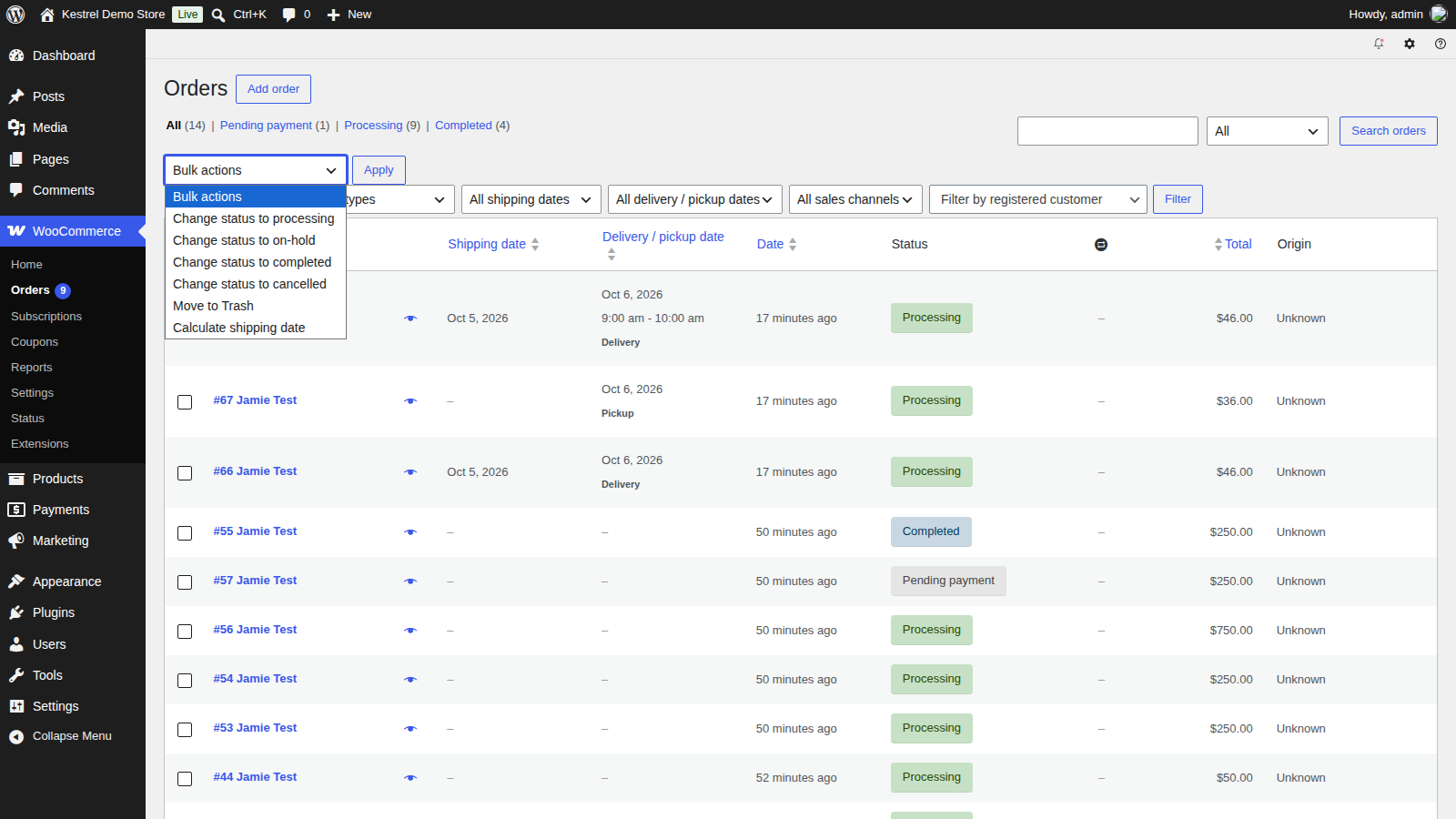
Calculate shipping dates in bulk
If you changed your picking or scheduling settings, select orders in the list and choose Calculate shipping date from Bulk actions. Order Delivery works out each order’s shipping date again from its delivery date and your current settings, and shows how many orders it updated ("Updated the shipping date for 3 orders."). It skips pickup orders and orders whose delivery date has passed.
Edit an order’s delivery or pickup date
Open the order. The Delivery details meta box (or Pickup details for a pickup order) shows the Shipping date:, the Delivery date: (or Pickup date:) and the Time frame: as two times. Pickup orders have no shipping date field.
Change the date or time frame and click Update. The customer sees the new details in their account, and on any email you send afterwards.
If you change only the delivery date on a delivery order, Order Delivery works out a new shipping date for it and shows "The shipping date have been updated according to the new delivery/pickup date." If no shipping date fits, it shows "We couldn’t find a shipping date according to the delivery/pickup date." To set a shipping date of your own, change both dates in the same edit.

Dates on packing slips and invoices
With PDF Invoices & Packing Slips or Print Invoices & Packing Lists active, the delivery or pickup date and time frame are added to their documents automatically. There’s nothing to turn on. Other invoice plugins don’t show the date.
Backorder notification email
When an order with items on backorder comes in while Customers should is Pick a date, Order Delivery emails your staff so you can arrange delivery with the customer, whether the order came through the classic checkout or the checkout block. The email is set up under WooCommerce » Settings » Emails » Backorder notification; its settings are described on Order Delivery settings.
Rebuild the order count lookup table
Order Delivery keeps a count of orders per day and time frame to enforce order limits. Only orders that are Processing, On hold or Completed count: an order waiting for payment doesn’t hold a place, and cancelling, refunding or failing an order frees its place.
If a slot shows as full when it isn’t, or still takes orders after it filled up, go to WooCommerce » Status » Tools, find Rebuild order delivery lookup table, and click Rebuild table. The rebuild runs in the background ("Lookup table rebuild has been scheduled and will run in the background. This may take a few minutes to complete."), and a notice shows while it runs.

Common issues
An order has no shipping date
Pickup orders don’t have one. For a delivery order, select it and run Calculate shipping date; if no date fits your current settings, the shipping date stays empty.
"We couldn’t find a shipping date according to the delivery/pickup date."
The new delivery date can’t be reached from any picking day under your current settings, for example because it’s earlier than the shipping date plus the range’s From (days). Set the shipping date yourself in the same edit.
Order limits look wrong
Only Processing, On hold and Completed orders count toward a limit. Rebuild the lookup table under WooCommerce » Status » Tools.
The date isn’t on my invoices
Only PDF Invoices & Packing Slips and Print Invoices & Packing Lists add it. See Order Delivery compatibility.