


With WooCommerce Subscriptions, Order Delivery gives every renewal a delivery or pickup date automatically. Customers choose a date for their first order at checkout, and can change the next order’s date and their preferred days from their account. Order Delivery never changes a subscription’s renewal (next payment) date; it works out the delivery date around it.
When you’d use this
- You sell weekly or monthly boxes and want each renewal to arrive on a predictable day.
- Customers should be able to skip a weekday they’re not home, or move their next delivery.
- You want each delivery to fall within the billing period it was paid for.
Requirements
- WooCommerce Subscriptions 3.0 or later. With an older version, Order Delivery shows "Order Delivery for WooCommerce requires WooCommerce Subscriptions 3.0 or higher." and its subscription features stay off.
- Customers should set to Pick a date. With See an estimated date, subscriptions get no delivery date and customers can’t change one.
- Subscriptions that need shipping, or that use a pickup method while pickup is on.
How it works
- At checkout, the customer picks a date for the first order, as with any order.
- Each time the subscription renews, Order Delivery calculates the next order’s delivery or pickup date from your scheduling settings, the Subscription options and the customer’s preferences.
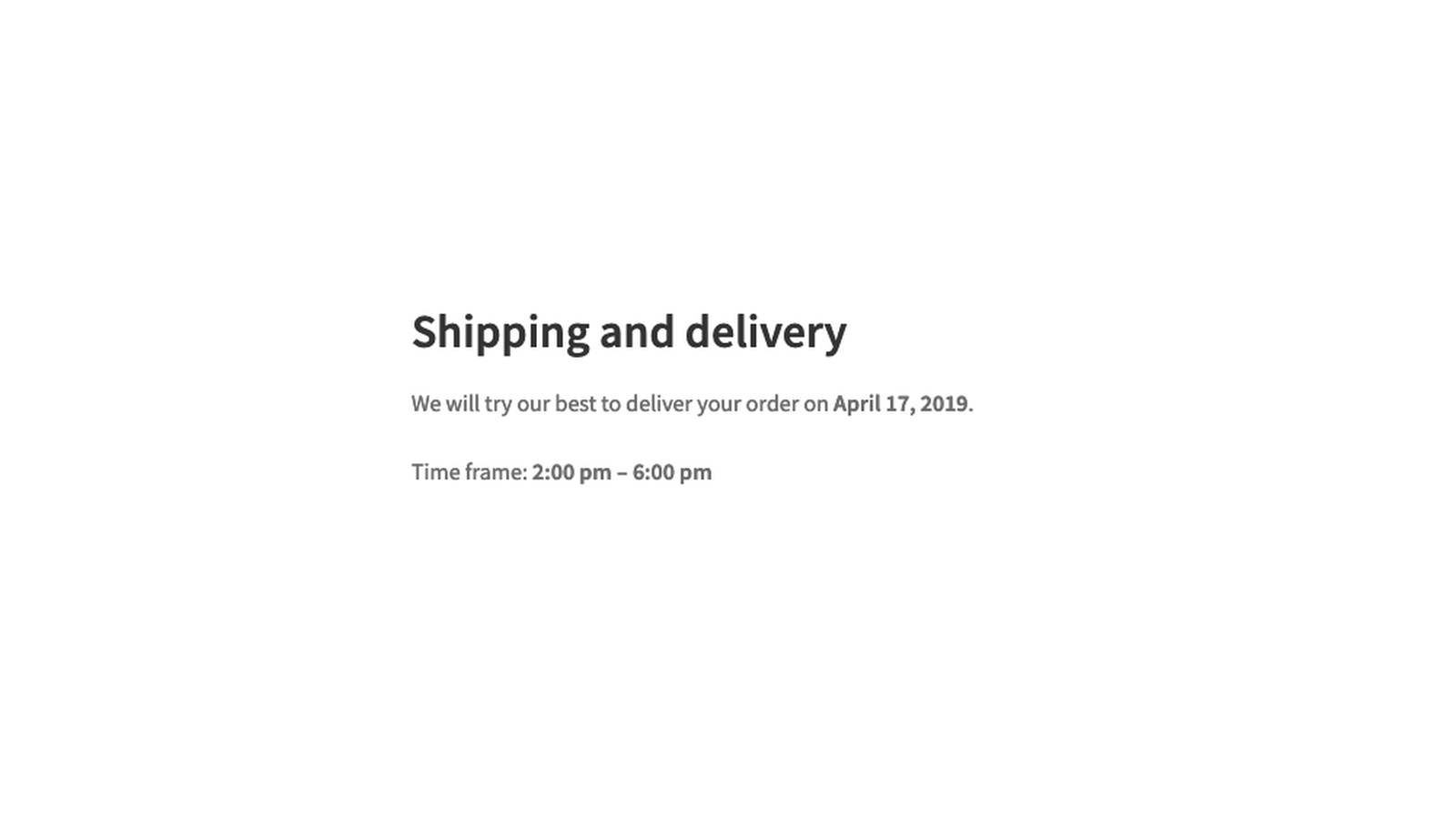
- The customer sees that date on the subscription in My Account and can change it before the renewal.
- If you change the subscription’s next payment date and the delivery date no longer fits, Order Delivery picks a new one and adds a note to the subscription.
Subscription options
With Subscriptions active, three settings appear at the end of the Settings section of WooCommerce » Settings » Delivery & Pickup Dates, marked as legacy settings:
- Limit to billing interval (on by default) keeps checkout dates within the subscription’s billing period.
- On order renewal chooses between Assign the first available delivery date and Keep the subscription’s billing interval between dates (the default).
- Same weekday (on by default) moves renewal dates to the same weekday as the previous delivery.
Each is defined on Order Delivery settings. When the calculated date isn’t available, the first available date is used instead.
Checkout with a subscription
With Limit to billing interval on, the calendar only offers dates within the subscription’s billing period: a week ahead for a weekly subscription, a month for a monthly one. This stops a customer from moving the first delivery into the next period and getting two orders at once. With more than one subscription in the cart, the shortest period applies, and if Show dates for the next is shorter than the period, it applies instead.
Turn Limit to billing interval off if customers should be able to push a delivery further out, for example while they’re away. It only changes which dates they can pick, never the renewal date.
Manual, early and synchronized renewals
- Manual renewals: when a customer pays a renewal order that already has a delivery date, checkout doesn’t ask for a date again, and the order keeps the date Order Delivery assigned. If the renewal order has no date, the customer picks one at checkout.
- Early renewals: the customer picks a date at checkout. The calendar starts at the subscription’s next payment date, not today, because the early renewal pays for the next period.
- Synchronized renewals: Order Delivery calculates the next order’s date after the renewal goes through, using your settings and the customer’s preferences at that moment, whatever the renewal date.
Fees on renewals
Day and time frame fees are charged on the order where the customer chooses the date, such as the first order. Automatic renewals don’t add them.
Customers change delivery preferences
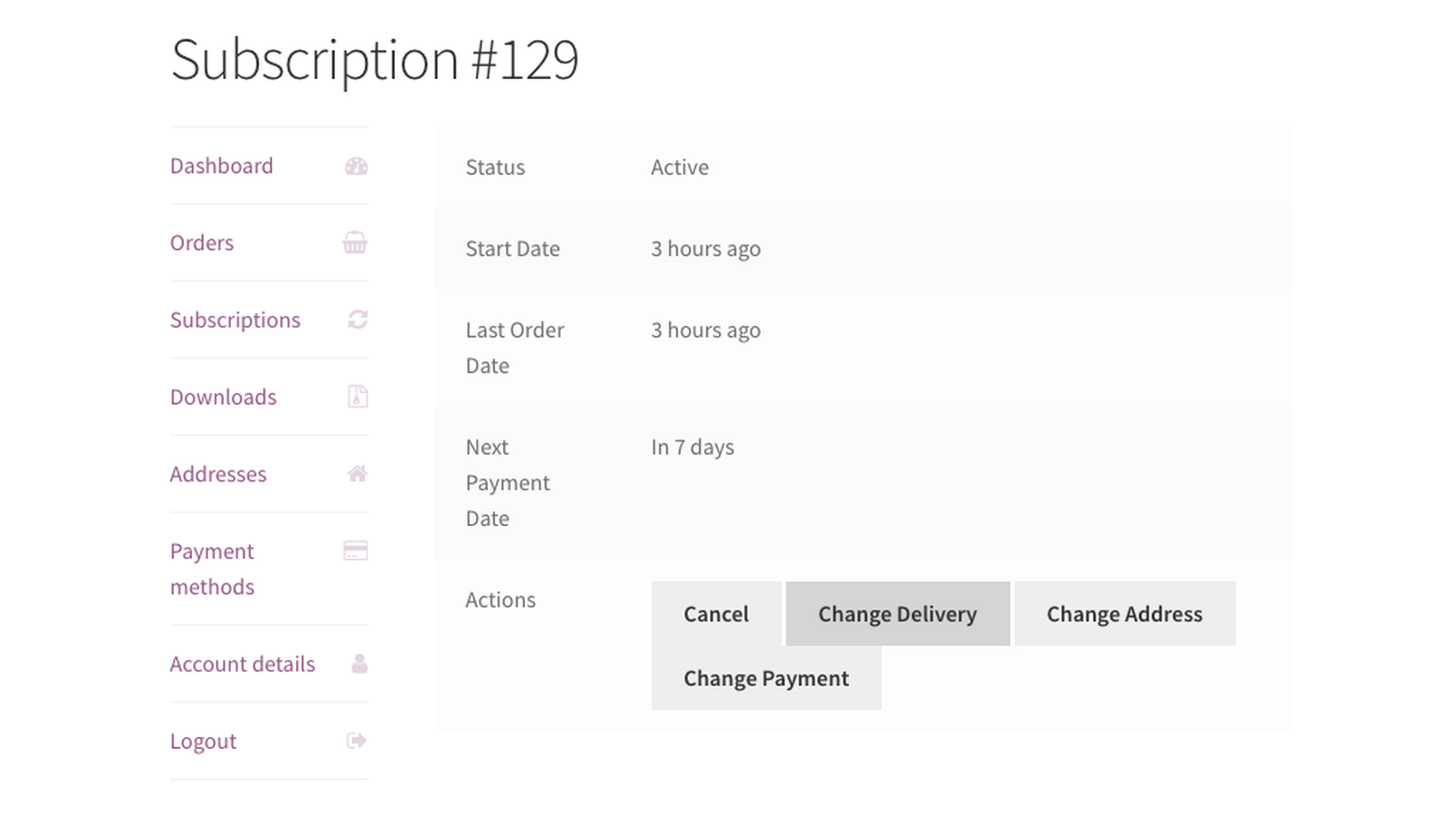
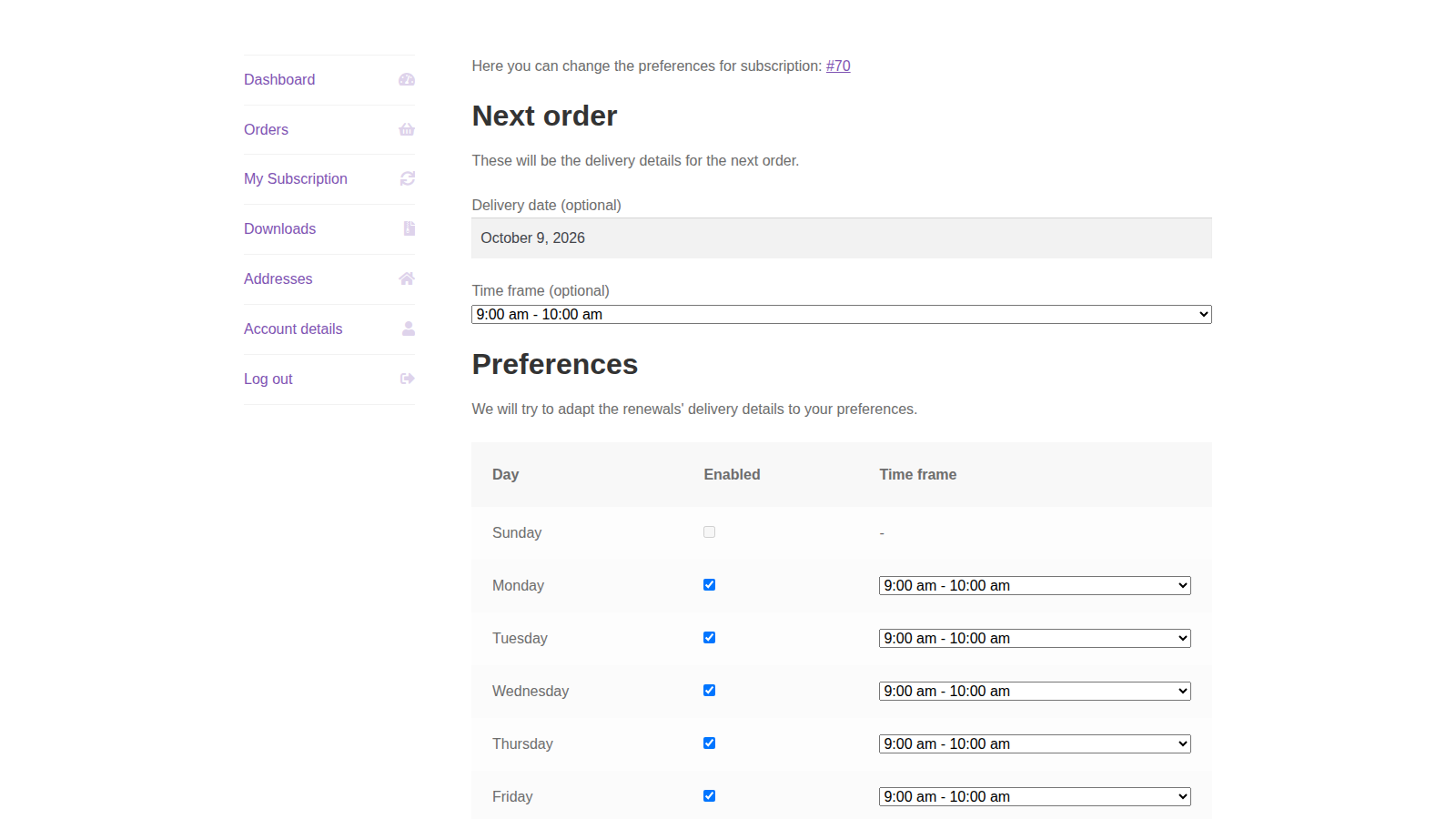
On My Account » Subscriptions, the subscription shows the next order’s delivery or pickup details, and a Change delivery (or Change pickup) button. It opens a page with two sections:
- Next order: the date and time frame for the upcoming order.
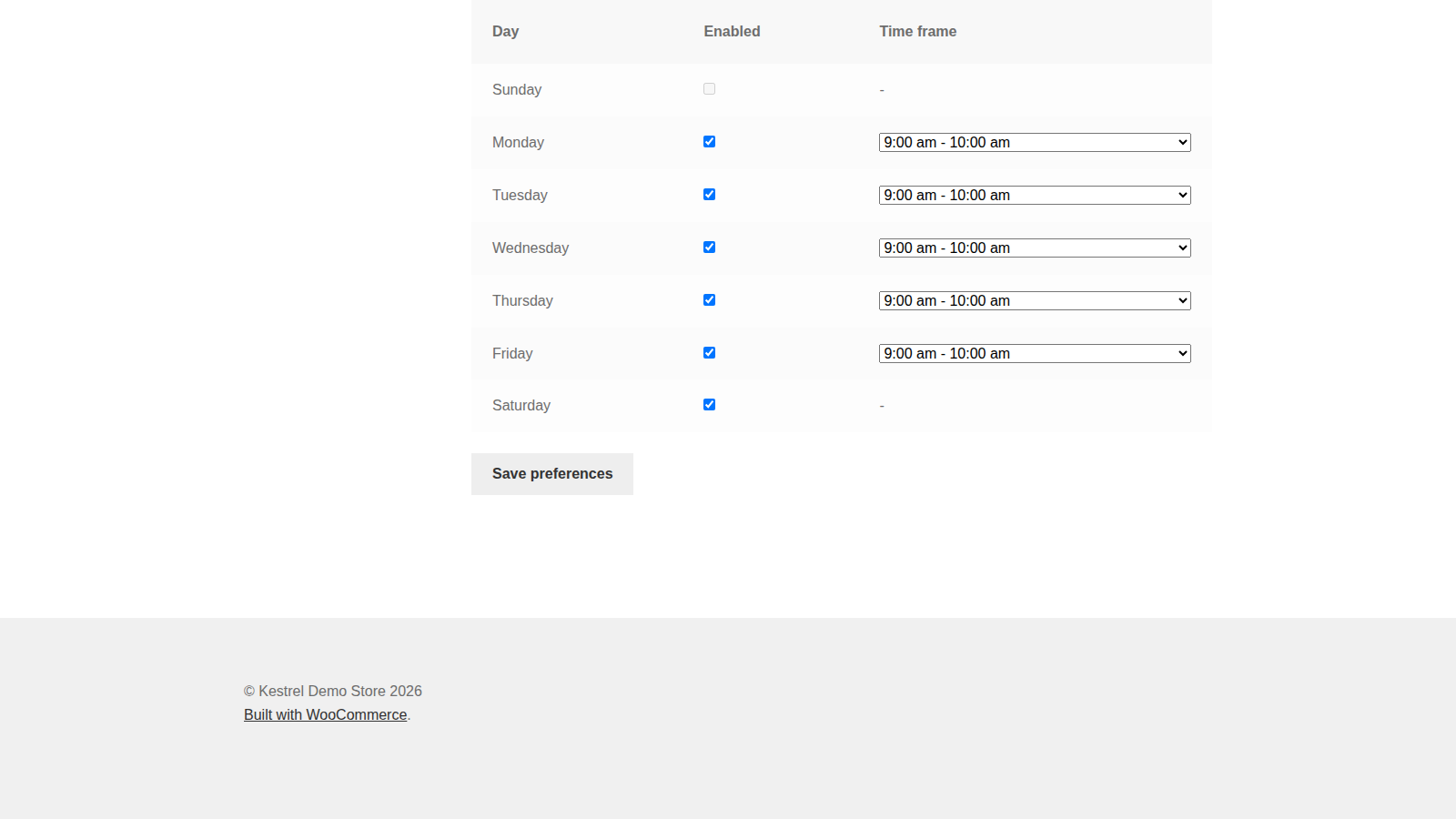
- Preferences: the weekdays and time frames the customer prefers for every later order. Order Delivery tries to match them, and keeps the calculated date when it can’t.
The customer clicks Save preferences, and sees "Delivery preferences changed successfully."
The button doesn’t appear when:
- the subscription renews daily,
- it has no delivery date for the next order (for example after "Delivery date not found for the next order."),
- it isn’t active, such as when it’s on hold, or its next payment date has passed,
- Customers should is See an estimated date, or
- it doesn’t need shipping.
Order Delivery doesn’t change the subscription’s shipping address or shipping method; customers change those through WooCommerce Subscriptions.
Edit a subscription’s next delivery
To change the next order’s date yourself, edit the subscription under WooCommerce » Subscriptions. The delivery meta box shows "Dates/times for next delivery:" with the date and time frame. Keep the date within the next billing cycle, as the note under the fields says: for a weekly plan, within 7 days of the next payment. Open Customer preferences to see the days and time frames the customer chose.

Notes and emails
Order Delivery adds a private note to the subscription, so you have a log, when:
- the customer changes the next order’s delivery or pickup details,
- you change the next payment date and the delivery details are updated: "Due to a change in the next payment date, the delivery details of the next order have been updated to [date]."
- no valid date can be found: "Delivery date not found for the next order." The date is removed, and the customer can’t change preferences until you assign one.
The Subscription Delivery Note email, under WooCommerce » Settings » Emails, tells your chosen recipients when one of these notes is added. Customers aren’t told about these changes automatically, so let them know when you move a delivery. Order emails for subscriptions also include a link to the page where customers change their preferences.
Common issues
Customers don’t see the Change delivery button
Check the list above: daily subscriptions, subscriptions without a next delivery date, subscriptions that aren’t active, and stores using See an estimated date don’t get it.
The renewal’s delivery date is earlier or later than the billing interval
Same weekday moves the date to the nearest matching weekday, so the gap between deliveries can differ from the billing period by a few days. If the calculated date isn’t available, Order Delivery uses the first available date instead.
"Delivery date not found for the next order."
No date passed your scheduling rules within the next period. Check the subscription’s shipping method against your delivery days and time frames, then set a date in the subscription’s delivery meta box.
The calendar at checkout only shows a week of dates
Limit to billing interval is on and the cart has a weekly subscription. Turn it off to offer the full Show dates for the next window.
FAQ
Can the delivery date change the renewal date?
No. Order Delivery never changes a subscription’s renewal date. When the renewal date changes, the delivery date is adapted to it if it no longer fits.