


Order Delivery 4 gives pickup its own days, time frames and ranges. Upgrading from version 3 to any version 4 release sets every store to Delivery only, so until you set up pickup again, customers who choose a pickup method see no date or estimate at checkout.
Who needs this
- Every store updating from Order Delivery 3 to version 4, whichever 4.x release you install. The upgrade runs the same changes for all of them.
- Stores that used the version 3 setting "Enable ‘Order Delivery’ when the shipping method is ‘Local Pickup’" (often called Enable for local pickup) need every step below, because their pickup dates stop showing.
- Stores that only deliver need to check one thing: if you use CheckoutWC, your Date position at checkout.
What changes when you upgrade
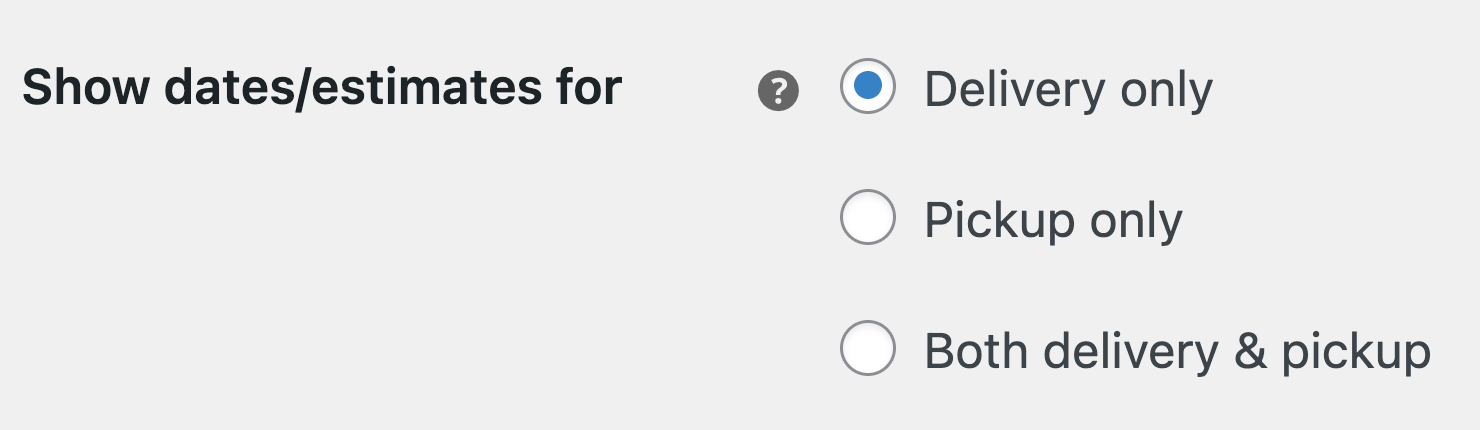
- Show dates/estimates for is set to Delivery only. Your existing days, time frames and ranges stay under Delivery scheduling, where they were stored.
- Customers who choose a pickup method see no date or estimate until you switch the mode and set up Pickup scheduling.
- The old Enable for local pickup setting is deleted, so there’s nothing to turn back on.
- With CheckoutWC, Date position at checkout is reset to After shipping methods.
Before version 4, turning on the old setting applied your delivery days, time frames and ranges to pickup too, with "Pickup" in the labels.

In version 4, Show dates/estimates for replaces it, and shows separate Delivery scheduling and Pickup scheduling sections depending on your choice.

How to use it
Test the upgrade on a staging copy of your store first if you can, then repeat the steps on your live store.
1. Switch Show dates/estimates for
Go to WooCommerce » Settings » Delivery & Pickup Dates, set Show dates/estimates for to Both delivery & pickup (or Pickup only if you don’t deliver), and click Save changes. The Pickup scheduling section appears. From then on, pickup customers get dates from whatever Pickup scheduling holds, so set it up straight away.
2. Move your pickup days and time frames
In Pickup scheduling, turn on the Pickup days you’re open and add the pickup time frames you used before. Then, in Delivery scheduling, delete any time frames that were only there for pickup.
3. Split your ranges
If you added your own ranges under Advanced delivery ranges (not just the Default), recreate the pickup ones under Advanced pickup ranges and remove them from delivery. The Default pickup range starts at 1 to 10 days; set From (days) to 0 for same-day pickup.
4. Recheck order limits and shipping method rules
Order limits used to cover delivery and pickup together. Set them separately for each now. Time frames that you limited to pickup or delivery shipping methods to keep the two apart may no longer need those rules, since pickup time frames only show to pickup customers.
5. Check the CheckoutWC position
If you use CheckoutWC, set Date position at checkout back to the position you used before, if it wasn’t After shipping methods.
Example
Before the upgrade, a store had Enable for local pickup on, with these delivery days and time frames:
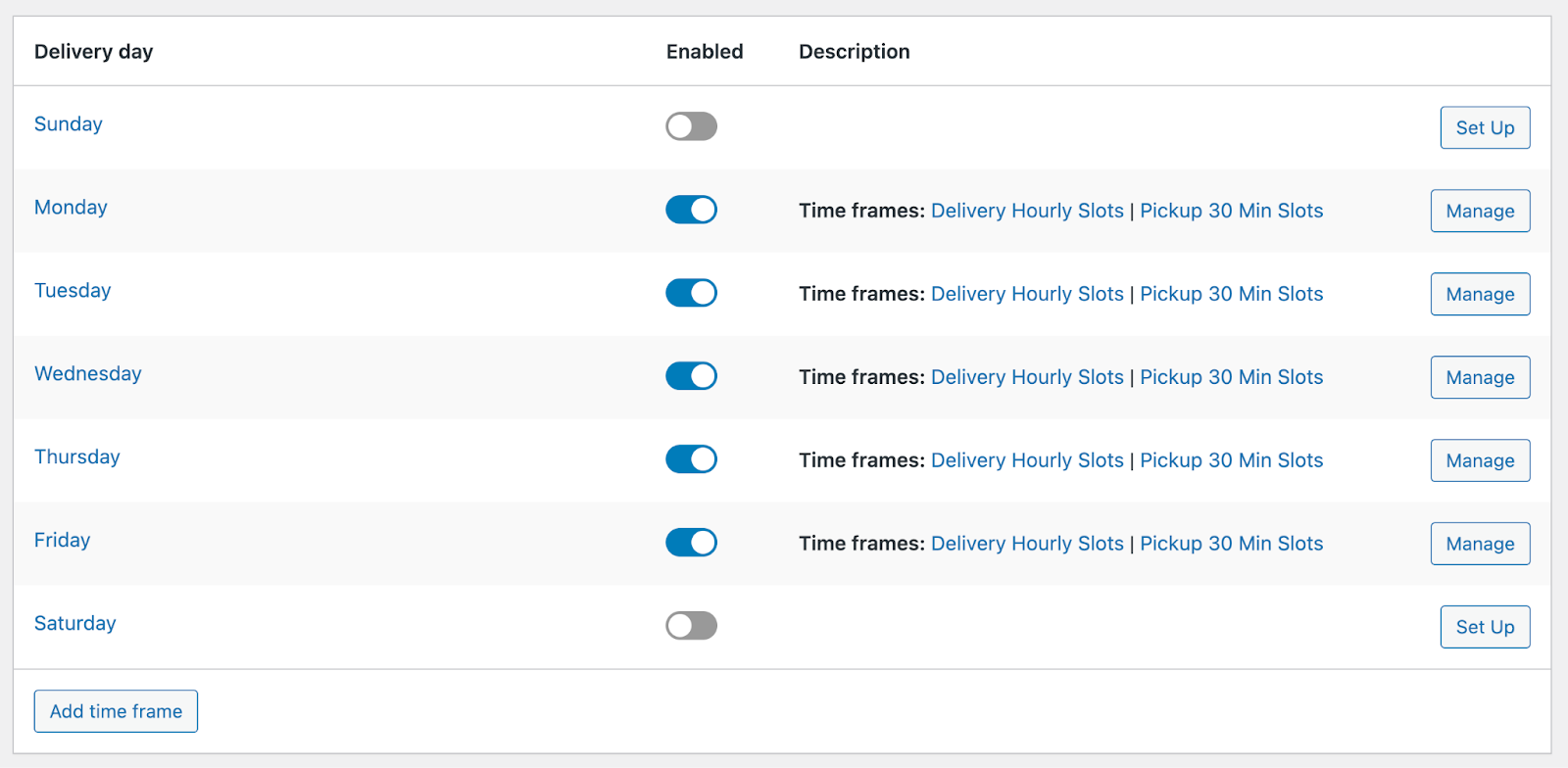
The Delivery Hourly Slots time frame was for deliveries:

The Pickup 30 Min Slots time frame was for pickups:
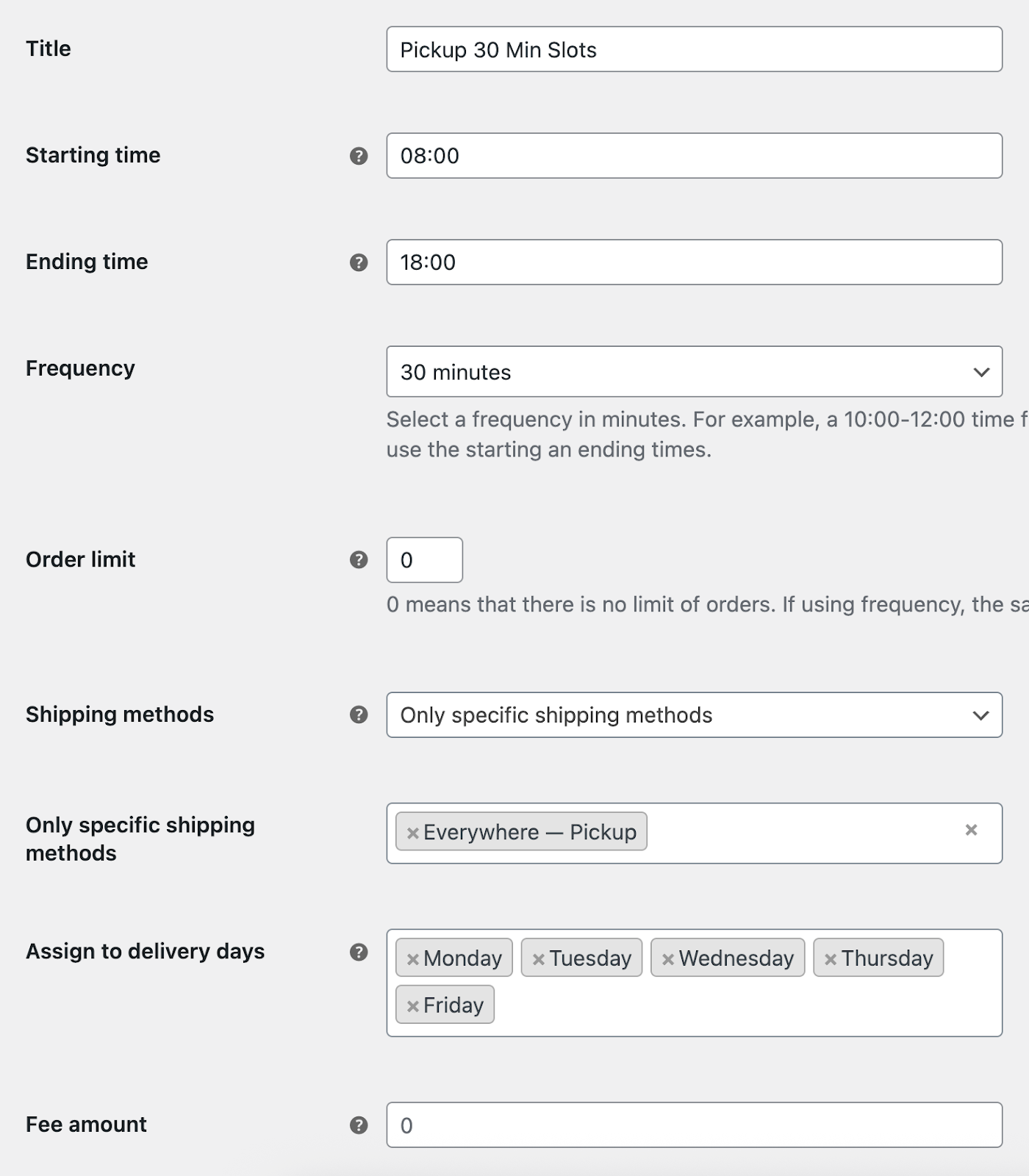
After upgrading, the store:
- Sets Show dates/estimates for to Both delivery & pickup.
- In Delivery scheduling, deletes the Pickup 30 Min Slots time frame.
- In Pickup scheduling, turns on the pickup days and adds a 30-minute pickup time frame with the same hours.
- Moves any custom pickup ranges from Advanced delivery ranges to Advanced pickup ranges.
Can this be done automatically?
No. Stores set up delivery and pickup in many different ways, and moving the data automatically would mean guessing, for example how to split an order limit that covered both. So the upgrade keeps everything under delivery and leaves the pickup setup to you. In return, delivery and pickup now have fully separate days, time frames and ranges.
Common issues
Pickup customers see no date
Show dates/estimates for is still Delivery only. Follow step 1.
The date moved on my CheckoutWC checkout
The upgrade reset Date position at checkout to After shipping methods. Set it back (step 5).