Want to protect your premium membership content from being shared? Here’s how to lock down videos, PDFs, and members-only pages so only paying members can access them.
This guide explains how content restriction works in Constellation, how to protect embedded videos using domain restrictions, and how to securely share downloadable files without relying on shared passwords.
How Content Restriction Works
Constellation uses rules to define what content each membership plan can access.
You can restrict any post, page, product, or custom post type to one or more plans. Here’s a short guide on how to protect new content.
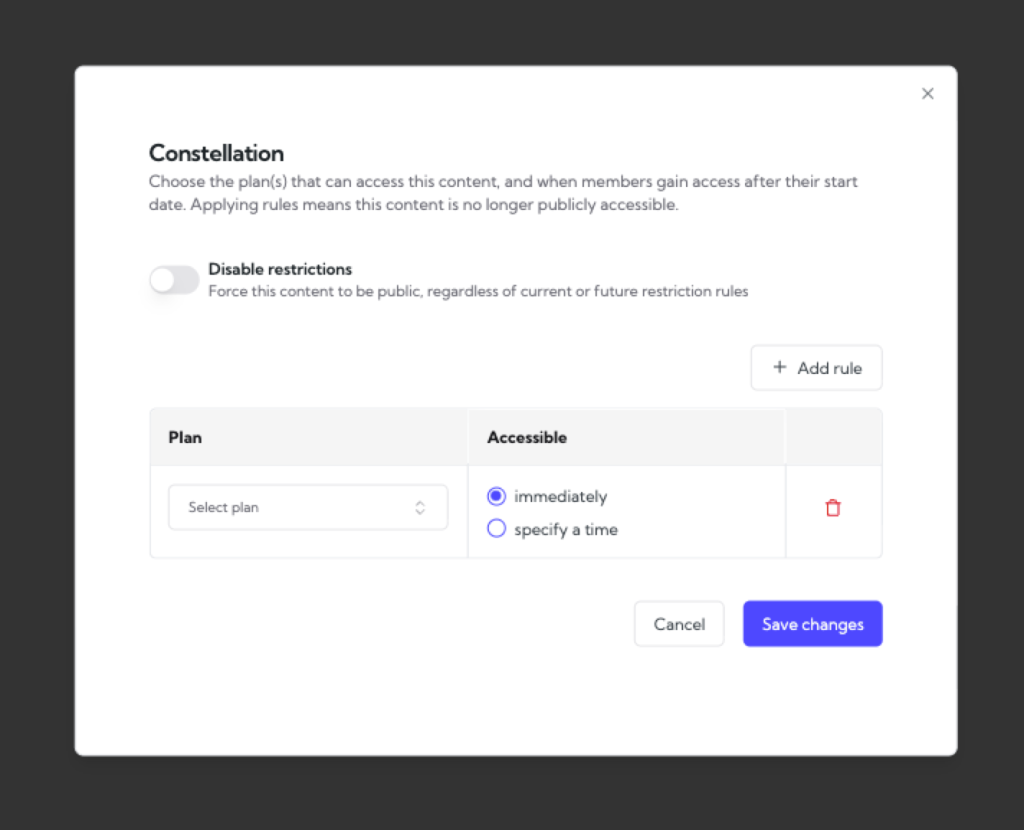
When a visitor without access tries to view restricted content, you can choose to:
- Redirect them to another page (like your membership signup page or the purchasable access product),
- Show a teaser message, or
- Hide the content entirely.
In the WordPress block editor, you can also wrap sections of a page in Members-Only blocks or use shortcodes to show or hide specific parts of the content. Restricting membership content is primarily done at the post or category levels, but you have the freedom to secure individual blocks or content sections as well.
Restricting videos (when hosted by Vimeo or YouTube)
The most secure way to protect videos is to combine Constellation’s content restriction with your video host’s domain restrictions. Check out this post on our blog for a more complete guide of restricting video content with Constellation.
Example: Vimeo
- Restrict the page with Constellation. Create a rule that limits access to the page or post containing the video embed.
- Restrict playback to your domain. In your Vimeo video settings, go to Privacy → Where can this video be embedded? and choose Only on these domains. Add your site domain (e.g.
example.com). - Disable downloads and public pages. Turn off public video pages and file downloads in Vimeo.
With both steps in place:
- Non-members can’t access the page (blocked by Constellation).
- Even if someone shares the embed link, Vimeo will only play the video on your approved domain, so the shared link will not work outside of your membership-gated content.
Use Constellation to restrict membership content access at the post or page level, your hosting platform (e.g., Vimeo or Amazon S3) to control access at the file level, and WooCommerce to deliver files securely.
Together, these tools create a seamless and secure members-only experience for your site.
Restricting downloadable files (such as PDFs)
To restrict membership content such as downloadable files with Constellation leverages WooCommerce’s built-in downloadable products.
Start by uploading your file as a WooCommerce downloadable product. In the product editor, enable the Downloadable option and upload your file under Downloadable files, setting any limits or expirations as needed.
Enable Downloads require login to ensure only logged-in users can access the file, and optionally allow downloads immediately after payment if desired.
Next, in Constellation → Memberships → Rules, restrict access to that product so only members of the appropriate plan can view or download it.
Optional: You can use Constellation along with Amazon S3 Storage for WooCommerce by Kestrel to ensure your downloads are fast and secure.