


This recipe gives members store credit every time they pay for their membership, the same idea as an audiobook club’s monthly credit: members pay a fee and get credit to spend in your store each billing period. Constellation sells the membership and handles renewals, and an Account Funds cashback reward on the membership product adds the credit each time the membership is paid.
The two plugins don’t need to talk to each other. Every membership payment is a WooCommerce order containing the membership product, and the cashback reward credits the customer whenever that product is bought.
Overview
- Membership type: Paid, with recurring billing
- Billing cadence: Monthly or annual
- Primary benefit: Store credit added to the member’s balance with every payment
- Best for: Stores whose customers buy again and again, such as consumables, coffee, cosmetics or supplies
What members get
- A set amount of store credit each billing period, spendable on anything in your store.
- Any other perks the Constellation plan gives, such as member discounts or exclusive products.
When this model works well
- Customers already reorder regularly, so the credit turns into orders.
- You want the fee to feel like value received rather than a cost.
- You’d rather give credit than a standing percentage discount.
When to avoid this model
- Most customers buy once or twice a year, so credit would pile up unused.
- Your margins can’t absorb credit equal to, or above, the membership price.
Reference model
| Plan | Price | Credit each payment | Other perks |
|---|---|---|---|
| Basic | $15 / month | $15 | Members-only products |
| Plus | $30 / month | $35 | Members-only products, free shipping |
| VIP | $50 / month | $60 | Everything in Plus, plus early access |
You don’t need all three tiers to start. One plan with credit equal to its price is a good first version.
Step 1: Create the membership product
In Constellation, create the plan members join, then the product they buy:
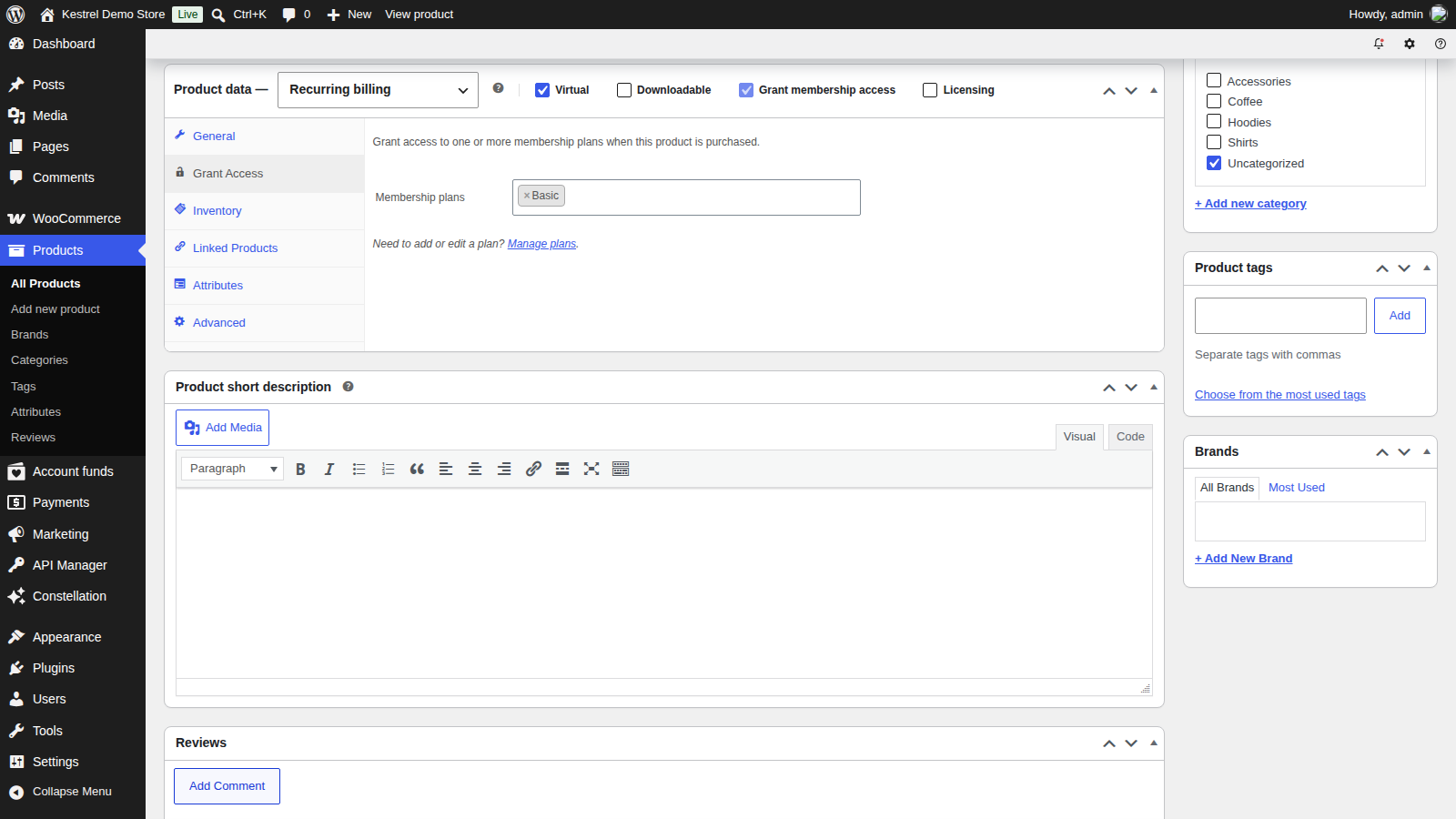
- Go to Products » Add New and choose the Recurring billing product type.
- Set the price and billing period, such as $15 every month.
- On the Grant Access tab, choose the plan under Membership plans. Grant membership access is ticked automatically for Recurring billing products.
- Publish the product.
See Sell memberships with Constellation for the full product options. This product is what the cashback reward watches for, so each tier needs its own product.
Step 2: Create the cashback reward
Go to Account funds » Cashback, click Add new cashback reward, and name it, for example "Basic member credit". Then set:
- Amount type: Fixed ($)
- Amount ($): 15
- Award cap: Keep awarding this cashback indefinitely
- Award trigger: Product purchase
- Eligible products (on the Eligibility tab): Some products, with the Basic membership product picked under Products
- Award limits: Unlimited
- Product quantity: Award cashback once per eligible product ignoring its quantity in the same order
- Status: Active
Click Create.
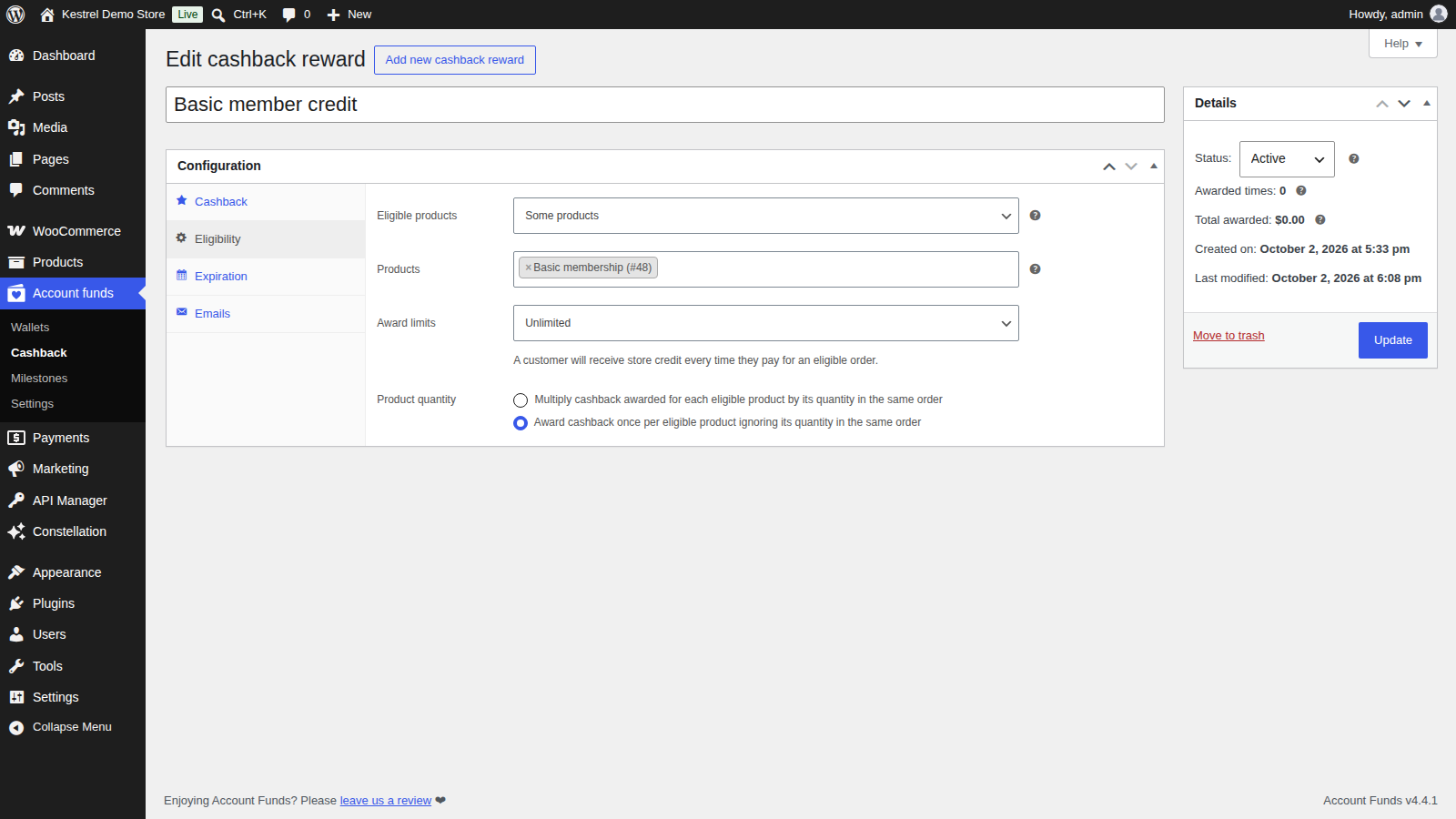
Award limits set to Unlimited and the indefinite Award cap let the reward pay out on every renewal, not just the first purchase; with a limit, it would stop or deplete. Ignoring the quantity keeps the credit to one amount per order. If your plan uses Constellation’s Allow cumulative purchases and you want a two-period purchase to earn credit for both periods, choose the multiply option instead.
Repeat this step for each tier, with its own product and amount.
Step 3: Set an expiration (optional)
To make the credit use-it-or-lose-it, open the reward’s Expiration tab and set Award expires to After a duration, with Expires after set to your billing period, such as 1 Month(s). Each payment’s credit then expires a month after it’s added, around when the next payment’s credit arrives. See Expire and schedule store credit rewards in Account Funds.
Leave it at Never expires if you’d rather members could save their credit up.
Step 4: Test a purchase and a renewal
- In a private browser window, log in as a test customer and buy the membership product.
- Once the order is Processing or Completed, go to Account funds » Wallets and filter by the test customer. You’ll see a Product purchase credit for the reward amount.
- When the first renewal order is paid, check Wallets again for a second credit.
The renewal order needs to contain the membership product, since that’s what the reward matches. If a renewal doesn’t add credit, check the renewal order’s items.
Common variations
With WooCommerce Subscriptions
The same reward works on a WooCommerce Subscriptions product: pick the subscription product under Eligible products. Renewal orders contain the subscription’s products, so each paid renewal earns the credit.
Bonus credit
Set Amount ($) above the membership price, such as $35 for a $30 plan, so the membership is worth more than it costs.
Credit as a percentage of the payment
Use an Order paid reward instead, with Amount type set to Percentage (%) and Eligible orders set to Order contains specific products, with the membership product picked. The percentage is calculated on the whole order total, so if members buy other products in the same order, those count too.
Common issues
Credit wasn’t added on a renewal
Check that the reward is still Active and not Depleted, that the renewal order reached Processing or Completed, and that the order contains the membership product picked in Eligible products.
Credit was added twice for one payment
Two rewards may target the same product. Check the order notes for "Awarded $X as store credit cashback to customer via…", which names the rewards that paid out. The amount in that note is each reward’s configured amount, so check Account funds » Wallets for the credit actually added. With the multiply option, a quantity of two also doubles the credit.
Members ask where to see their credit
The My Account store credit tab shows their balance, but not a list of each credit. Turn on the Store credit awarded email under WooCommerce » Settings » Emails so members hear about each payment’s credit.
Credit expired before members could use it
The reward’s Expiration tab sets how long each credit lasts. Lengthen Expires after, or choose Never expires. Credit already awarded keeps its original expiration date.