WooCommerce partial payment lets customers use their store credit balance toward an order, then pay the remaining amount with another payment method. A customer with $30 in credit buying a $75 item pays $45 with their card, and the experience is seamless and flexible.
This guide covers enabling partial payments, how the checkout experience works, and considerations for your payment flow.
How WooCommerce Partial Payment Works
With partial payments enabled:
- Customer adds items to cart
- At checkout, they see their available store credit balance
- They choose to apply store credit to the order
- The order total reduces by the applied amount
- They pay the remaining balance with any available payment gateway
- Both the store credit deduction and gateway payment process together
Example:
- Order total: $100
- Customer’s balance: $35
- Customer applies store credit
- New total shown: $65
- Customer pays $65 with credit card
- $35 debited from wallet, $65 charged to card
- Order complete
Enabling Partial Payments
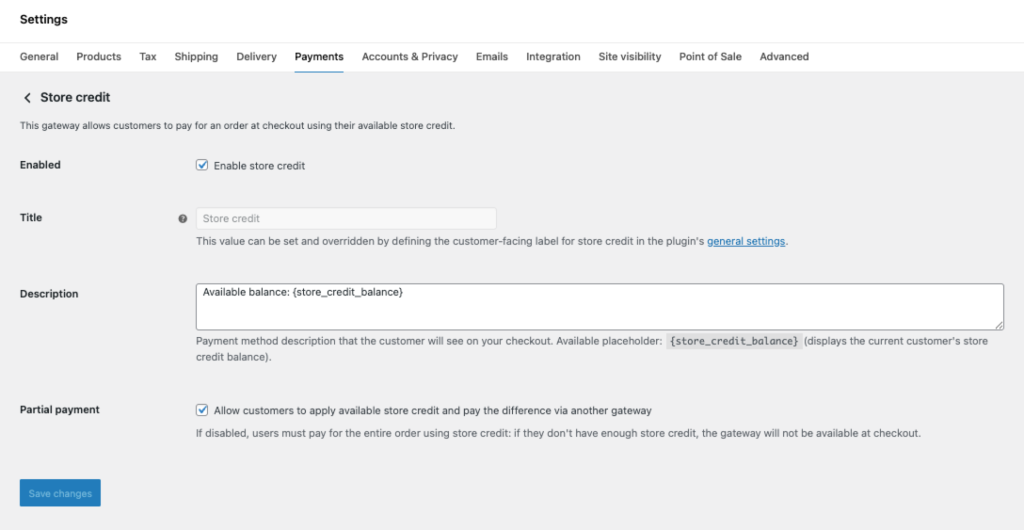
Partial payments are controlled in the gateway settings:
- Navigate to WooCommerce → Settings → Payments
- Find the Account Funds (or Store Credit) gateway
- Click to configure
- Enable the “Partial payment” checkbox
- Save changes
The setting reads: “Allow customers to apply available store credit and pay the difference via another gateway.”
When Partial Payments is Disabled
With partial payments disabled:
- Customers can only use store credit if their balance covers the entire order
- The gateway only appears when balance ≥ order total
- Customers can’t combine store credit with other payment methods
This mode is useful if you want store credit to function as a full payment method only, similar to a gift card that must cover the purchase.
Customer Checkout Experience
Classic Checkout (Shortcode)
On the traditional WooCommerce checkout page, customers see a store credit section before the payment methods.
If they have a balance:
- A notice shows their available balance
- A checkbox or button allows them to “Apply store credit”
- Clicking it applies their full available balance (up to the order total)
- The order total updates to show the reduced amount
- Payment gateway options appear for the remainder
If they apply credit and their balance exceeds the order total, the system applies only what’s needed, and the store credit gateway becomes the sole payment method.
Block-Based Checkout
WooCommerce’s block-based checkout works similarly:
- Store credit application appears in the checkout flow
- Customers apply available credit
- Order total updates
- Standard payment blocks handle the remainder
The exact interface depends on your theme and checkout block configuration, but the functionality is consistent.
Removing Applied Credit
Customers can remove applied store credit before completing checkout:
- A “Remove” link or button appears next to the applied credit
- Clicking it removes the credit from the order
- Order total returns to the original amount
- All payment gateways become available again
Order Processing
How the Transaction Works
When a partial payment order is placed:
- Store credit is held: The applied amount is temporarily held against the customer’s balance
- Primary gateway processes: The remaining amount charges through the selected payment gateway
- On success: Store credit is debited from the wallet, order moves to Processing
- On failure: Store credit hold is released, customer can try again
This two-step process prevents situations where credit is deducted but the card payment fails.
Order Records
Partial payment orders store metadata:
_funds_used: Amount of store credit applied_funds_removed: Whether the credit has been debited (prevents double-charging)_funds_version: Plugin version for compatibility
Order notes document both the store credit deduction and the gateway payment.
Order Total Display
When viewing an order with partial payment:
- Order total shows the full original amount
- A “Store Credit” line shows the credit applied (as a reduction)
- The payment method shows what was charged externally
This maintains full visibility into both the order value and how it was paid.
Cart Display
Cart Page
On the cart page, customers may see:
- Their available store credit balance
- Option to apply credit before proceeding to checkout
- Or simply proceed to checkout where they’ll apply it
The exact cart experience depends on your theme and whether you’ve enabled cart-level store credit display in plugin settings.
Mini Cart
Mini carts (header cart widgets) typically show the adjusted total if store credit is applied, maintaining consistency across the shopping experience.
Interactions with Other Features
Coupons
Coupons and store credit can be used together:
- Customer applies coupon (e.g., 10% off)
- Order total reduces
- Customer applies store credit
- Order total reduces further
- Customer pays remainder with gateway
The order of application typically is: product prices → coupons → store credit → payment.
Cashback Rewards
Cashback is calculated on the order value, not the payment method used. A $100 order with 5% cashback earns $5 regardless of whether it was paid with:
- $100 store credit
- $50 store credit + $50 card
- $100 card
The cashback credits after the order is paid, adding to the customer’s balance for future purchases.
Subscriptions
For WooCommerce Subscriptions:
Initial order: Partial payments work normally. Customer can use credit for signup, pay remainder with card.
Renewal orders: Depends on the subscription’s payment method. If the subscription uses the store credit gateway, renewals attempt to pay from wallet first. If insufficient balance, behavior depends on your configuration (fail payment, fall back to another method, etc.).
Partial payments on renewals are complex—generally renewals use a single payment method rather than combining sources.
Gateway Compatibility
Partial payments work with most WooCommerce payment gateways. The store credit portion processes independently, reducing what the external gateway needs to charge.
Tested Compatible
Commonly used gateways work well:
- Stripe
- PayPal
- Square
- WooPayments
- Bank transfer / BACS
- Cash on delivery
- Check payments
Potential Issues
Some gateways have quirks:
- Minimum charge amounts: If the remainder after store credit is below a gateway’s minimum, payment may fail
- Express checkout buttons: Apple Pay, Google Pay, and similar express methods may not account for applied store credit properly on some configurations
- Buy Now Pay Later: Services like Klarna or Affirm may have issues with reduced totals
Test your specific gateway combinations before relying on partial payments.
Configuration Best Practices
When to Enable Partial Payments
Enable partial payments when:
- You want maximum flexibility for customers
- Balances are typically smaller than order totals (earned rewards)
- You’re using store credit as a loyalty mechanism
Consider disabling when:
- Store credit is meant as a full payment method only (gift card model)
- You want simpler checkout with fewer options
- Gateway compatibility issues arise
Communicating to Customers
Help customers understand partial payments:
- Show their balance prominently at checkout
- Explain that applying credit reduces what they pay now
- Clarify that unused balance remains for future orders
Handling Edge Cases
Balance equals order total: Customer can choose to pay entirely with store credit (using the gateway) or apply partial and pay $0.00 remaining. Most gateways handle $0 orders gracefully, but some don’t. If your gateway struggles with zero-amount orders, the store credit gateway handles this scenario automatically.
Balance exceeds order total: Only the needed amount is applied. Excess remains in the wallet. The store credit gateway becomes the sole payment option since no external payment is needed.
Very small remainders: If store credit brings the total to $0.50, some gateways have minimum charge limits. Consider either:
- Informing customers to adjust quantities
- Using a gateway without minimums (like manual bank transfer)
- Allowing slightly more credit usage to bring remainder above minimums
Reporting and Reconciliation
Order Reports
WooCommerce order reports show full order values. To understand how much was paid via store credit vs. other methods:
- Export orders and look at
_funds_usedmetadata - Review Store Credit → Transactions for debits tied to orders
- Compare gateway transaction records (which show only the card portion)
Revenue Recognition
For accounting purposes:
- Store credit was revenue when originally deposited (if purchased) or represents deferred revenue (if earned but not from direct deposit)
- When used, it’s recognition of that deferred revenue
- The gateway portion is new revenue
Consult your accountant for proper treatment in your jurisdiction.
Troubleshooting
Store Credit Option Not Showing
If customers don’t see the option to apply store credit:
- Verify partial payments is enabled in gateway settings
- Confirm the customer is logged in (guests don’t have balances)
- Check the customer actually has a balance
- Clear caching and test again
- Verify no theme/plugin conflicts hiding the element
Credit Applied But Order Failed
If store credit was applied but the order failed:
- Credit should be automatically released (not debited) on payment failure
- Check wallet transactions to confirm no debit occurred
- The gateway failure is likely the issue—investigate that separately
- Have customer retry; their credit should still be available
Double Charge
If a customer was charged both store credit and full gateway amount:
- Check order meta—was
_funds_removedproperly set? - Review order notes for timing of events
- This typically indicates a race condition or plugin conflict
- Refund the appropriate amount (either credit back to wallet or refund via gateway)
- Contact support if reproducible
Cart Total Not Updating
If applying store credit doesn’t update the displayed total:
- Check for JavaScript errors in browser console
- AJAX may be blocked or failing
- Try a different browser to rule out caching/extension issues
- Disable other plugins temporarily to identify conflicts
Related Guides
- Getting Started with Account Funds
- Cashback Rewards — How customers earn credit
- Store Credit Products — Letting customers buy credit
- Refunds to Store Credit — Credit refunds instead of cash